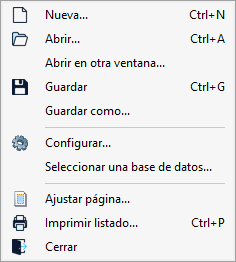
"File" menu
The "File" menu is located in the top-left corner of the Report template editor.
The following options are available:
- New (Ctrl + N)
Create a new template from scratch, in the same way as using the "New template" option on the editor’s start-up screen.
- Open (Ctrl + A)
Select and open an existing template for editing.
- Open in a new window
Open another template editor session, enabling you to work on two templates simultaneously and, for example, copy elements from one to the other.
When working with several windows simultaneously, two icons are displayed in the bottom-right corner of the interface: "Vertical tiling" and "Horizontal tiling". These options let you arrange the open windows vertically or horizontally, respectively.
- Save (Ctrl + G)
Save the changes made to the template you are editing. If the template you are editing is protected, a duplicate of the original is created with the changes applied. If the template is new, you will be asked to enter its name (short and long) before saving.
- Save as
Create a duplicate of the current template by specifying a different file name, the save path and a description.
- Configure
Configure the editor’s appearance and behaviour. The window is organised into the following tabs:- Initial setup
Configure the display of editor elements, such as printable objects, the millimetre ruler, template graphics and vertical guides while redesigning. - Table mode
Set the spacing between columns and the minimum spacing between rows. - Colours
Set the colours used to identify selected objects and objects beneath the cursor. - Script editor
Customise the appearance of the script editor, including the background colour and the formatting used to distinguish between different types of language terms.
- Initial setup
- Select a database
Select the database to be used with the template while editing and testing it.
- Page setup
Select and configure the printer, set the print scale and margins, and configure the page layout into rows and columns.
- Print report (Ctrl + P)
Generate the report using the template currently being edited and select the print options.
- Close
Close the template editing session. If there are any unsaved changes, the program allows you to save them before closing.