
"Sections" menu
The "Sections" menu is located in the top-left corner of the Report Template Editor.
The following options are available:
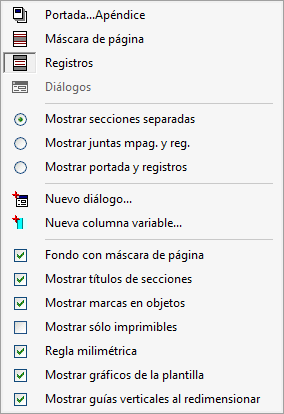
- The first four options – "Cover…Appendix", "Page Layout", "Records" and "Dialog boxes" – correspond to the four sections of the template. The tick next to each option indicates which section is currently being displayed in the editor.
- Show separate sections
Show each section of the template individually.
- Show page mask and record sections together
Show the page mask and record sections together, with the latter positioned between the bottom header and the top footer.
- Show cover page and records
Display the cover page, the records sections, and the summary, index and appendix sections together.
- New dialog box
Create a new dialog box in the "Dialog boxes" section. This option can be used repeatedly to add the various dialog boxes required to the template.
- New variable column
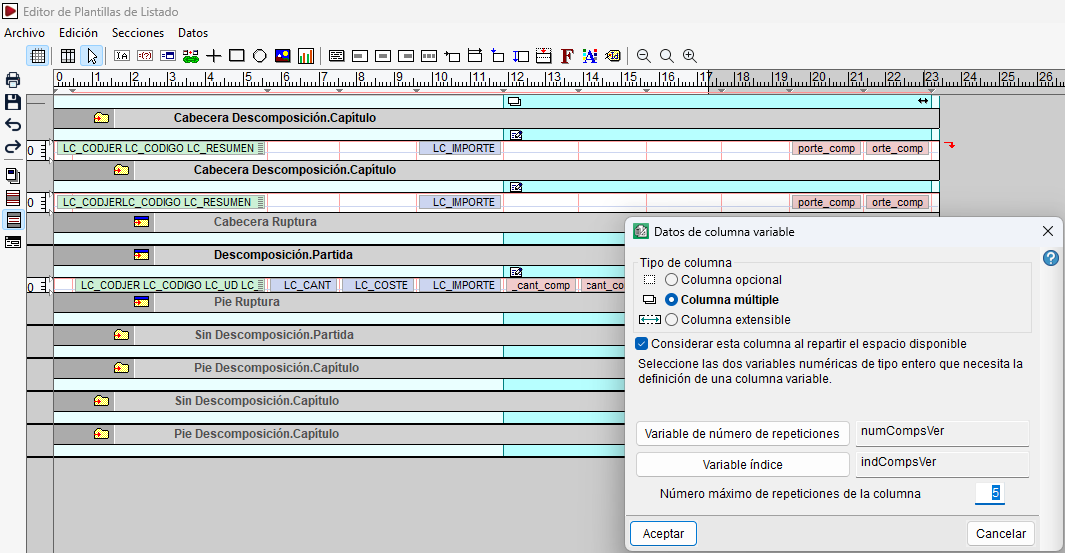
This lets you create a column whose behaviour can vary depending on variables during report generation. It can be optional, to control whether it is printed; multiple, to repeat its content a certain number of times; or expandable, to adjust its width. You can also specify whether the column should be taken into account when allocating the available space. It is important to note that, for multiple columns, the number of repetitions is limited by the maximum number of repetitions defined for the column.
Once created, the column can be edited or deleted, and you can view the list of defined variable columns. Furthermore, its width can be adjusted graphically by dragging its edges, and it may have an associated separator, which can also be edited or deleted.
- Background with page mask
If this is enabled, and the current section uses the internal page mask, the vertical lines and rectangles defined from the bottom header to the top footer are displayed in grey.
- Show section titles
Shows or hides the title bars that identify the section areas.
- Show object marks
Shows or hides the rectangles and marks that identify alphanumeric objects and their attributes.
- Show printables only
Shows only those areas where the print attribute is enabled.
- Millimetre ruler
Switch the scale of the top ruler between millimetre markings and markings based on the width of the0of the template’s default font.
- Show template images
Shows or hides the details of the charts embedded in the template.
- Show vertical guides when redesigning
Shows a vertical guide line (grey) whilst redesigning objects to make it easier to align them with objects on other text baselines.
