Creating a new project, linking to a project and importing data
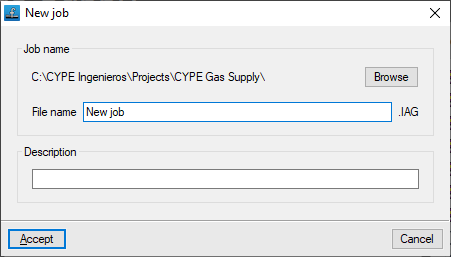
When launching the application and clicking on "New", you are given the option to create a "New project". After entering the "File name" and its "Description", the project can then be added to an existing project on BIMserver.center.
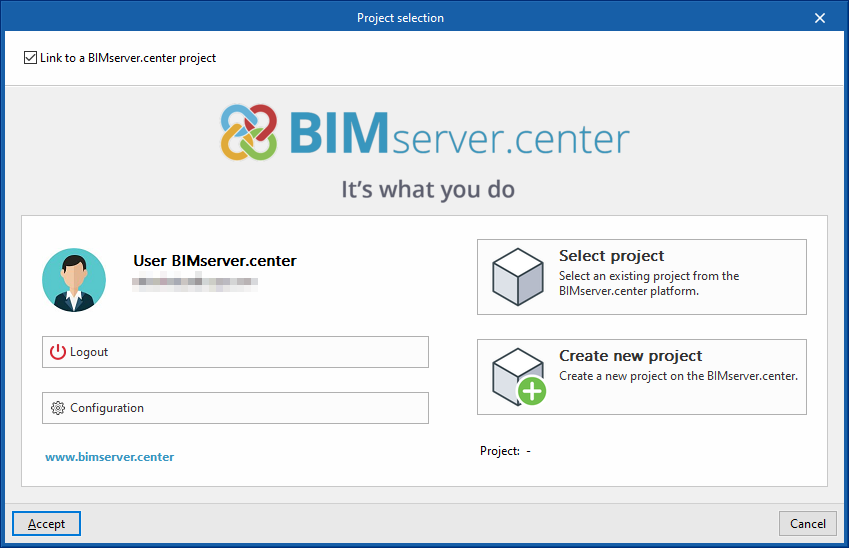
This is done in the "Project selection" window, which offers the following options:
- On the left-hand side, you can log in using a BIMserver.center account.
- On the right-hand side, you will find the "Select project" option to choose an existing project. You also have the option to "Create a new project". In this case, the project you create will be visible on BIMserver.center from that point onwards.
- You have the option to start the project without linking it to the BIMserver.center platform. To do this, simply uncheck the box labelled "Link to a BIMserver.center project", located in the top-left corner.
Importing BIM models
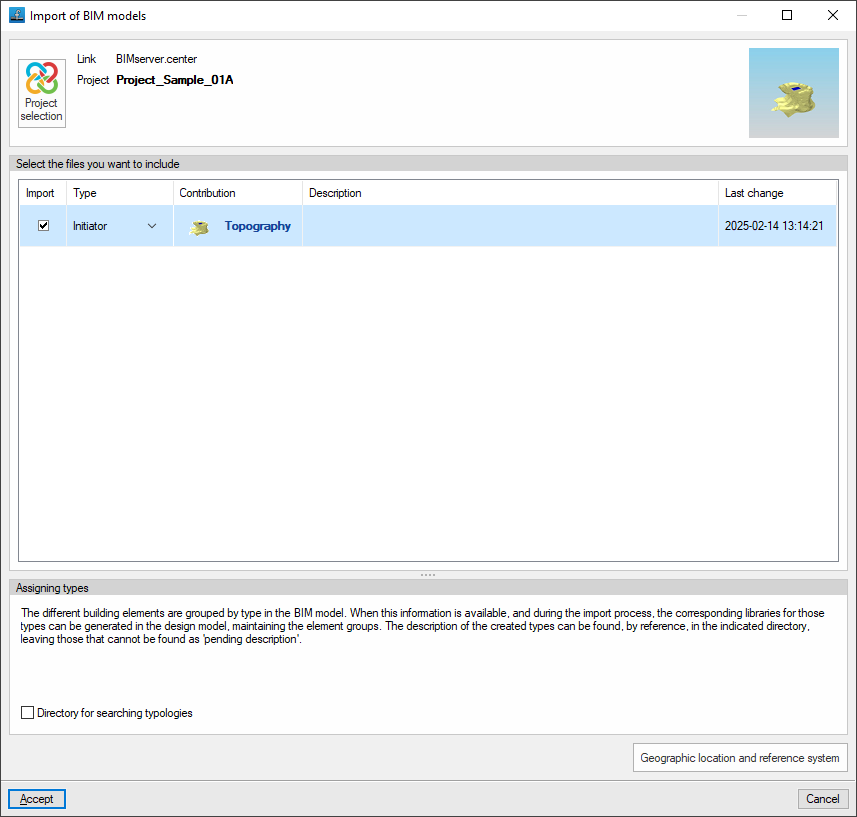
When creating a new project, if you have selected a project hosted on the BIMserver.center platform via "Select project", the "Import BIM models" window will appear, displaying the files contained in that project in IFC format.
To include the information from a specific project file, tick the "Import" box and confirm.
Configuring general installation data
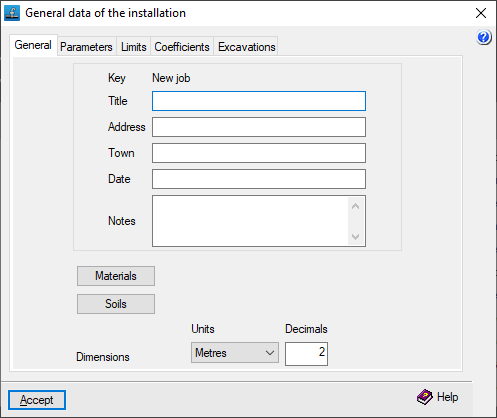
When creating a new project, the program opens the "General installation details" window to ensure this information is entered, including the definition of materials and plots of land.
You can access the settings for this data at any time via the "Edit general project details" option in the "General details" menu at the top.
Once this window is accepted, you are taken to the program’s main interface.
Import results
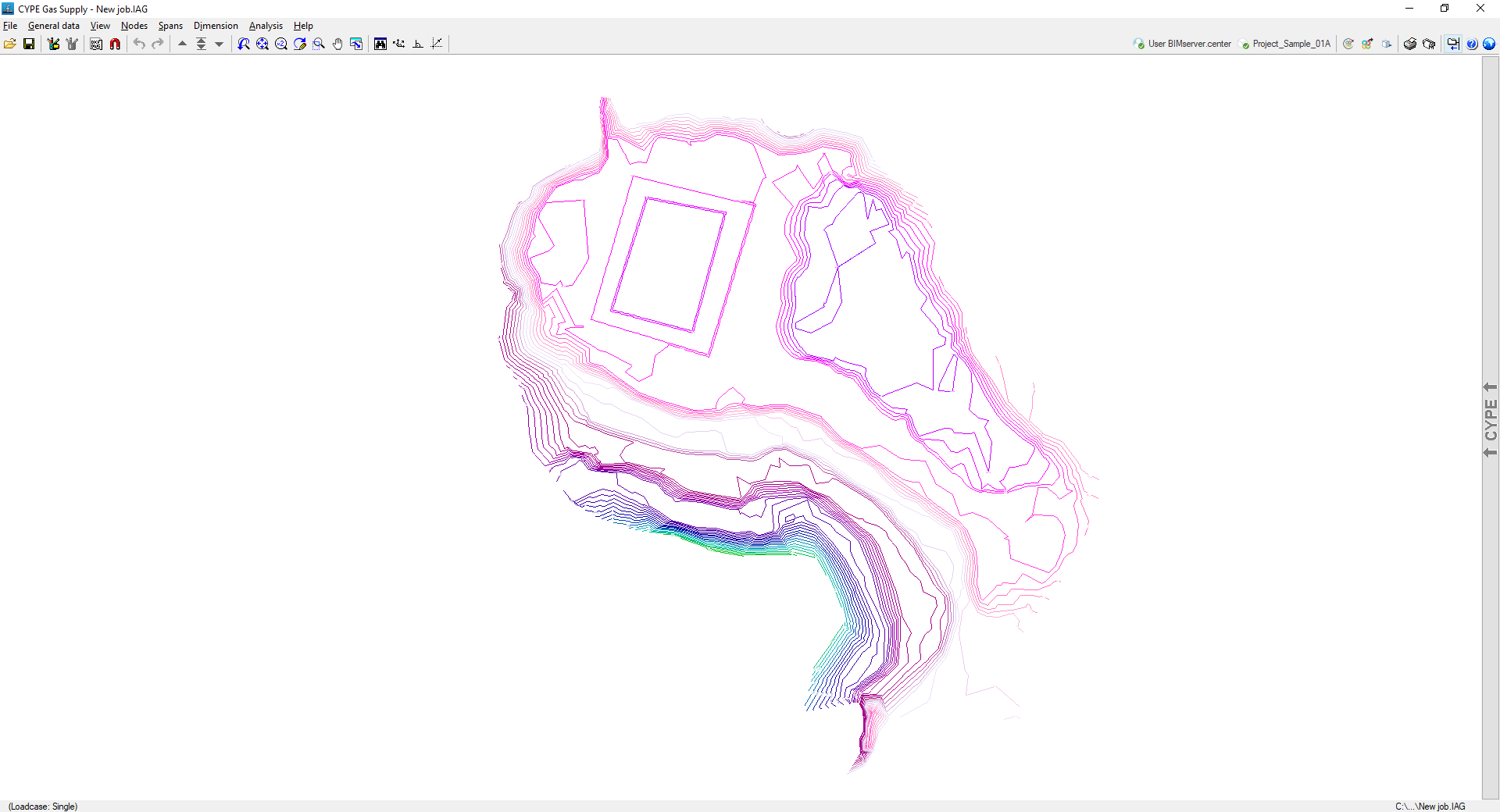
If an IFC file containing terrain data with the appropriate characteristics has been imported during the creation of a new project, the program will display the contour lines on screen (their visibility can be controlled via the "Show/hide topographic profile lines" option in the "View" menu). When nodes are added, the program will use the elevation data of the terrain at their location.
Furthermore, the 3D view will display the models included in the BIM project and imported into the project.