

Entering and editing nodes
The "Nodes" menu at the top of the program interface contains the following options for creating and editing installation nodes:

New
Allows you to insert nodes in the workspace.
Nodes are created by default as transition nodes, i.e. nodes without loads that allow changes in direction whilst maintaining the continuity of the section in the dimensioning. They can subsequently be edited via "Nodes", "Edit design data". If you right-click when entering a new node, you can also access the design data editing panel for the node being entered.
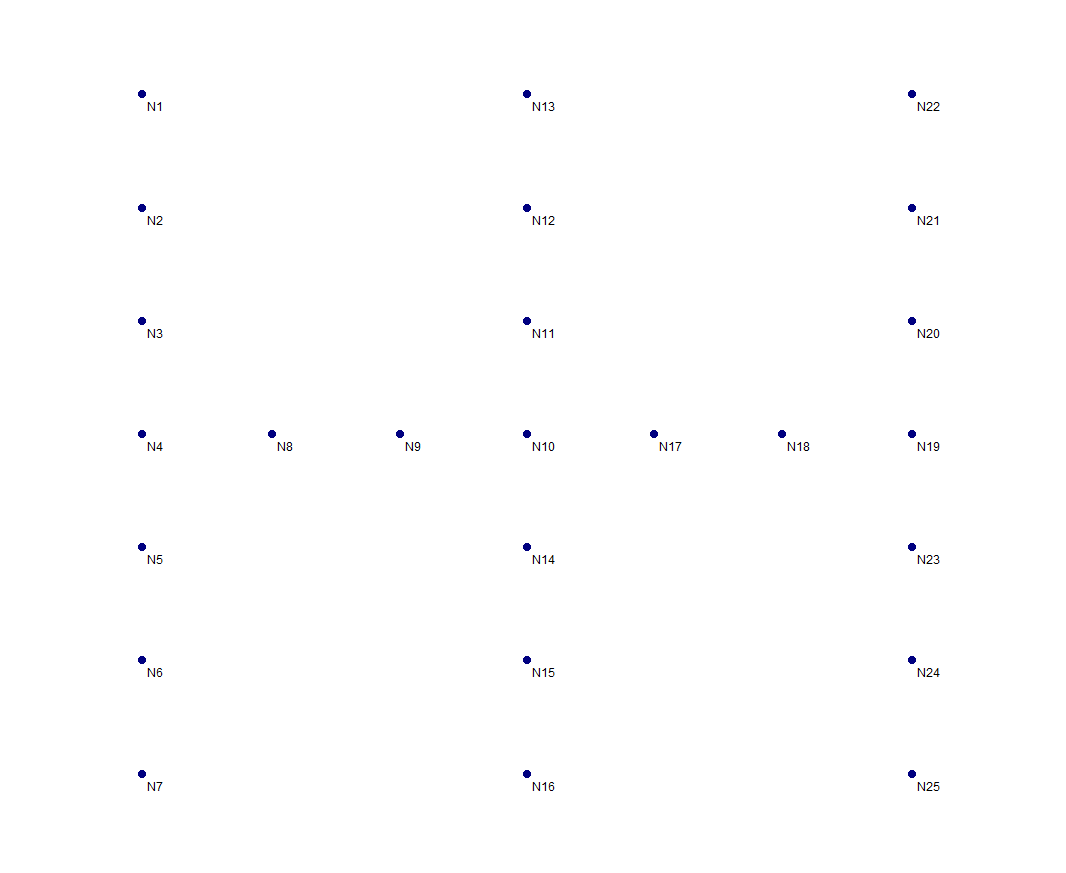
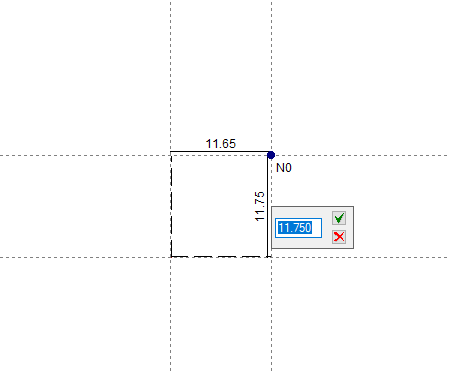
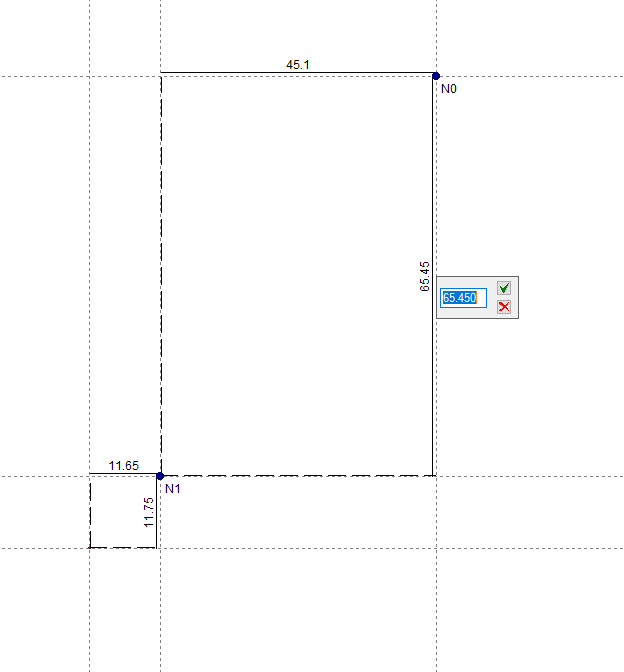
There are several ways to position the nodes on the model when using this option:
- By absolute coordinates
When entering the first node or base node of the installation by left-clicking on the screen, enter the node’s absolute X-coordinate and press "Enter"; then enter the absolute Y-coordinate and press "Enter" again. - By relative coordinates:
A base node has been entered; the remaining nodes can be added using relative coordinates, i.e. by specifying distances relative to other nodes. To do this, left-click on the screen where you wish to insert the node and enter the relative X and Y coordinates relative to the position of the nearest node. - Importing DXF or DWG files
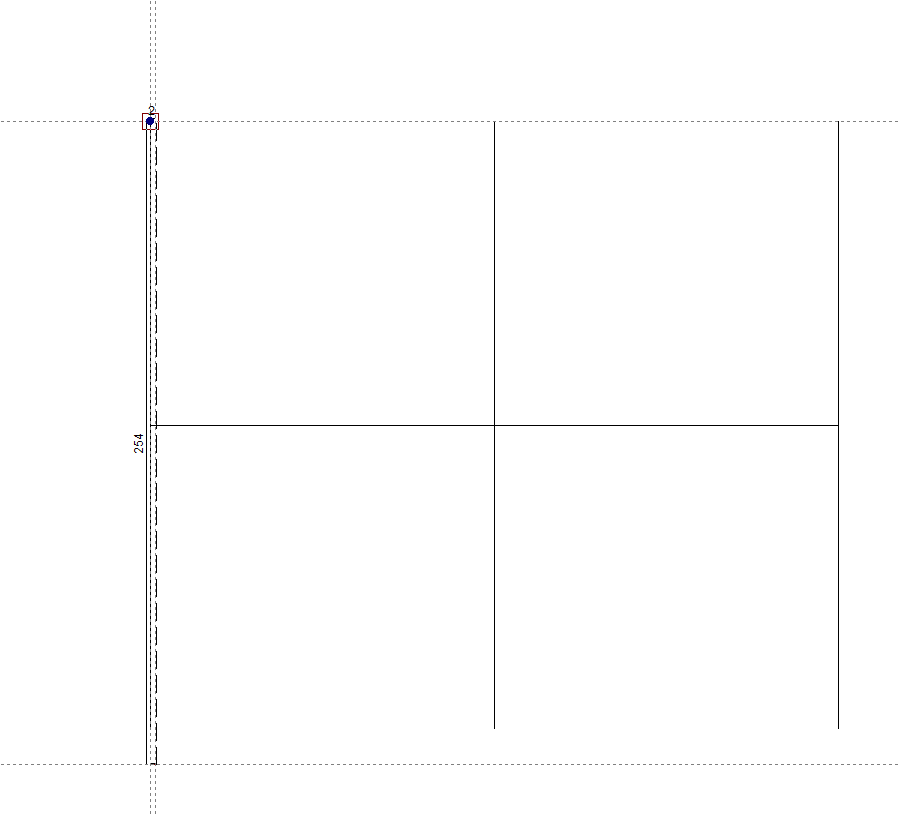
The options for importing DXF or DWG files can be used to add nodes and segments. - Automatic geometry generation
Under the "File" menu, select "Import" and then "Geometry" to automatically generate the installation geometry from a DXF or DWG file. This file must use the metre as its drawing unit, and the network must be close to the coordinate origin. In this option, you should only activate the layers containing the sections you wish to use for the generation.
Delete
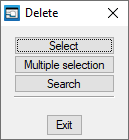
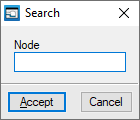
This allows you to delete the selected node. You can use the left mouse button to draw a rectangular selection area on the screen to delete multiple nodes. Furthermore, clicking the right mouse button brings up options to "Select" a single node, perform a "Multiple selection" node by node, or "Search" for a node by its reference.
Move
This allows you to reposition the selected node. After clicking on the node, click on another point to specify the new position.
Edit analysis data
This allows you to edit the selected node. You can use the left mouse button to draw a rectangular selection area on the screen to edit multiple nodes, selecting the fields you wish to edit. Furthermore, clicking the right mouse button brings up options to "Select" a single node, perform a "Multiple selection" node by node, or "Search" for a node by its reference.
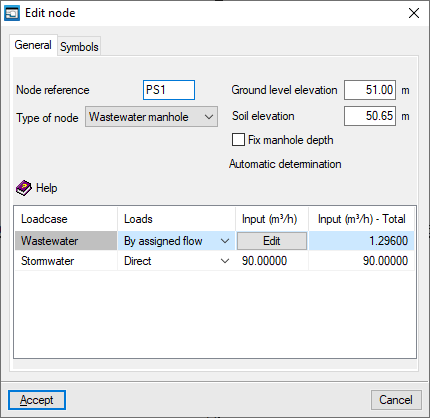
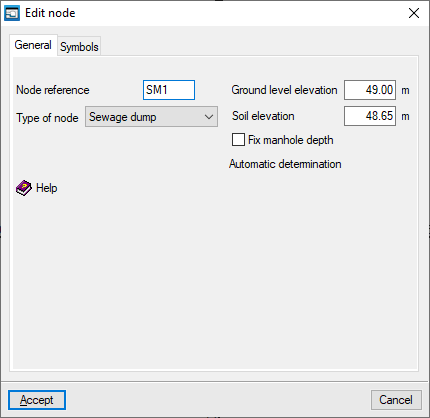
In the edit window that appears, enter the node details:
- "General" tab
- Node reference
- Type of node
- Wastewater manhole
A node where a collected water flow rate is defined for each loadcase. When this type of node is selected, the program displays a table at the bottom that allows you to define the inflow rate for each loadcase. This table contains the following columns:- Loadcase
- Loads
The load can be defined in various ways:- Direct
- By allocation
- Rainwater
- Input
The inflow rate is defined by entering its value directly if the "Direct" option has been selected; by entering a value for “Allocation” and the “Number of units” to be considered, if the “By allocation” option has been selected; or by defining the “Runoff coefficient”, the “Slope area” and the “Rainfall intensity”, if the “Rainfall” option has been selected. - Total input
Displays the total inflow rate.
- Sewage dump
The facility’s discharge point. A single discharge point must be defined for the network. This point may represent a pumping station, an outfall or an existing sewerage network. - Transition node
A node without any additional material that allows changes in direction whilst maintaining the continuity of the section in the design.
- Wastewater manhole
- Ground level elevation
The level reached by the surface after the trenches have been backfilled and the road surface has been laid. - Soil elevation
The level of the modified ground (not the undisturbed ground) from which excavation begins. The difference between the finished ground level and the ground level must be greater than the value for "Road surface thickness" defined under "General data", "Edit general project data". - Fix manhole depth (optional)
If this option remains disabled, the program automatically determines the manhole depth as the greatest depth of the intersecting sections. If enabled, you can enter the manhole depth.
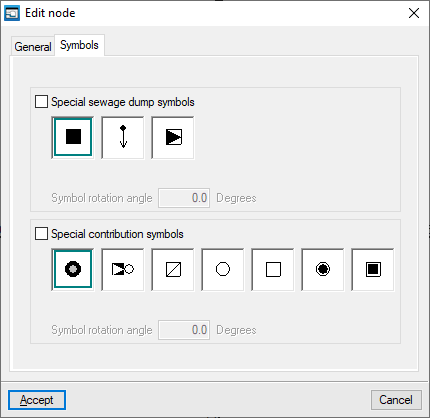
- "Symbols" tab
Allows you to define specific symbols for the node being edited.- Specific sewage dump symbols (optional)
- Specific contribution symbols (optional)
Assign analysis data
It allows you to assign data to nodes quickly.
When you click on the option, a small window opens in the top-left corner of the screen. At the same time, the node with the lowest reference number will be highlighted in yellow, and you can view and/or edit the node’s data (such as the number of units, flow rate and grade line). You can navigate through all the nodes using the relevant buttons.

Information
This allows you to view the data entered in the node.
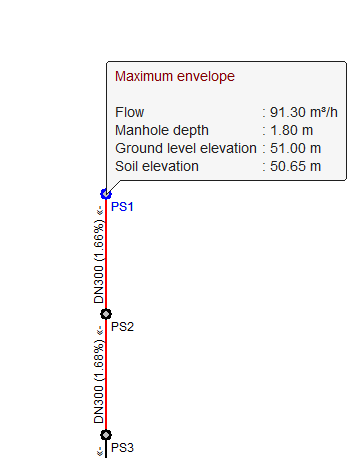
If the structure has been analysed, the analysis results for the node under the currently selected loadcase are also displayed. Furthermore, clicking on the node opens a window where you can view the results for any load, loadcase, envelope and oscillation, both analytically and graphically: the "Graphs" button displays the "Flow rate" graph for the different load cases.
Update dimensions
Update the elevations of all nodes based on the terrain topography defined in the BIM model.
