Creating a new job, linking to a project and importing data
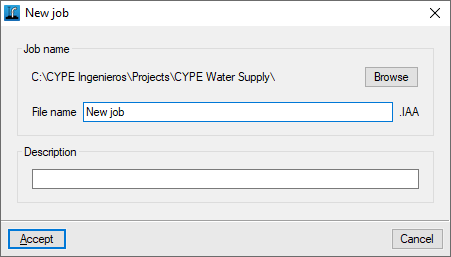
When starting the application and clicking on "New", a "New job" can be created. After entering the "File name" and its "Description", the job can then be integrated into an existing project in BIMserver.center.
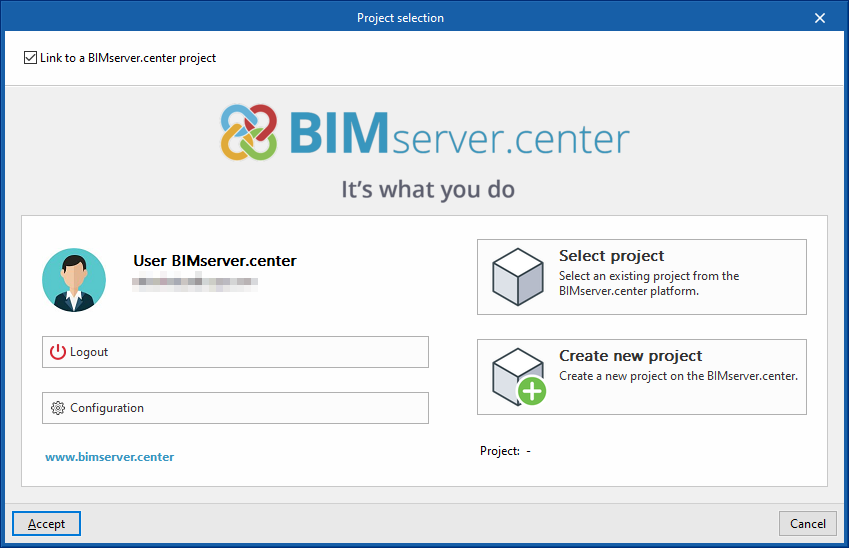
This is done in the "Project selection" window, which presents the following options:
- On the left side users can log in with a BIMserver.center account.
- On the right-hand side there is the "Select project" option to select an existing project. There is also the possibility to "Create a new project". In this case, the created project will be visible from BIMserver.center from that moment on.
- There is the option to start the project without being linked to the BIMserver.centre platform. To do this, simply uncheck the "Link to a BIMserver.center project" box at the top left.
Importing BIM models
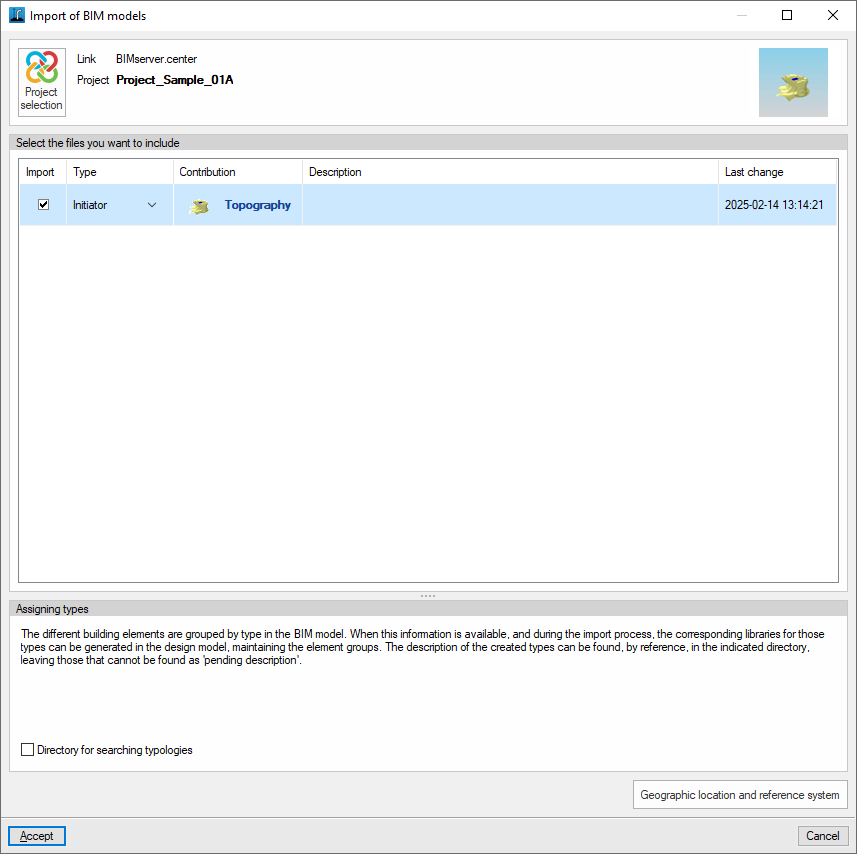
When creating a new job, if a project hosted on the BIMserver.center platform has been selected from "Select project", the "Import BIM models" window appears, which shows the files contained in the project in IFC format.
To include the information from a given project file, check the "Import" box and accept it.
Setting the system's general data
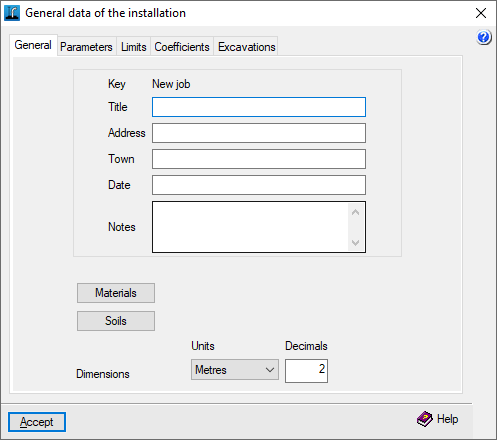
In the process of creating a new job, the program opens the "General data of the installation" window to ensure its insertion, including the definition of materials and terrains.
The configuration of this data can be accessed again at any time via the "Edit general job data" option in the "General data" menu at the top of the screen.
Once this window is accepted, the program's general interface is accessed.
Import results
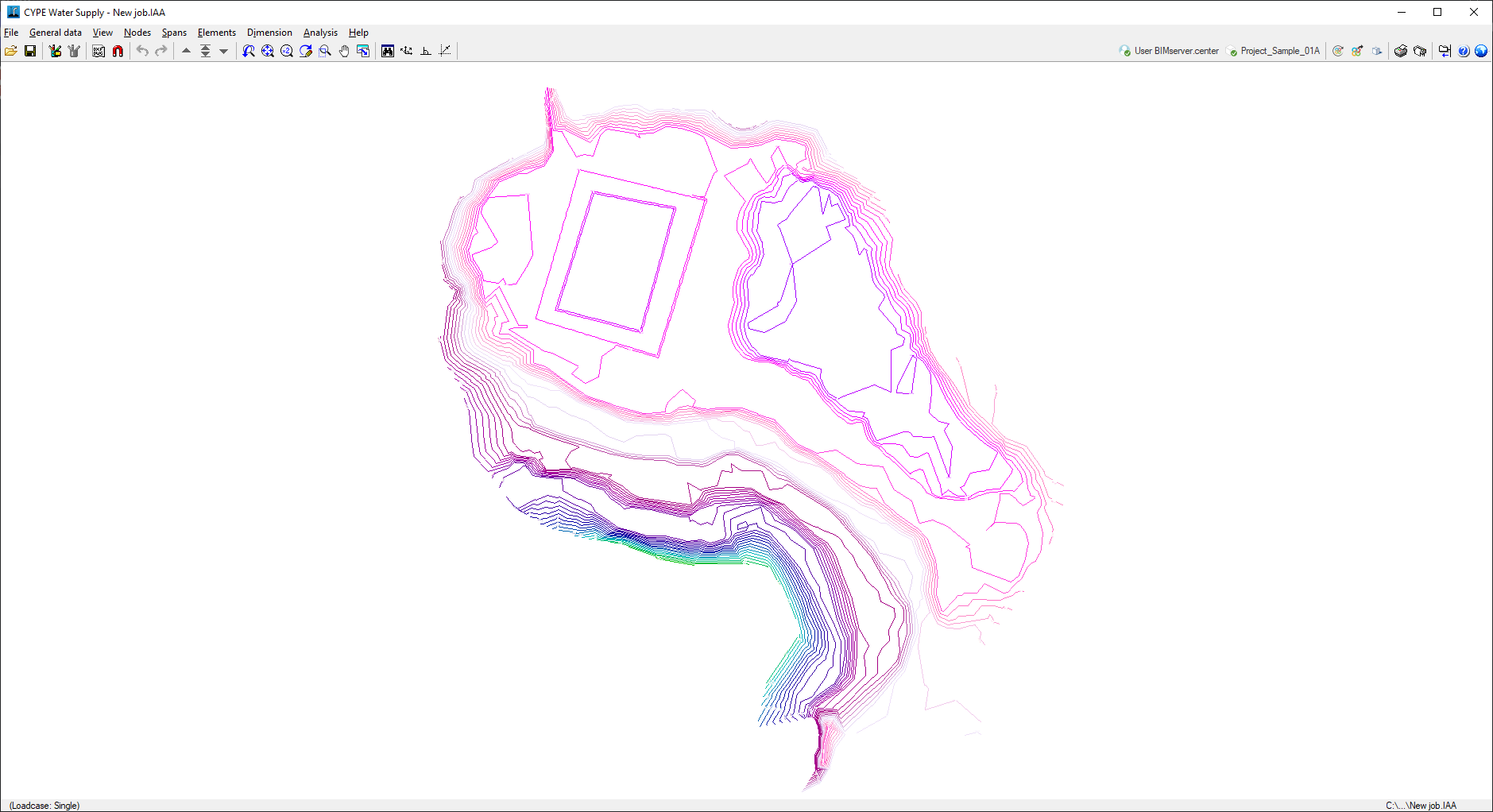
If an IFC has been imported with the terrain information with the appropriate characteristics in the process of creating a new work, the program will represent it by showing the contour lines on the screen (their visualisation can be controlled from the "Show/hide topographic profile lines" option in the "View" menu). When entering nodes, the program will take the data of the terrain elevation where they are located.
In addition, the 3D view will display the models included in the BIM project and imported into the job.