Inserting and editing spans
The "Spans" menu at the top of the program interface contains the following options for entering and editing the spans of the installation.

New
Inserts a new span into the workspace. This can be done:
- By selecting two previously created nodes from "Nodes", "New".
- By simply selecting two points on the workspace, which will define the end nodes of the span. This means there is no need to enter the nodes defining the span beforehand. When doing this, you must specify the absolute or relative coordinates of each node or capture points from a template, just as you would when adding new nodes.
In addition, the following is taken into account:
- If, when creating a new span, it crosses an existing span, a new junction will be created at that intersection.
- If, when you insert a span, the mouse pointer is positioned over the centre of a node, the end of the span will be that node. Otherwise, a new node will be created at that point.
- You can also click on a previously entered span to start from that point and create a node at the desired location.
The end nodes of the inserted spans are created by default as transition nodes; that is, nodes with no load that allow changes in direction whilst maintaining the span’s unit in the dimensioning. They can subsequently be edited via “Nodes”, “Edit design data”.
| Note: |
|---|
| The installation must be interconnected; in other words, all nodes entered in the project must be connected by spans belonging to the same network. Two separate networks cannot be entered in the same file, but a single network with one or more supply points can be entered. |
Delete
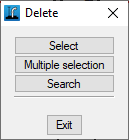
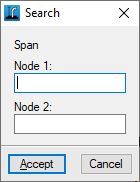
Deletes the selected span. You can use the left mouse button to draw a rectangular selection area on the screen to delete multiple spans. Furthermore, clicking the right mouse button brings up options to "Select" a single span, perform a "Multiple selection" span by span, or "Search" for a span using the coordinates of its endpoints.
When a span is deleted, the end nodes are also removed if they belong solely to the deleted span.
Edit design data
Edits the selected section. You can use the left mouse button to draw a rectangular selection area on the screen to edit multiple spans, selecting the fields you wish to edit. Furthermore, clicking the right mouse button brings up options to "Select" a single section, perform a "Multiple selection" span by span, or "Search" for a span using the coordinates of its endpoints.
In the edit window that appears, enter the details of the section:
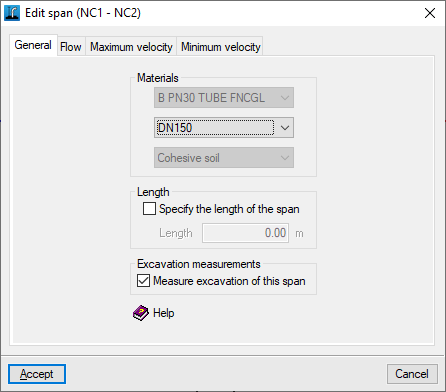
- "General" tab
- Materials
- Span material
Determines the range of diameters available for the section, both for manual selection and for preliminary sizing. In the latter case, the program will attempt to find a diameter that meets the requirements without changing the span material. - Pipe diameter
This determines the main design parameters for the pipe section. During preliminary sizing, the diameter that best fits the existing network is selected from among those defined for the material chosen for the pipe section. - Span terrain
The terrain where the trench through which the span runs is excavated. This parameter does not appear if no terrain has been selected for the project.
- Span material
- Length
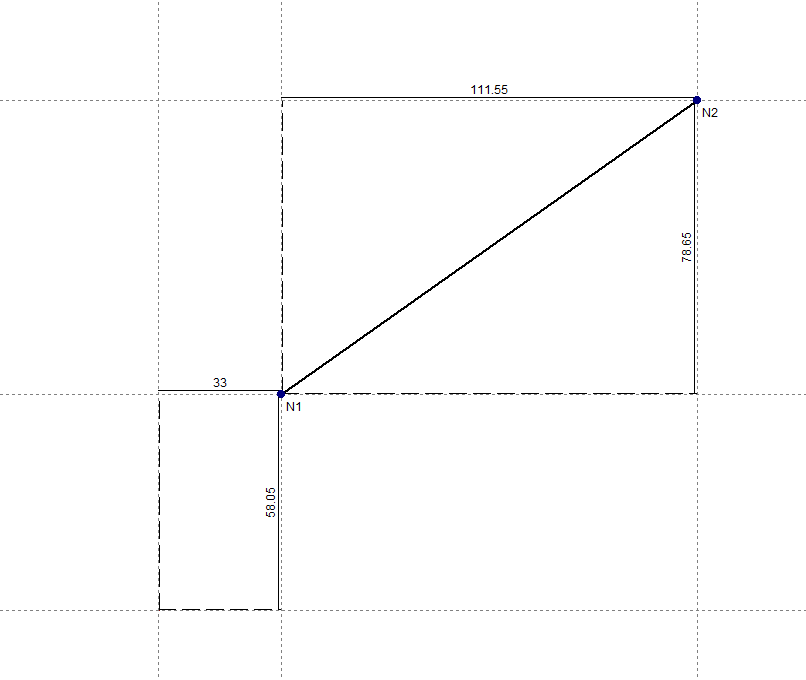
The program allows you to determine the length of the span based on the drawing provided or to enter the value directly. In the first case, the "Specify the length of the spa" checkbox remains unchecked, and the length of the span is calculated based on the coordinates of the end nodes (including their elevation). In the second case, the "Specify the length of the span" checkbox is enabled, and the length value used to calculate that span is entered. This option allows you to enter diagrams that do not need to be drawn to scale.- Specify the length of the span (optional)
- Excavation measurements
- Measure excavation of this span (optional)
- Materials
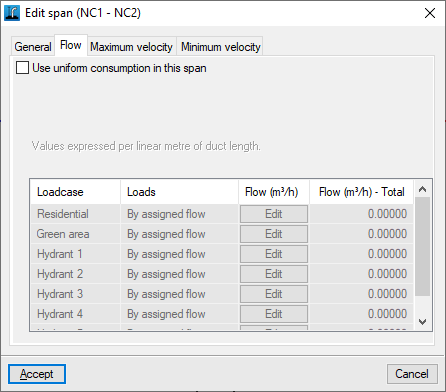
- "Flow" tab:
Defines a uniform water consumption rate for the section. The values are expressed per linear metre of pipeline length.- Use uniform consumption in this span (optional)
When this box is ticked, the program displays a table at the bottom that allows you to define the flow rate for each loadcase. This table contains the following columns:- Loadcase
- Loads
Flow rate can be defined in two ways:- Direct
- By assigned flow
- Flow rate
The flow rate per linear metre of pipeline is defined by entering the value directly if the "Direct" option has been selected, or by entering a value for "Allocation" and the "Number of units" to be taken into account if the "By allocation" option has been selected. - Total flow
Displays the total flow rate per linear metre of pipe.
- Use uniform consumption in this span (optional)
| Note: |
|---|
| Simulating the distribution of water consumption points as being linearly distributed along a span of pipework can be useful in a number of situations. Firstly, it can be used to produce an initial estimate when designing systems with similar consumption points supplied along a long span of pipework. From the graphical results, it is possible to determine at which point the pressure requirements established for the project are no longer met, so that the span can be split into two with more suitable diameters. When designing systems such as drip irrigation, the results obtained with this option may be sufficiently accurate without the need to introduce many consumption nodes. |
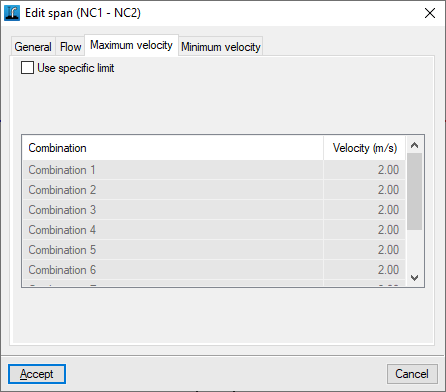
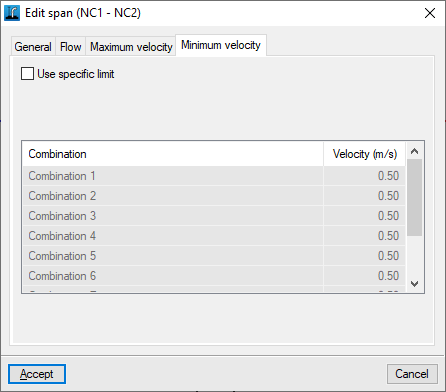
- "Maximum speed" and "Minimum speed" tabs
Enters specific speed limits for the span being edited, for each of the loadcase combinations shown in the table.- Use custom limit (optional)
Split a span into parts
This allows you to select a span and split it into several sections, automatically creating nodes along the section. This can be done by specifying the "Maximum distance between nodes" or the "Number of intermediate nodes".
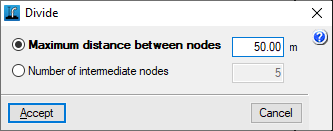
Assign design data
Quickly assigns data to sections.
When you click on the option, a small window opens in the top-left corner of the screen. At the same time, the selected span is highlighted in yellow, starting with the one with the lowest node references. You can view and/or edit the section’s details (such as length, material and diameter), and navigate through all the sections using the relevant buttons.

Information
This allows you to view the data entered in the section.
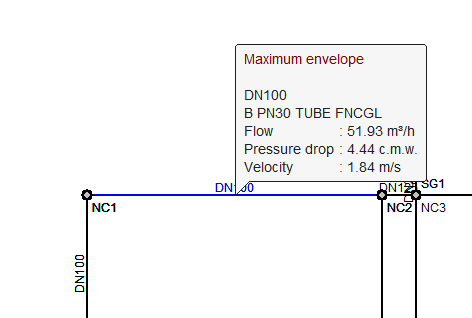
If the structure has been analysed, the design results for the span under the currently selected load case are also displayed. Furthermore, clicking on the span opens a window where the results can be viewed for any scenario, load case, envelope and oscillation, both analytically and graphically. The "Graphs" button displays the graphs for "Uniform consumption", "Flow rate", "Velocity", "Piezometric head", "Pressure" and "Pressure drop" for the different combinations.