Creating openings in floor slabs using a perimeter of beams
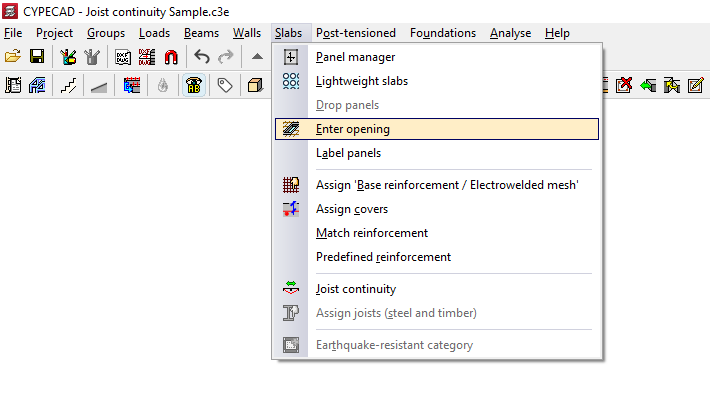
The "Enter opening" option, located in the "Panels" menu on the "Beam input" tab, allows you to automatically generate a rectangular perimeter of beams that form an opening in the floor plan.
| Note: |
|---|
| This option should not be confused with "Delete panel (enter opening)" in the "Panel Manager" menu, which allows you to define an empty opening in a section of the floor plan based on the outline of previously entered beams. |
When you click on this option, a dialogue box appears with the following options:
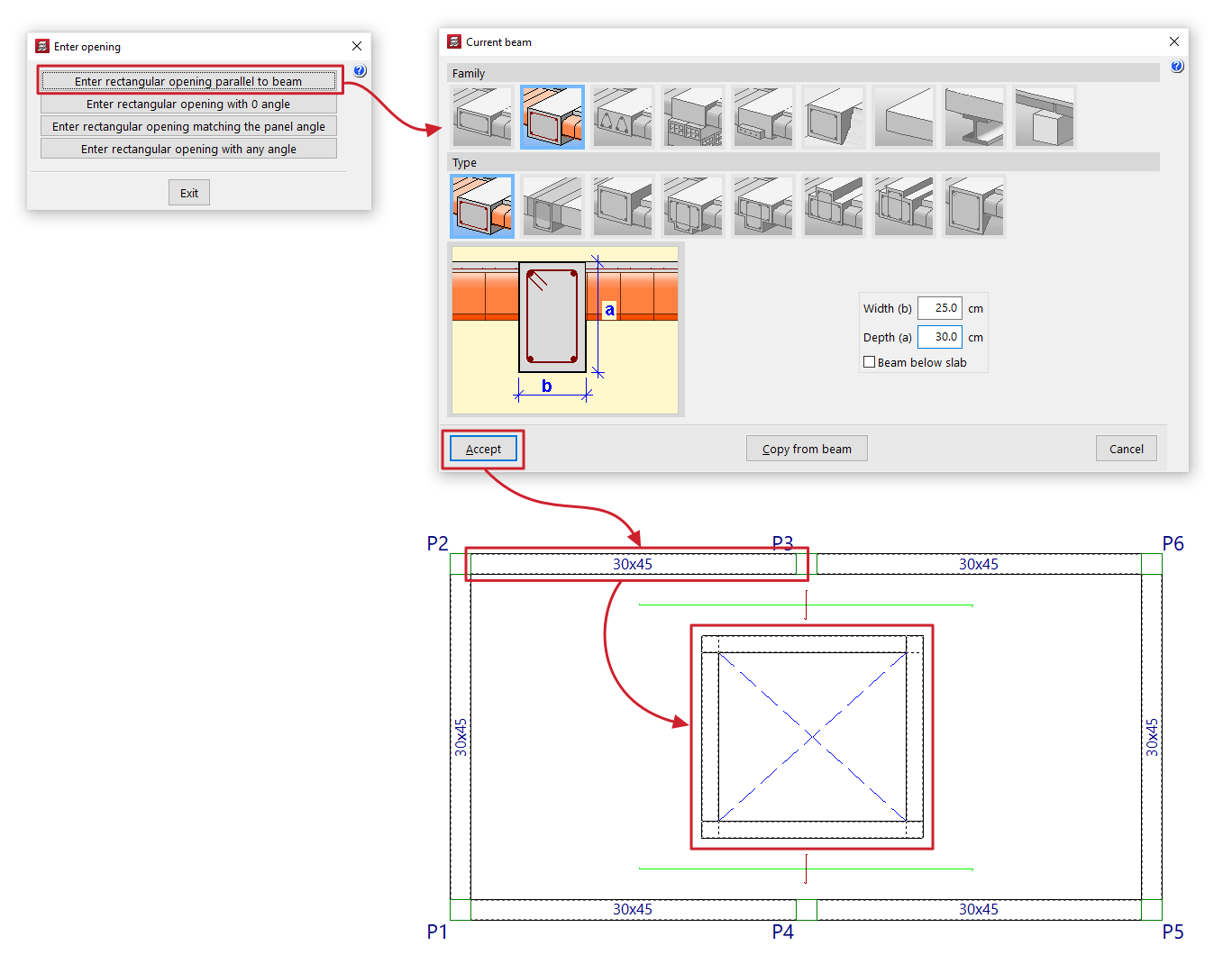
Enter rectangular opening parallel to beam
When you click this option, the “Current beam” window opens first, where you can specify the type of beam to be used as the edge of the opening.
Next, the user must select an existing beam, to which the beams of the generated rectangular opening will be parallel and perpendicular. Finally, two points must be marked on the plan view, which will form one of the diagonals of the opening.
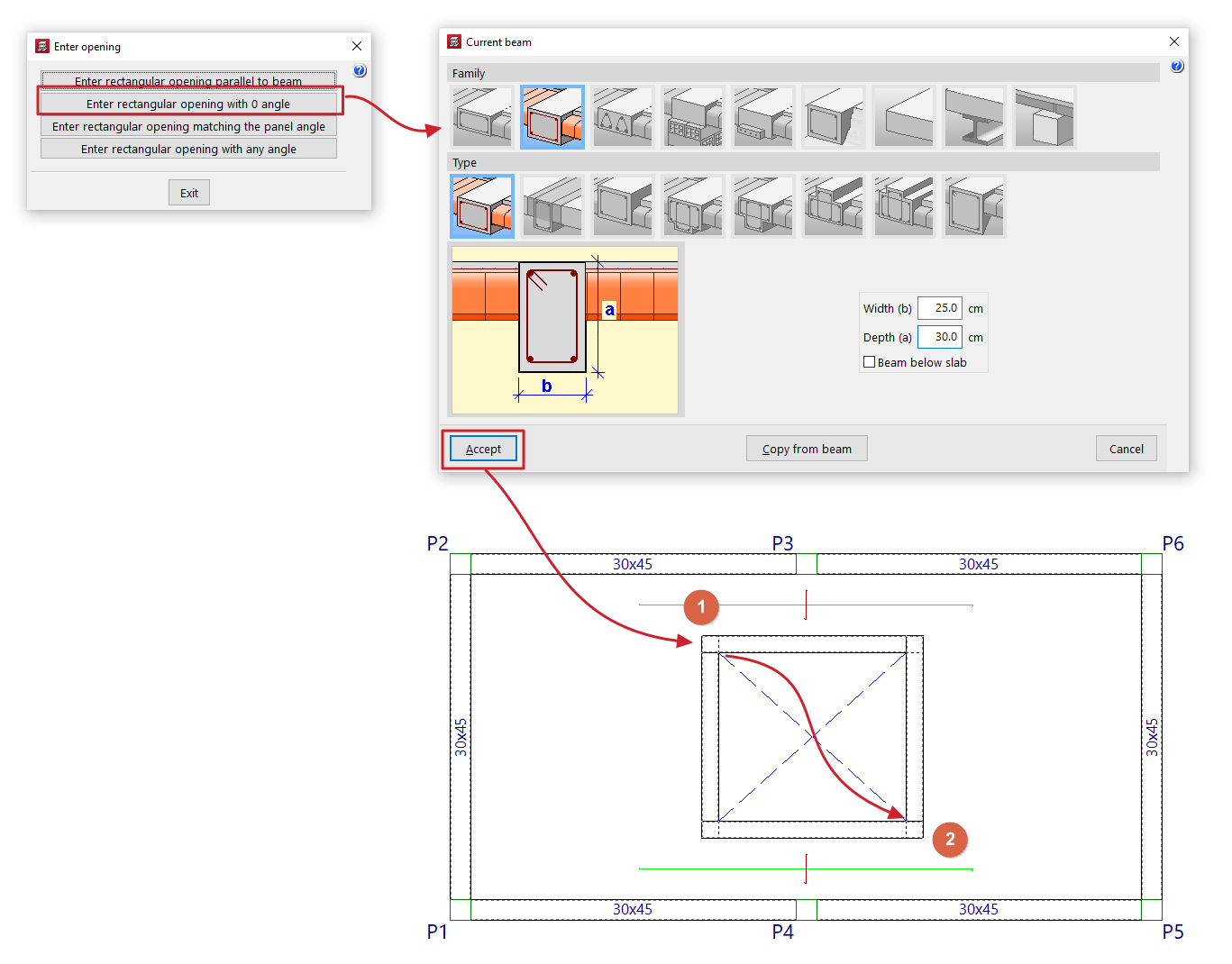
Enter rectangular opening with 0 angle
When you click this option, the “Current beam” window opens first, where you can specify the type of beam to be used as the edge of the opening.
Next, mark two points on the floor plan, which will form one of the diagonals of the opening. The beams will follow the directions of the main coordinate axes.
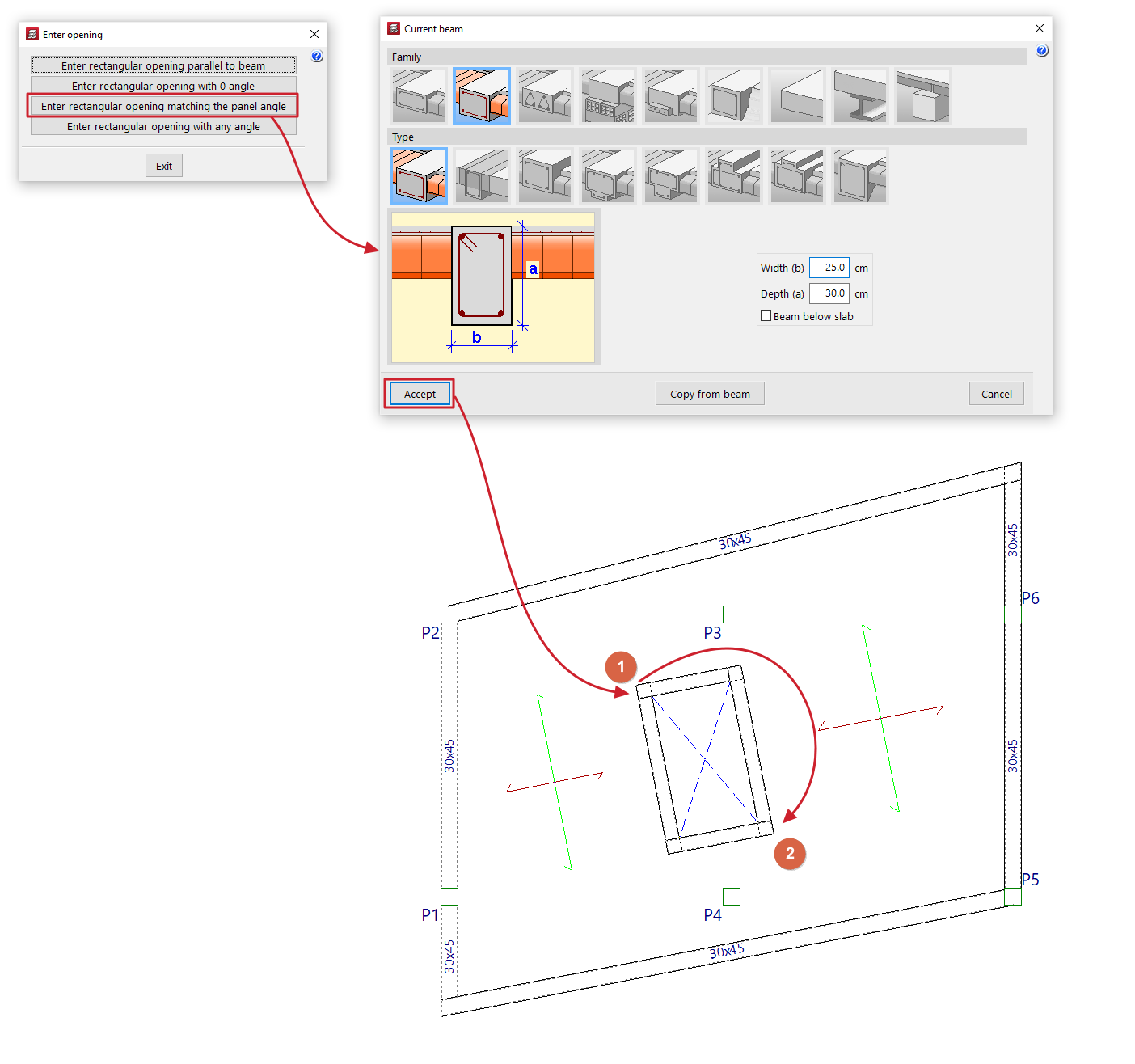
Enter rectangular opening matching the panel angle
Al pulsar esta opción, se abre en primer lugar la ventana “Viga actual”, donde se define el tipo de viga que se utilizará como borde del hueco.
Next, mark two points on the floor plan, which will form one of the diagonals of the opening. The beams must be parallel and perpendicular to the direction of the ribs in the floor slab section where the opening is to be created. If the section where the opening is to be created is unloaded, the new opening is generated with its sides parallel to the main coordinate axes.
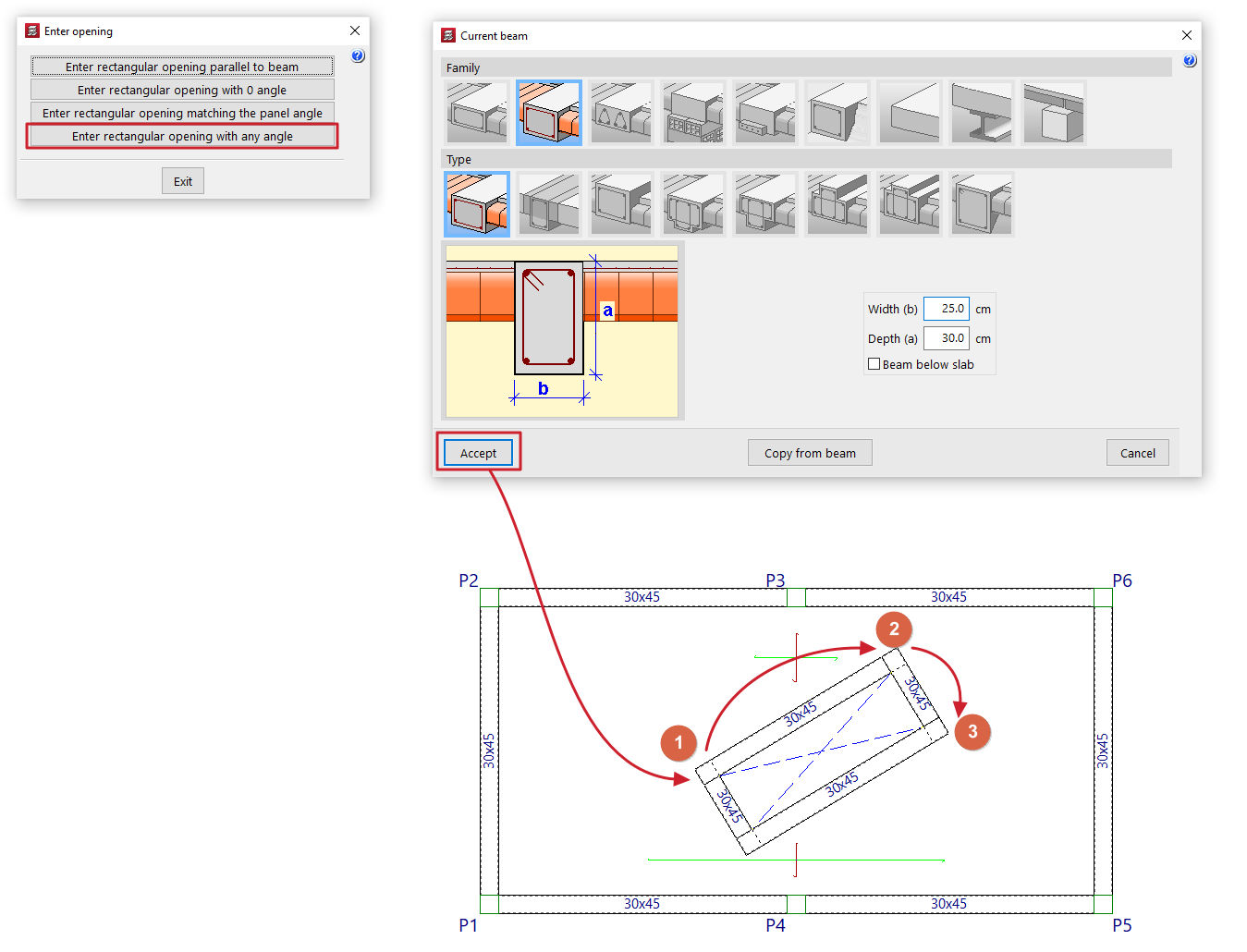
Enter rectangular opening with any angle
When you click this option, the “Current beam” window opens first, where you can specify the type of beam to be used as the edge of the opening.
Next, mark two points to define one side of the opening and, finally, a point to define the opposite side.