Checking the deformed shape of the structure
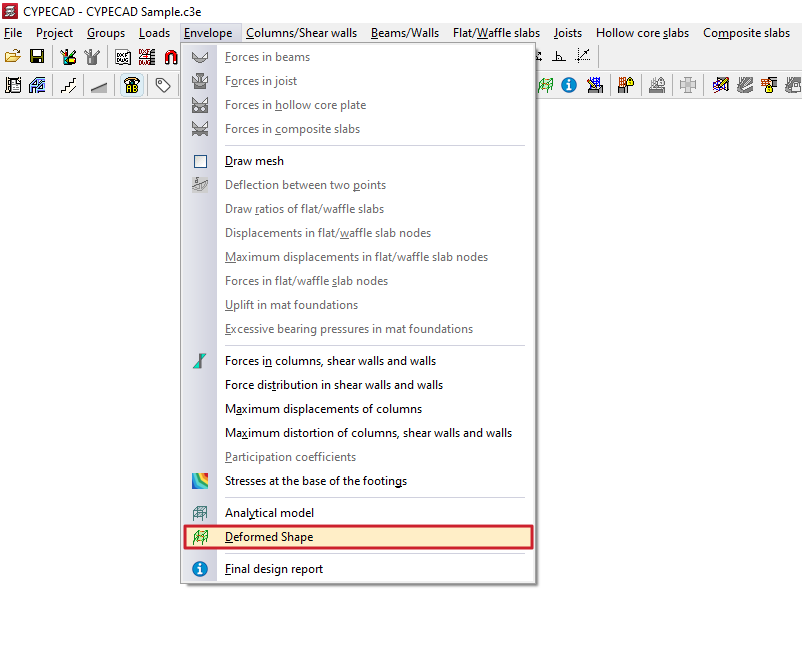
The "Deformed shape" option, within the "Envelopes" menu on the "Results" tab, allows you to view the deformed shape corresponding to the latest analysis for the structure.
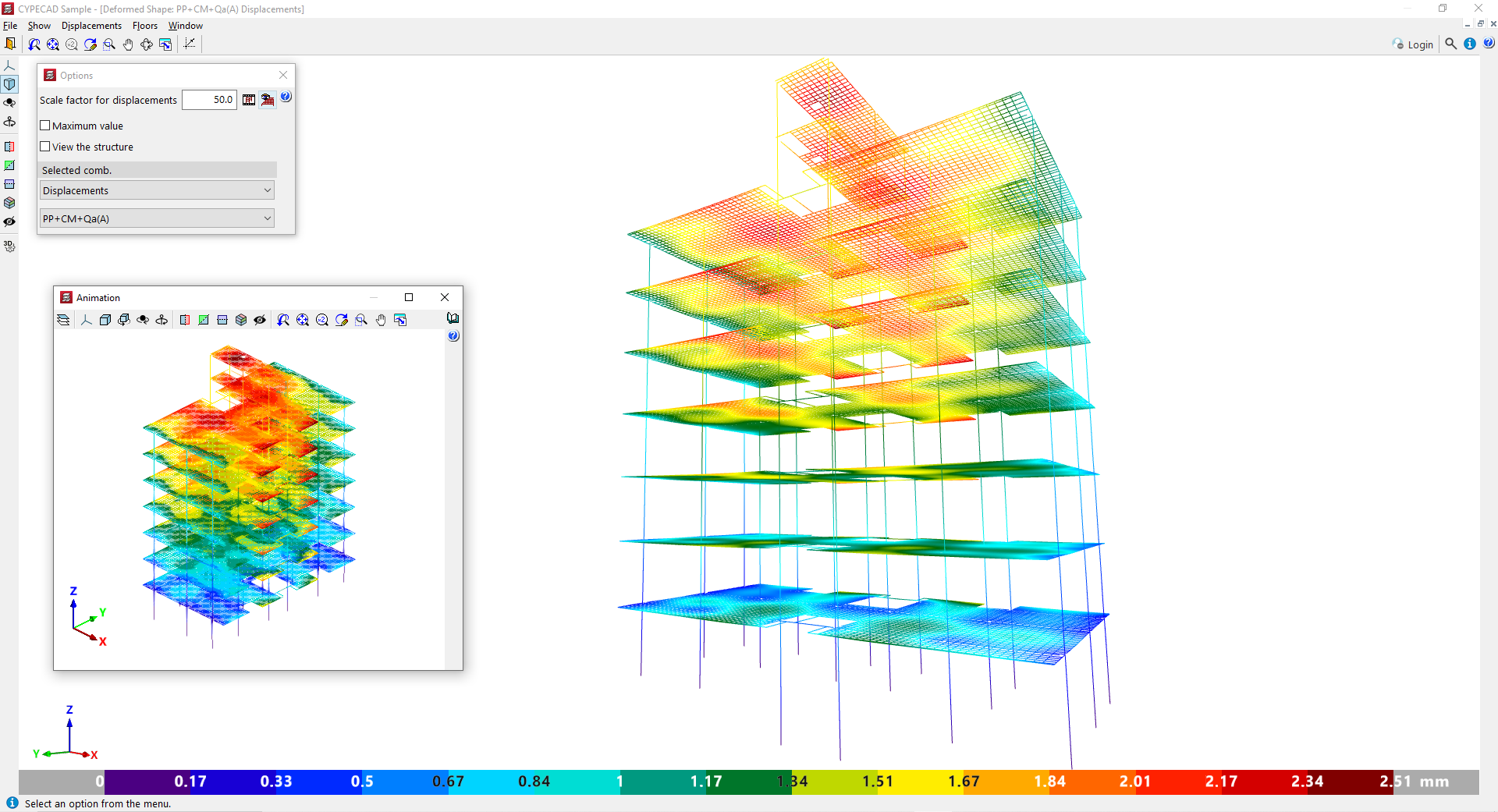
After clicking on the option, a pop-up window opens displaying the structure's deformed shape viewer, which contains the following tools:
Settings
The "Options" window can be shown or hidden using the option of the same name in the "View" menu at the top; this is where you can configure the information you wish to display:
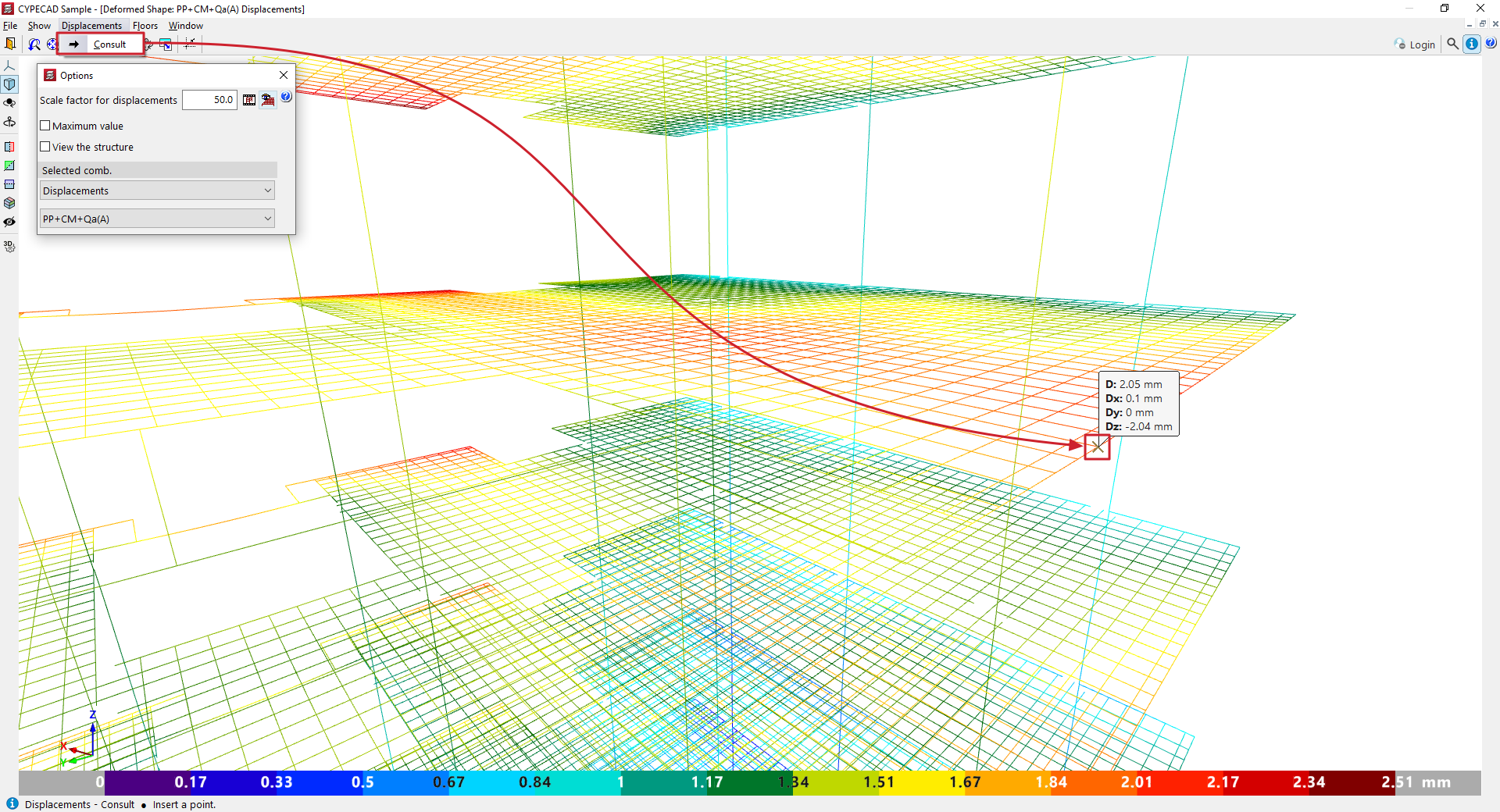
- At the top, enter a "Scale factor for displacements". This allows you to adjust the scaling of the elements in the viewer to display them more clearly.
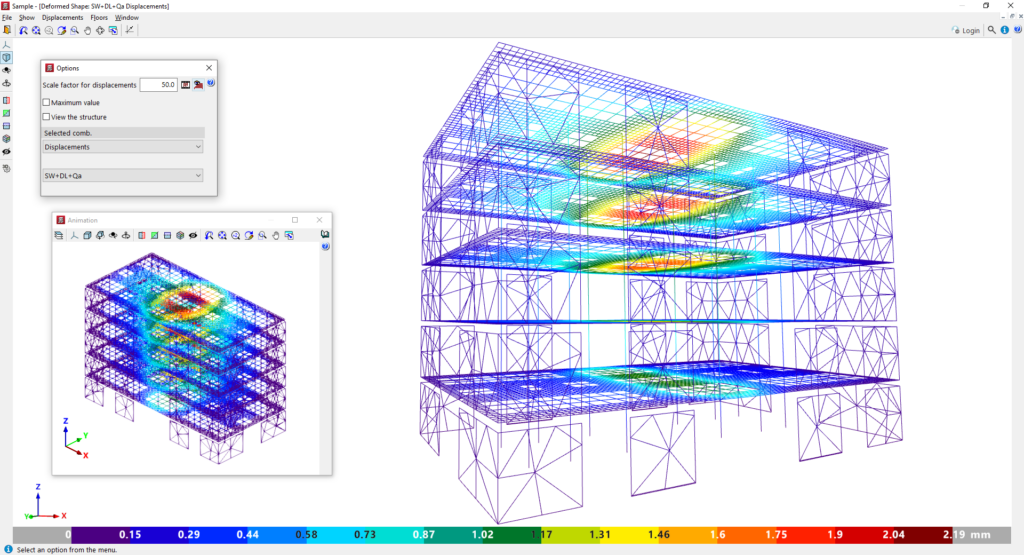
- Further to the right, clicking the "Animation" button displays an animation of the structural deformation caused by the selected combination, starting from the undeformed state.
- There is also an option labelled "View grid slabs and slabs", which allows you to enable or disable the display of the mesh for these types of elements. In slabs and grid slabs, the structure is meshed using a very large number of elements, which means that rendering this mesh can be quite slow and dense. When the project is very large, it may be advisable to render the deformation without these structural elements so that, on the one hand, the rendering is faster and, on the other, the deformation of beams and columns can be seen more clearly.
- By ticking the relevant box, you can enter the "Maximum value" represented by the colour range in the elements of the deformation. Above the specified value, the deformation is displayed in grey.
- If you tick the "View structure" box, you will see a realistic representation of the structure, displayed semi-transparently alongside the deformed version.
In the "Selected combination" section at the bottom of the "Options" window, you must specify the specific loadcase or combination of loadcases you wish to view.
Among these options, you can select "Simple loadcase", thereby choosing a specific loadcase from the drop-down menu to view the associated deformation, or "Displacements", in which case you can select one of the loadcase combinations in this category defined in the model.
Checking displacements
In the "Displacements" menu at the top, you will find the "View" option. Once you click on it, you can hover the cursor over the elements of the analytical model to see the values associated with each point.
Choosing floors
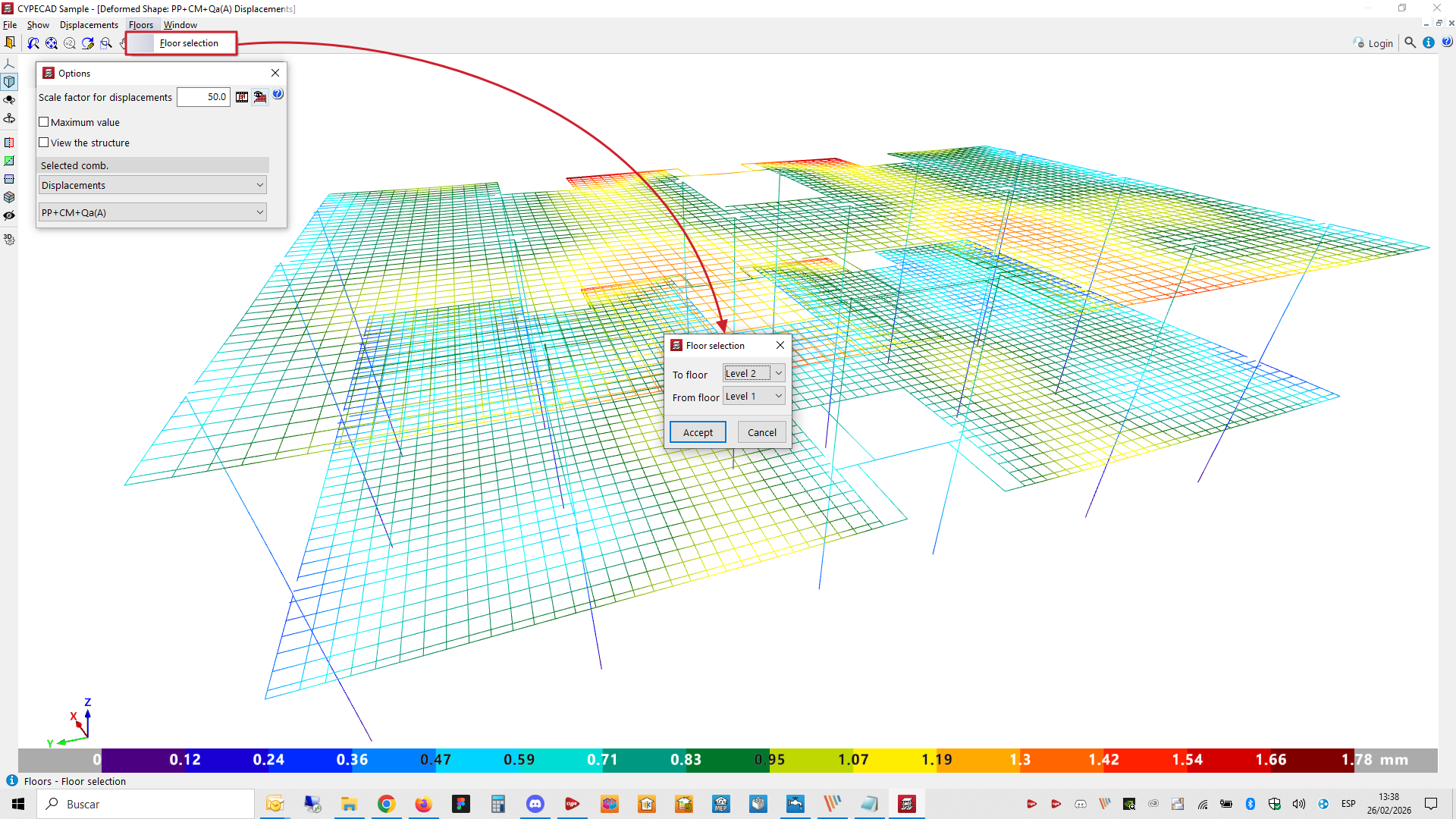
In the "Floors" menu at the top, you will find the "Floor selection" option. When you click on it, a dialogue box appears with two drop-down menus that allow you to set the starting and ending floors you wish to view in the viewer. Upon accepting, the changes will be applied to the display, hiding any floors that are outside the selected range.