Editing loads in groups, load visibility, load updating and loadcase assignment
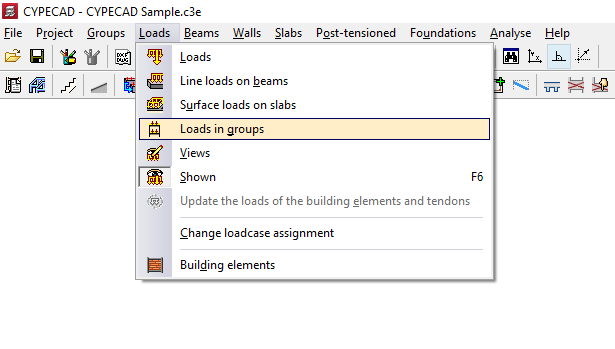
To enter or edit loads in groups, adjust the visibility of loads, update loads or modify their hypothesis assignment in CYPECAD, access the "Loads" menu from the "Beam input" tab or from the "Results" tab.
Among others, this menu includes the following options:
- Loads in groups
- Views
- Shown
- Update the loads of building elements and tendons
- Change loadcase assignment
Each of these features is explained below.
Loads in groups
Group loads are surface loads that are automatically applied over the entire floor area of the structural elements in the group.
The "Loads in groups" option is equivalent to the "Edit groups" option available in the "Column input" tab, within the "Enter" menu and the "Floors/Groups" submenu.
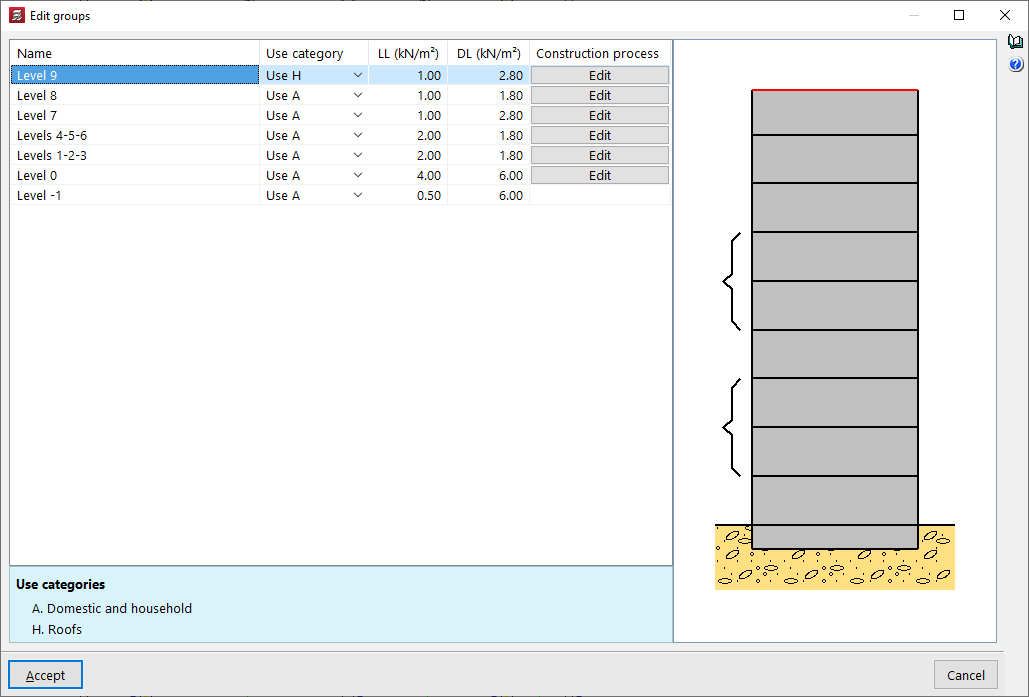
In the "Edit groups" panel that appears after selecting this option, you can enter the "Name" of each group, define the "Use category" associated with it, and enter the numerical value of the "Live loads" and "Dead loads" that apply to the group.
Additionally, the program allows you to "Edit" the "Construction process" for each of the groups.
The "Instant of formwork removal" and the "Instant of application" of the "Dead loads" (e.g. partition walls and flooring) and the "Overload" for use, also indicating the percentage of overload considered quasi-permanent ("% Quasi-permanent").
These options are used to adjust the analysis of the deflection of building elements.
Views
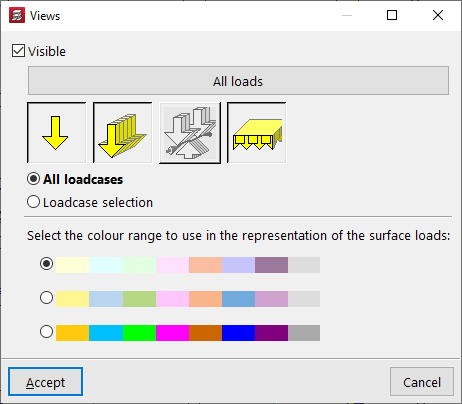
The "Views" option opens a window where you can indicate whether the loads are "Shown" on screen or not by checking the first box.
By pressing the different buttons and icons, you can activate or deactivate the display of "All loadcases", or specify to the program whether you want to "View point loads", "View linear loads", "View post-tensioned tendon loads" or "View surface loads".
In addition, you can indicate whether "All loadcases" are visible or make a "Loadcase selection". In this case, mark "Visible" in the list of loadcase to activate the display of each of the "Loadcases".
Finally, you can select the colour range to be used in the representation of surface loads. After accepting, the program will apply the changes to the visibility of the loads.
Shown
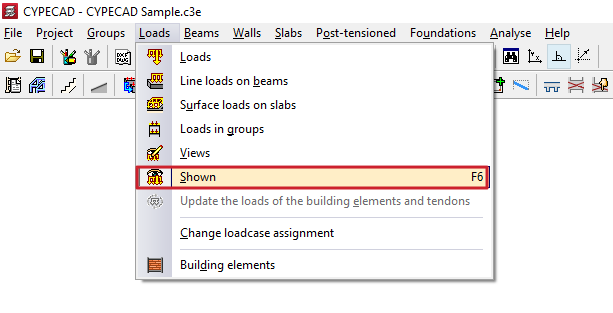
From the "Loads" menu, you can also use the "Shown" option to quickly hide or show the display of all loads for the project.
Although the loads are not visible with this option or with the previous one, the program includes them in the analysis.
Update the loads of building elements and tendons
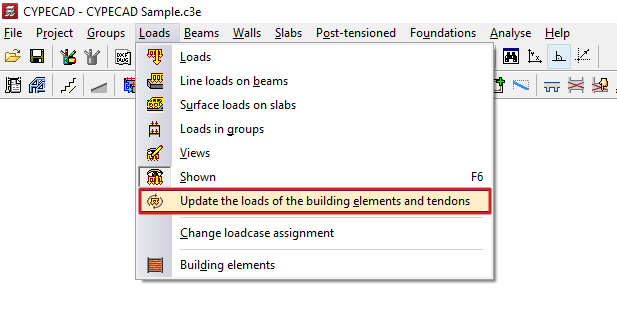
The "Update the loads of building elements and tendons" option regenerates the loads associated with these types of elements if modifications have been made to them or to related elements that may affect their value.
| Note: |
|---|
| Each time a structural element or tendon is added, its associated loads are automatically generated. They are also generated when the project is analysed and when reports and drawings are obtained. |
Change loadcase assignment
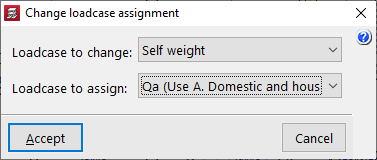
The "Change loadcase assignment" option allows you to indicate to the program that all loads acting in a given loadcase will now act in a different loadcase.
This option affects point, linear, or surface loads entered using the options in the "Loads" menu, as well as loads assigned to columns or piers, inclined beams, basement walls, and integrated 3D structures.
To perform this operation, select the "Loadcase to change" and the "Loadcase to assign" from the drop-down menus. After accepting, the program will automatically change the loadcase in all the loads mentioned.