Entering and editing point, line and surface loads
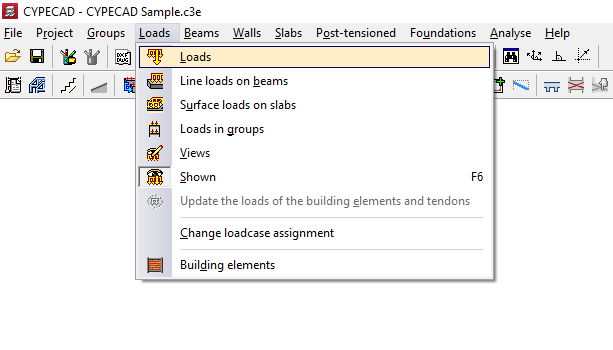
To enter point, line and surface loads in CYPECAD, as well as to view, modify or control their visibility, you must open the "Beam input" tab, move to the required group using "Move up group", "Go to group" and "Move down group", and then open the "Loads" menu.
This menu includes, among others, the following options:
- Loads
- Line loads on beams
- Surface loads on panels
Each of these features is explained below.
Loads
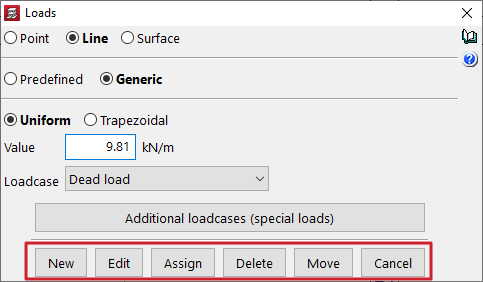
The first option, "Loads", allows you to define and draw "Point", "Line" (uniform or trapezoidal) or "Surface" loads, which are added to the loads defined at group level during the analysis. To do this, you first enter the "Value" and select the corresponding "Load case" from the drop-down list.
For convenience, the program allows you to edit and manage the project load cases by clicking "Additional load cases (special loads)", without needing to open the "General data" panel in the "Project" menu, where this option is also available.
You can also save loads in a predefined load library (by activating "Predefined") or enter them as "Generic" loads.
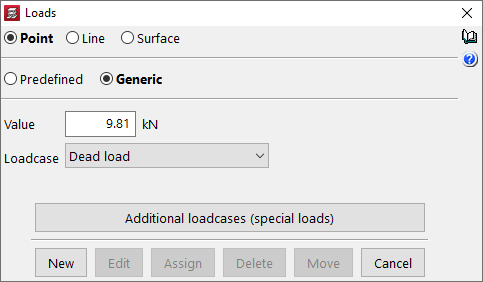
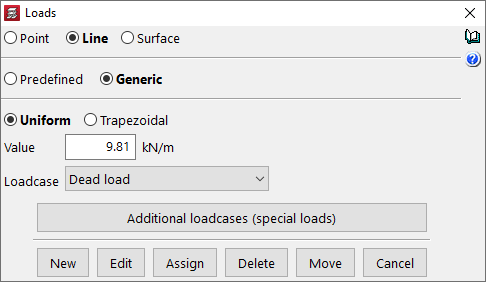
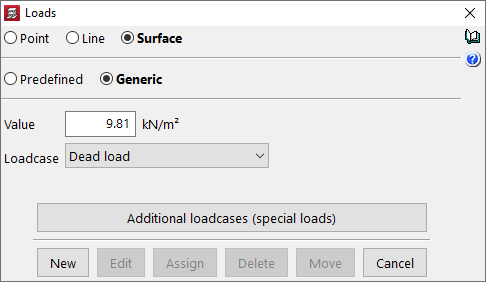
After clicking "New", the load is entered in plan view. Loads can be placed anywhere in the plan; however, for them to be considered in the analysis, they must lie within the geometry of structural elements such as slabs, beams, walls, columns or foundation elements.
- For a "Point" load, one load is entered each time you click with the left mouse button. To return to the "Loads" panel, right-click.
- For a "Line" load, left-click on two different points to define the load.
- For a "Surface" load, left-click successively to define the vertices of the polygon that represents the loaded area, and finally right-click to complete the input.

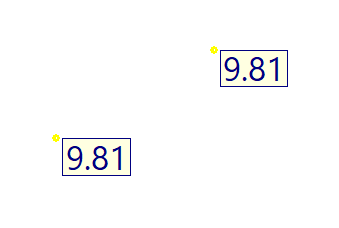
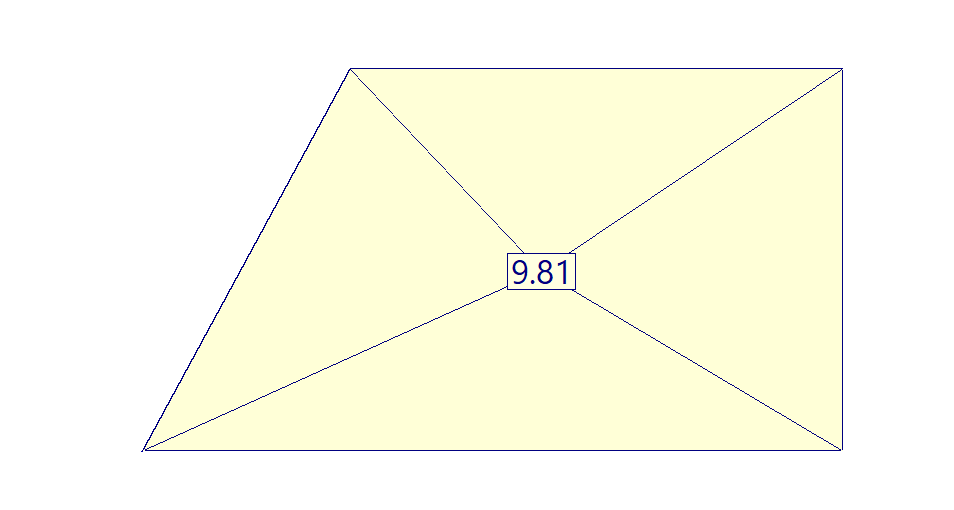
Once loads have been entered in plan view, a number of editing options are available from the "Loads" panel. To use them, the type of load to be modified must be selected: "Point", "Line" or "Surface".
- "Edit" allows you to modify the "Value" or the "Load case" by clicking on individual loads.
- "Assign" allows you to apply the value and/or load case selected in the panel to loads already entered in the plan. In the dialog box, choose "Assign value", "Assign load case" or "Assign value and load case", and then click on the loads in the plan.
- Loads can also be "Deleted" by clicking on them individually or by drawing a selection window to delete a group of loads.
- To "Move" loads, click on each of the defining points and then click again to place them in their new position.
Line loads on beams
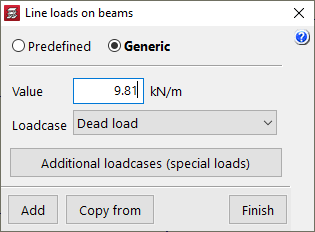
The "Line loads on beams" option is also available in the "Loads" menu of the main interface. If beams have been drawn in the plan, this option allows you to apply line loads by selecting the beams.
You define the "Value" of the load and the corresponding "Load case", or click "Copy from" to take these values from an existing line load.
The "Additional load cases (special loads)" button provides access to load case management without having to open the "General data" panel in the "Project" menu.
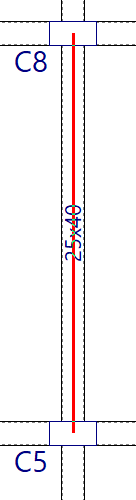
After clicking "Add", select the beams one by one or draw a selection window to capture a group of beams and apply the defined line load to them.
Surface loads on panels
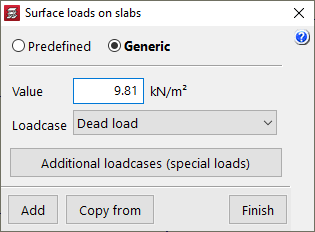
The "Surface loads on panels" option in the "Loads" menu works in a similar way. If slab panels are present in the plan, this option allows you to apply surface loads by selecting the panels.
You define the "Value" of the load and the corresponding "Load case", or click "Copy from" to take them from an existing surface load.
The "Additional load cases (special loads)" button again provides access to load case management without needing to open the "General data" panel in the "Project" menu.
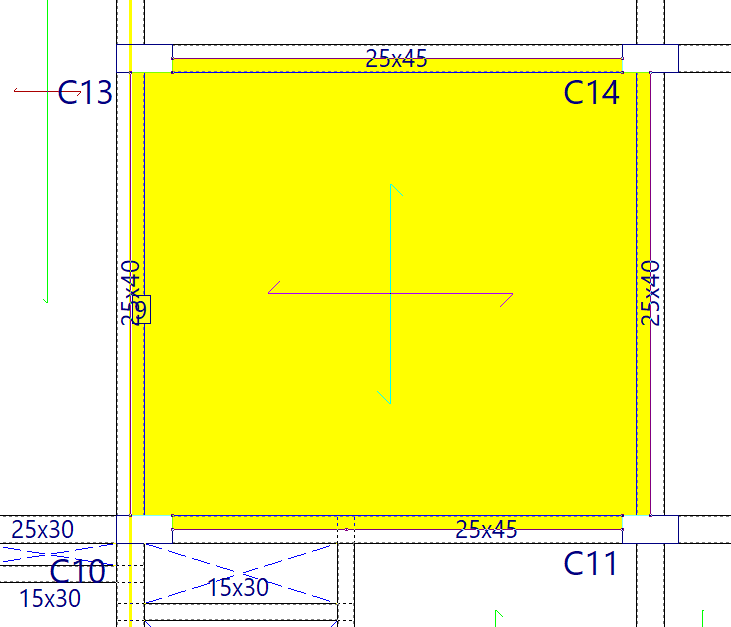
After clicking "Add", select the panels one by one or draw a selection window to capture a group of panels and apply the defined surface load to each of them.
| Note: |
|---|
| To define the boundary of surface loads entered using this option, the program uses beam axes, column perimeters and the internal outline of the walls surrounding the selected panels. If columns end at the group where the surface load is being entered, the extension of the beam or wall axes is used to define the boundary. In the case of walls that end at the group, the surface load boundary is adjusted to their axes. |