Defining schedules
Defining schedules for energy simulation
Schedules in energy simulation enable the pattern of variation, usage or activation of different resources or aspects of the project to be defined across the hours of the day, the days of the week and the months of the year.
Factors that can influence schedules include variations in ventilation, lighting, occupancy and the internal fit-out of the spaces, the profile of heating and/or cooling setpoint temperatures in each thermal zone, the activation profile of solar shading devices, the operational conditions governing air infiltration in the zones, and the hourly profile defining the values of certain system parameters.
Schedules can be viewed by enabling or selecting the "Schedules" option found in the definition panels for the various aspects mentioned, and then clicking on the edit button that appears next to it.
| Note: |
|---|
| For example, when editing the schedule for an office building, you can specify a usage rate of less than 100 per cent during break times (indicating lower occupancy) or, in the schedule for a school, specify the months when there is no activity. If a schedule is not defined for a particular aspect, the program will assume 100 per cent usage for every hour of every day of the year. |
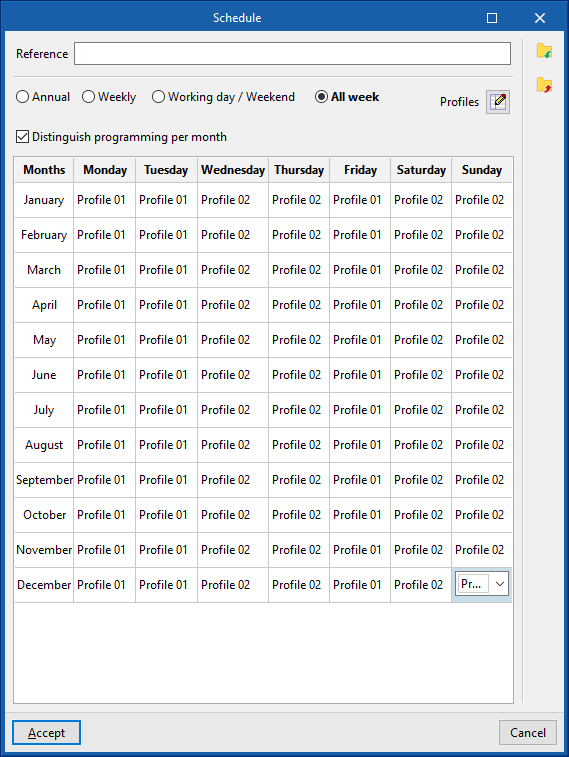
In the window for editing a schedule, you can modify the following details:
- Reference
Schedule reference.
- Schedule type
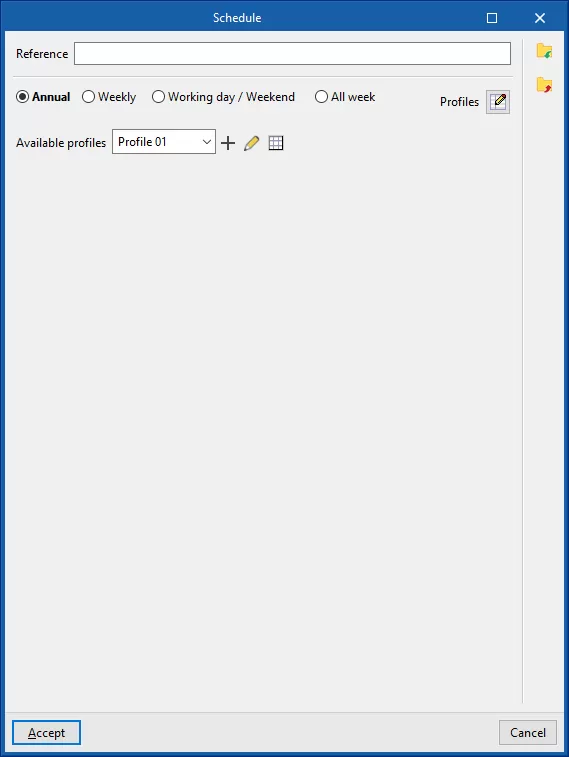
- Annual
Select a schedule for the whole year. - Weekly
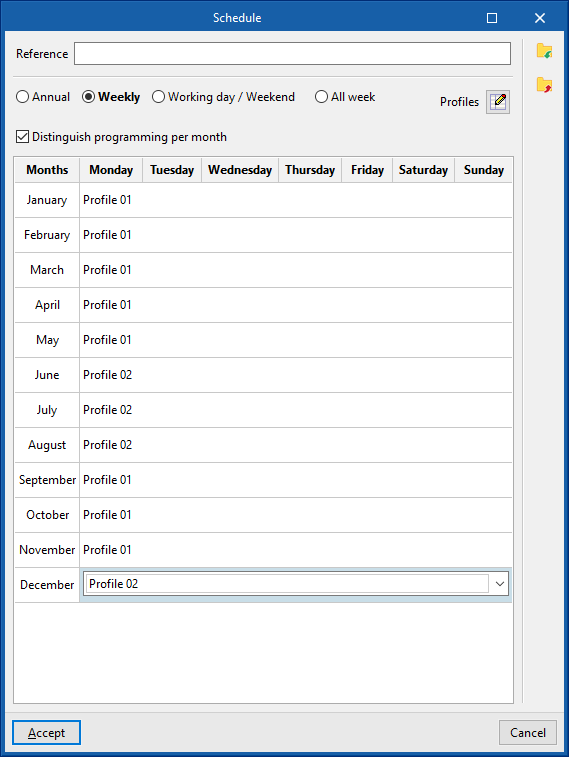
Select a schedule for the whole week. If the "Differentiate scheduling by month" box is ticked, you can select a schedule for the whole week of each month of the year. - Weekdays / Weekends
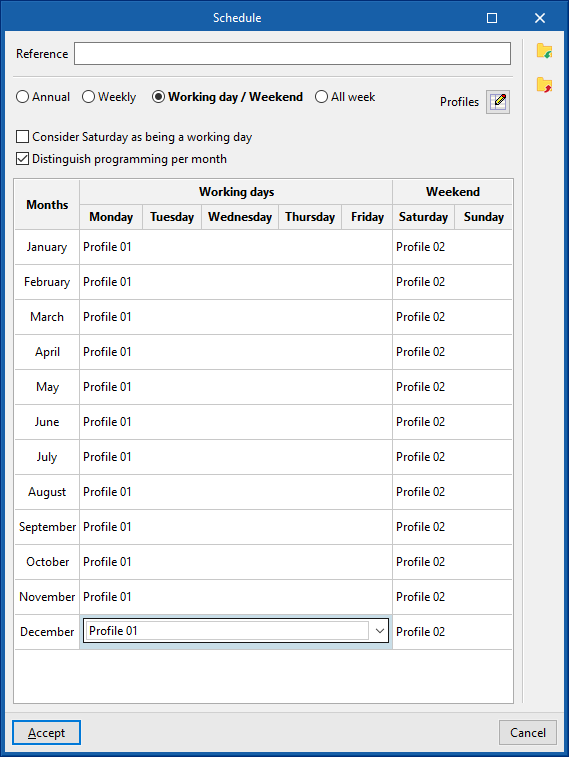
Select one schedule for weekdays and another for weekends. You can "Treat Saturday as a working day" by ticking the relevant box. If you tick the "Distinguish programming per month" box, you will be able to select one schedule for weekdays and one for weekends for each month of the year. - All week
Select a different schedule for each day of the week. If you tick the "Distinguish programming per month" box, you will be able to select a schedule for each day of the week in each month of the year.
- Annual
In order to be selected, the available schedules must first be defined using the "Schedules" button on the right.
Available schedules
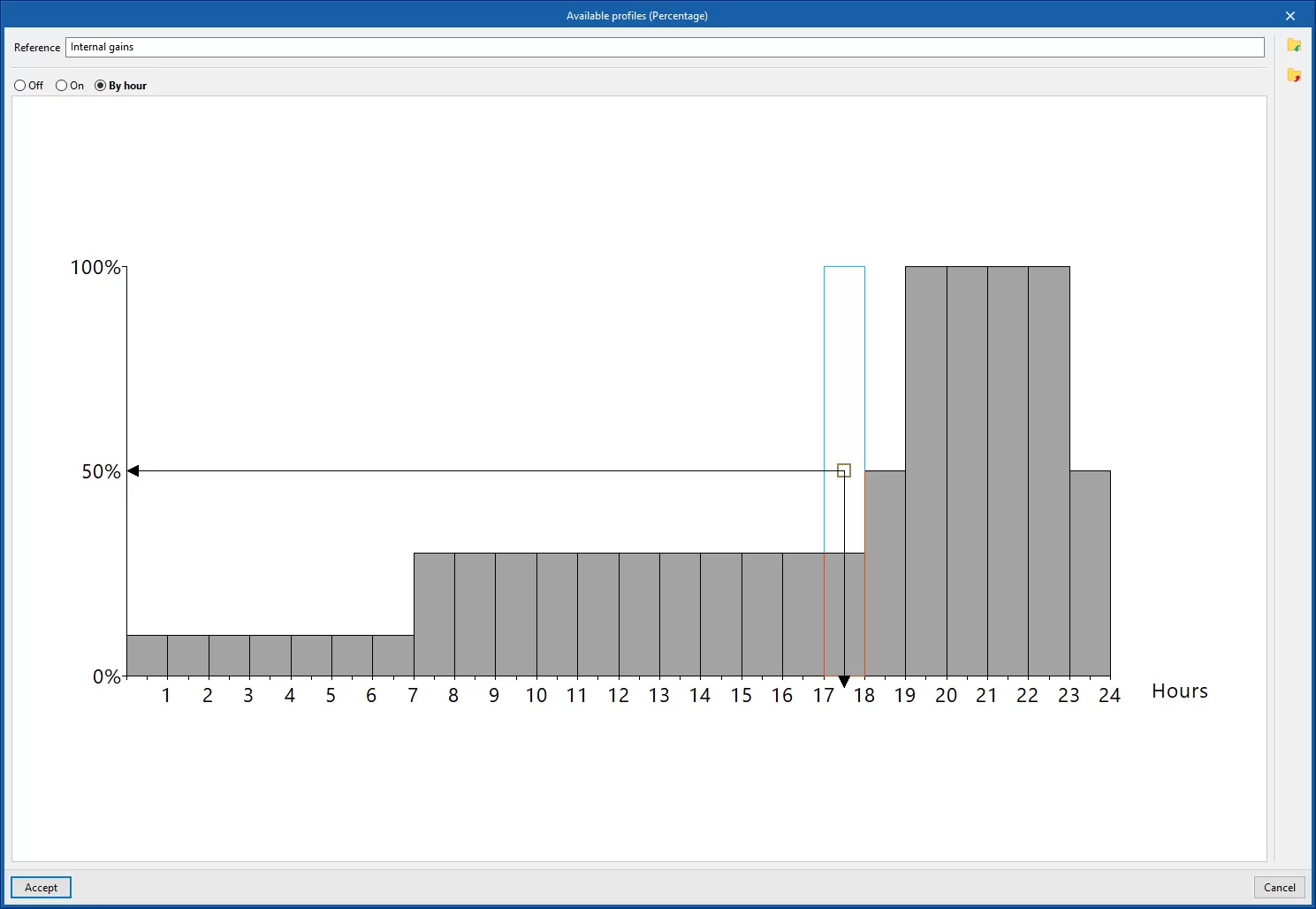
When creating or editing each available schedule, the following details must be entered:
- Reference
Reference for the available schedule. - Schedule definition
- Off
The feature will be disabled. - The feature will be enabled. In some cases, you can specify the "Value" of the activation percentage.
- By the hour
This section lets you define an hourly schedule, specifying a value for each of the 24 hours of the day, whether this is a schedule between 0 and 100 per cent, the activation status (On/Off) or a specific temperature value. To do this, tap the corresponding point on the graph to set the value, the activation status or the desired schedule for each hour.
- Off
You can import and export the schedules you have created to files on your hard drive using the relevant options on the right-hand side of the panel.
Defining schedules for the calculation of thermal loads
Schedules used in the calculation of thermal loads make it possible to define the pattern of variation, usage or activation of different resources or aspects of the project every month or throughout the hours of the day for each month of the year.
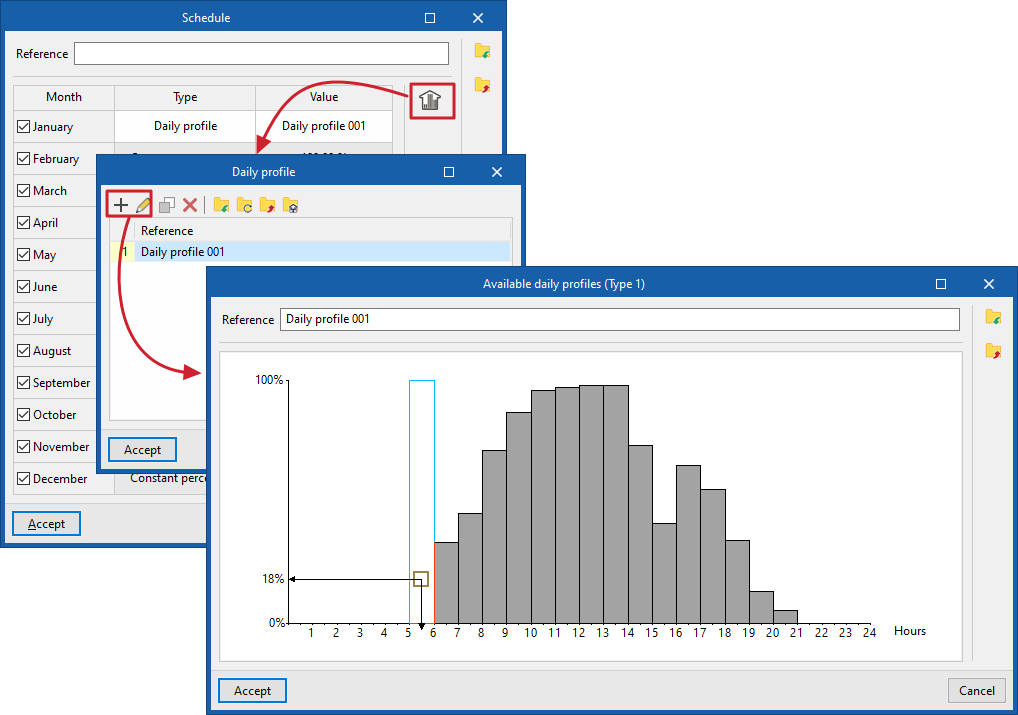
When defining areas for the calculation of thermal loads, by ticking the "Schedules" box in each section, the program lets you enter a "Reference" and then define a schedule for each "Month" by ticking the corresponding box.
For each month, you can set a "Constant" percentage value or a "Daily schedule" by selecting the desired option from the "Type" drop-down menu.
If "Constant" is selected, enter the percentage in the "Value" column.
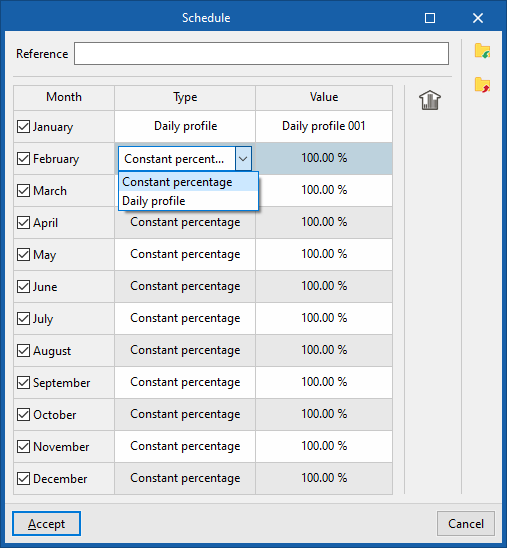
If you select a "Daily schedule", you will need to click the button on the right to access the list of available daily profiles.
When creating or editing each daily schedule in the list, you set a percentage for each of the 24 hours of the day by marking points on the graph.
Once this has been defined, you must select the desired daily schedule from the "Value" column.