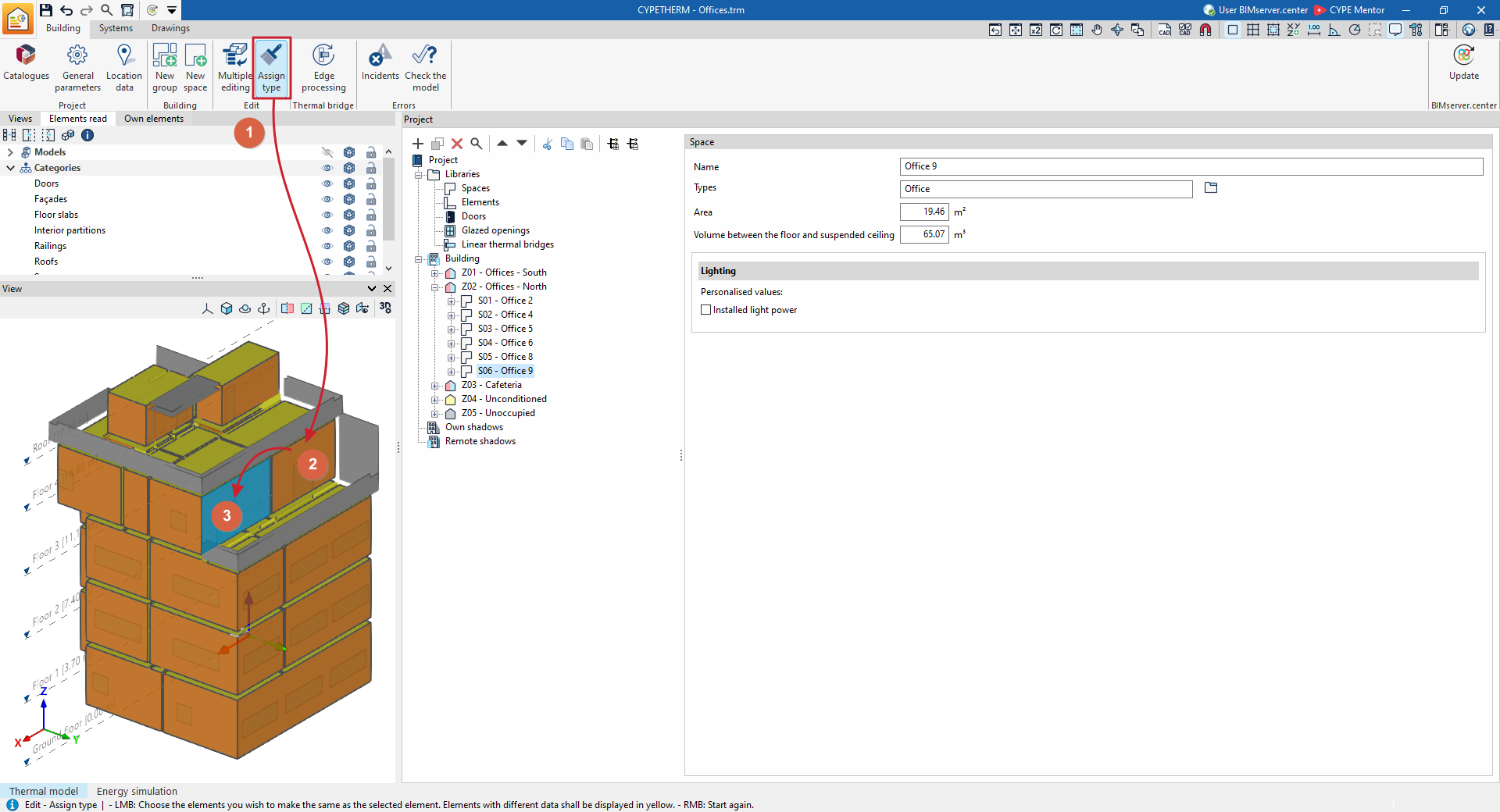
Options in the "Edit" section on the "Building" tab
The options in the "Edit" section of the top toolbar on the "Building" tab let you carry out the following operations on the building’s thermal model:

Multiple editing
The "Multiple editing" option provides a wizard for editing the properties of different types of building elements all at once.
This panel offers different options depending on the type of project selected and the tab that is currently open. The wizard will only apply to the elements of each type selected on the left-hand side of the window.
Multiple editing (project type: "Energy simulation")
The operations that can be carried out using the "Multiple editing" option within the "Building" tab for an "Energy simulation" project type include the following:
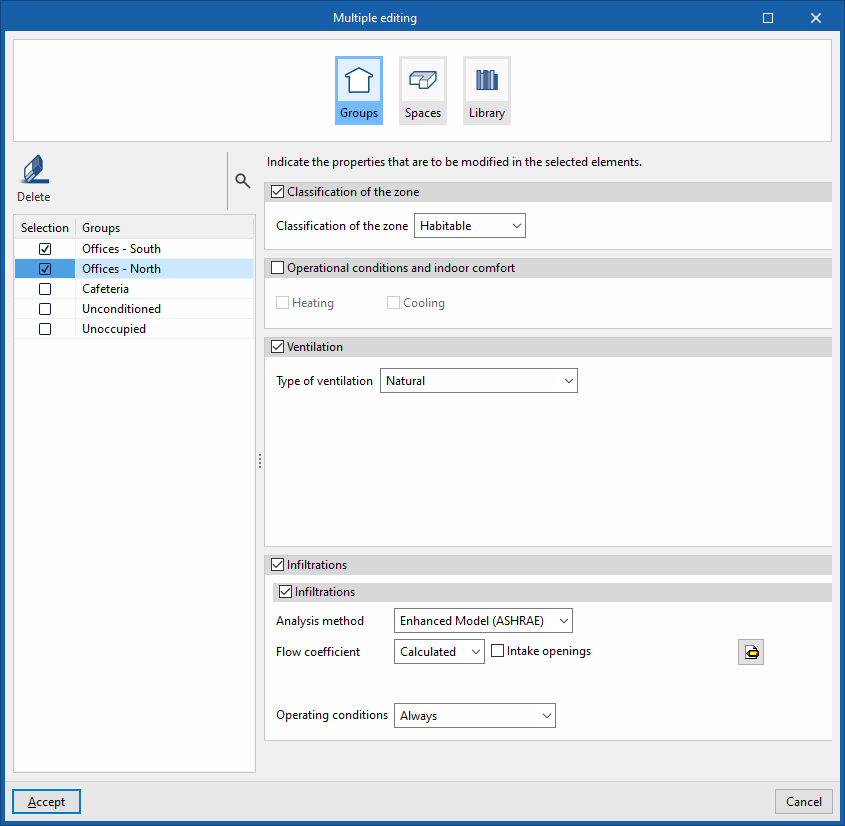
Groups
Delete groups and thermal zones, or modify the properties of thermal zones. The groups and zones are displayed in a list on the left.
- The "Delete" option, on the left, lets you delete the selected group or thermal zone.
- To modify the properties of one or more heating zones simultaneously, select the zones in the left-hand side panel. Then, on the right-hand side, specify the properties you wish to assign to those zones.
After confirming, the properties of the selected elements will be changed, or they will be deleted.
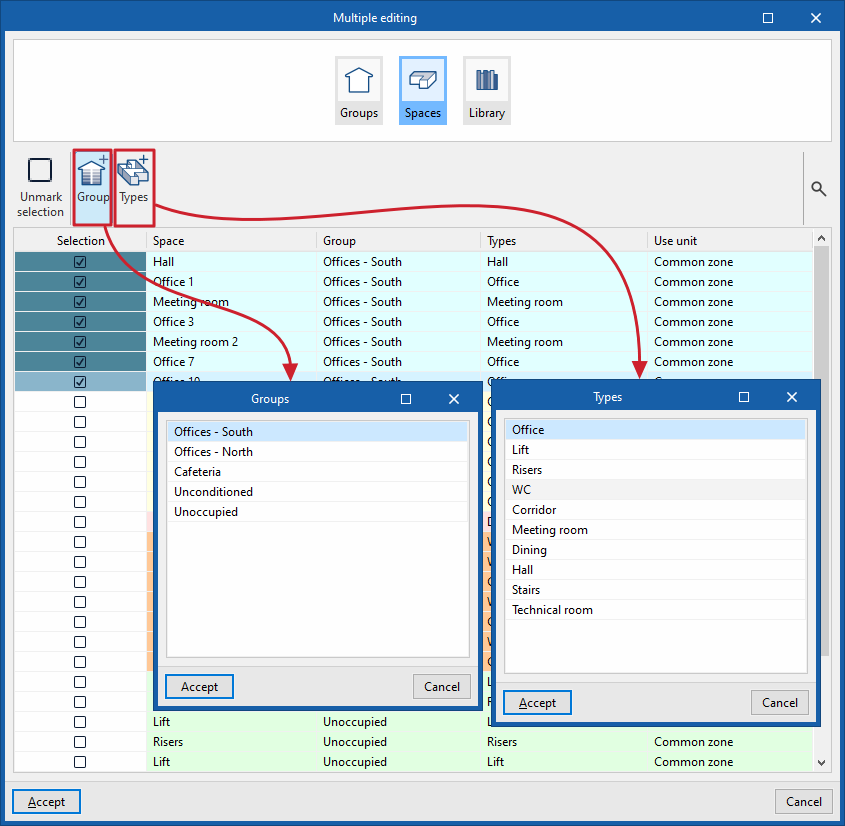
Spaces
Move group spaces and edit their type:
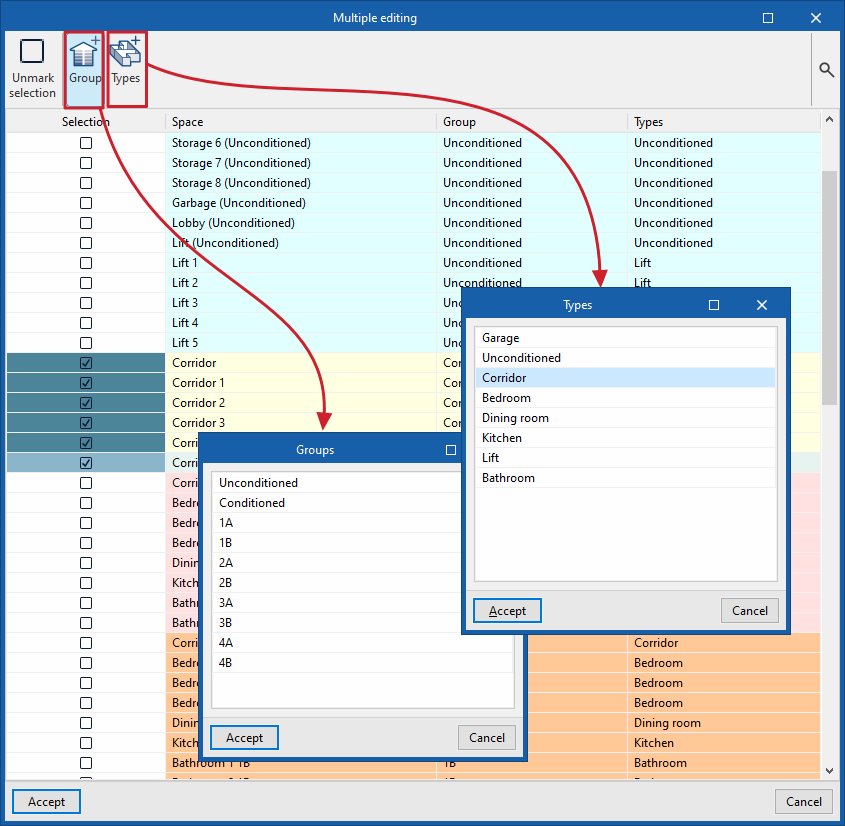
- To move group or zone spaces, select the spaces by ticking them in the left-hand column. Then, click on the "Group" option and choose the group (or zone) to which they are to be assigned.
- To edit the type of spaces, select the spaces by ticking them in the left-hand column. Then, click on the "Type" option and choose the type of space you wish to assign to them from those available in the room library.
After confirming, the spaces will be moved to the specified zone or group and/or their assignment type will be changed.
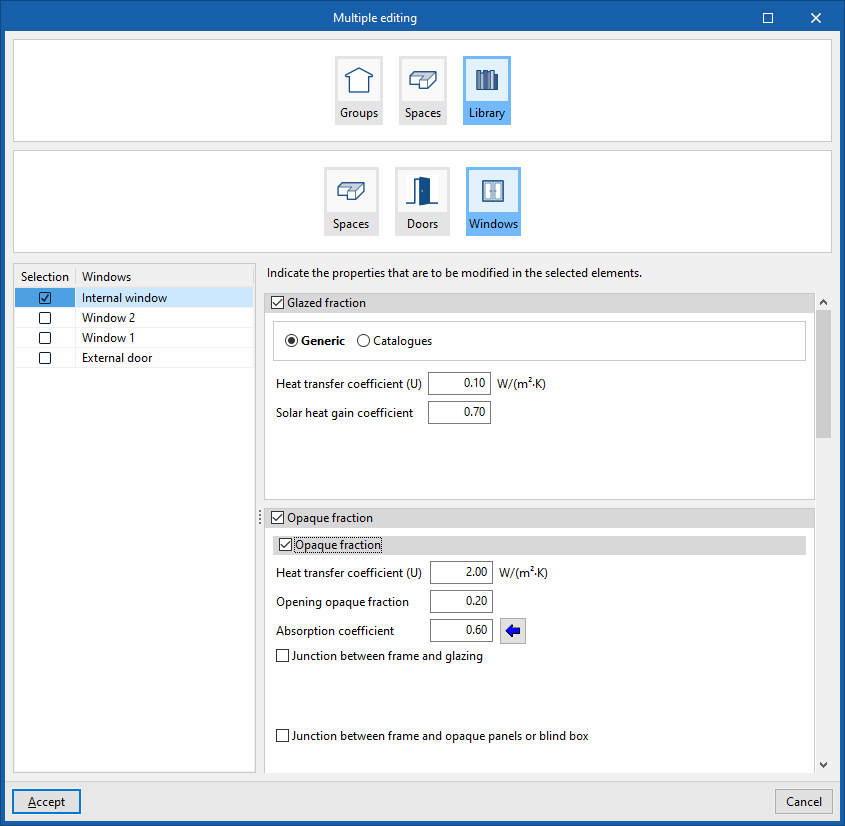
Library
Modify the properties of certain library elements such as "Spaces", "Doors" or "Glazed openings":
- To modify the properties of the elements, select the types you wish to modify by ticking them in the left-hand column. Then, specify on the right-hand side the properties to be assigned to those element types.
After confirming, the properties of the selected element types will be modified.
Multiple editing (project type: "Thermal loads")
In the "Thermal loads" project type, the "Multiple edit" option lets you move group spaces and edit their type:
- To move group spaces, select the spaces by ticking them in the left-hand column. Then click on the "Group" option and choose the group to which they are to be assigned.
- To edit the type of spaces, select the spaces by ticking them in the left-hand column. Then, click on the "Type" option and choose the type of space you wish to assign to them from those available in the space library.
After confirming, the spaces will be moved to the specified group and/or their type assignment will be changed.
Assign type
The "Assign type" option is a graphical tool that works on the 3D model as follows:
- Click on the "Assign type" option.
- Select an element in the "View" using the left mouse button.
- Finally, use the left mouse button (either one by one or by selecting an area) to select the elements in the "View" to which you wish to apply the same type as the source element.
During this process, elements with the same type applied will be highlighted in orange, whilst those with a different type will be displayed in yellow.