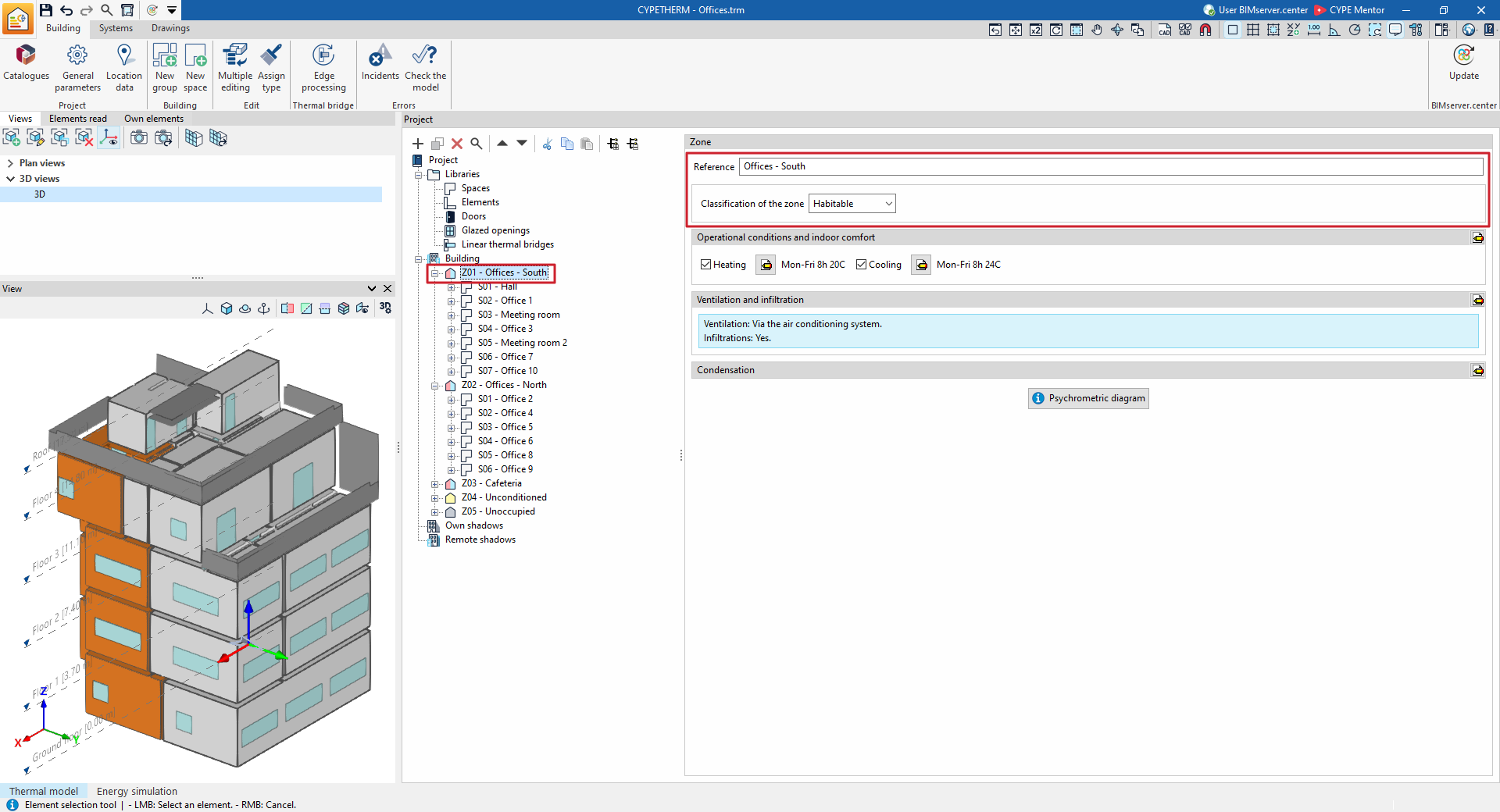
Editing thermal zones in the building’s tree structure
In the "Energy simulation" project type, the building will consist of thermal zones.
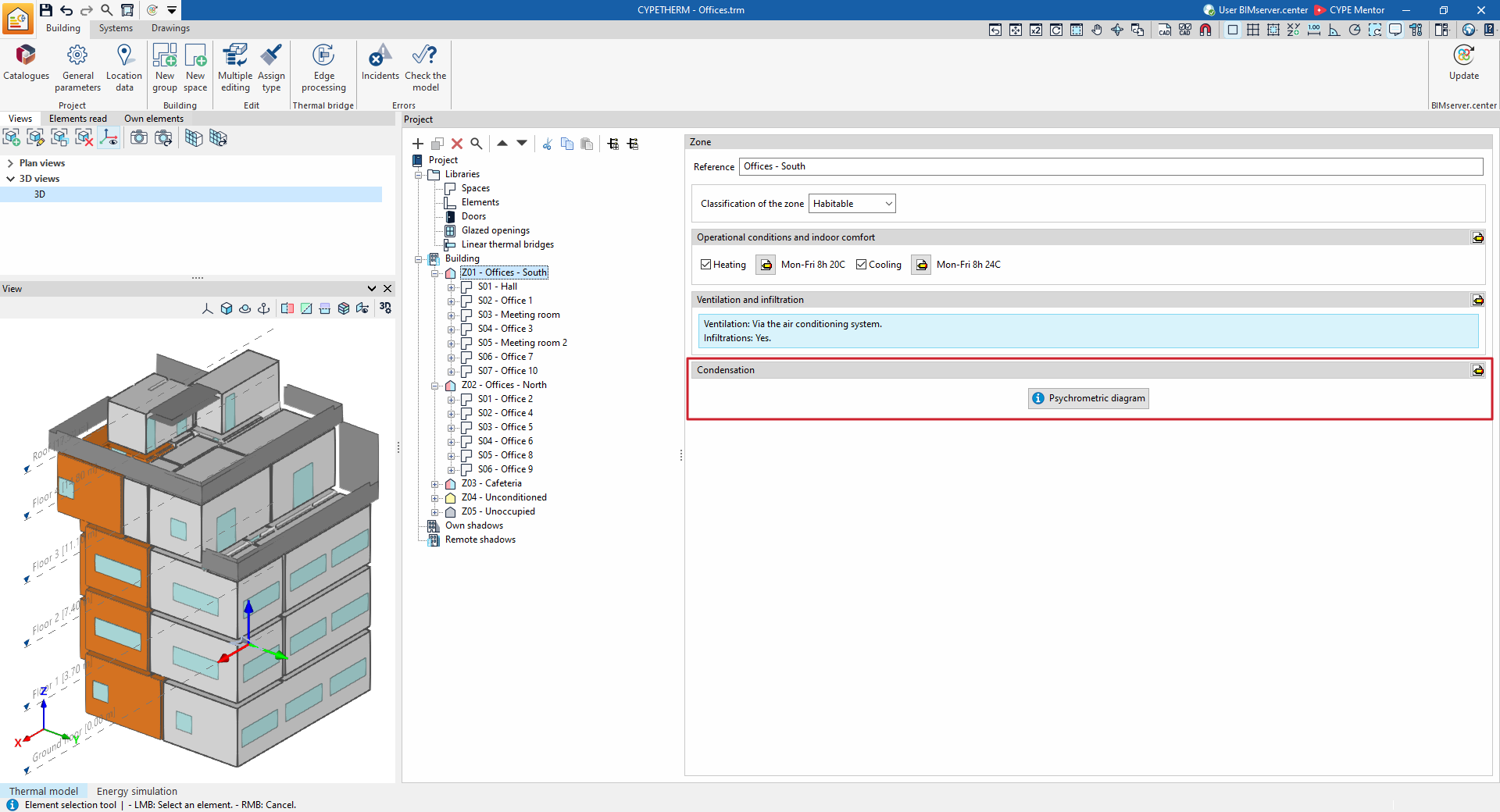
When you select a thermal zone in the tree view on the left-hand side panel of the "Project" panel, under the "Building" tab, it is highlighted in the 3D model viewer and the "Zone" panel is displayed in the main area, where the following zone properties are defined:
- Reference
Zone reference. This parameter can be edited directly. However, the zone identification code (e.g. Z01) is generated automatically and depends on its position in the schema.
- Zone classification (Habitable / Non-habitable / Undefined)
All areas included in the zone must be of the same type (habitable or non-habitable) as that selected from this drop-down menu. In the tree structure:- An area classified as uninhabitable or undefined will be shown with a grey symbol;
- An area classified as habitable will be assigned a coloured symbol depending on its operational conditions:
- Yellow if no setpoint temperature has been defined (unheated living area),
- Red if a heating setpoint is defined,
- Blue if a cooling setpoint is defined.
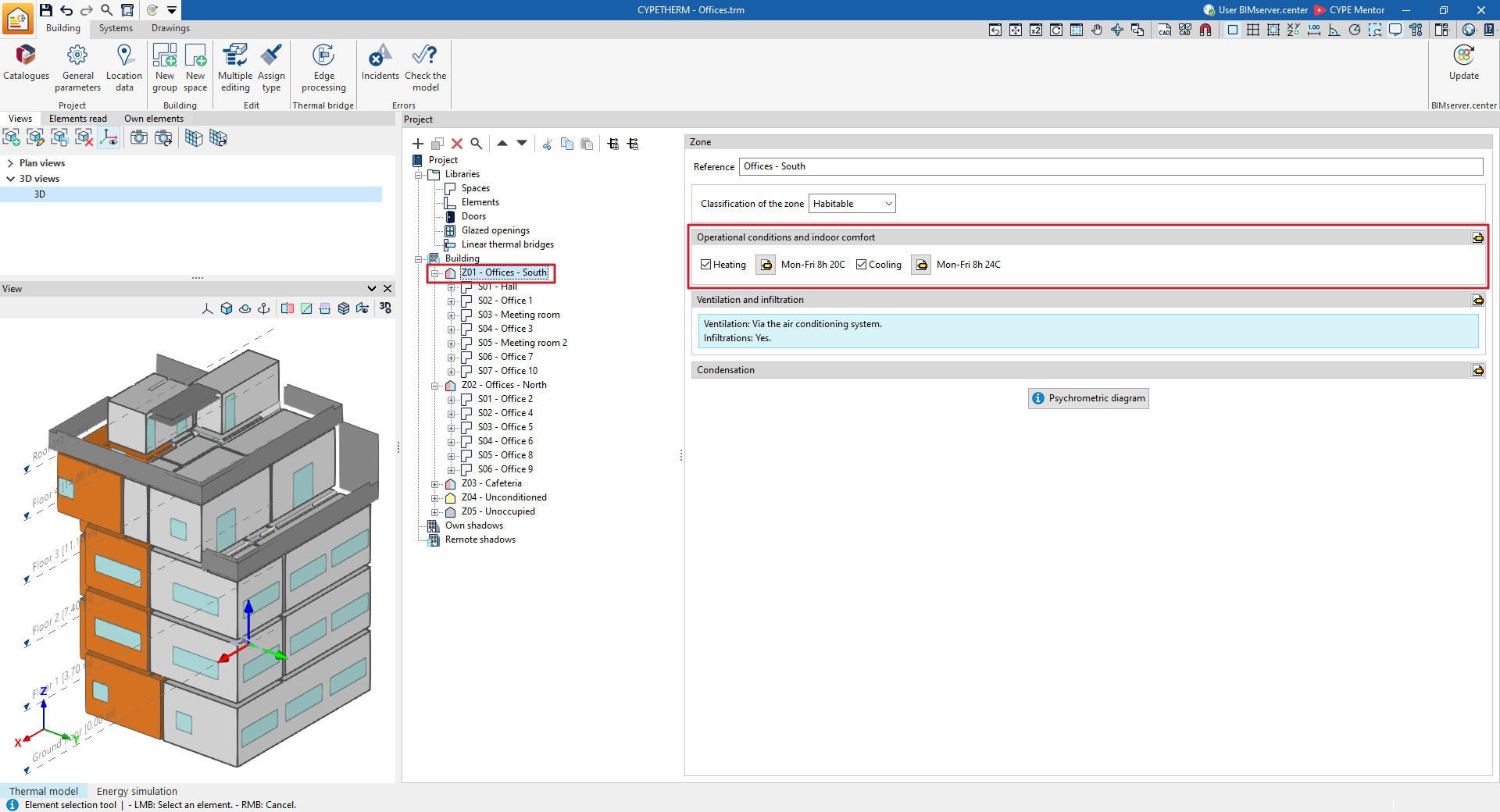
"Operational conditions and indoor comfort" section
Define the operating conditions and comfort temperatures for the thermal zone. All spaces included in the zone share these conditions.
- Heating (optional)
Set the zone’s heating setpoint temperature using an hourly schedule. - Cooling (optional)
Set the zone’s cooling setpoint temperature using an hourly schedule.
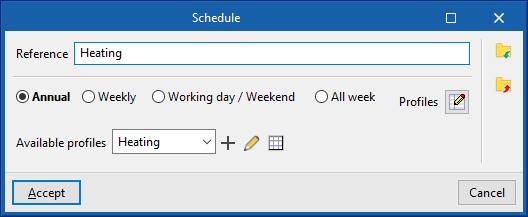
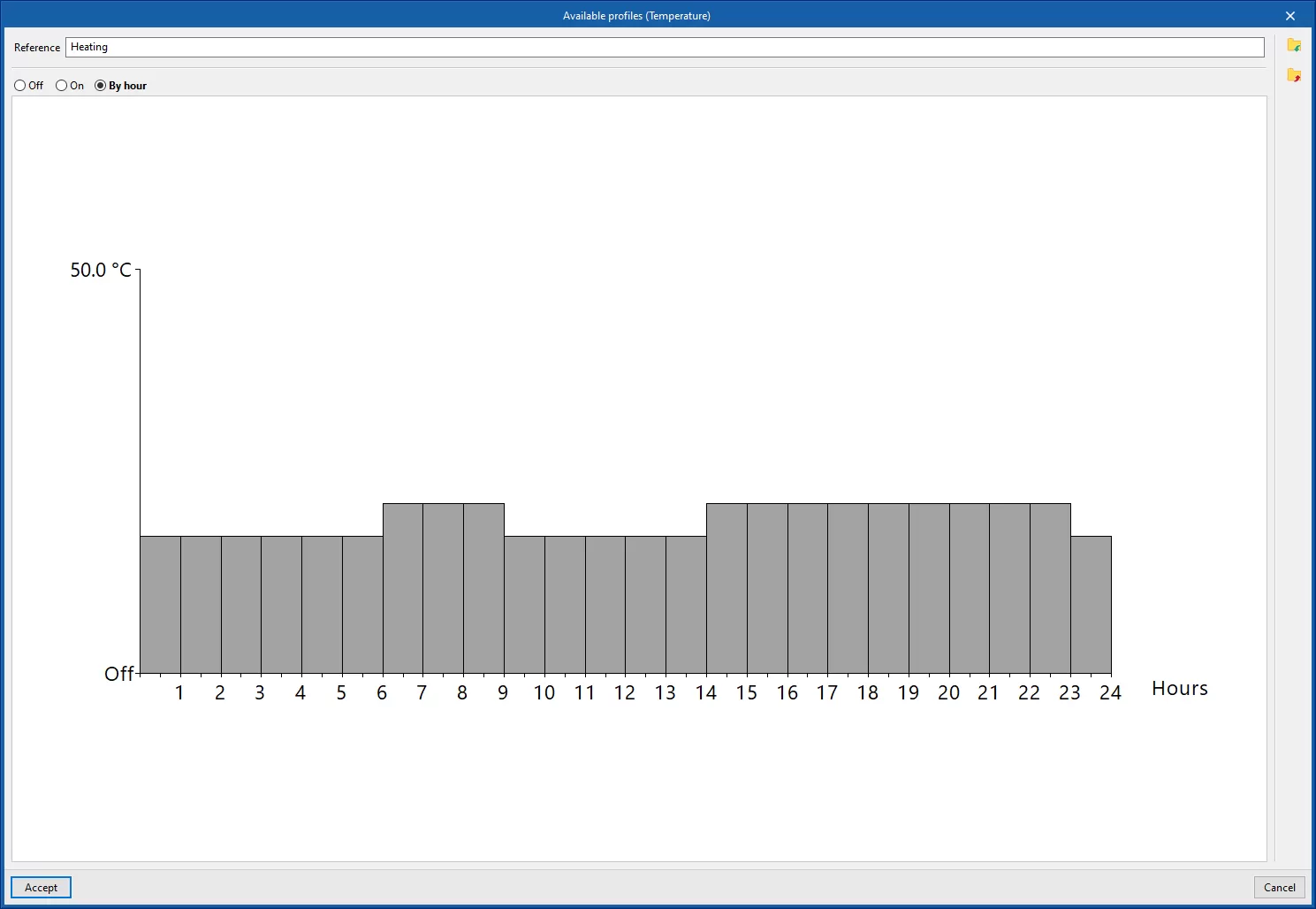
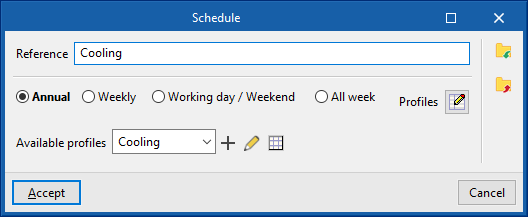
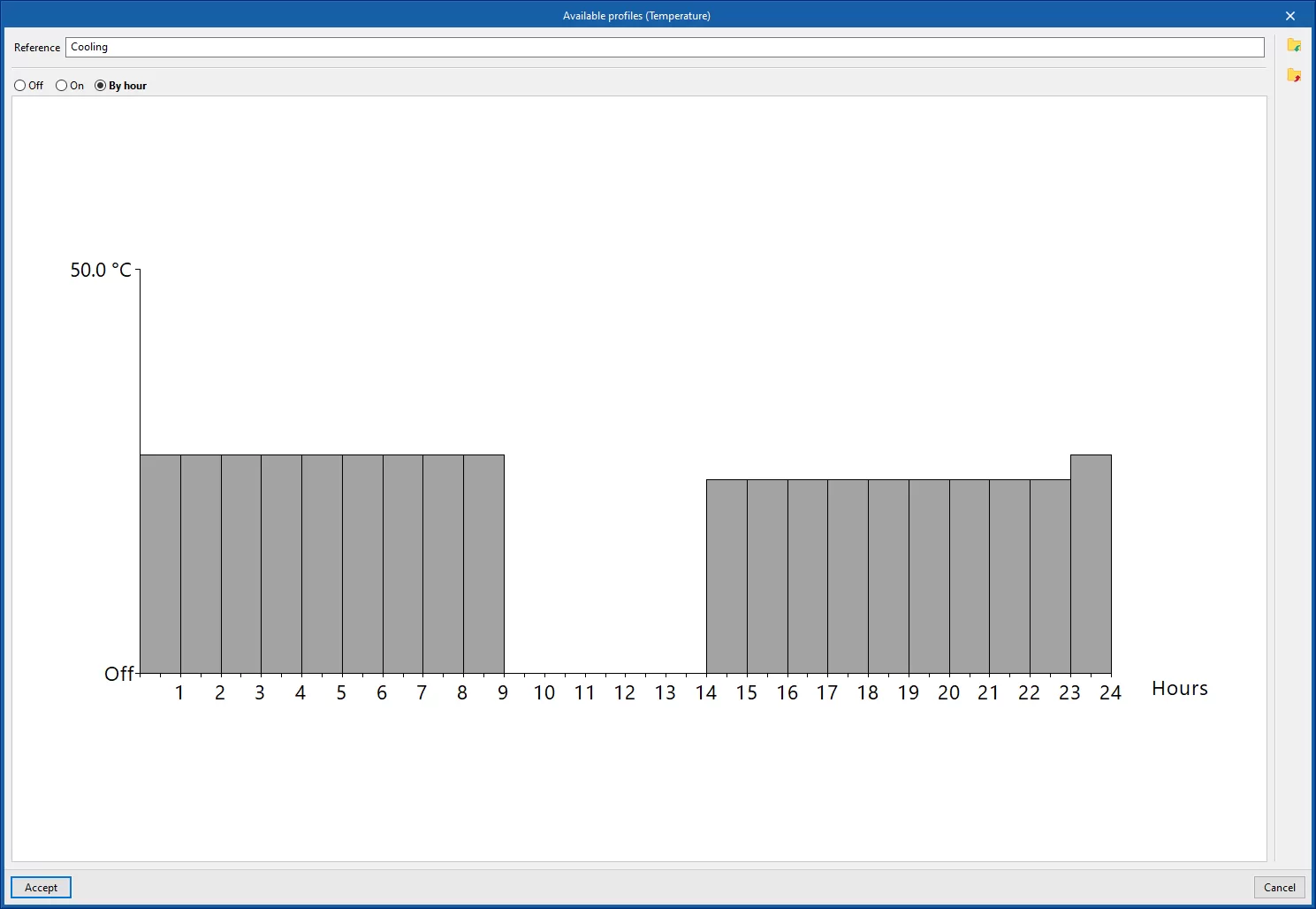
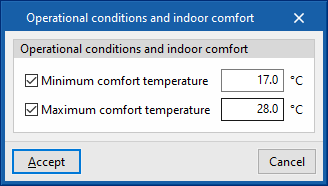
- Editing advanced properties: Using the edit button to the right of the section, you can set a maximum and minimum indoor comfort temperature. These temperature values are used in the "Indoor comfort" report to make comparisons with the indoor temperature of the zone. These comfort temperatures are not taken into account in the EnergyPlus™ simulation.
- Maximum comfort temperature (optional)
- Minimum comfort temperature (optional)
"Ventilation and infiltration" section
This section lets you define the ventilation and air infiltration for the zone.
- Editing advanced properties
Using the edit button to the right of the section, you can set the following parameters:- Ventilation
The type of ventilation must be specified for all spaces in the zone, choosing from:- Natural
The specified ventilation flow rate enters the rooms in the zone directly. - Mechanical
The characteristics of the fan or fans (dual-flow option) that drive the specified ventilation flow rate in the spaces within the zone are defined:- Flow type (Mechanical intake / Mechanical extraction / Dual flow)
- Fan power consumption
- Via the air-conditioning system
The specified ventilation flow rate for the spaces in the zone will enter via the air-conditioning system specified for and associated with the zone, which must be compatible with this function.
- Natural
- Infiltration (optional)
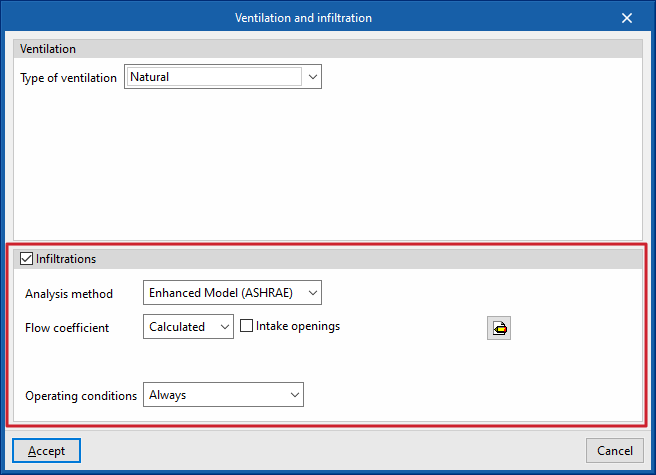
This section lets you specify the presence of infiltration in each zone, i.e. an unwanted flow of outside air entering the group of spaces. Several options are available for defining this flow, using two analysis methods and different schedules.- Analysis method: Enhanced Model (ASHRAE)
Infiltration rates can be calculated using the specified calculation model. The following parameters must be defined:- Flow coefficient
Select one of the following options:- Defined
The flow coefficient is entered directly. - Calculated
The flow coefficient is calculated using the following data:- Intake openings (optional)
- Area
- Intake openings (optional)
- Defined
- Analysis data
The program can help you define each of these details by clicking on the options on the right.- Stack coefficient
- Pressure exponent (flow rate)
- Wind coefficient
- Safety factor
- Flow coefficient
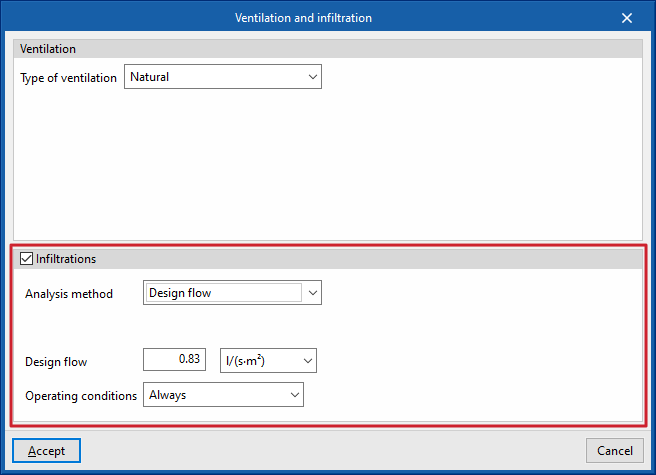
- Analysis method: Design flow
Directly enter the flow rate resulting from the infiltration. - Operational conditions (Zero ventilation only / Usage profile / Always)
Sets the conditions under which infiltration occurs in the area.
- Analysis method: Enhanced Model (ASHRAE)
- Ventilation
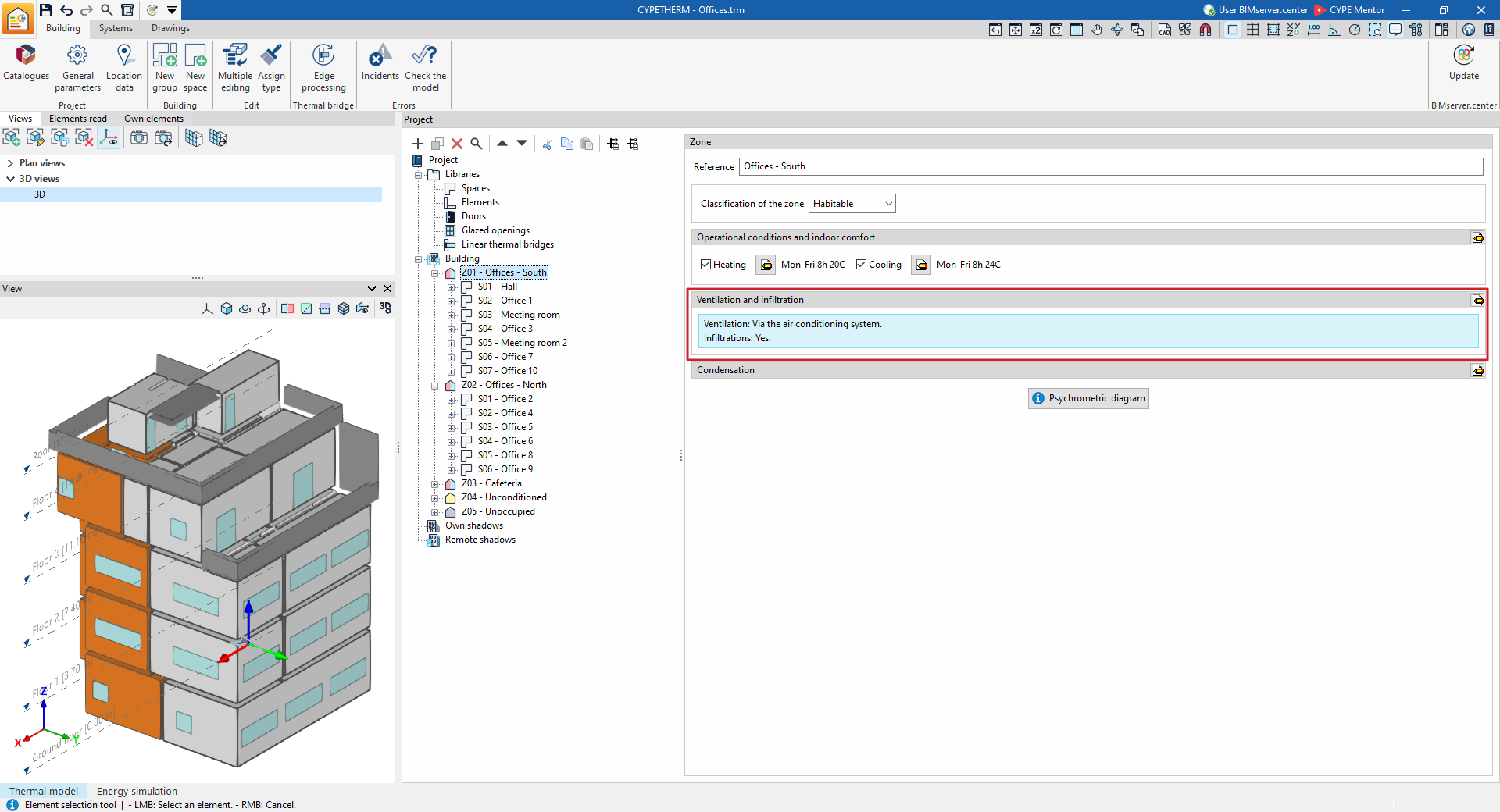
Editing the ventilation:
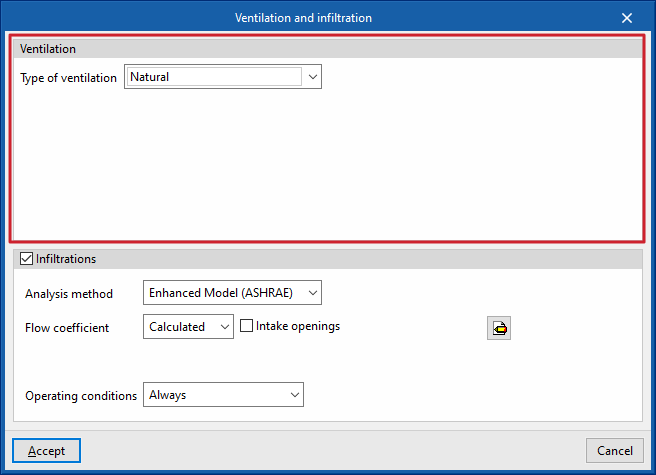
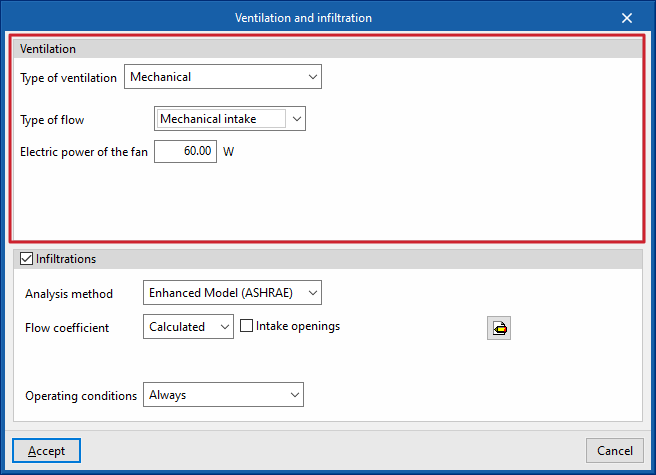
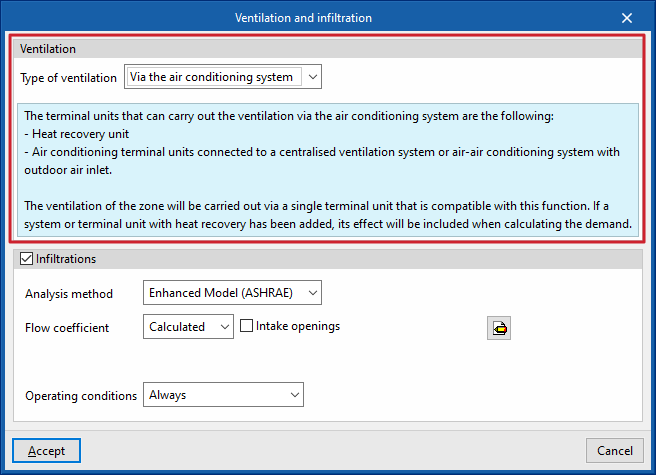
Editing the infiltrations:
"DHW" section
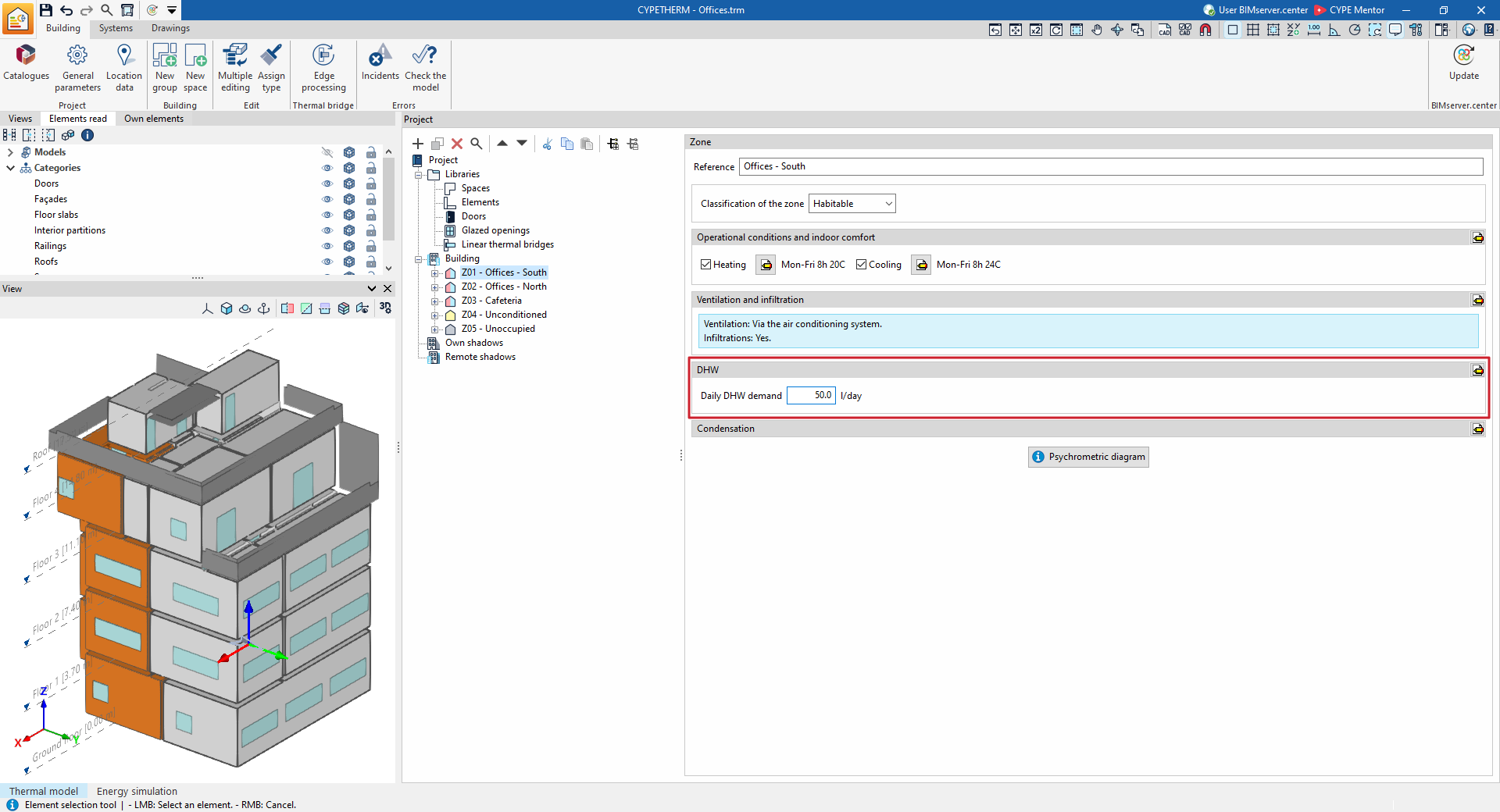
This section will appear in each heating zone if, under "General parameters", the "Demand by thermal zone" option has been selected within "Daily DHW demand".
The following parameters are then defined according to the domestic hot water demand in each zone of the building. If the "Total building demand" option has been selected, these definitions must be set for the entire building within the "General parameters".
- Daily DHW demand
The volume of domestic hot water (DHW) consumed in the area in a single day. - Editing advanced properties
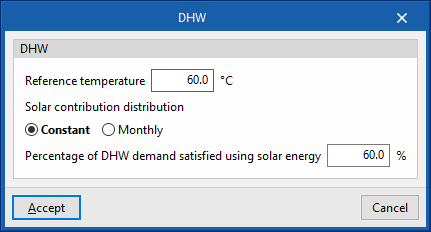
Using the edit button to the right of the section, you can set the following parameters:- Reference temperature
The production temperature of the DHW volume defined under "Daily DHW demand". - Solar contribution distribution
This defines the percentage of the energy demand for DHW production covered by the building’s solar thermal installation. You can specify a fixed value or a value on a monthly basis.- Constant / Monthly
- Percentage of DHW demand met by solar energy
- Reference temperature
"Condensations" section
This section defines the indoor environment parameters used to check for surface and interstitial condensation, provided this option has been enabled under ‘General parameters’.
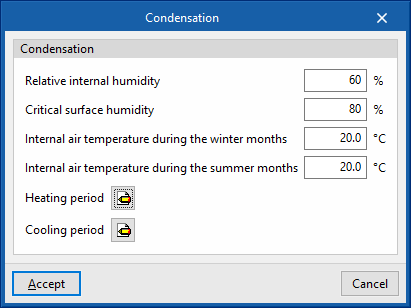
- Editing advanced properties
Using the edit button to the right of the section, you can set the following parameters:- Relative internal humidity
- Critical surface humidity
- Internal air temperature during the winter months
- Internal air temperature during the summer months
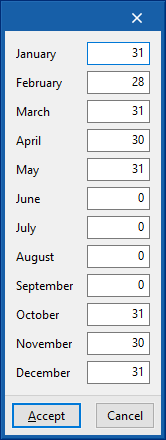
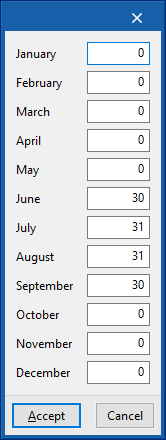
- Heating period (number of days per month)
- Cooling period (number of days per month)
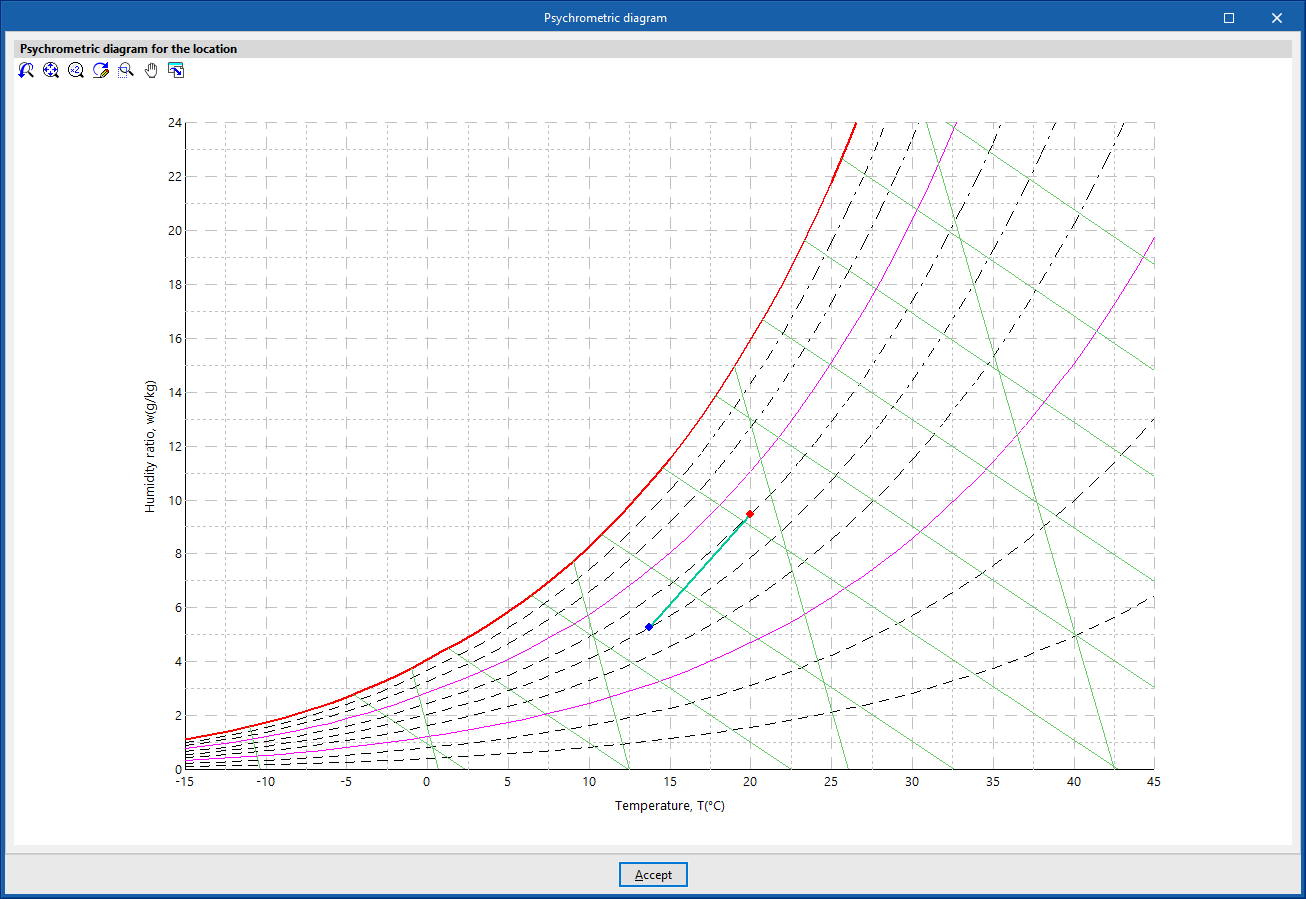
- Psychrometric diagram
Shows the temperature and humidity points for indoor air (in red) as defined in this section, and for outdoor air as defined in the "Location data" panel.