Downloading and installing CYPE Menu. Full installation
The steps required to download and install CYPE Menu. Full installation are described below.
1. Register with BIMserver.center
First, you need to register on the BIMserver.center platform. To do this, follow the steps below:
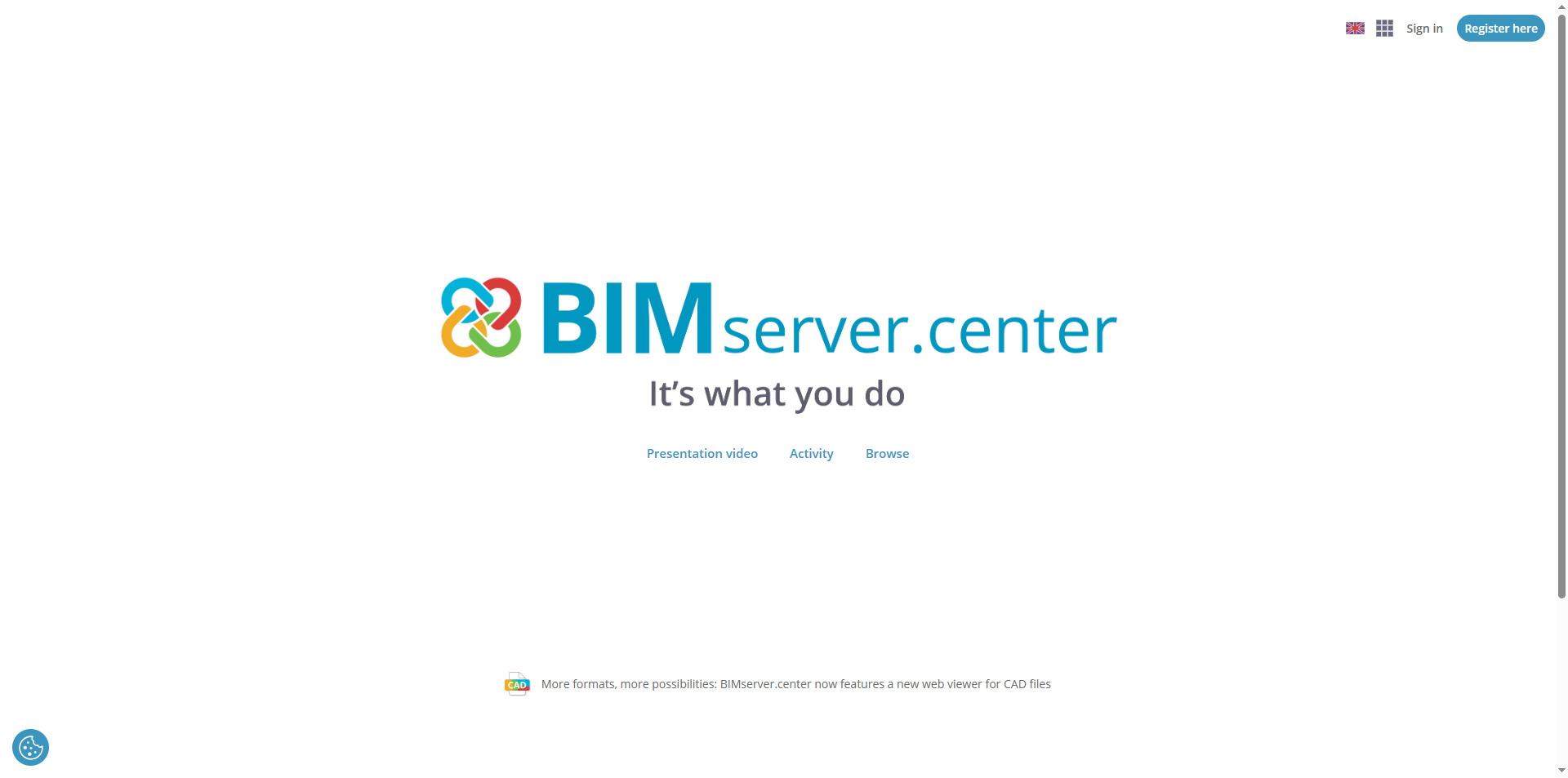
- Go to BIMserver.center in your web browser and click on the "Register here" button in the top right-hand corner.
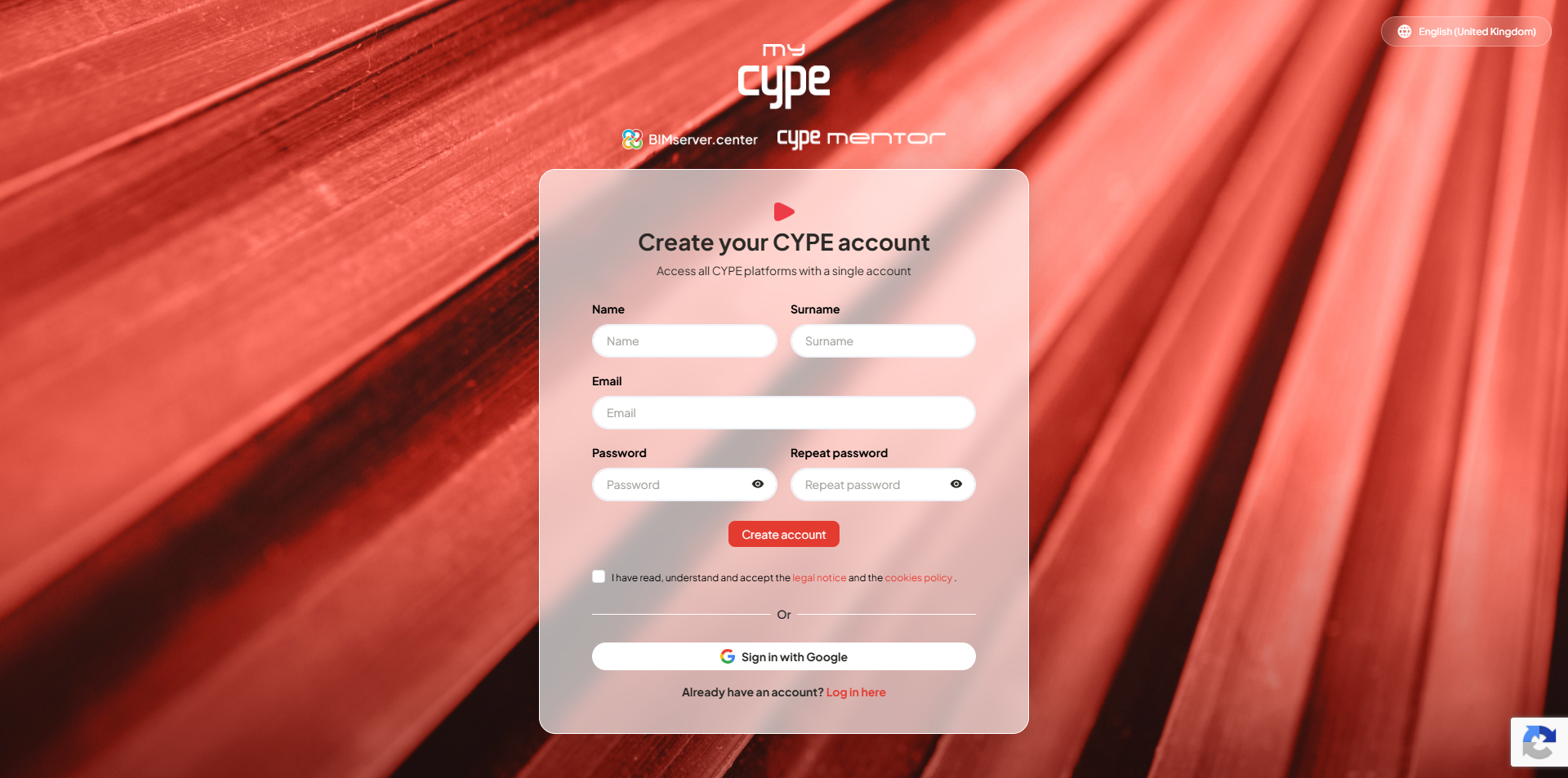
- Once you are on the registration page, enter your "First name", "Surname", "Email address" and "Password". Then click on "Create account".
- You will then need to confirm the validation email that will be sent to your email address. If you do not receive it, please check whether it has been marked as spam.
2. Sign in to BIMserver.center
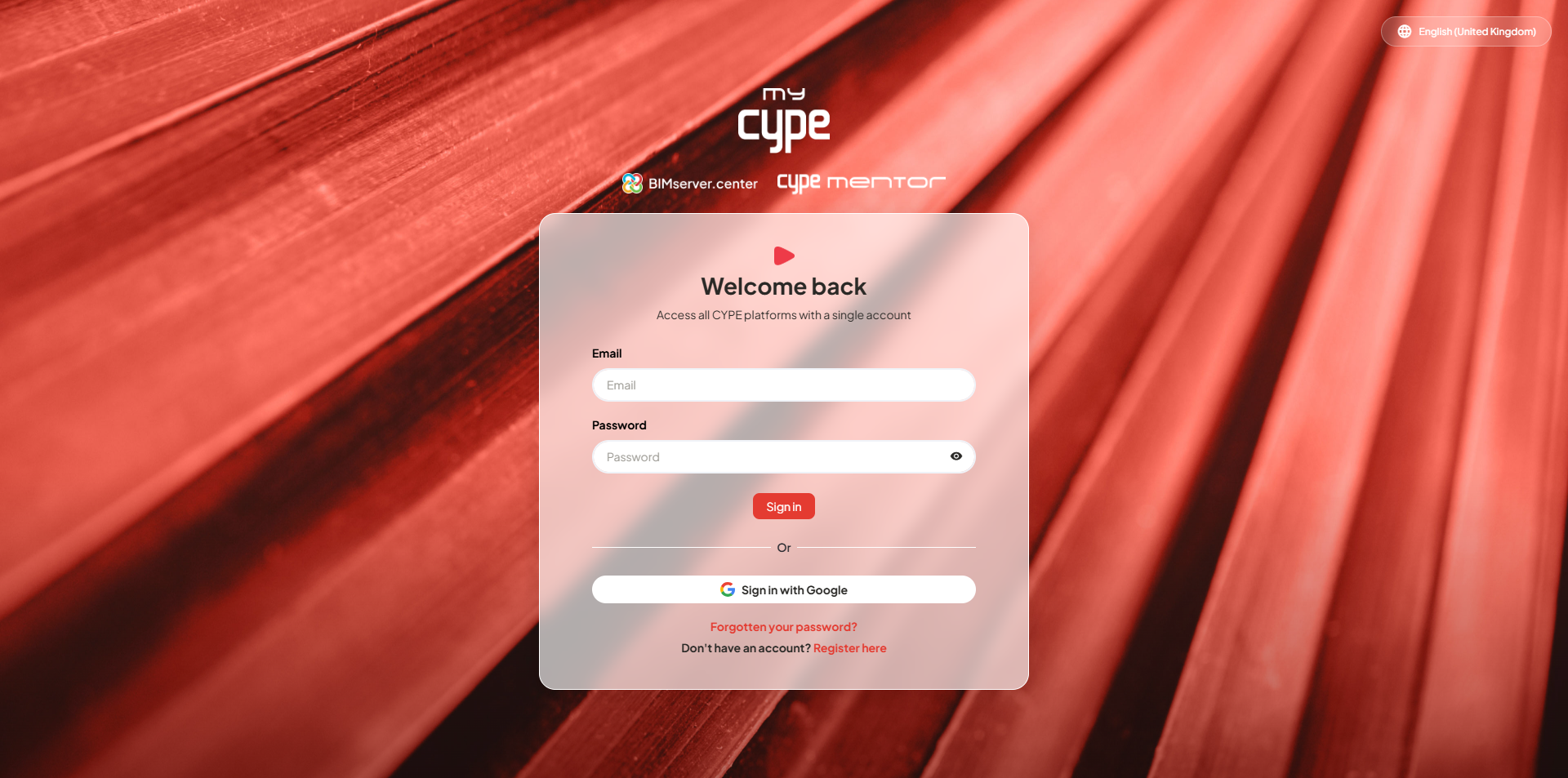
Once registration is complete, you must sign in to BIMserver.center using your account, as follows:
- Go back to BIMserver.center using your web browser and click on "Sign in" in the top right-hand corner. In the sign-in window, enter your account's "Email" and "Password" and click on "Sign in".
3. Download CYPE Menu. Full installation from BIMserver.center
On BIMserver.center, you can search for "CYPE Menu. Full Installation" and download it:
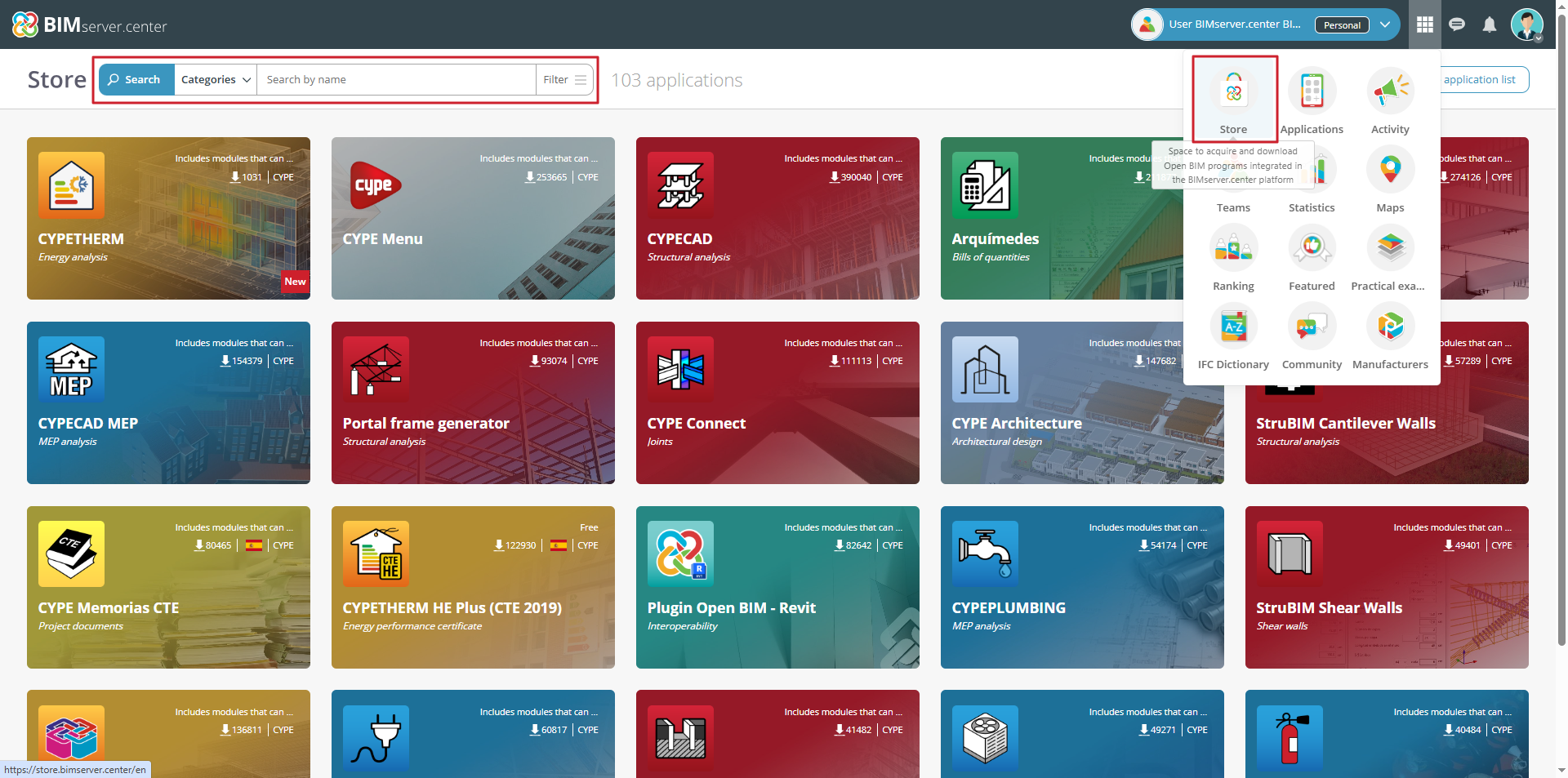
- The "Store" option takes you to the app catalogue. In the top left-hand corner, you can search for apps by name, category or tag.
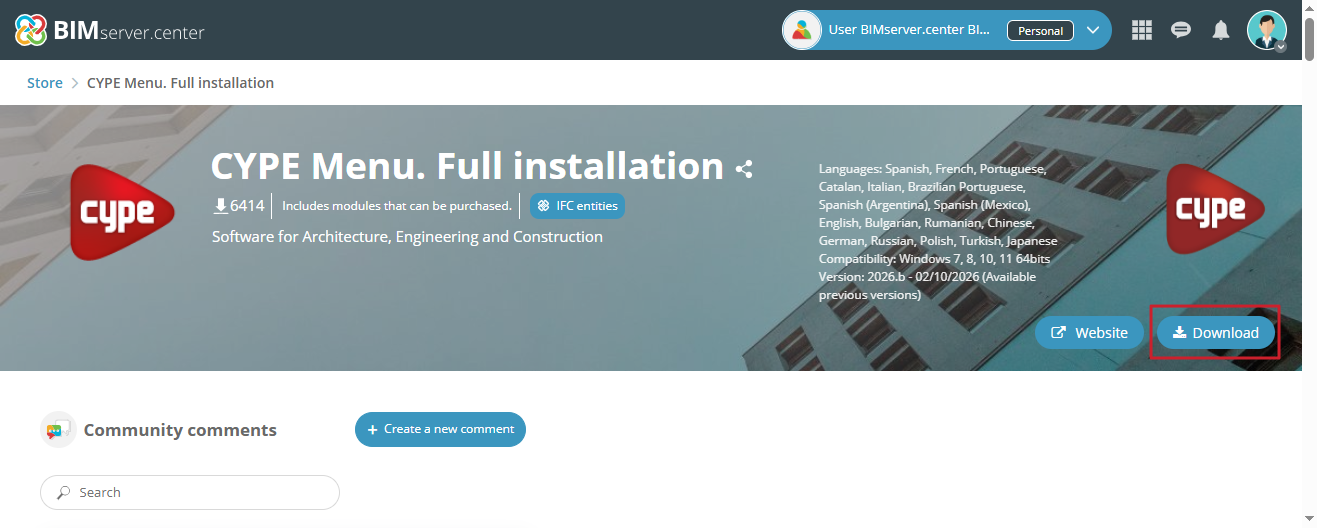
- When you select the desired app, its details page opens, where you will find the "Download" button in the top right-hand corner. Clicking this button will download an executable file to the specified location.
4. Install CYPE Menu. Full Installation
The file downloaded above can be used to download the complete app and install it. To do this, you must follow these steps:
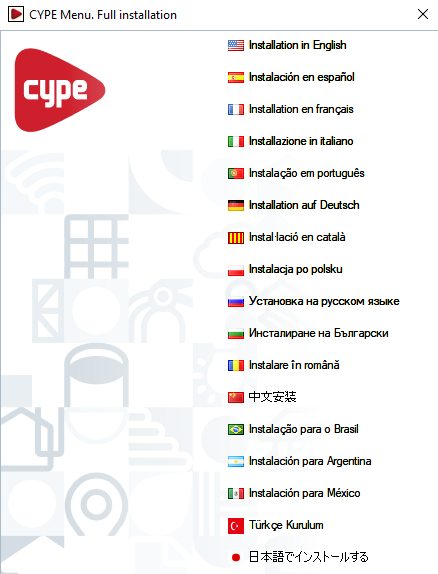
- Run the downloaded file from your downloads folder and select your preferred installation language from the available options.
- The path where the full app will be downloaded will be displayed. Tick "Install automatically after downloading" if desired, and click "Start download". If the directory does not exist, the program will ask for confirmation to create it. In that case, select "Yes".
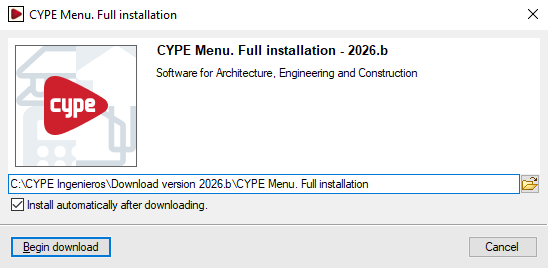
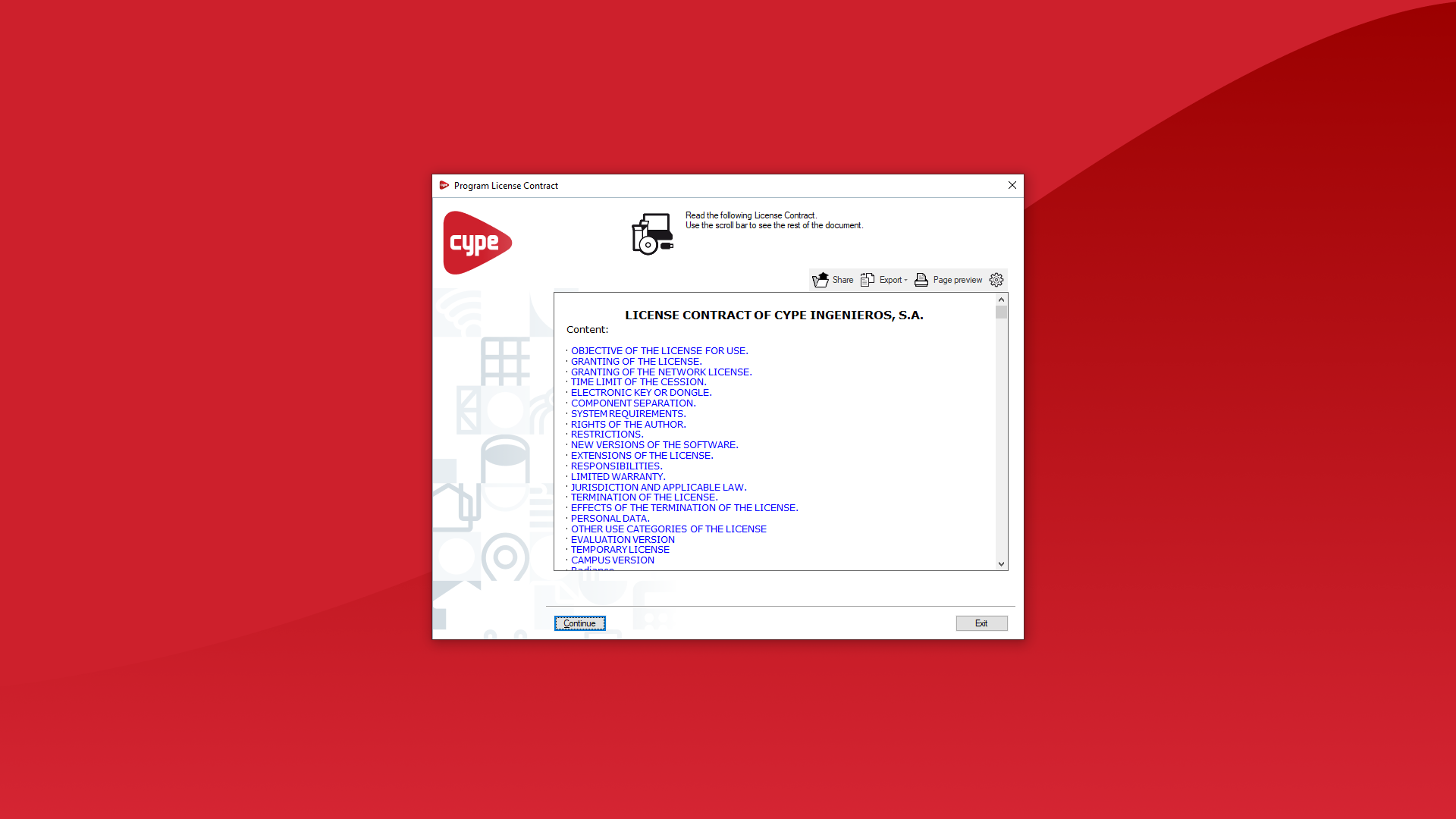
- If you ticked "Install automatically after downloading" in the previous step, the installation wizard will launch automatically. If not, you will need to locate and open the installation executable file in the relevant language within the designated folder, for example, C:\CYPE Ingenieros\Download version 2026.b\CYPE Menu.Full Installation\Installation in English\Install CYPE Menu.Full Installation.exe. In the installation wizard, you must accept the Licence Agreement and the Liability Clause.
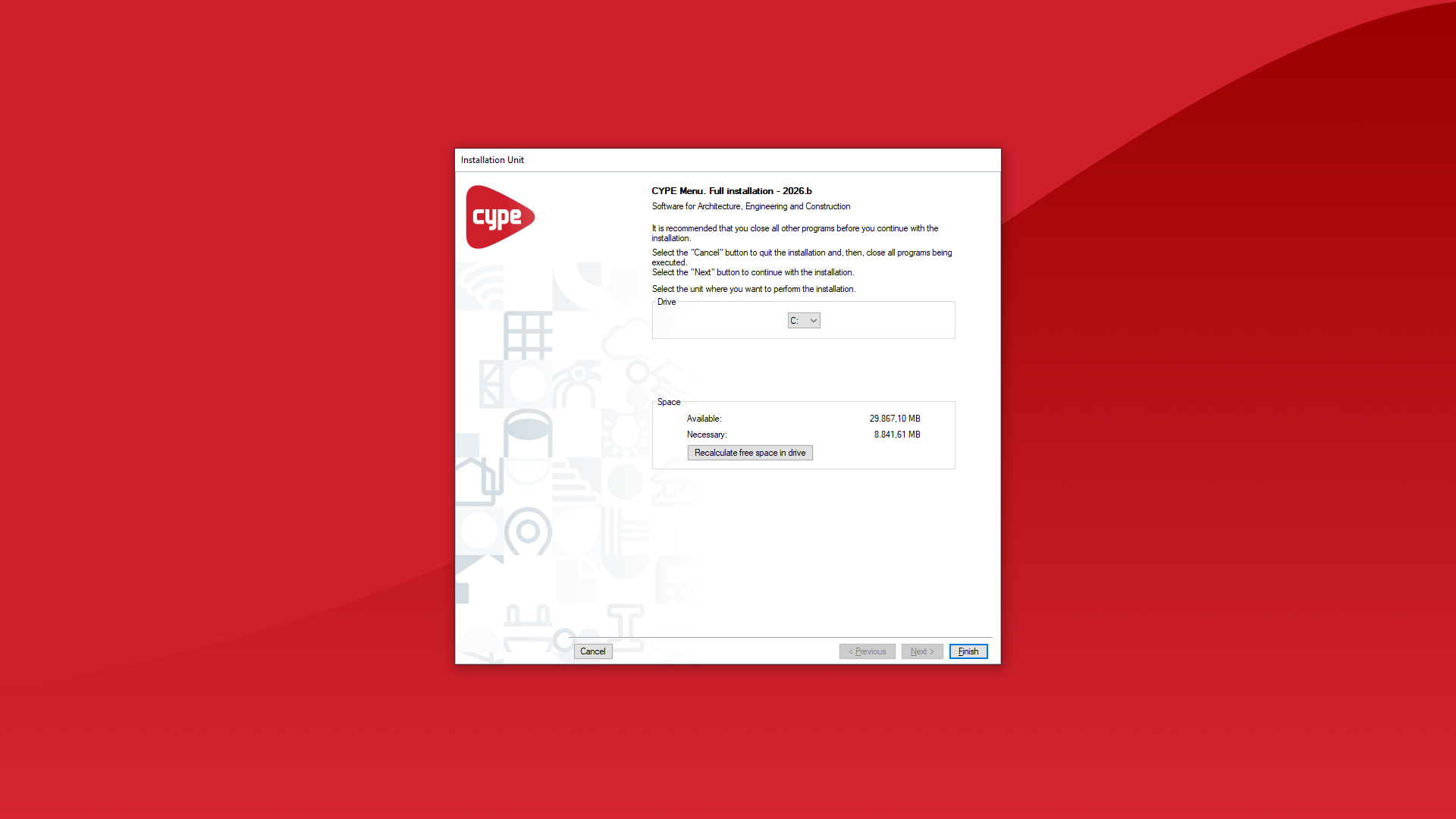
- Select the drive on which you wish to install the program. This will determine the installation path. For example, the installation path for CYPE Menu. Full Installation 2026 is as follows: C:\CYPE Ingenieros\Version 2026\CYPE Menu.Full Installation. You can tick the boxes to create shortcuts on the desktop and in the "Programs" menu, if desired. Finally, click "Finish".
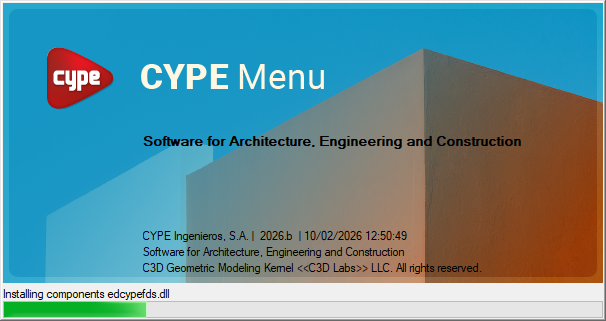
- The program's installation process will then start automatically. This may take a few seconds, depending on your computer. Once complete, the app will open automatically. You will then be able to run it using the shortcuts created during the installation process.
5. Use the electronic licence in CYPE Menu. Full installation
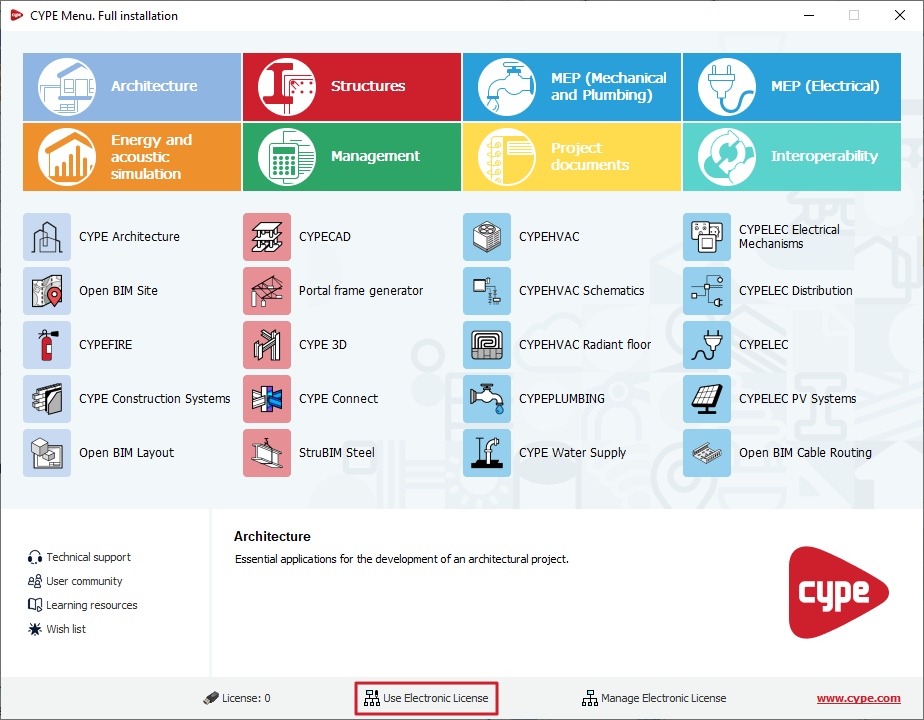
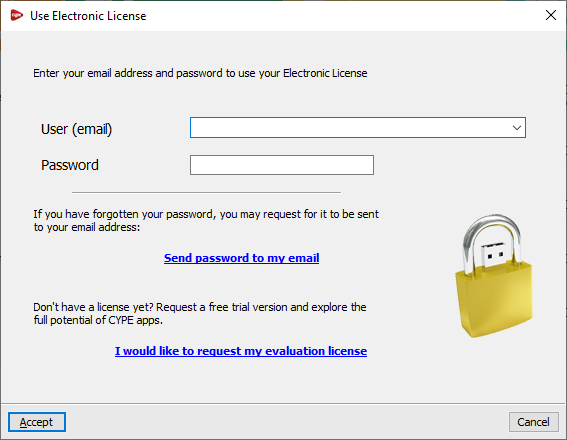
Next, still within CYPE Menu. Full installation, you must enter the email address and password associated with your CYPE licence by selecting the "Use electronic licence" option at the bottom.
6. Run programs in CYPE Menu. Full installation
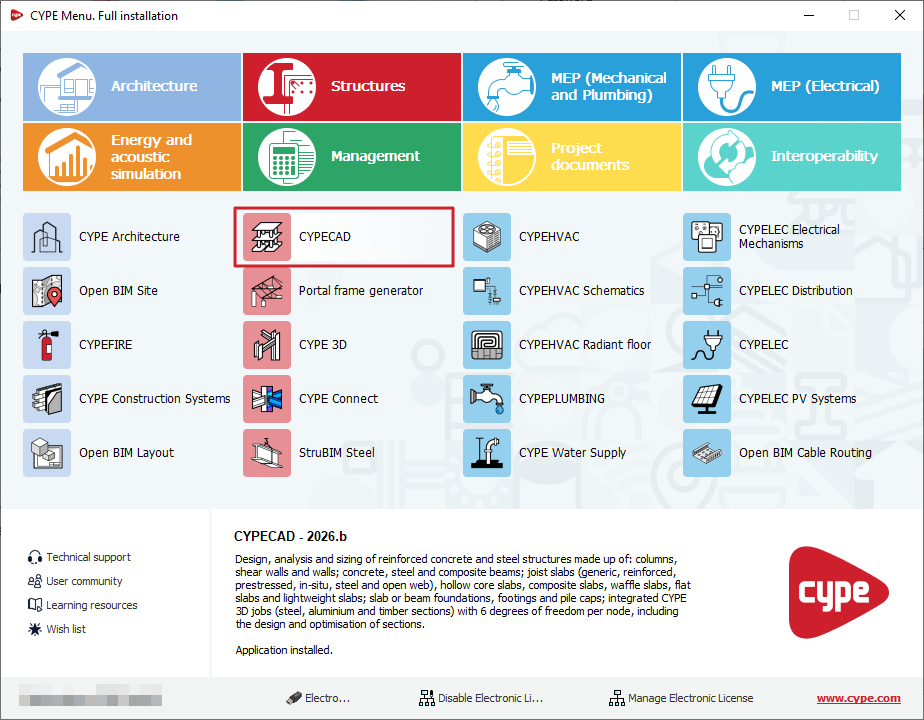
Once CYPE Menu. Full Installation has been installed, you can "Run" each program by clicking on the corresponding button. Doing so will open the app's main interface, from which you can start working.