Files and folders generated by CYPE software
Files and folders created when downloading the program
During the software download process, a folder named C:\CYPE Ingenieros\Download version 20XX.x\ is created. This folder contains the files required to install the software at a later stage. Once the installation is complete, the folder can be deleted if it is no longer needed.
Files and folders created when installing the program
Once the installation is complete, the folder C:\CYPE Ingenieros\Version 20XX\ is created. These files must be retained to use the software. This folder must be retained if you wish to keep a specific version of the program operational so that it can be used at any time. For example, if you need to review a project in the future under the same conditions as when it was created.
User configuration files generated by default
When the programmes are opened, the user configuration folder C:\Users\Windows_user\AppData\Roaming\CYPE Ingenieros\v20XX\ is automatically created with default settings.
If this folder contains corrupted files, you can close the CYPE programs, rename this folder (for example, to v20XX.copy) and reopen the program so that it is restored to its initial state. Any content created and saved by the user will remain available in the renamed folder should this content need to be moved (by copying and pasting the files) to the newly generated folder for further work.
Files and folders generated during the work process
During the work process, CYPE programs generate files with different file extensions, which are stored in various folders. The following information is provided as a general guide, as each program may generate a specific file structure.
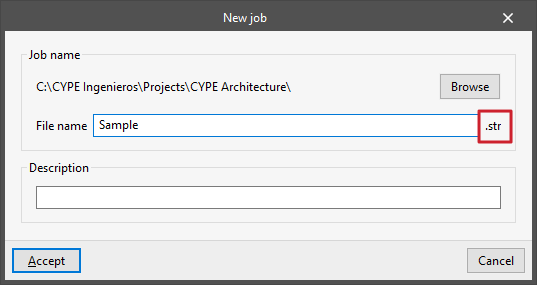
- The main file for each program has a specific file extension, which you can check next to the "File name" when creating a new project (File > New) or when saving under a different name (File > Save As). Each of CYPE’s programs uses different file extensions.
By default, you can find this file in the path C:\CYPE Ingenieros\Proyectos\program_name, although you can change the path at any time via "File > Save as". - In some cases, the file is accompanied by auxiliary files and folders with various extensions, which are located in the same directory as the main file. In some cases, the file is accompanied by auxiliary files and folders with various file extensions, which are located in the same directory as the main file. To transfer the information to another directory or from one computer to another, you must copy all the content in that directory that begins with the same name – including both files and folders – not just the main file.
- During the process, a backup file is created in the same directory as the main file. These files have an extension similar to that of the main file, with the last character replaced by the dollar sign ($). This backup can be restored at any time. To do this, take the file with the dollar sign and manually change its extension by removing the dollar sign and entering the corresponding character to obtain a file with the same extension as the main file. This restored file can be opened with the program just like any other.
- During the work process, data files with different extensions are generated in the Project_Name.EXT_dat folder, where EXT is the extension of the main file.
By default, these files and the folder are located in the same directory as the main file. - During the process of linking, importing and exporting to BIMserver.center, communication files are generated via BIMserver.center and are stored in the folder C:\Users\Windows_user\AppData\Roaming\CYPE Ingenieros\BIMserver.center\bim_projects\user_ID\proy_ID\, with various file extensions (.ifc, .gltf, .pdf, etc.).
These are not the program's native working files, but they enable communication with other programs linked to BIMserver.center. - In some cases, the program saves user configuration files in the folder C:\Users\Windows_user\AppData\Roaming\CYPE Ingenieros\v20XX, where v20XX is the program version.
This applies to material and element libraries. The file extensions for these files vary widely and can be checked during the process of importing or exporting these elements within the program. - When opening a project saved in an earlier version, the program can create a compressed backup file. This file will be saved in C:\CYPE Ingenieros\Backup or in C:\CYPE Ingenieros\Projects\programme_name\Backup and has the extension CYP.
This compressed backup file can be restored by opening the relevant programme and using the “Extract” option available in the “File” menu or “File > File Management”. - Finally, there are various folders containing result files with different file extensions in C:\CYPE Ingenieros, such as C:\CYPE Ingenieros\Export files, C:\CYPE Ingenieros\Reports and C:\CYPE Ingenieros\DWG Drawings, which you can use to store the information obtained from the program via the print and export functions.
Example
CYPE Architecture saves the information in a file with the .str extension.
In addition, CYPE Architecture generates a backup file with the extension .st$ and a .str_dat data folder.
The folder C:\CYPE Ingenieros\Proyectos\CYPE Architecture\ contains all these files.
When exporting, communication files (including an .ifc file and a file named *.bim) are generated in the folder C:\Users\Windows_user\AppData\Roaming\CYPE Ingenieros\BIMserver.center\bim_projects\user_ID\proy_ID\Architecture\ communication files (including an .ifc file and a .gltf file) are generated via BIMserver.center.
Lists of folders and files
You can view a more comprehensive list showing the folder structure and information on the files used by CYPE via the following links: