Options for simplifying the number of detail lines
To simplify the number of detail lines shown in the quantity tables when generating the quantity extraction from the "Assignment of items and quantity extraction" dialogue, the following processes are available:
- Grouping detail quantity lines originating from Revit
The grouping of detail quantity lines is carried out after assigning to the items the types corresponding to the Revit elements.
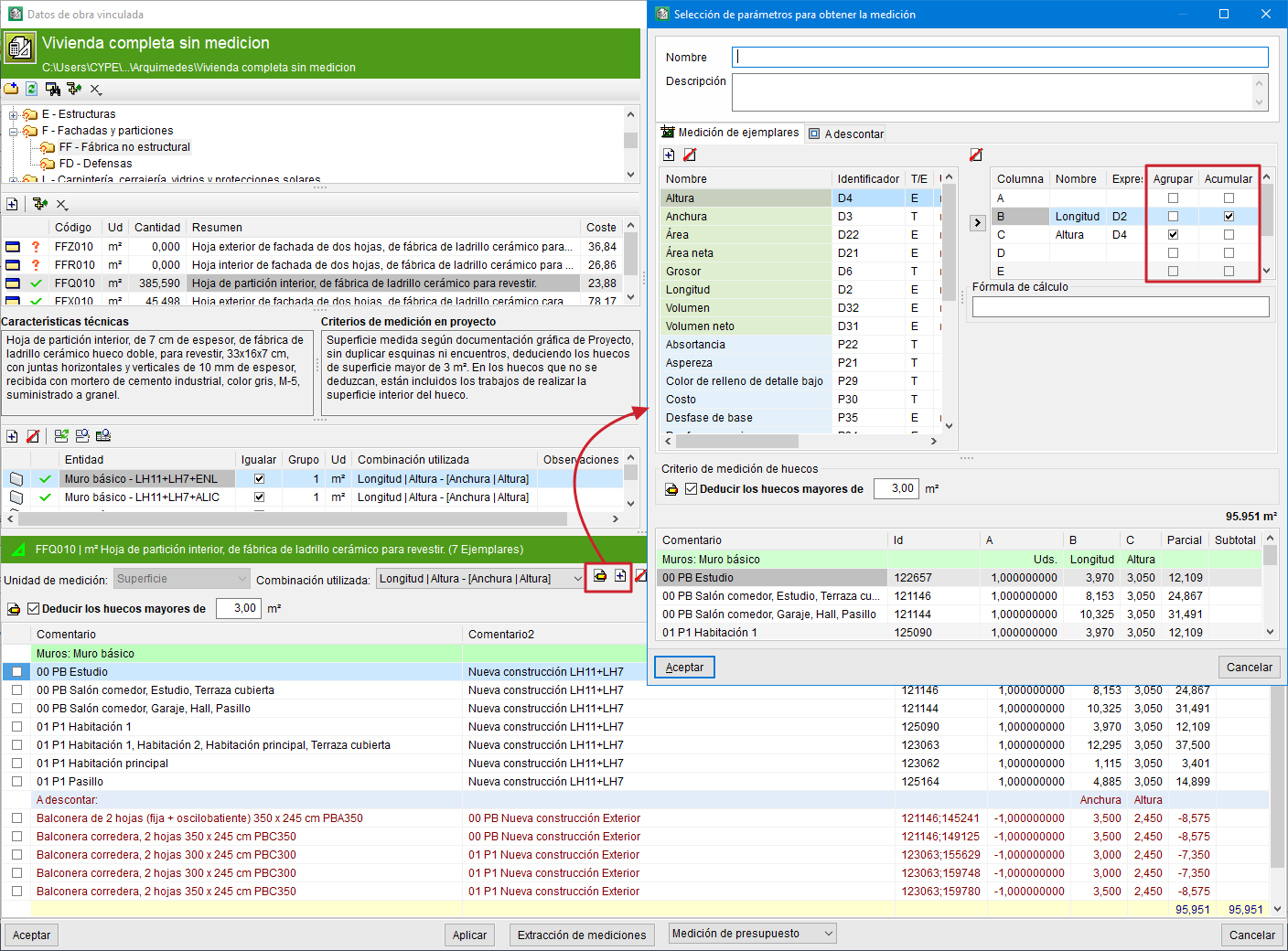
This grouping is defined from the "Assignment of items and quantity extraction" dialogue, by creating or editing a combination (the "Add" or "Edit" buttons located to the right of the "Combination used" drop-down list). In the dialogue that opens ("Parameter selection for obtaining the quantity"), identical dimensions can be grouped or accumulated in columns "A", "B", "C", "D" or "E" by activating the values in the "Group" and "Accumulate" columns respectively.
This operation can be carried out both in the "Quantity by instances" tab and in the "To deduct" tab.
- Grouping quantity lines
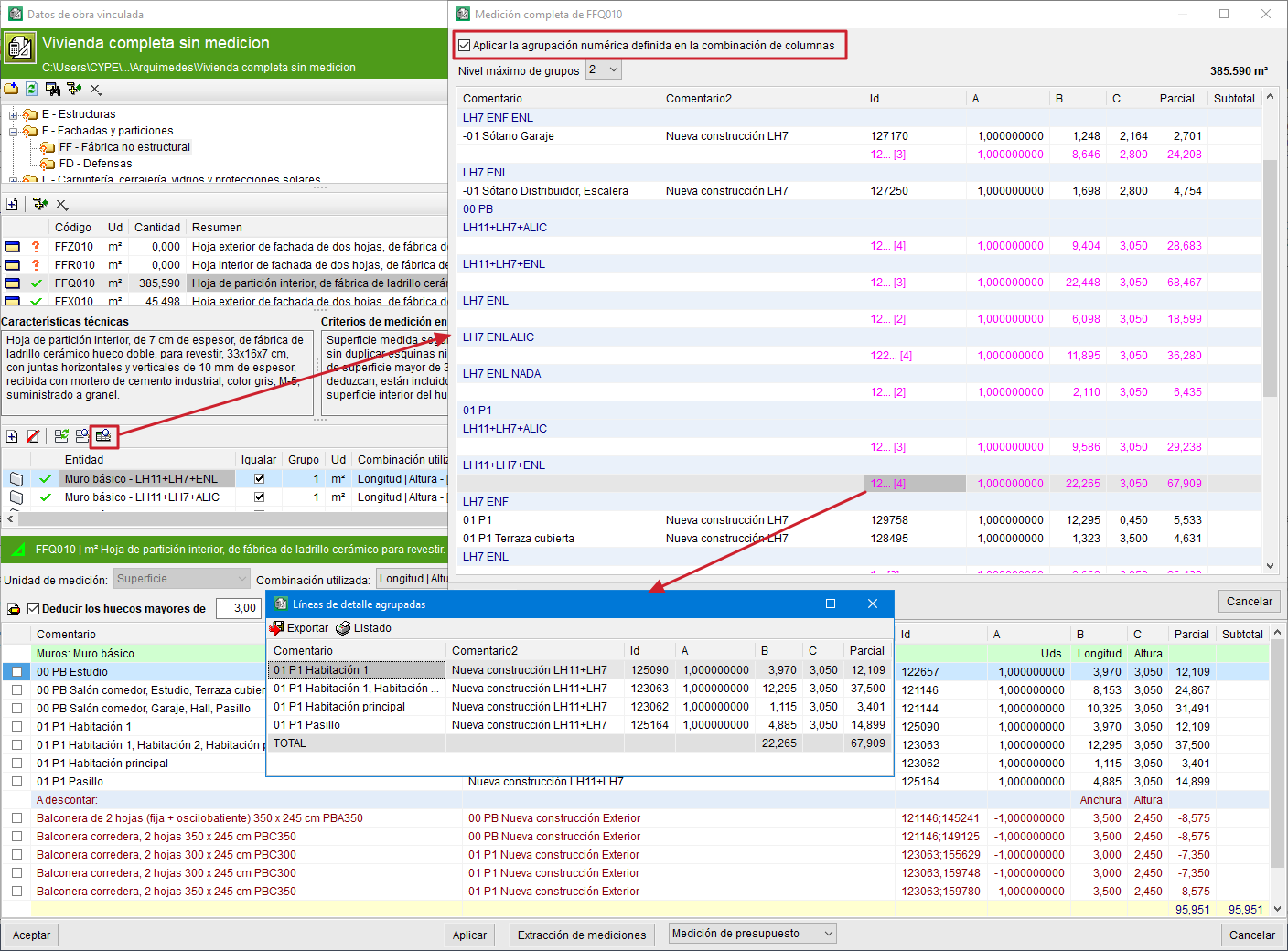
The "Group quantity lines" option in Arquímedes (menu "View", "Configuration") complements the "Apply the numerical grouping defined in the column combination" option for grouping quantity lines originating from the Revit model extraction.
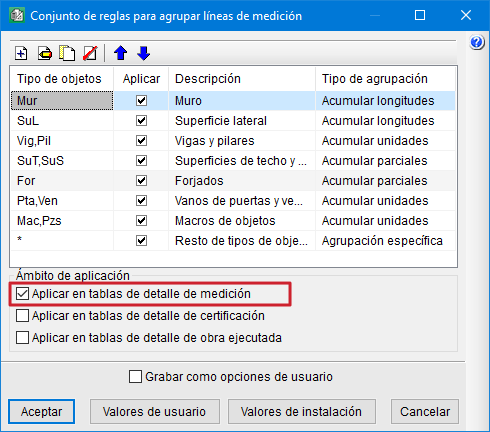
If in the dialogue that opens ("Set of rules for grouping quantity lines") the "Apply in quantity detail tables" check box is not activated, the quantity detail lines will not be displayed grouped, even if grouping criteria have been defined.
This dialogue allows rules to be defined for grouping the detail lines of the quantity tables (on screen, when printing, or when exporting). The grouping of quantity detail lines applies to those imported from CAD/BIM files, to those imported from BC3 files, and to those entered manually.
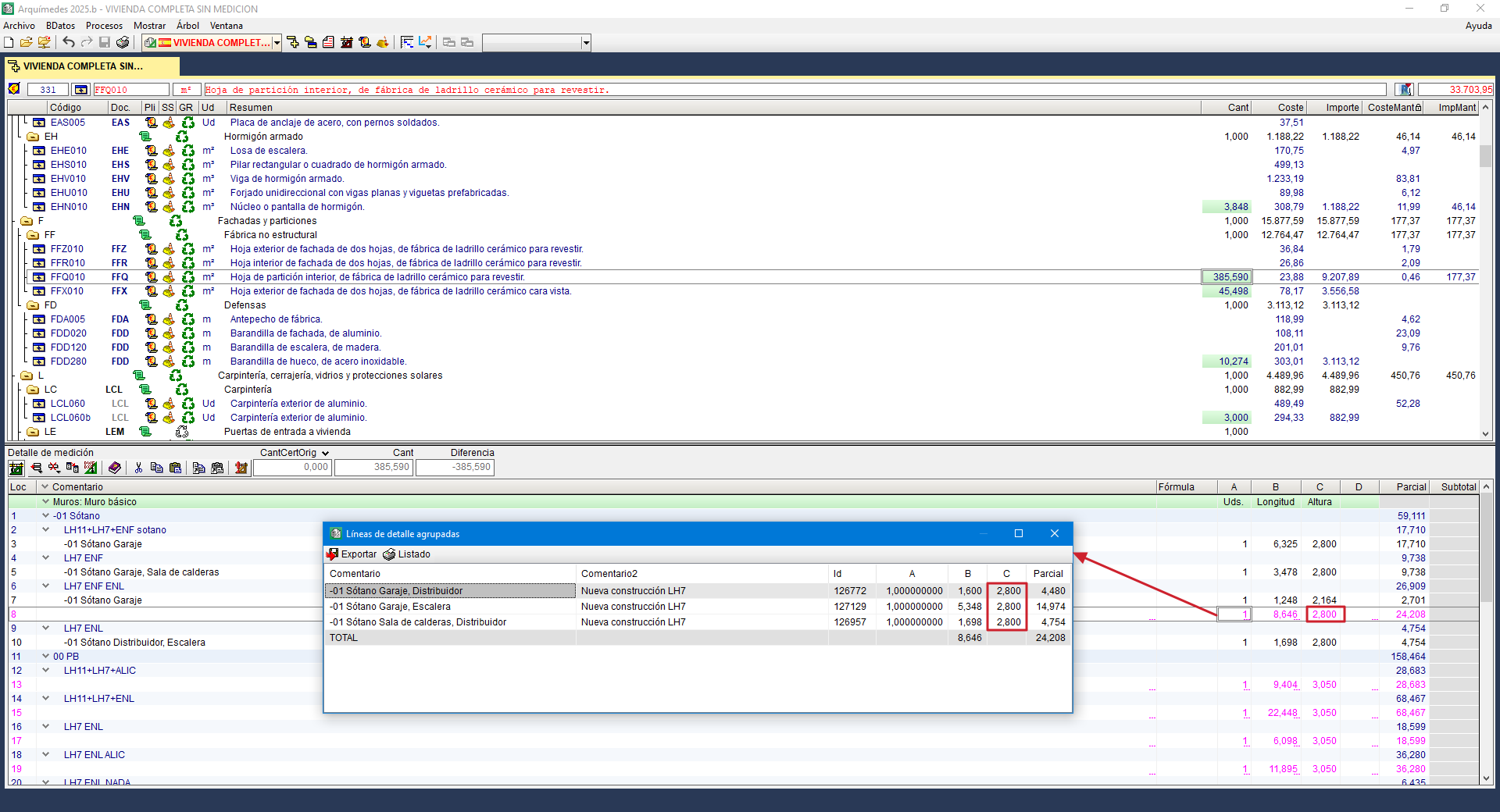
- Quantity groups in quantity tables originating from Revit
The creation of quantity groups in quantity tables originating from Revit is based on a process of sorting and classifying according to the content of the comment of the quantity lines that make up each quantity table.
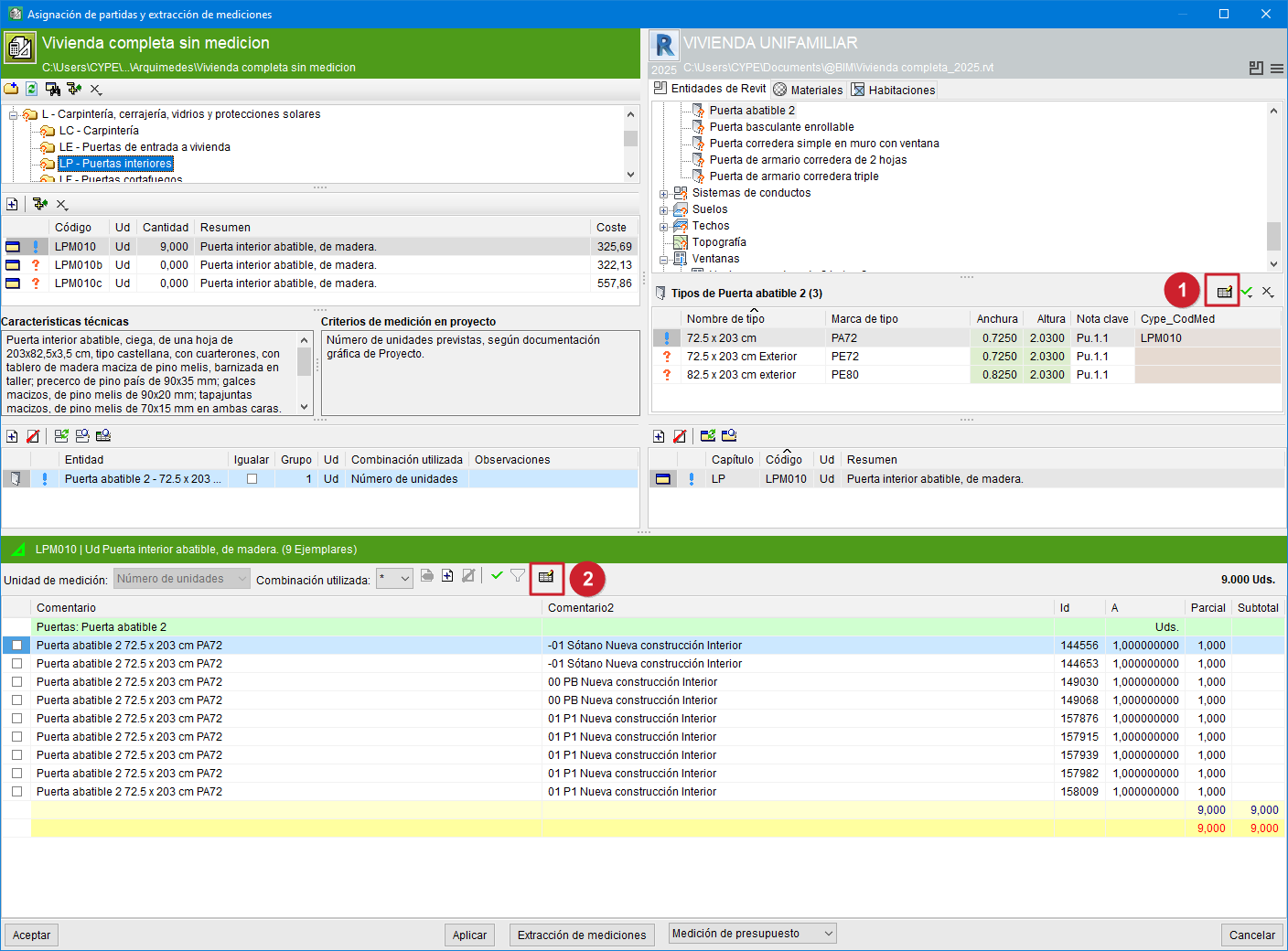
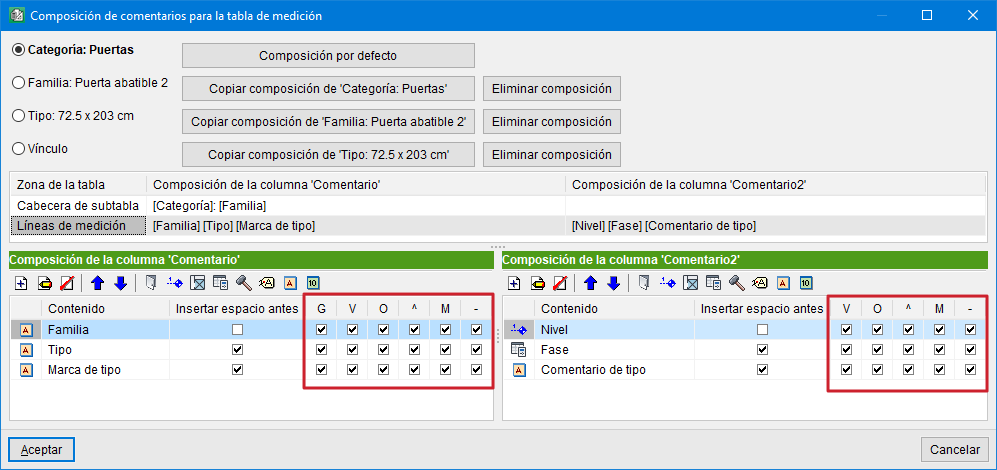
To organise and simplify the information extracted from Revit quantities, there are options accessible by pressing the "Comment composition for the quantity table" button in the selection area for "Types" or "Materials" (identified in the side image with the red number "1"), or from the configuration area for quantity tables (identified with the red number "2").
These options are:- Group header (column G)
Allows groups to be created within the quantity table; that is, to group quantity lines by comment. - Visible (column V)
Allows the information in the "Content" column to be shown in the quantity table. - Sort (column O)
Allows the detail lines to be sorted alphanumerically in the quantity table by comment. - Ascending order (column ^)
Allows alphanumerical sorting in ascending order in the quantity table by comment. If not activated, the sorting will be in descending order, provided the "Sort" option in column "O" is activated. - Visible in material quantity (column M)
When quantities are obtained by material, the formation of the comment for the quantity lines uses information provided by the material instance itself as well as by the instance that uses that material. Hence the possibility of making the material quantity visible. - Visible in ‘to deduct’ quantity lines (column -)
When openings are quantified, the formation of the comment for the quantity lines uses information from the opening instance itself as well as from the instance containing that opening. Hence the possibility of making the opening quantity visible.
- Group header (column G)