Quantity filters
Quantity filters allow you to obtain quantities for items assigned to entities only from the phases, categories, levels, or assignments (entity-item) in Revit that you want to measure.
You can set various types of filters:
Global quantity filter
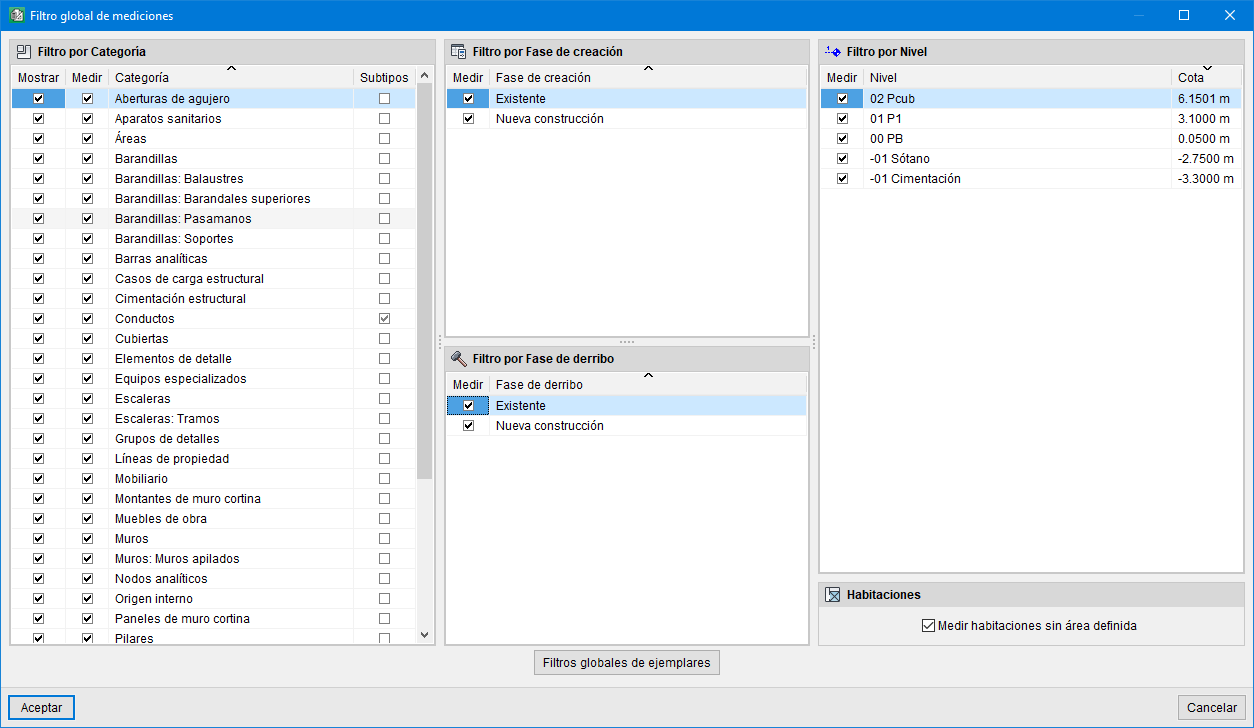
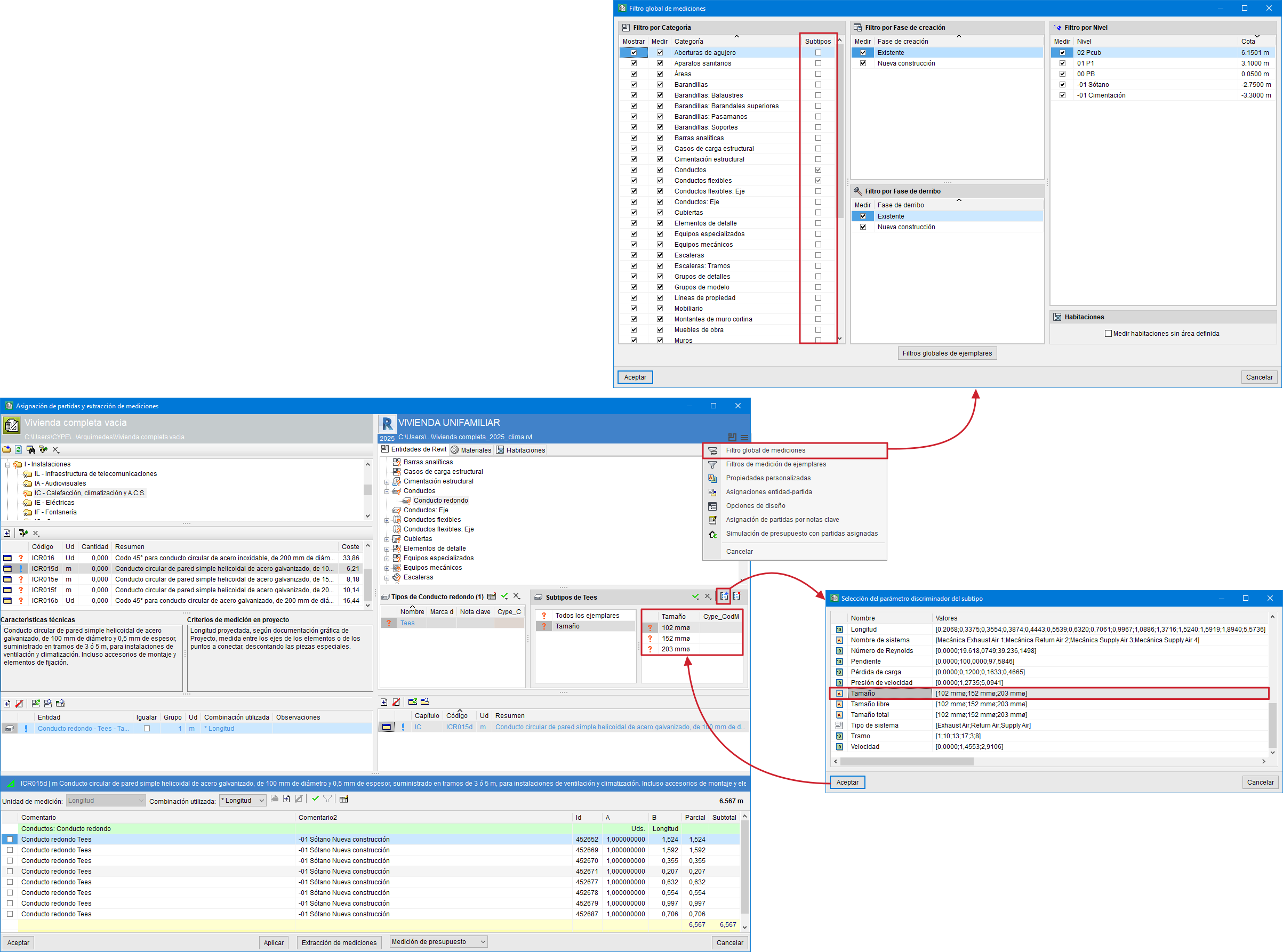
This filter is created using the "Global quantities filter" option in the drop-down menu that appears when you click the Options button in the "Assign items and quantity extraction" dialog box. Within this filter, you will find several filtering options:
- Show
This column allows you to select the categories you want to display in the "Assign items and quantity extraction" dialogue box. - Measure
This column allows you to select the categories, phases (both construction and demolition), and levels you want to measure when you click the “Extract quantities” button. - Measure rooms without a defined area
This option allows you to measure only those rooms defined in the Revit BIM model that have dimensions. - Global instance filters
With this option, you can filter instances that you want to measure and that meet certain conditions. This way, you can obtain a partial bill of quantities using only the filtered measurement lines. - Subtypes
This column allows you to define a subtype such as "Ducts", "Flexible ducts", "Pipes", "Tubes", etc., by specifying a distinguishing parameter (by clicking the "New subtype" button), to link their instances by grouping them into sets that share the same value for that parameter.
Note: The "New Subtype" button is located next to the Type selection in the blue section; it is only visible for the types "Ducts", "Flexible ducts", "Pipes", "Tubes", etc.
Filters for quantities by assignment
Assignment filters allow you to obtain quantities only for those instances that meet certain conditions. Filters created by assigning items to entities are organised by category. Filters of this type are created based on instance parameters.
Once an item has been assigned to a Revit entity or vice versa, you can filter by assignments.
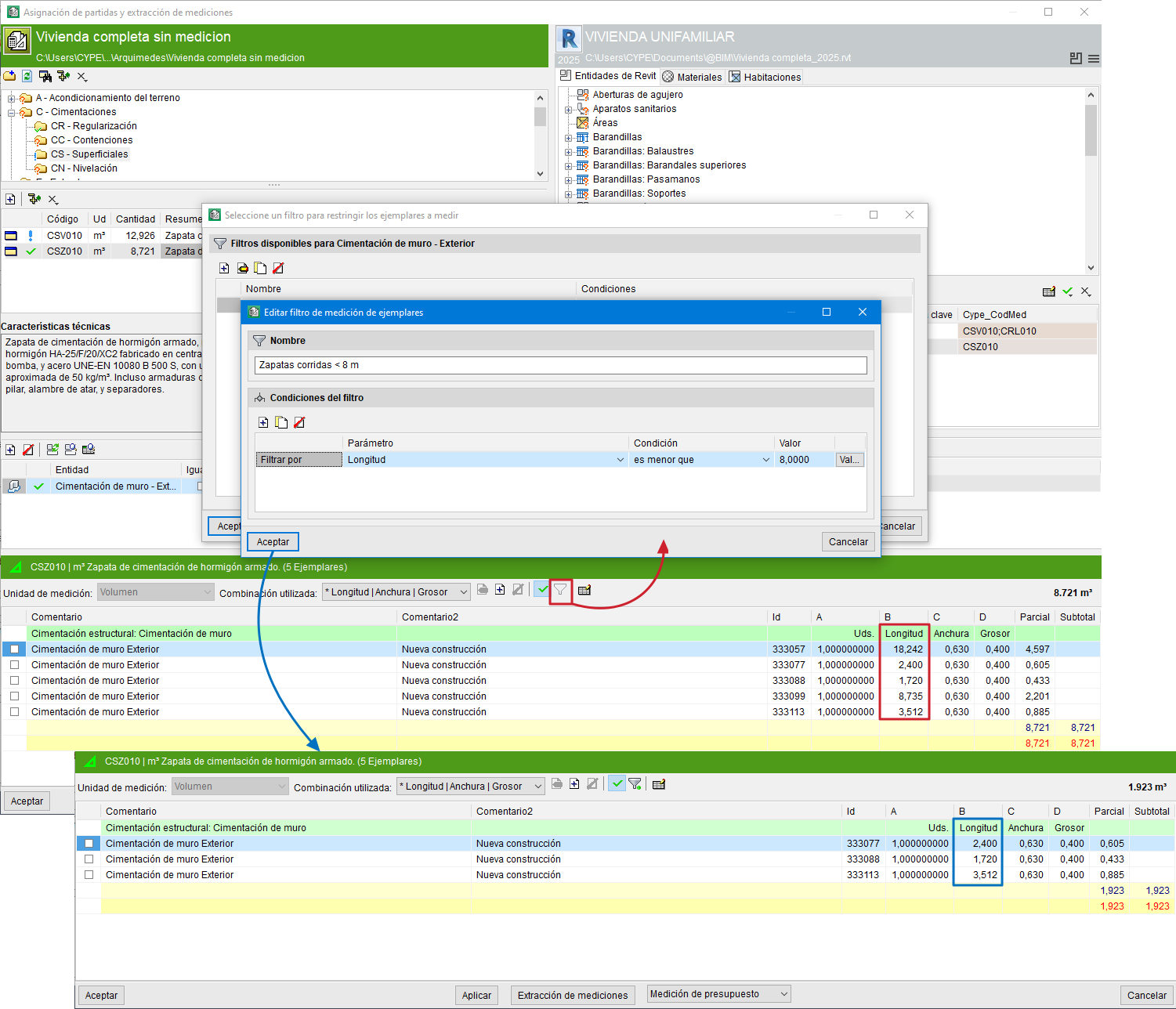
If, for example, you wish to filter by the "Length" parameter to select instances shorter than 8 m, click the filter button (located in the configuration area of the quantity details table). Selecting this will open the "Select a filter to limit the instances to be measured" dialogue, from which you can add a "New instance quantity filter", assigning it a name and defining its conditions. Upon confirming the changes, the quantity details table will display only those instances that meet the applied filter. Once added, you can edit, disable or delete the filter using the same button.
Instance quantity filters
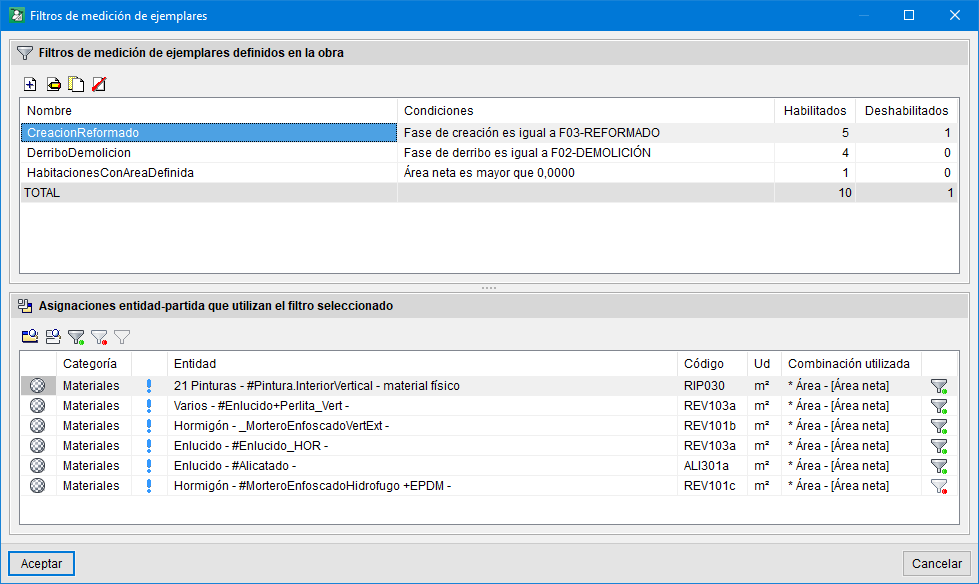
To manage all the defined filters, you can use the "Instance quantity filters" option in the drop-down menu that appears when you click the options button in the "Assign items and quantity extraction" dialogue box. In this dialogue box, you can:
- Enable, disable and remove existing filters.
- View the entity-item mappings that use the selected filter.
- Create filters, edit them or delete them if they are not in use.