Tools
The tools section provides additional tools for visualisation, filtering and management of structural models, making it easier to navigate and analyse BIM content.
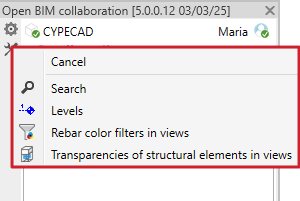
Search instance
Makes it easier to locate instances within the Revit project.

Information about the levels
It provides specific details on project levels, making analysis and organisation easier.

Apply transparencies to elements in views
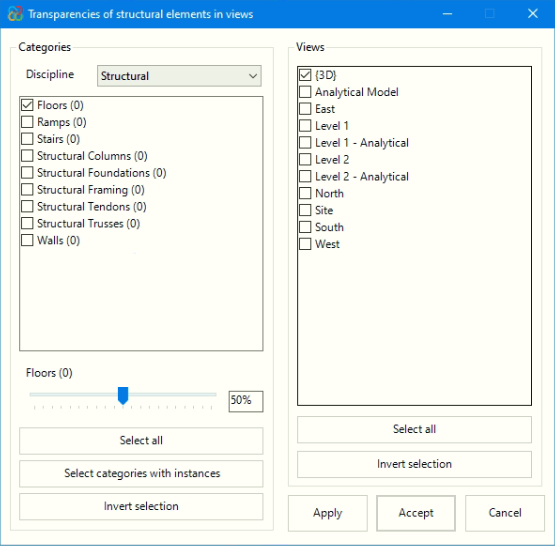
This feature can be used to quickly modify the transparency level of different categories in the Revit model without having to access the visibility and graphics editor in the interface. It can also be used to freely select elements and define an editable transparency percentage for one or more project views.
In the categories section, the drop-down menu selects one of the disciplines available in Revit. By default, the discipline defined in the project template is loaded. Depending on the discipline chosen, different categories of the model will be displayed, along with the number of instances in each. Manual or global selections can be made using the buttons below. In the central area, a slider (TrackBar) allows you to define the transparency percentage to be applied, with values between 0% and 100%.
Finally, in the views section, select the model views to which you want to apply the previously defined transparency percentage.
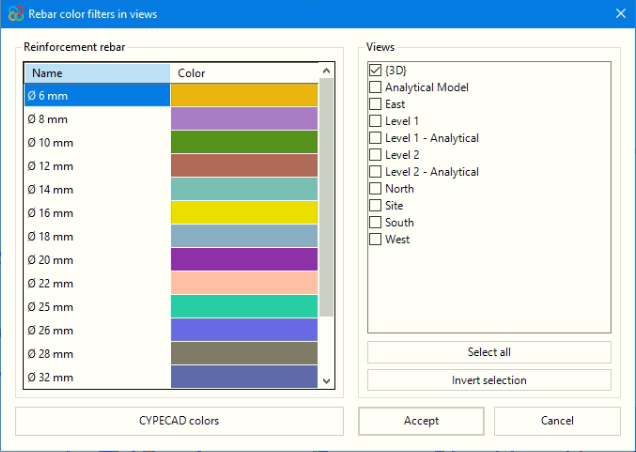
Assign colour filters to reinforcement
This tool can be used to assign colours to the reinforcements according to their diameter. They can then be applied to the available views selected without the need to create a filter for each of them. The colours are customisable, and the colours used in the original design program are also available.
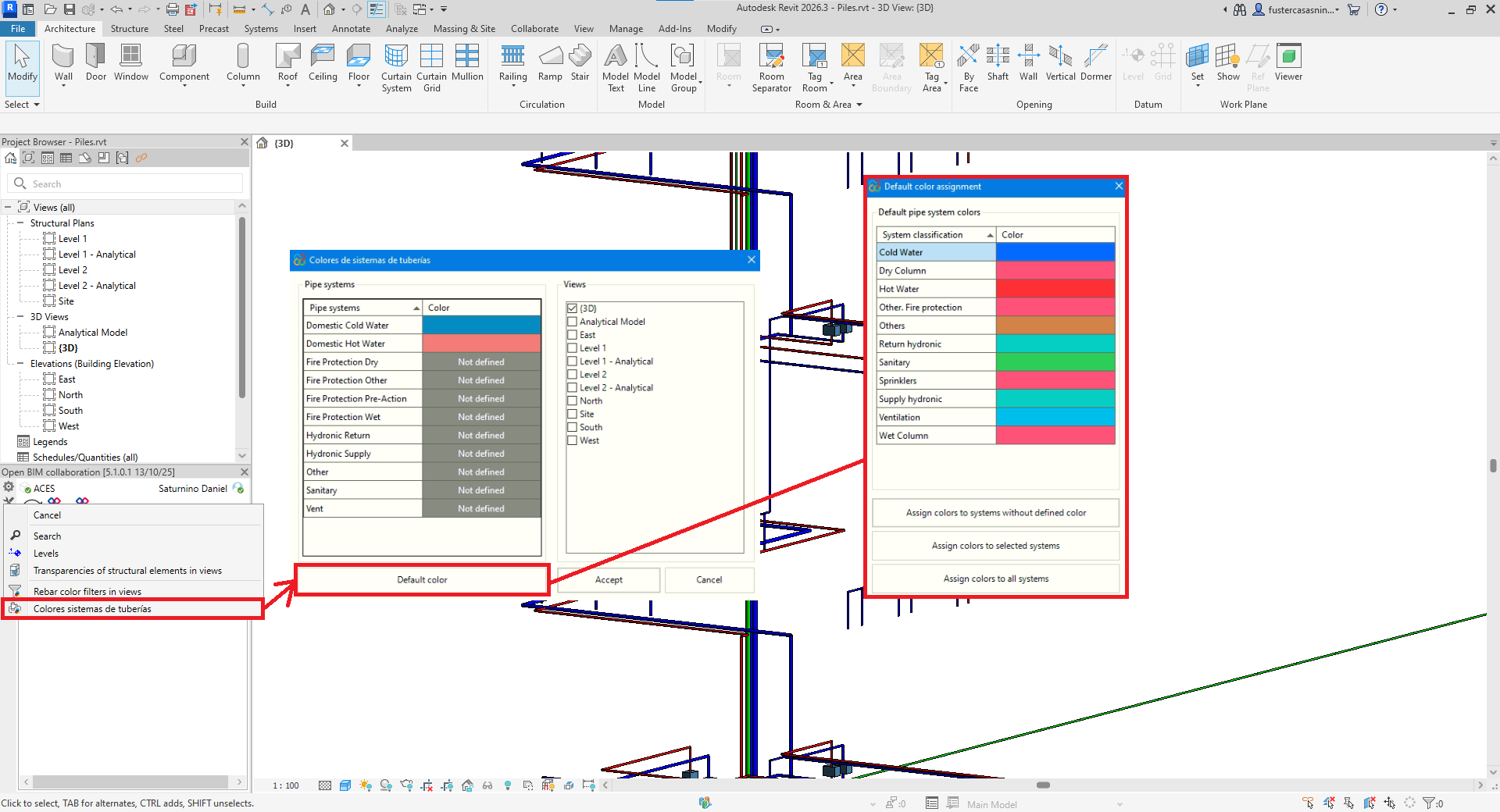
Assign colours for piping systems
This feature can be used to manage and customise the colours assigned to the different types of pipe systems available in the Revit model. It also makes it easier to identify systems without a defined colour and offers the possibility of applying a set of default colours in three different ways:
- Only to systems that do not have any colour assigned.
- To systems previously selected in the colour panel.
- To all systems available in the document.
In addition, you can manually modify the colours of each system by double-clicking on the corresponding cell, without having to use the default colour package.
The main dialogue box shows all the pipe systems in the project, while the default colours dialogue box shows the Revit system classification together with its assigned colour. Thus, when applying the default colours, the indicated colour will be automatically assigned to all systems belonging to that classification.