

Options in the "Results" tab
In the "Results" tab of CYPECAD, accessible from the bottom of the general interface, the results obtained from the analysis of the different elements of the model are compiled and can be consulted. It also allows modifications to be made to the reinforcement and the design of the elements.
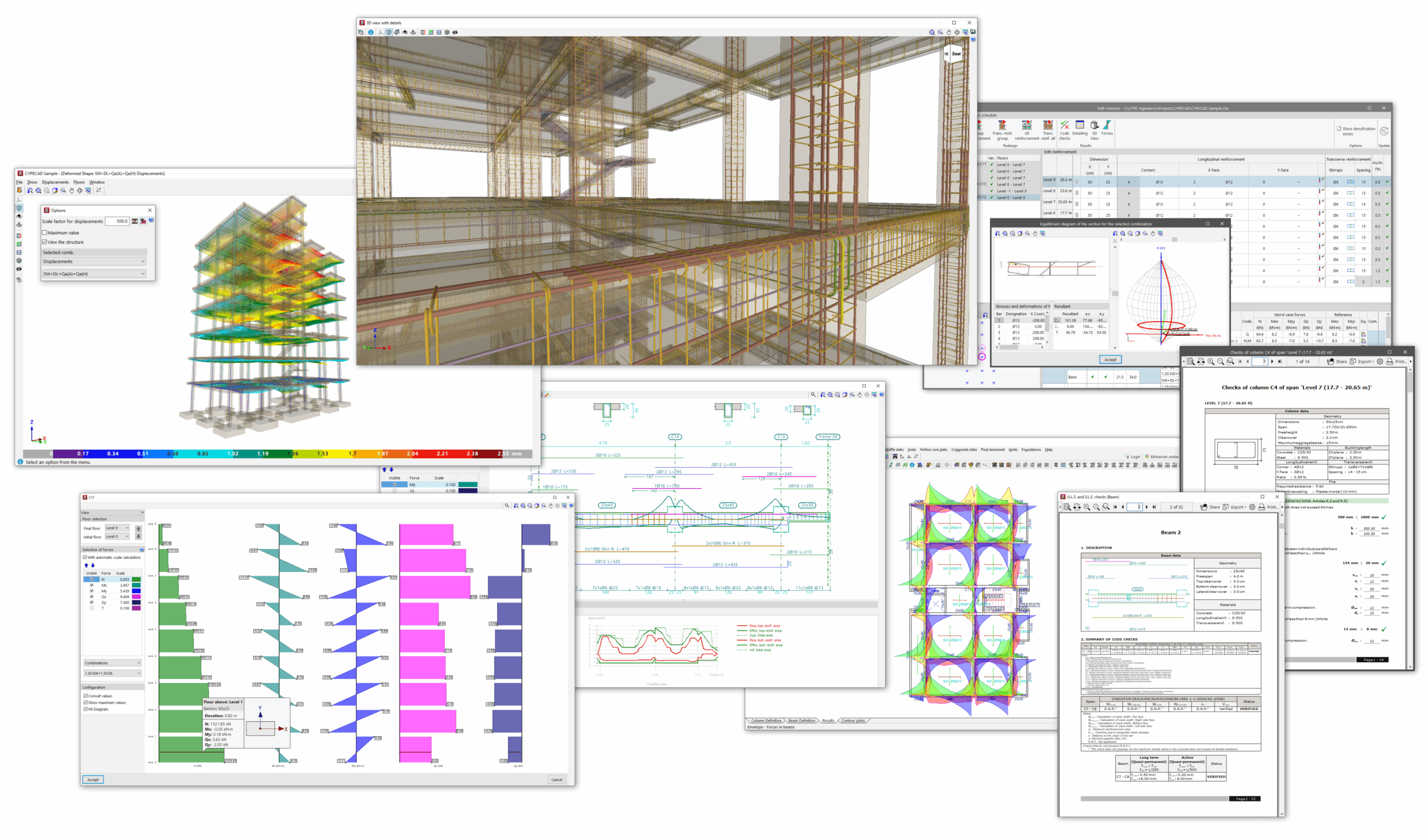
"Envelopes" menu
In the "Envelopes" menu, you can do the following:
- Check forces in beams, joists, lightweight slabs and composite slabs.
- Check quantities, displacements and forces in slabs and waffle slabs, and check lift-offs and excessive stresses in foundation slabs.
- Check forces, displacements and distortions in columns, shear walls and walls.
- View the analytical model and the structural deformation.
The following link provides detailed information on the options that appear in the "Envelopes" menu in the "Results" tab:
"Columns/Shear walls" menu
In the "Columns/Shear walls" menu, you can do the following:
- Access the specific column editor, which allows you to:
- Modify its assembly or the sections used.
- View the checks carried out.
The following link provides detailed information on the options that appear in the "Columns/Shear walls" menu in the "Results" tab:
"Beams/Walls" menu
In the "Beams/Walls" menu, you can do the following:
- Access the specific beam editor, which also modifies the beam reinforcement or the sections used, as well as consultation of the checks carried out on them.
- Editing of reinforced concrete walls.
- Verify and design concrete block walls.
- Edit and check short corbels and sloped beams.
The following link provides detailed information on the options that appear in the "Beams/Walls" menu in the "Results" tab:
"Flat/Waffle slabs" menu
In the "Flat/Waffle slabs" menu, you can do the following:
- Consult and edit the reinforcement in slabs and hollow core slabs.
- The punching verification options.
The following link provides detailed information on the options that appear in the "Flat/Waffle slabs" menu in the "Results" tab:
Menu "Joists"
In the "Joists" menu, you can do the following:
- Adjust the display of the results of joist slabs, such as the moments and shear forces to be covered, or the negative reinforcement;
- Check for errors, verifications and arrows on the joists;
- Edit and/or equalisation after analysing the joists and reinforcement layouts.
"Hollow core slabs" menu
In the "Hollow core slabs" menu, you can do the following:
- adjusting the display of the results for lightweight slab structures, including data on slabs and negative reinforcement;
- consultation of errors and information on lightweight slab floor panels;
- and editing after analysing the hollow core slabs and the reinforcement layouts.
"Composite slabs" menu
In the "Composite slabs" menu, you can do the following:
- adjusting the display of composite slab results, including data on steel sheet panels and positive or negative reinforcement;
- consultation of errors and information on composite slab floor slabs;
- and editing after analysing the steel sheet panels and the reinforcement layouts.
"Post-tensioned" menu
In the "Post-tensioned" menu, you can do the following:
- the configuration and editing options for post-tensioned slab components.
"Connections" menu
In the "Connections" menu, you can do the following:
- the configuration, consultation and redesign options for the connections analysed in the structure.
"Foundation" menu
In the "Foundation" menu, you can do the following:
- the management of the ground-structure interaction;
- the introduction of anchor plates and foundation elements such as footings, shoring, centring and tie beams;
- options for editing the geometry and assembly of foundation elements;
- the options for design and checking foundation elements;
- as well as other options related to foundation elements, such as checking forces at the base of footings, eliminating overlaps between them, or defining limits for polygonal footings.
The following link provides detailed information on the options available in the "Foundation" menu, which can be accessed from both the "Beam input" tab and the "Results" tab:
Obtaining reports and drawings
Furthermore, from the "Results" tab, it is possible to obtain lists and print plans of the project and the different elements of the structure, as well as export the information to other programs.
Table of contents
Complete your tour of CYPECAD by exploring the other available sections:
- Introduction
- Getting started and creating new projects
- General data configuration
- Defining floors and groups of floors and inserting columns, shear walls and starts ("Column input" tab)
- Inserting beams, walls, floor slabs, foundation elements and special elements, and structural analysis (the "Beam input" tab):
- Checking analysis results and editing elements (the "Results" tab):
- Options on the "Contour plots" tab
- Printing documents and exporting data
- More information:
- General features of CYPECAD
