The order of filters defined in quantities to restrict elements is memorised. This order is available by accessing the filter editing option.
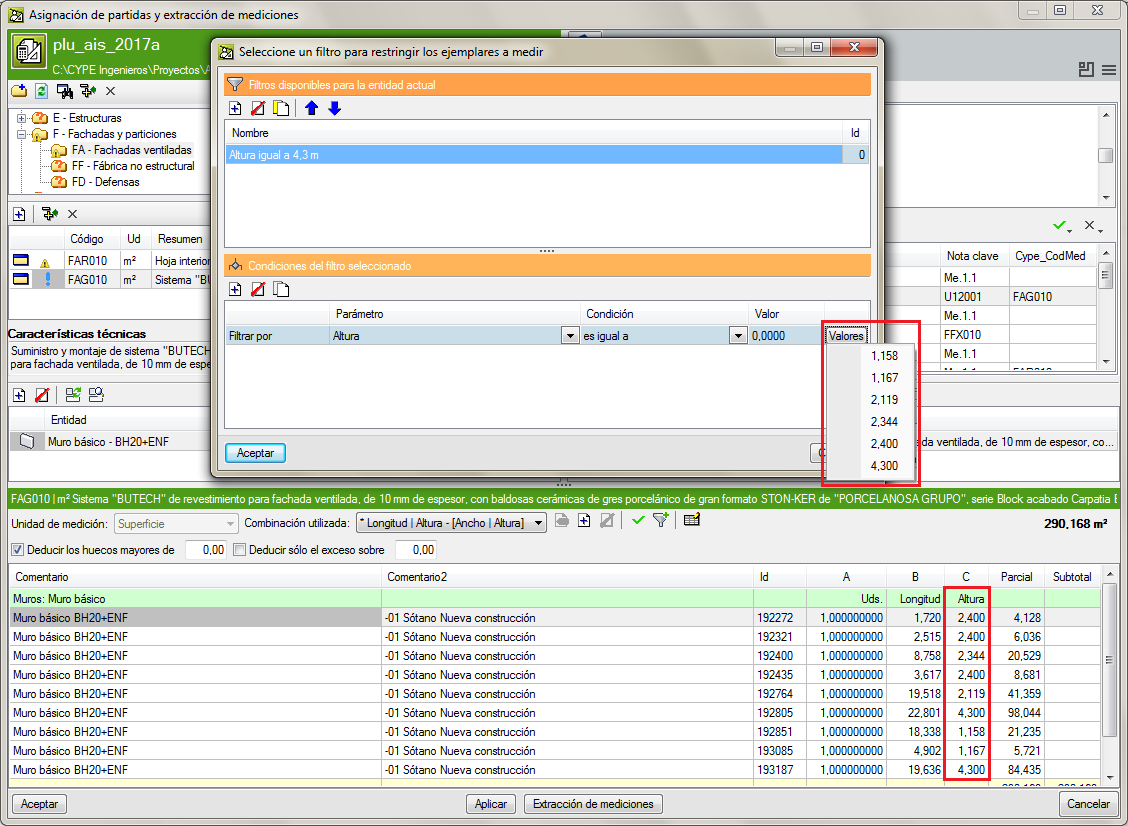
“Values” button added in the “Select a filter to limit the elements to be measured” dialogue box
The “Values” button has been added in the “Select a filter to limit the elements to be measured” to allow users to view all the available values for the selected parameter.
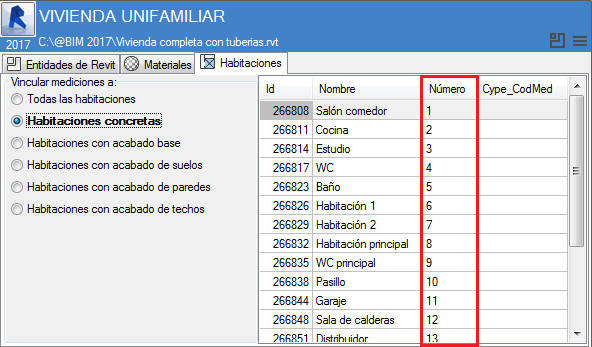
“Number” column in the “Job item assignment and quantity extraction” dialogue box
The “Number” column has been included in the “Rooms” tab of the “Job item assignment and quantity extraction” dialogue box when quantities are linked to specific rooms. This new column allows users to identify the assigned room number in the Revit model.
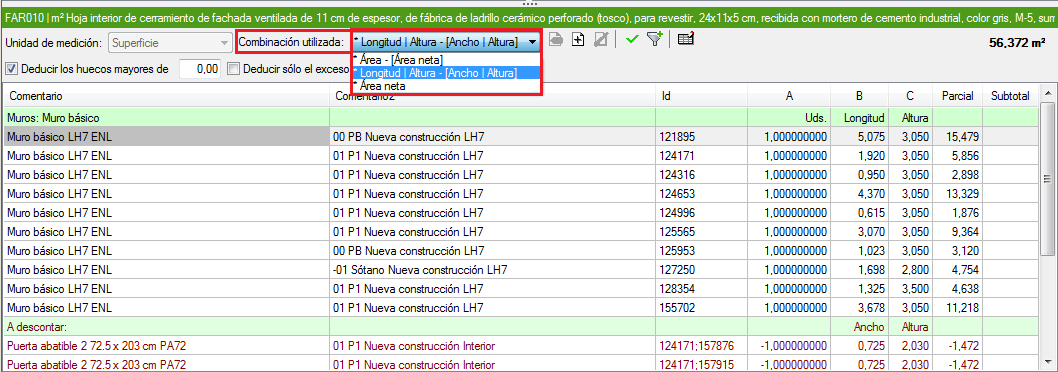
Part to deduct from quantities
New predefined combinations have been created to incorporate the part to be deducted in a quantity. The part to deduct is identified using a hyphen and quotation marks.
Quantities to deduct
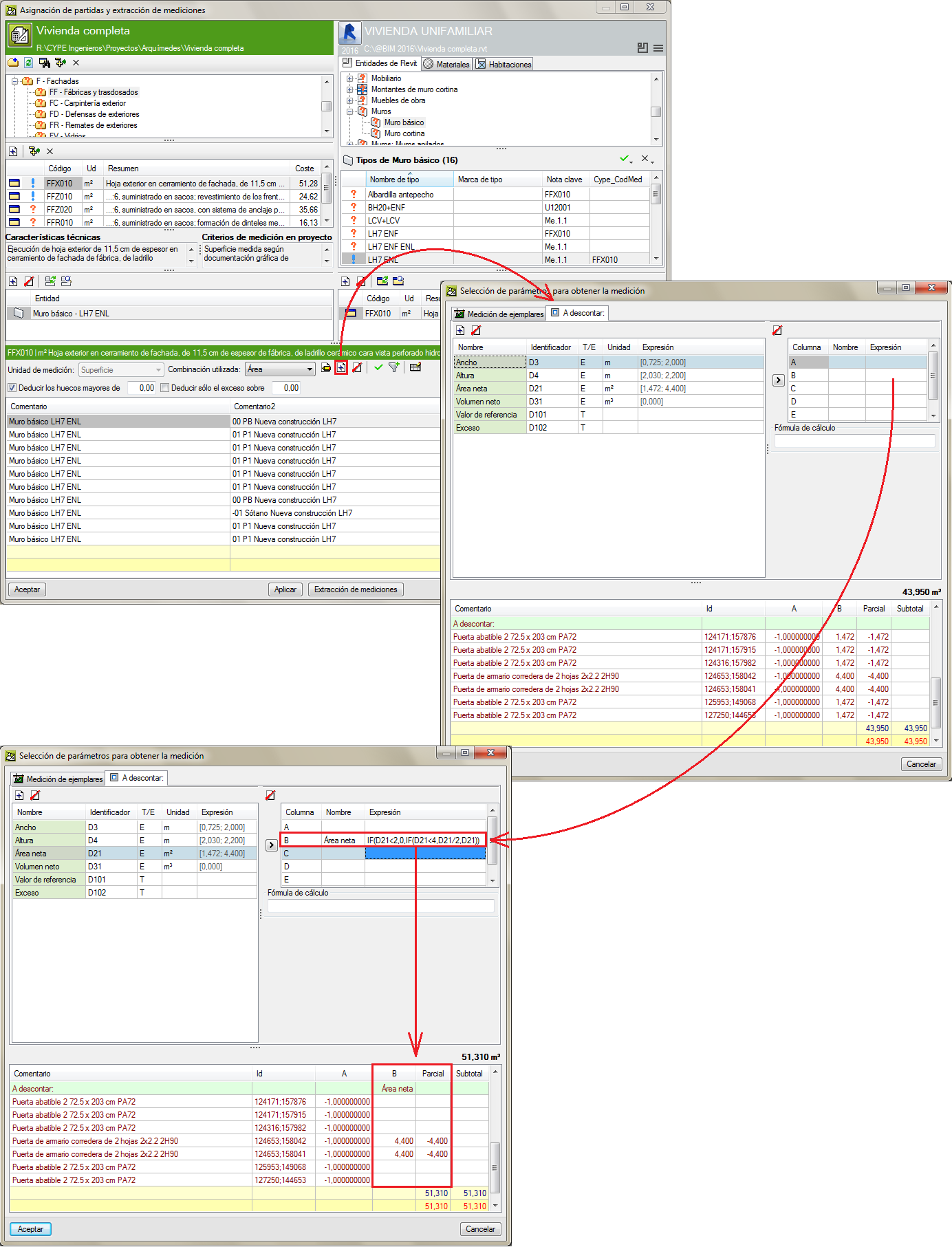
The procedure to generate a table with quantities to deduct from an extracted Revit model has been improved.
A new tab: “To deduct”, has been included in the Selection of parameters to obtain quantities dialogue box (which can be accessed by selecting the  button in the “Job item assignment and quantity extraction” window. This tab only appears when openings have been defined and have to be deducted from the job in Revit. The parameters to be applied in the creation of the table with the quantities to be subtracted can be defined here. It is possible to include rules to establish the quantity to be deducted using logical expressions.
This way more precise values are obtained for quantities, by for example, taking into account quantities to subtract due to openings.
An example that can be resolved using this improvement is the subtraction of openings following more than one rule. E.g.: openings greater than 4 m2 could be subtracted in façade and partition quantities and, if the area of the opening lies between 2 and 4 m2, only half is to be deducted.
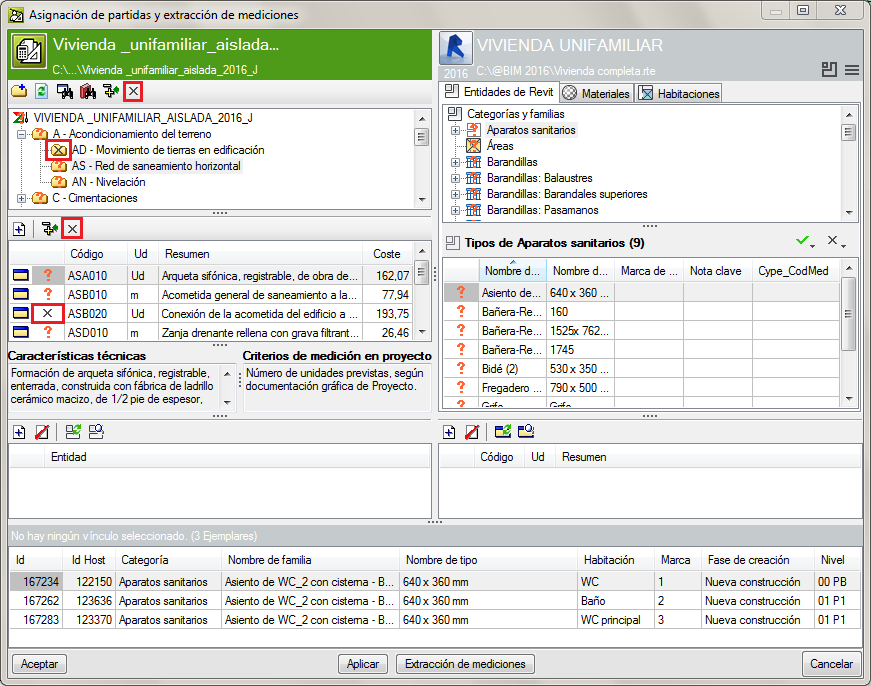
Mark chapters or job items that are not to be measured
In order to aid users to identify chapters and job items that are not going to be measured using the Revit model, the button has been added in the chapter and job item zones of the Job item assignment and quantity extraction dialogue box.
To mark chapters or job items which are not to be measured, the button corresponding to chapters or job items must be pressed. In no case does the mark prevent or block the program from carrying out the measurement. Upon pressing the button, the mark to not measure can be added or removed.
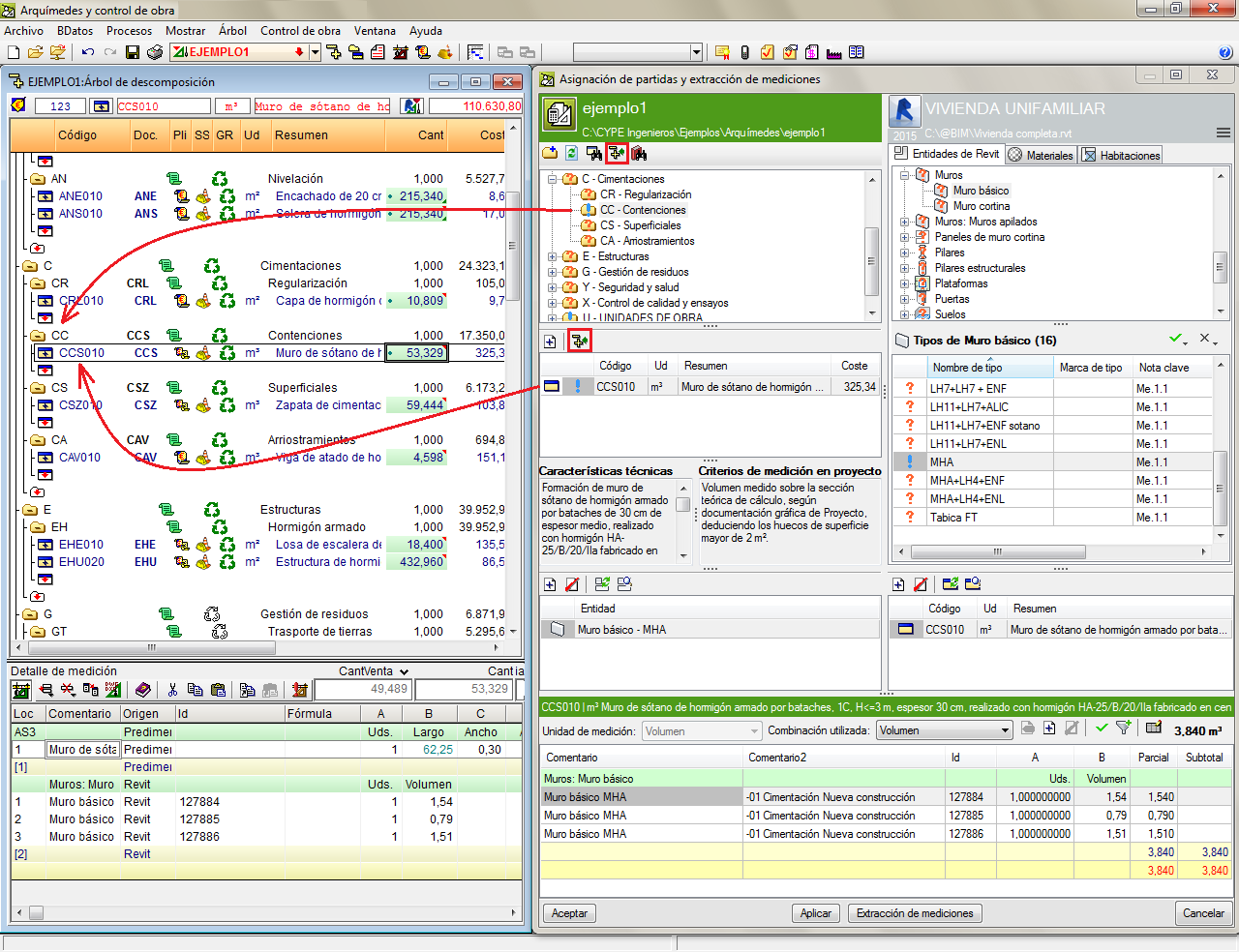
Show chapter or job item in the “Decomposition tree” window
A new button Show in the “Decomposition tree” window  has been added in the Job item assignment and quantity extraction dialogue box (which appears when a Revit job is linked to Arquimedes). This button displays the chapter or job item that has been selected from the chapter or job item zone of the “Job item assignment and quantity extraction” dialogue box, whilst the position of the current column is maintained in the Decomposition tree window.
As an example, using this option, users can obtain a parallel view of the status of the (already consolidated) quantities contained in the Decomposition tree window and those to be extracted in the “Job assignment and quantity extraction” dialogue box.
Comments composition for the quantities table
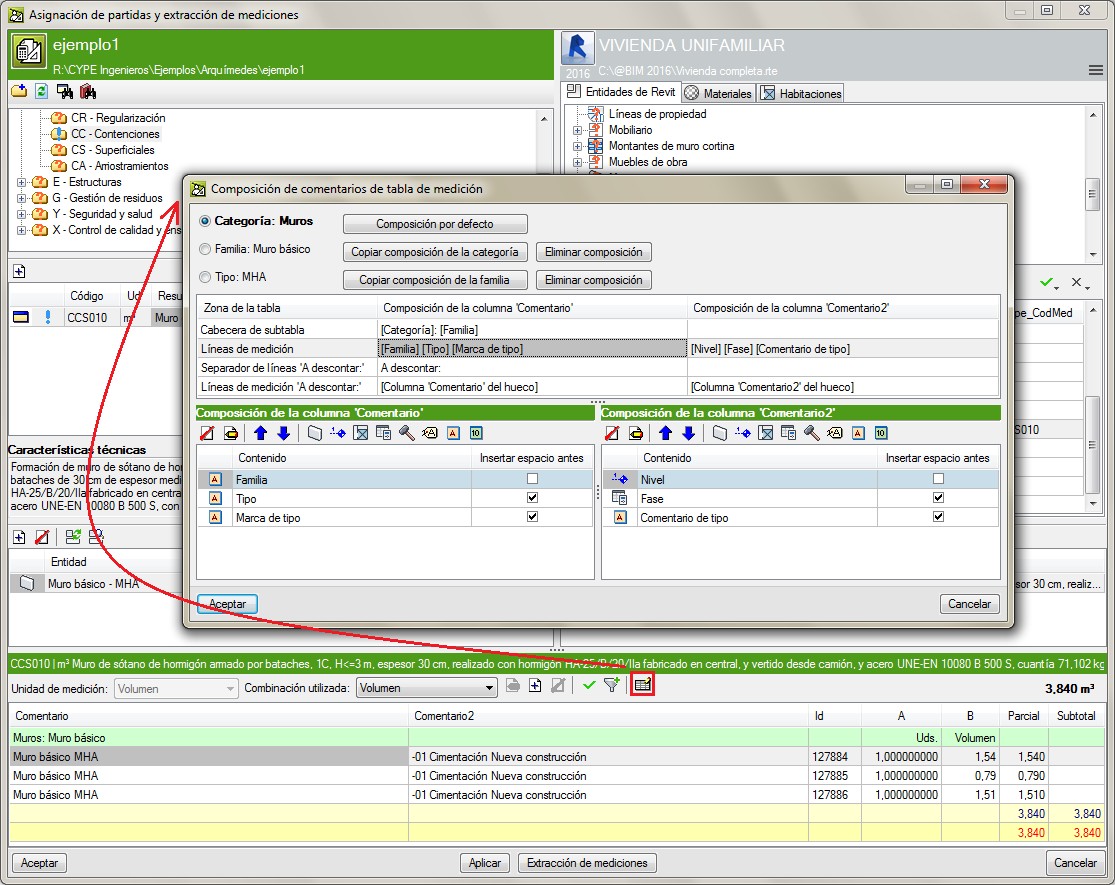
The Comments composition for the quantities table dialogue box, which appears when the Comments button  is pressed, has been improved. Users have more comment construction possibilities for Subtable headers, Quantity lines, Line spacers “To deduct” and Quantity lines “To deduct”. The composition of the Comment and Comment2 columns can be seen in a single dialogue box, allowing users to compare both comments at the same time.
Default compositions are created using information of the Category, Family or Type of the quantity elements, which aids in composing the comments.
When quantities are extracted, if comments have been defined using the Category, Family and Type information (or any combination of them), the comments that have been created using the more detailed information prevail. The priority is Type > Family > Category. In other words, the program checks to see if there are any comments in Type and if so, these comments are used. If none are found, the program checks if there are comments present in Family, otherwise it checks if there are comments in Category.
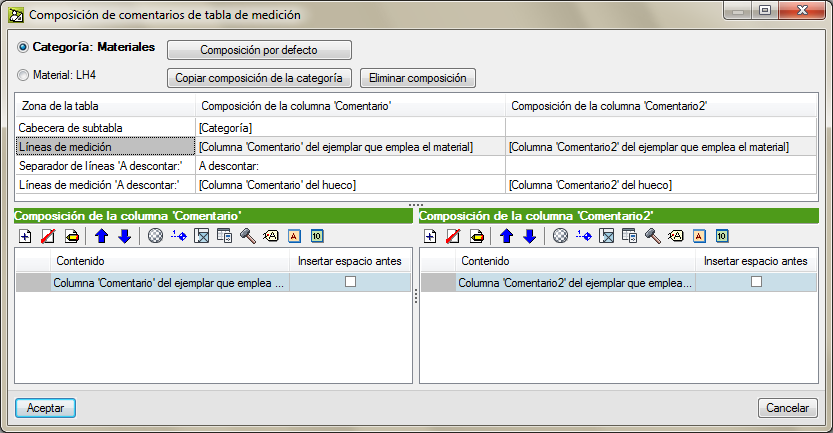
If the quantities of the job item are obtained by linking them to a Material, as of the 2016.j version, comments can be composed by using information of the Material category or of the material itself.
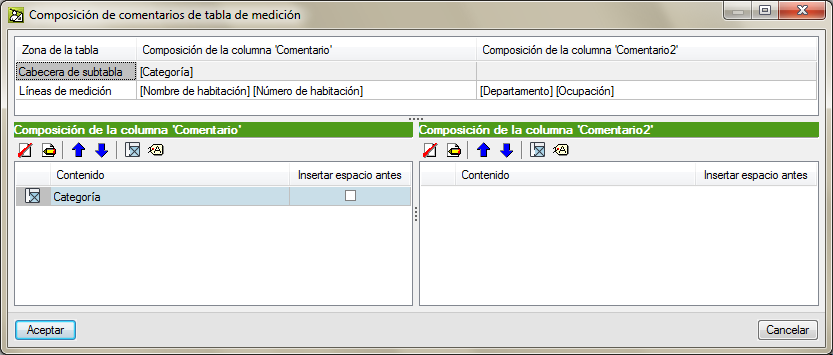
If job items are assigned from the Rooms tab, the creation of the comments is simplified.