Introduction
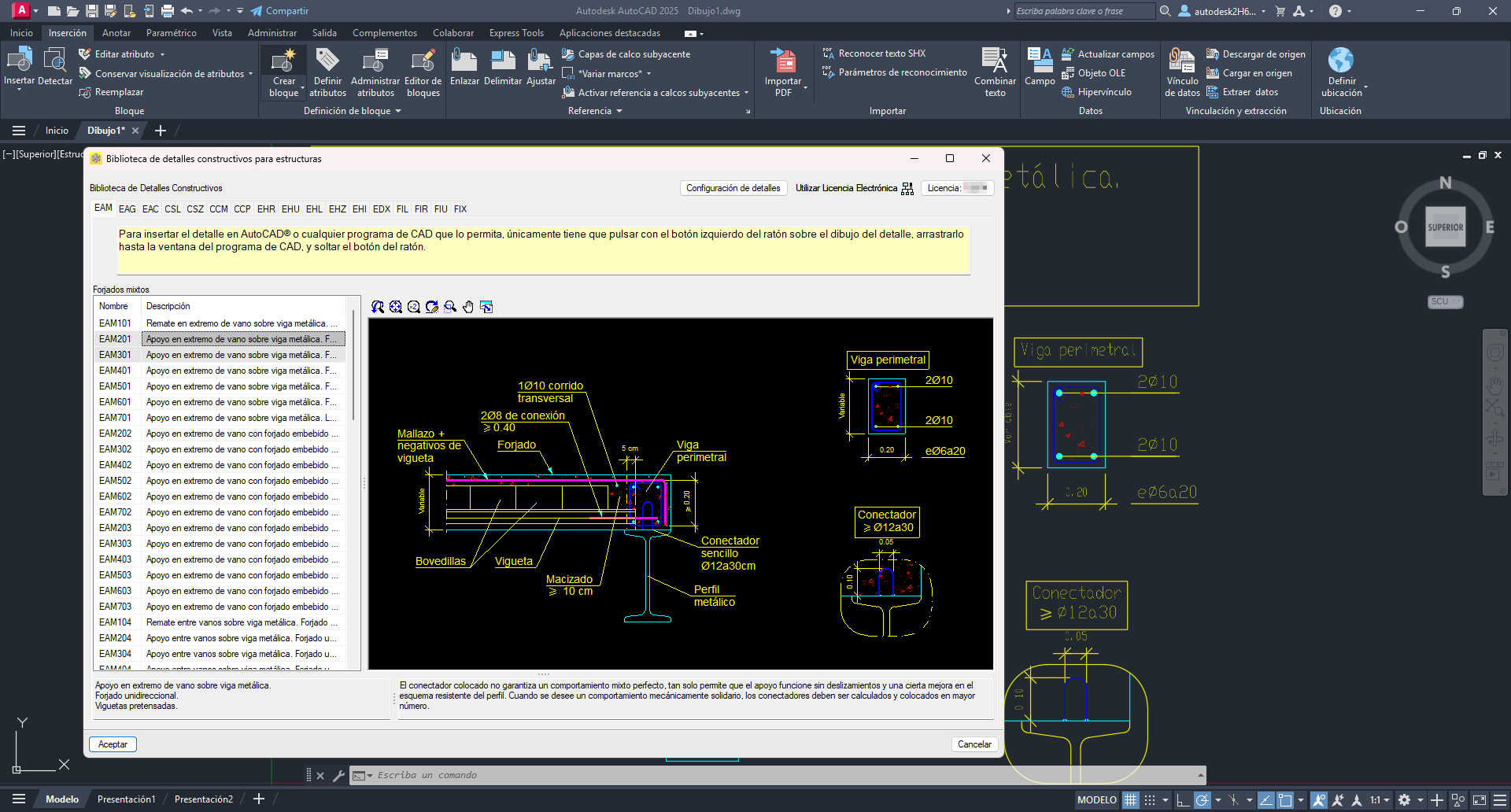
The Construction details library for structures is a tool that allows you to insert into AutoCAD® the construction details included in the CYPE libraries (Construction Details: steel, concrete and composite; y Construction details for sloped floor slabs).
This app is run from the "Project documents" program group in the CYPE Menu. It is not installed within AutoCAD®, but remains in a floating window, from which you can drag and drop the selected detail into the AutoCAD® drawing area.
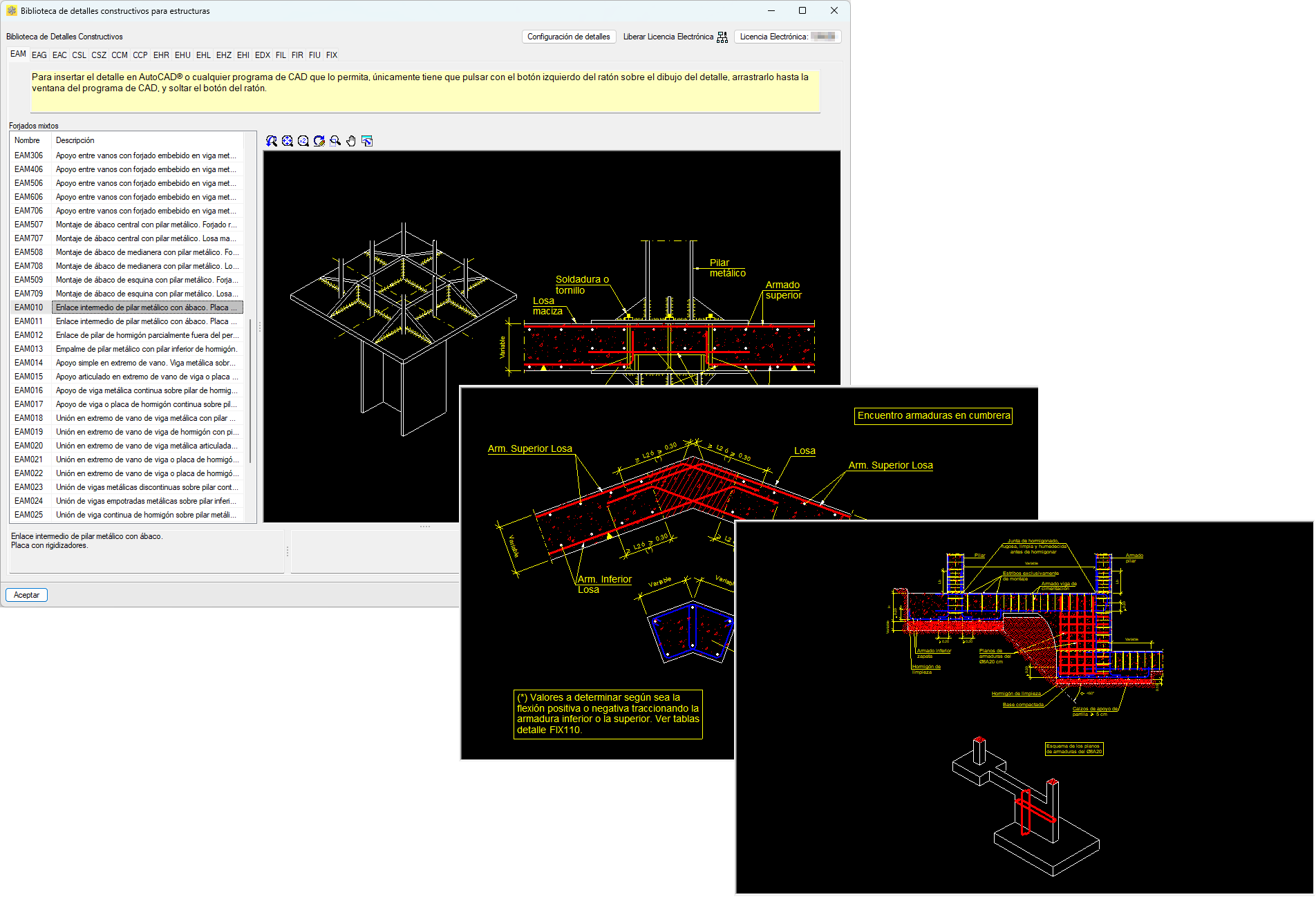
The details are organised into folders by topic to make them easier to find and select. It also includes options for customising line thicknesses and colours.
| Note: |
|---|
| Details can be inserted into AutoCAD® (any 32-bit or 64-bit version) or any other compatible app (from Autodesk or another software manufacturer) that allows drawings to be imported using the drag-and-drop method. |
Work environment
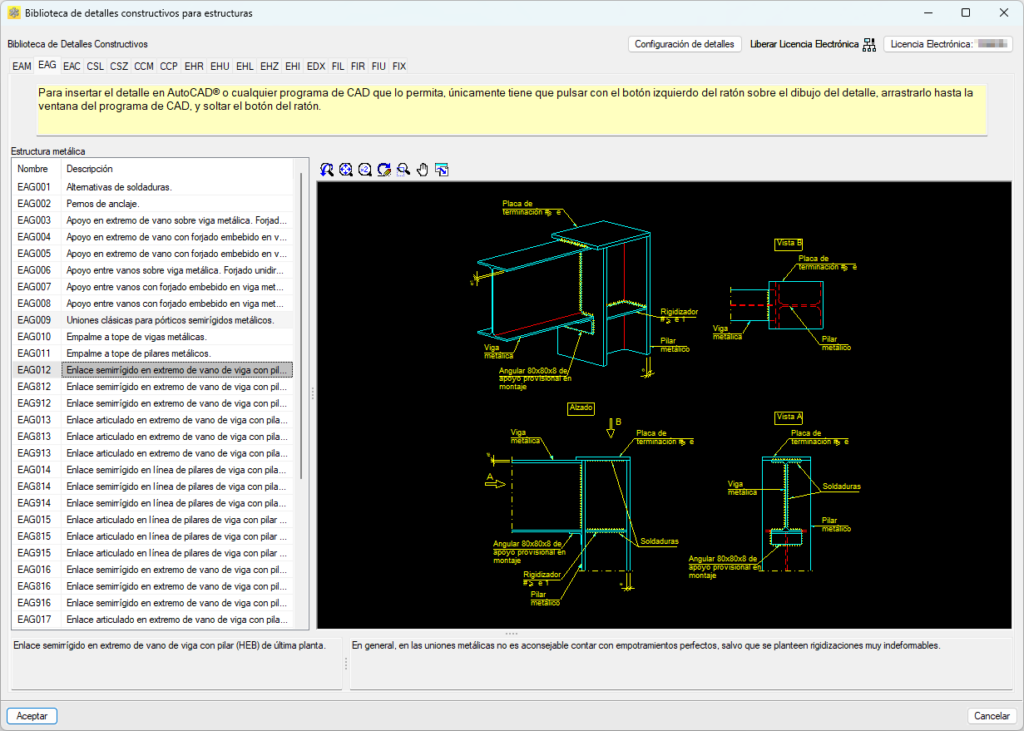
The Construction details library for structures features a simple and intuitive graphical environment organised into three main parts:
- the upper area, where you will find the folders organising the construction details and the "Detail configuration" tool;
- the middle section, which displays a list of the details included in each folder on the left-hand side and a graphic area with a preview of the selected detail on the right-hand side;
- and the bottom section, which provides specific information about the selected detail.
Detail configuration
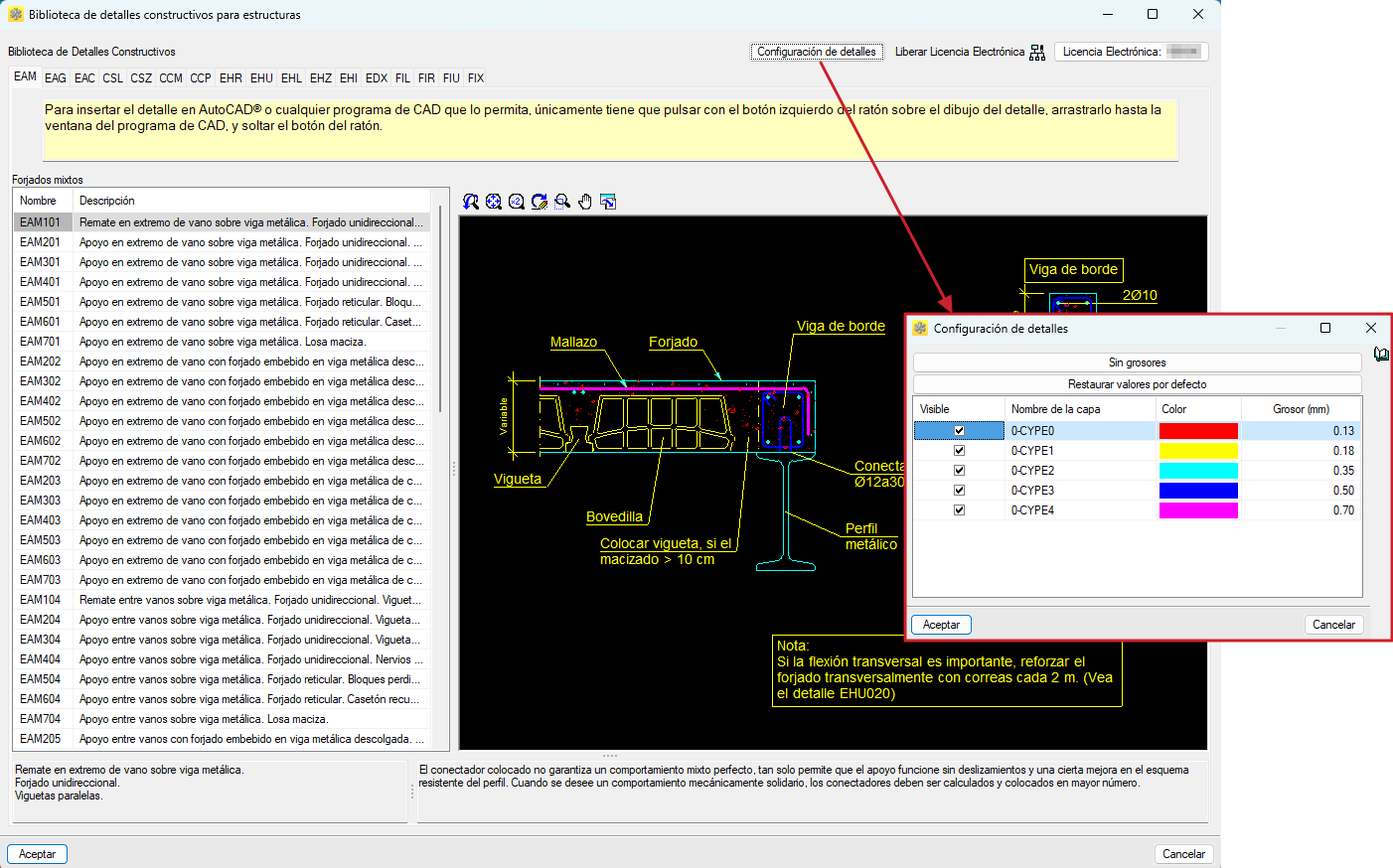
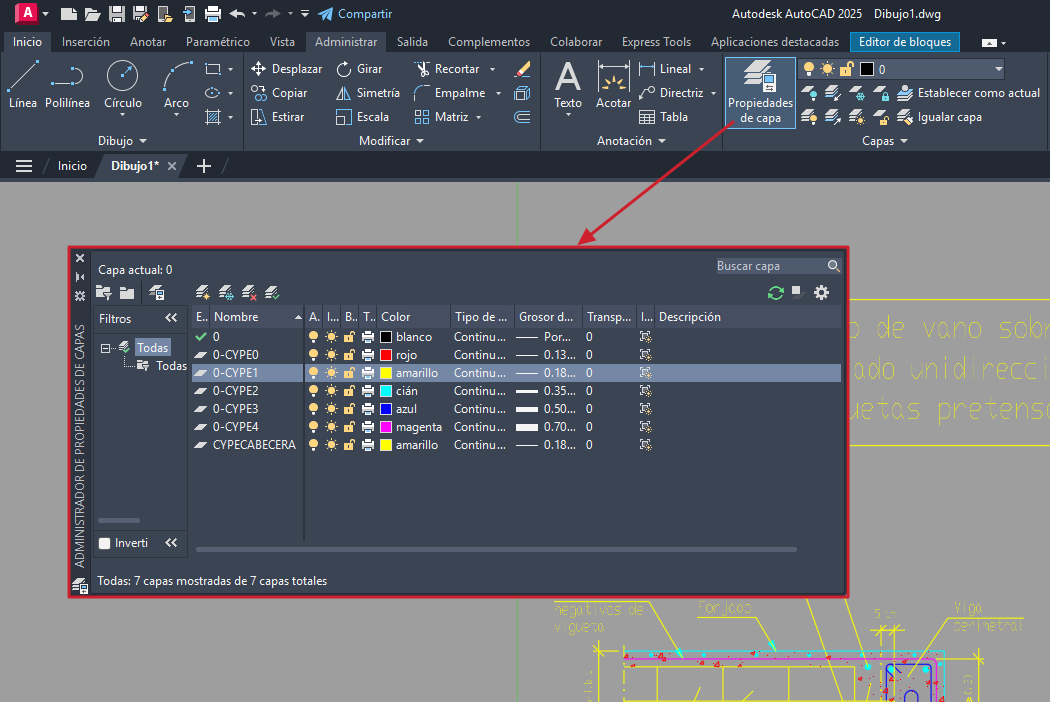
From the "Detail configuration" tool at the top of the interface, you can customise the selected detail. You can modify the thickness and colour of the pens, as well as the name and visibility of the layers. Changes can be previewed from the graphics area once the settings have been accepted.
These settings can be modified later from the AutoCAD® "Layer properties manager" after the detail has been entered into the program.
Result output
Export to AutoCAD®
To insert the detail into an open AutoCAD® drawing, simply drag it from the library's graphic area to the AutoCAD® drawing area. You will then be asked to define the insertion point, scale factor and rotation angle.
The detail will be added as an editable block using AutoCAD®'s "Block editor".
Export to DWG format
If you wish to save the construction detail in DWG format, you can drag it directly from the library's graphic area to a folder on your computer. It will be stored as a separate file ready for later use.