Copying concepts from an external database
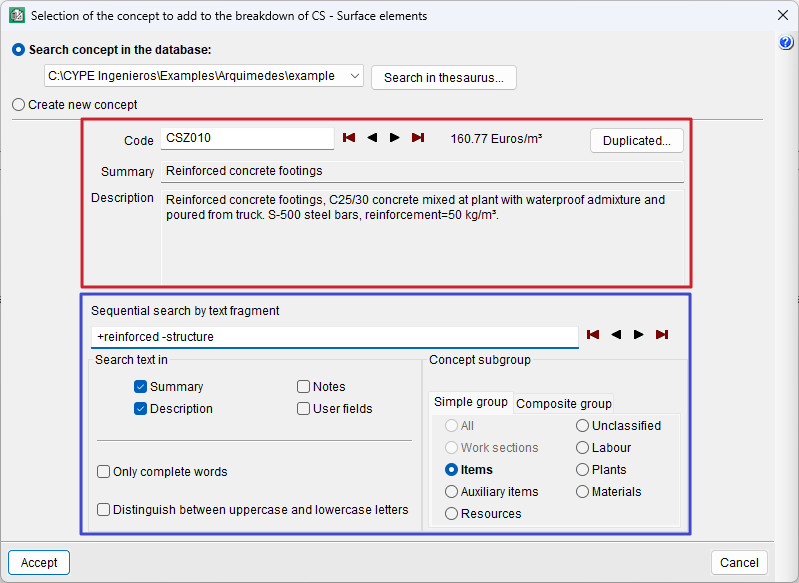
To insert an item from an open database (such as a cost database or another bill of quantities), double-click the "Insert item icon" and select "Search concept in the database". You can search the database using the item code or by entering text.
- Searching for an item by code
To search by code, type part of the code or the full code into the "Code" field and use the buttons to move to the top or bottom of the list, or the buttons to move to the next item to the left or right in the list of items. - Searching for a concept using text
To search by text, you can use either the "Summary" or "Description" fields, or both at the same time. You can enable the search for concepts of a specific type ("Concepts with breakdown", "Parametric", etc.) and "Sequential search by text fragment", using the field provided for this purpose.
| Best practice: |
|---|
| Search terms may include a "+" sign to ensure that the term is included, or a "-" sign to exclude terms that contain it. You can also combine several words by enclosing them in double quotation marks to search for a specific text string, or use an asterisk at the start of each suffix to find words ending in a particular suffix. |
Copying the item by dragging it
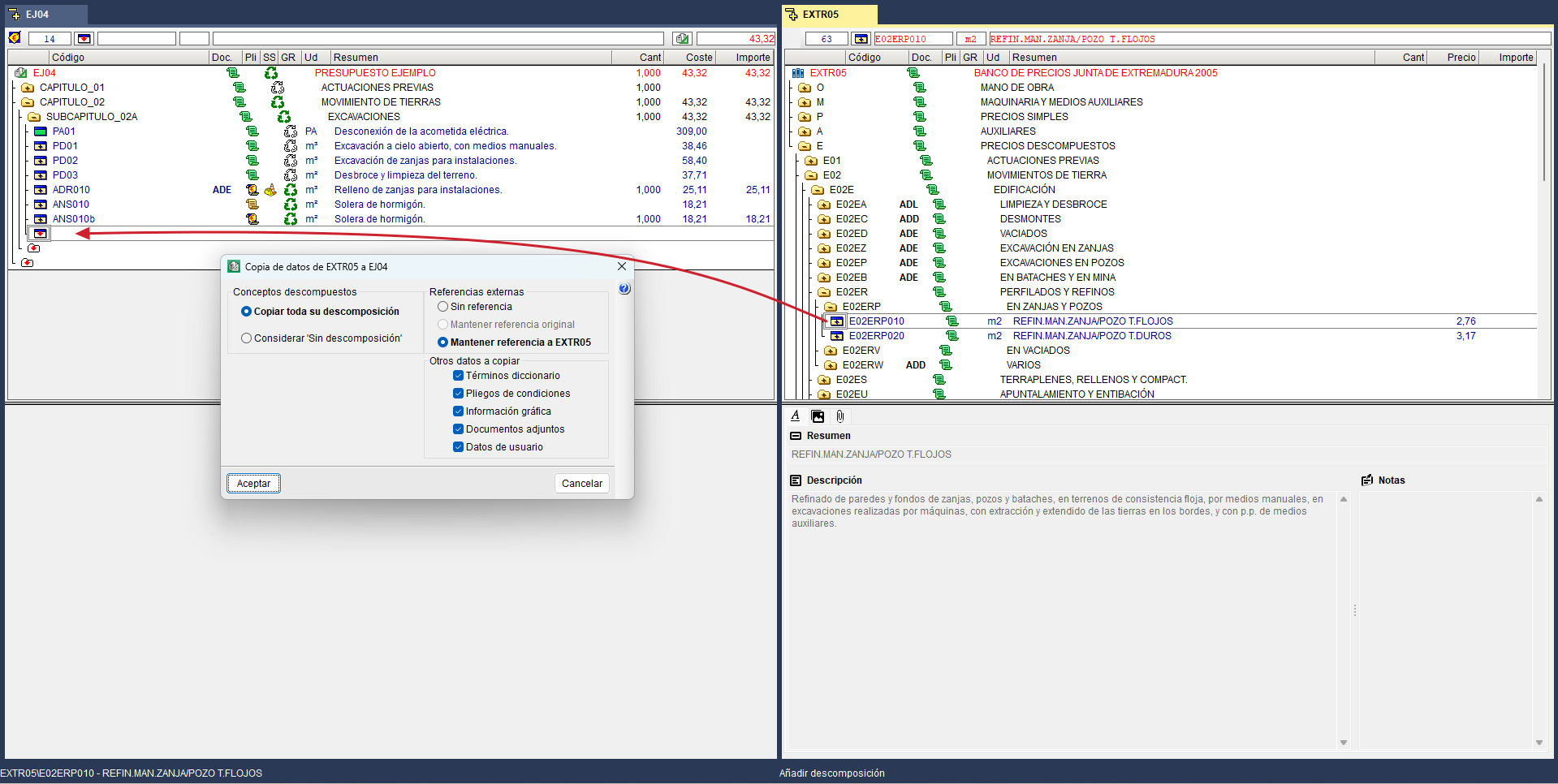
Another way to copy items from an external database is to place the cursor over the item you wish to copy, click and hold the left mouse button, and drag the item to the item insertion line in the bill of quantities. A dialog box will appear, allowing you to specify how you wish to copy the data and whether or not to retain the external reference. Depending on whether the external database is a cost database or a bill of quantities, the dialog box for setting how the copy will be made will display other available options.
| Best practice: |
|---|
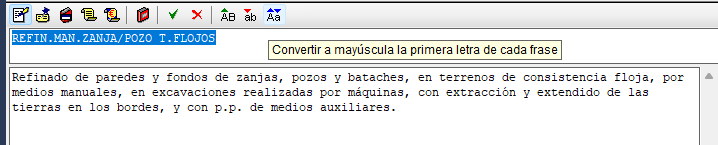
| If the summary or description is in uppercase and you want it to be in lowercase, you can select the text you want to convert and click the "Capitalize text" button on the bar. You can also use the keyboard shortcuts ("Ctrl + C" and "Ctrl + V") by copying part of your "Description" and pasting it into the "Summary". |
Copy and paste an item
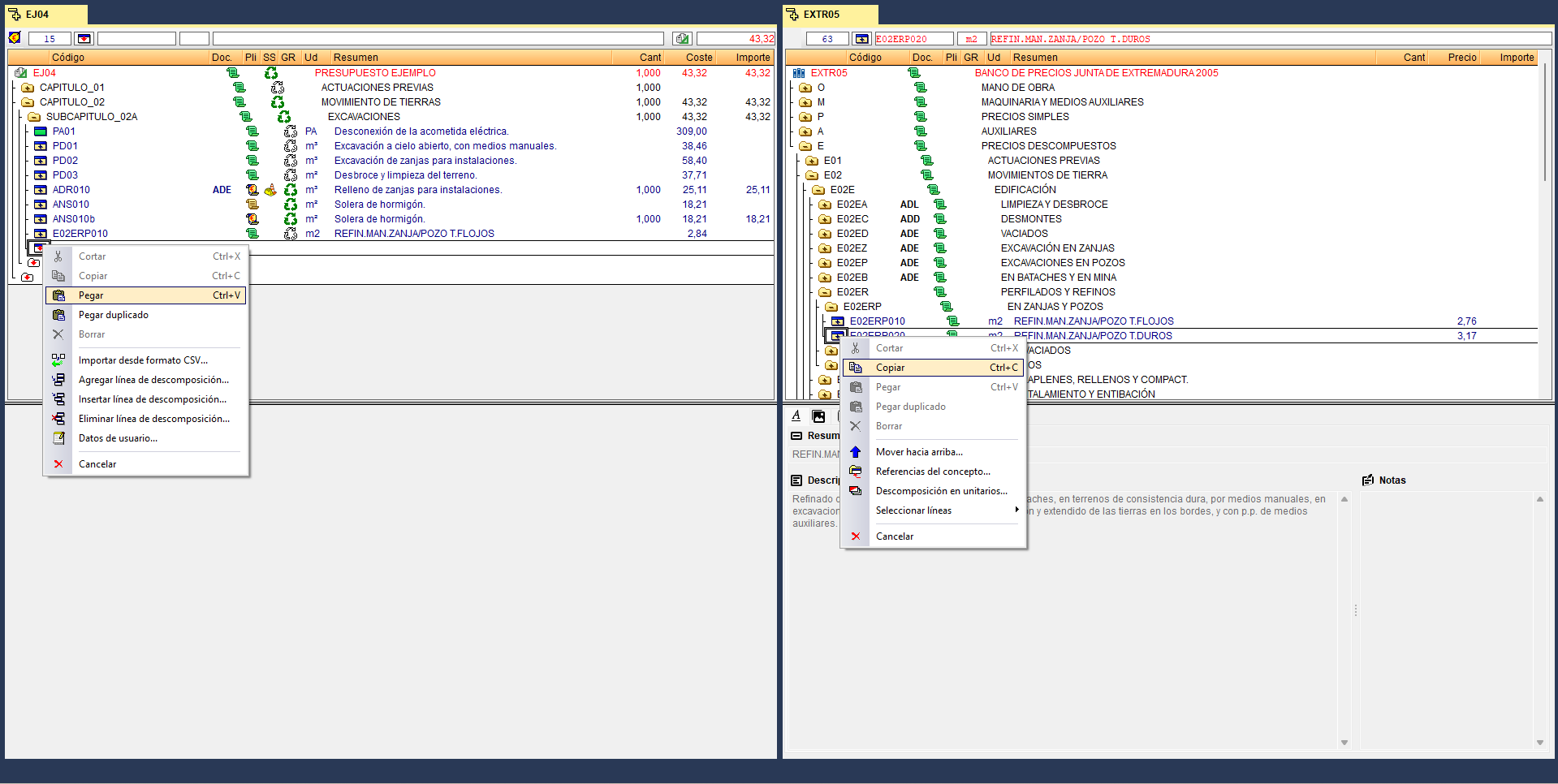
You can also copy and paste. First, locate the item you wish to copy from the external database, place the cursor over it, right-click and select "Copy" from the context menu. To paste the item into the bill of quantities, position the cursor on the insertion level where you wish to place it, right-click and select "Paste" from the context menu.
Copy and paste multiple items
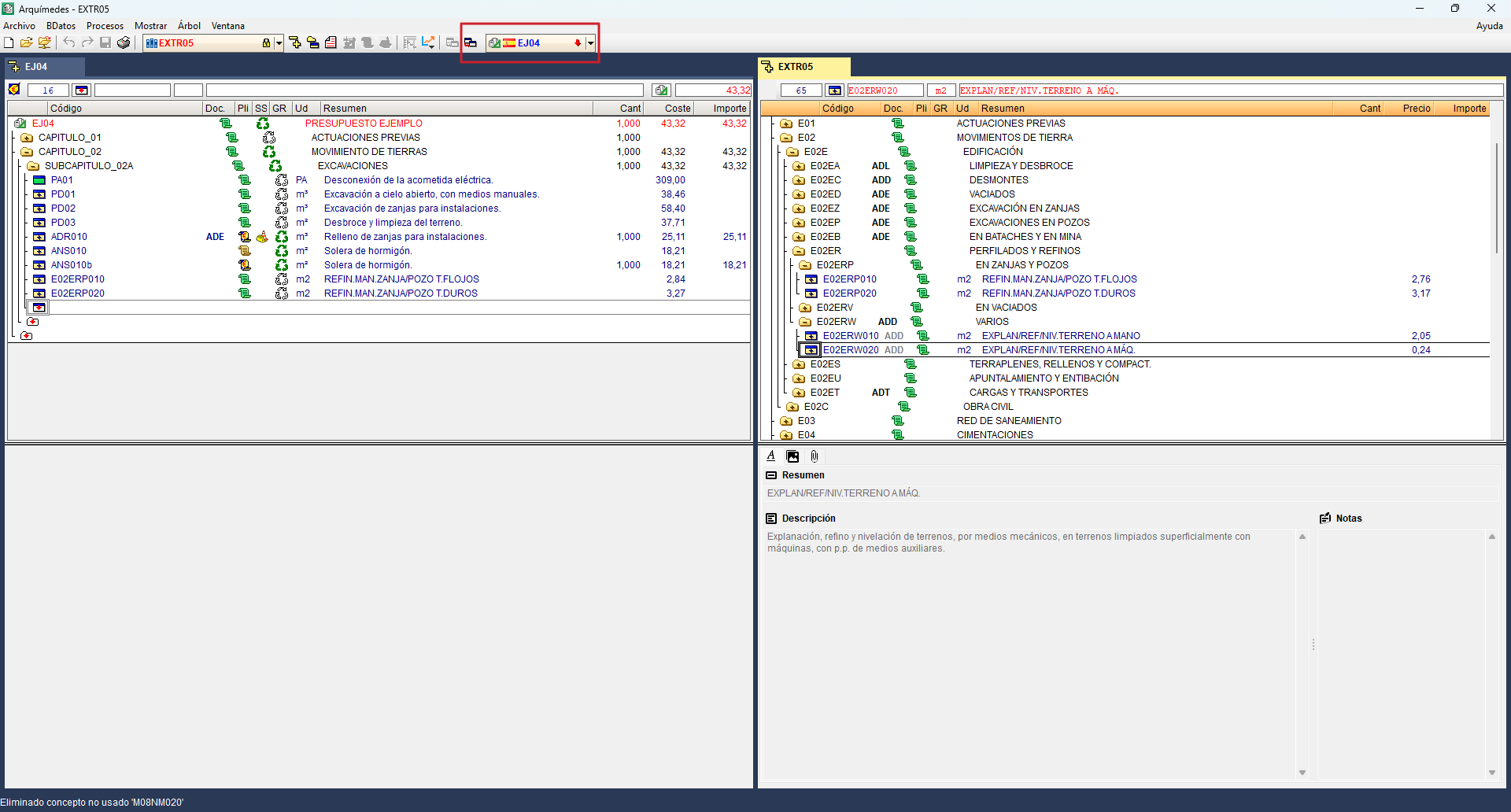
To copy multiple items, place the cursor on the line where you wish to insert the items in the work section of the bill of quantities. Then, using the "Window" menu, switch to the external database that has already been opened and, using the drop-down box located on the right of the top bar, select the bill of quantities.
Once this is done, click the button to the left of the drop-down box, labelled "Copy current concept(s) to the specified DB". Next, locate the item or items you wish to copy and click this button. A dialog box will then appear, allowing you to specify how you wish to copy the data and whether or not to retain the external reference.