Creating items with breakdown
To enter this type of transaction, double-click the transaction entry icon, then select "Create new item" and "Item with breakdown". You must specify at least the code, unit and summary. Once you have confirmed, the program will ask whether you wish to create the breakdown immediately or later.
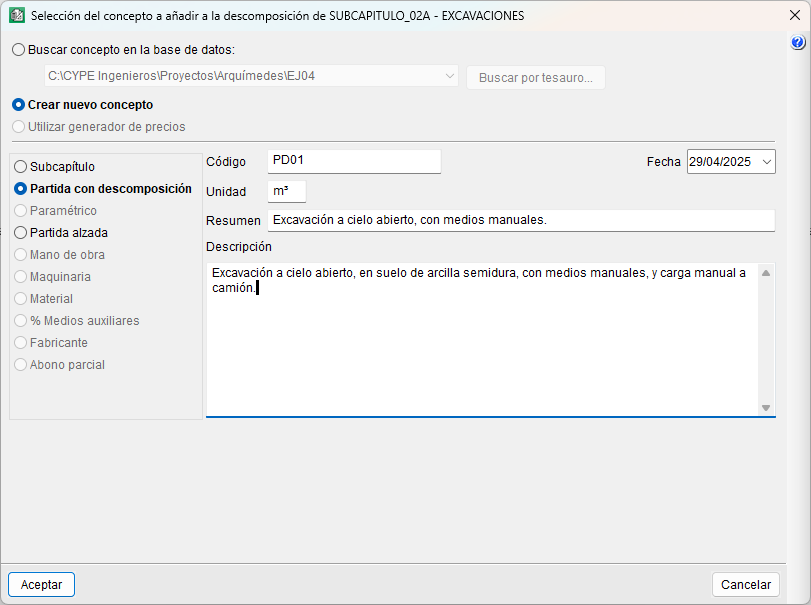
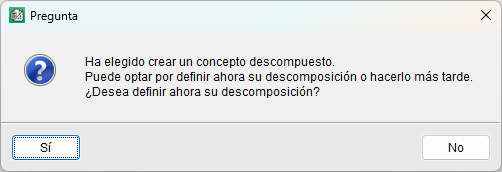
- Defining the breakdown when creating the item
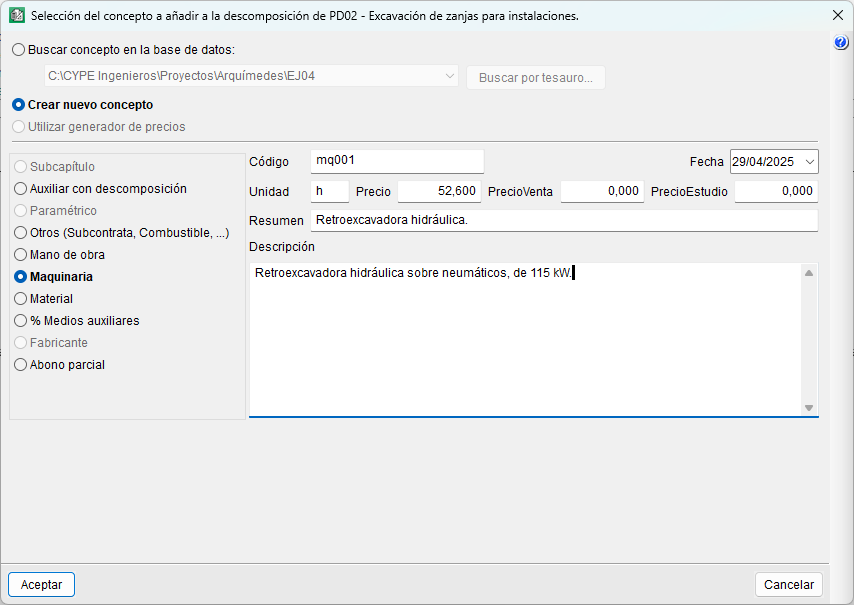
If you select "Yes", a dialog box will open so you can start adding items. Clicking the "Add new item to the list" button will open a new dialog box allowing you to search for an item in an open database or create a new item of the type labour, machinery, materials, etc.
If you create a new one, after defining it, back in the breakdown dialog box, you must specify its quantity (output).
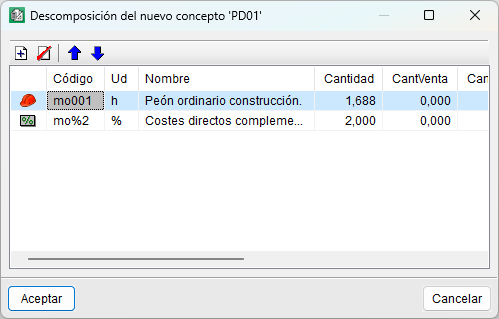
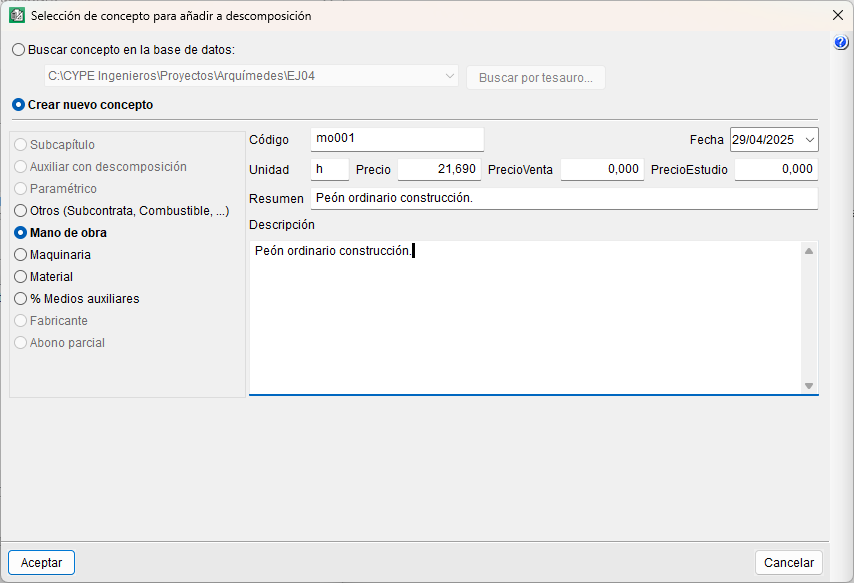
- Defining the breakdown at a time other than when it was created
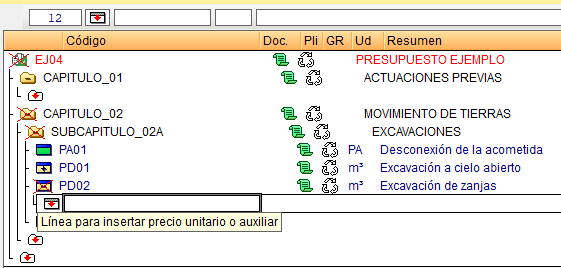
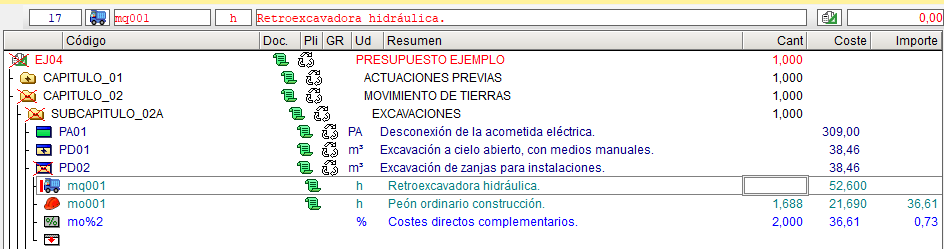
If you select "No", the item icon will display a red cross and a warning, as it has been defined incorrectly. To define the items, double-click on the auxiliary or unit price insertion icon; in the dialog box that appears, you can search an open database or select "Create new item" and choose the desired type.
If you create a new one, after defining it, you must specify its quantity (yield) in the "Qty" column of the "Cost breakdown structure".
| Note: |
|---|
| If no quantity is specified, the red cross will continue to appear with the message "Incorrect price. This element, or one of its breakdown, has its quantity or price equal to or less than zero". |
| Best practice: |
|---|
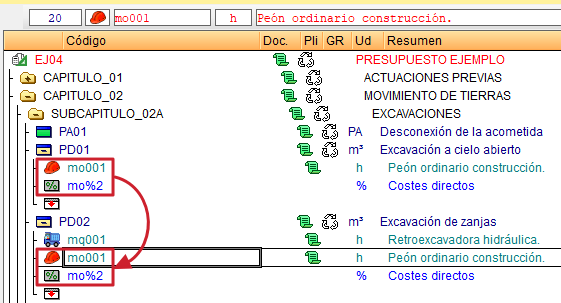
| To break down an item, you can copy an auxiliary or unit price from the same database or from another open database, and paste it directly into the item’s breakdown level. You can use the clipboard ("Ctrl + C" and "Ctrl + V") or drag and drop using the right mouse button. |
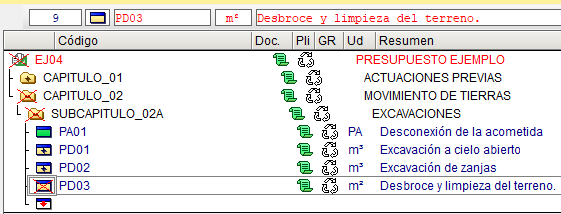
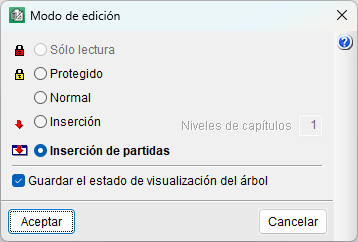
Depending on the "Edit mode" that has been set – "Insert" or "Insert items" – the item icon will appear as a yellow rectangle with a blue band, blank, or with a "+" sign. In the first option, you will need to add its breakdown using the "Insert breakdown line..." option via the right-click menu or the "Tree" menu.
The second option, however, allows you to break down the item directly within the cost breakdown structure by double-clicking on its icon. The item will initially appear empty and with an auxiliary or unit price insertion line.
| Note: |
|---|
| The "Edit mode" can be changed via the option of the same name in the "View" menu, under "Settings", or via the "Tree" menu. |