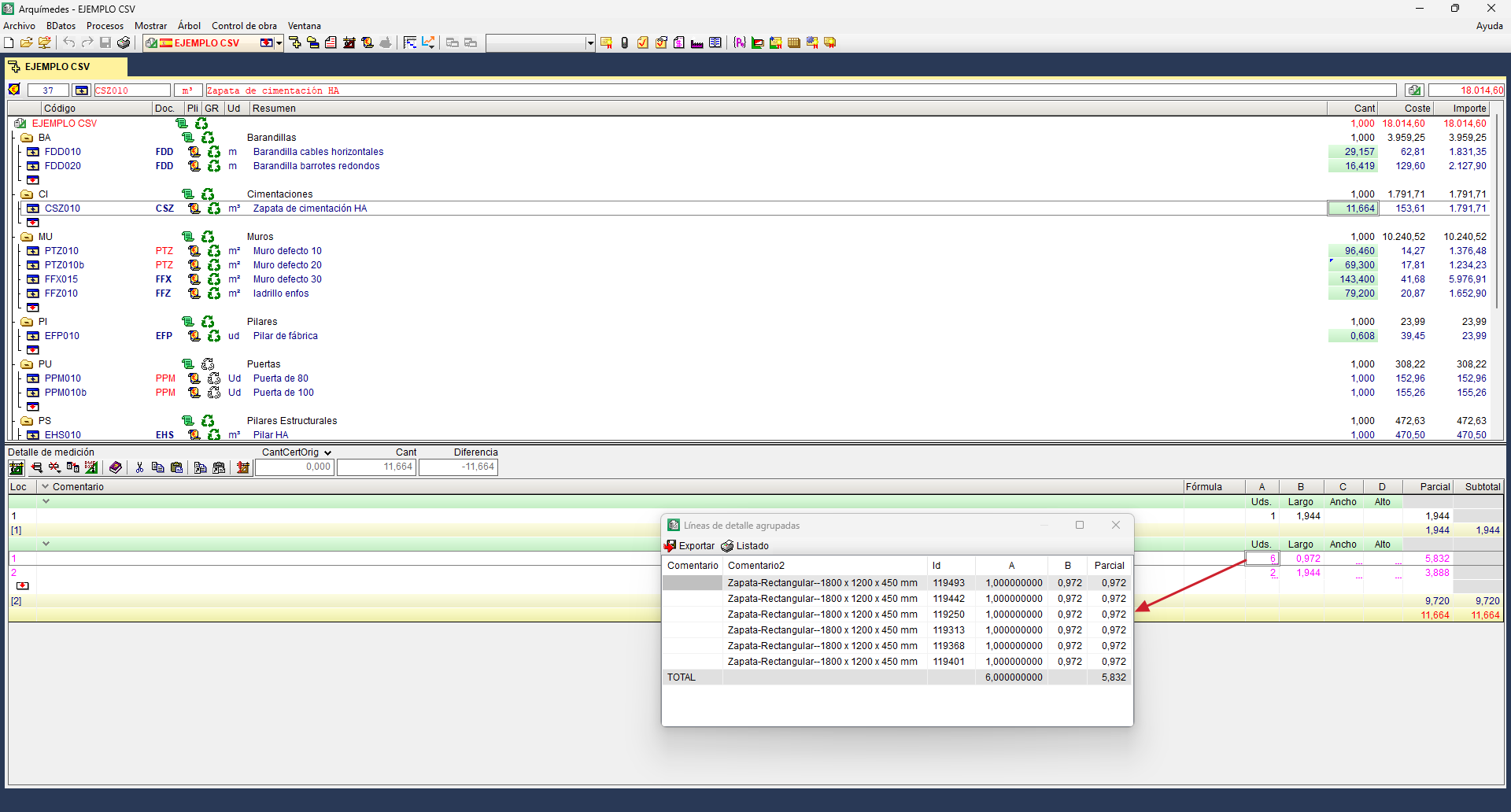
Grouping quantity lines
Grouping quantity lines allows you to define rules for combining these lines in quantity tables (on screen, when printing or when exporting). This process makes it easier to read and manage the data, significantly reducing the total number of rows displayed.
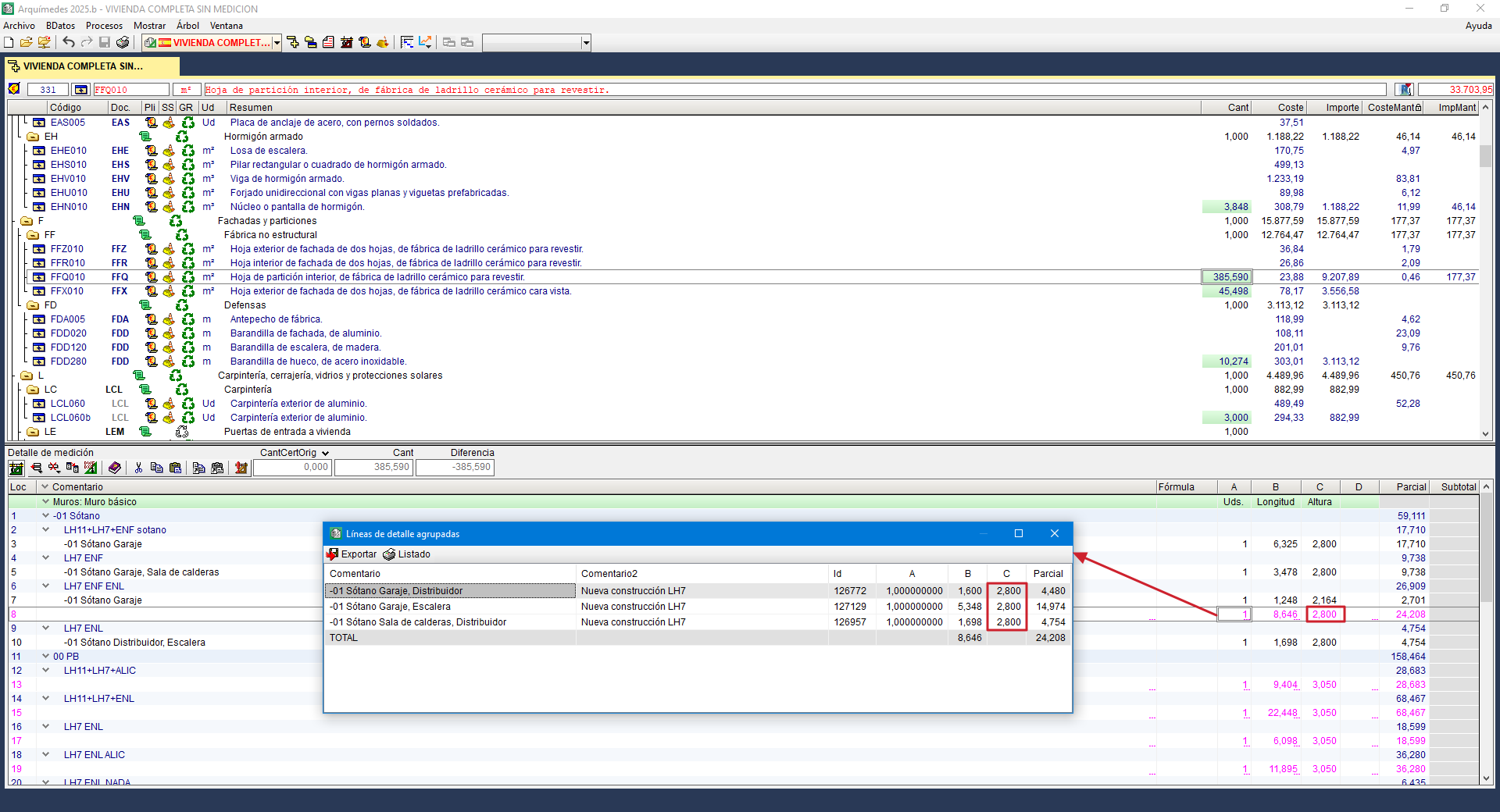
Grouped lines are displayed in magenta and show the number of grouped lines along with each line’s ID. Furthermore, double-clicking on the group ID will display a window showing the grouped lines.
This feature applies both to quantities imported from files in CAD/BIM, BC3 or CSV format and to those entered manually by the user.
Grouping of quantities in XCA format (Allplan®)
When importing an XCA file from Allplan®, grouping can be enabled via the "Allplan import preferences" dialog box by selecting "Group detail lines" and then "Group". It can also be configured later via the "Group quantities" option in the "Settings" section of the "View" menu.
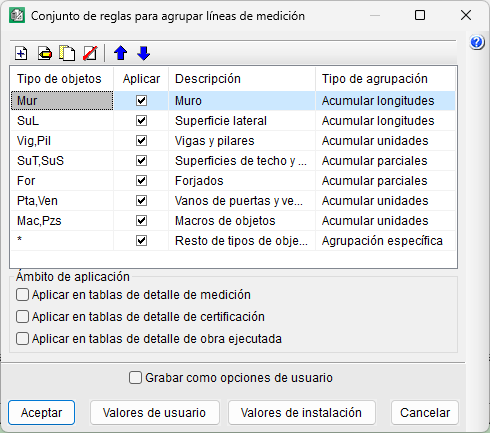
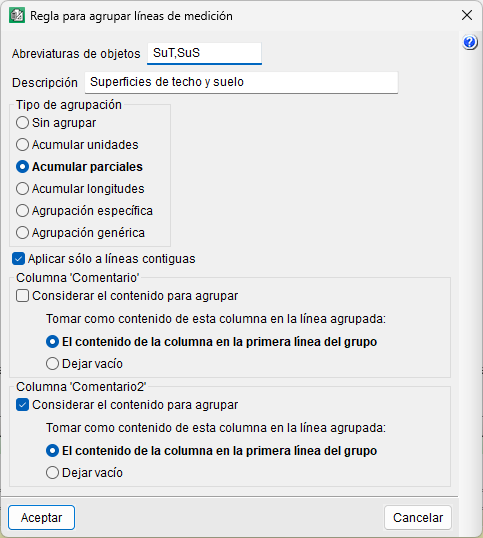
The "Group of rules for grouping quantity lines" dialog box includes a series of predefined grouping conditions, which can be modified using the "Edit" button. New grouping rules can also be created. In addition, the options determining the types of detail tables to which grouping will apply (quantities, certificate or execution) must be enabled.
The "Object type" column is a list of quantity line type identifiers separated by commas (,). These identifiers correspond to the non-numeric part of the unique identifier (the "Id" column) associated with each quantity line imported from an .xca file generated by Allplan®. The asterisk (*) may also be used to represent all other object types not defined by Allplan®.
In the case of quantities originating from Revit®, Archicad® or entered manually, grouping must be applied to objects of type asterisk (*), as in these cases the identifier does not allow the object type to which the quantity belongs to be distinguished.
Grouping quantity lines from Revit®
To reduce the number of detail lines in the quantity tables generated from Revit®, the program offers various simplification options.
| More information: |
|---|
| Please refer to the specific link on grouping lines from Revit® for further information. |
Grouping quantity lines from .bc3 or .csv files
Duplicate quantities from .bc3 or .csv files can be grouped using the "Group quantities" option in the "Settings" section of the "View" menu.
The dialog box that opens offers predefined grouping conditions and allows you to create custom rules. You can also enable options for different table types (measurement, certification or execution) and edit the rules using the "Edit" button. At any time, you can display all the original lines again by deselecting the "Apply to quantity tables" checkbox (or the one corresponding to the active table type) in the "Group of rules for grouping quantity lines" dialog box.
To facilitate this process, when a quantity is imported in CSV format, the table contents are sorted according to the "Comment" and "Comment2" fields. This ensures that the data is in order once the association is displayed in the quantity tables.