Import from CSV
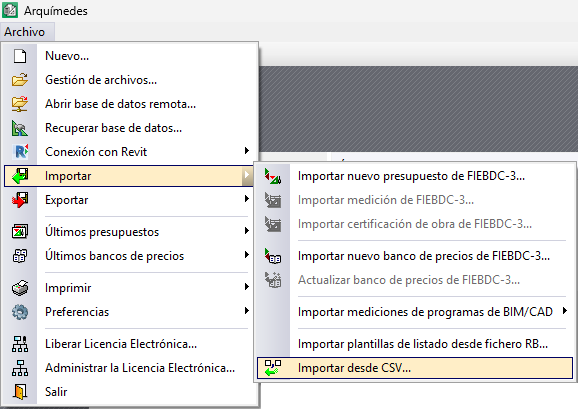
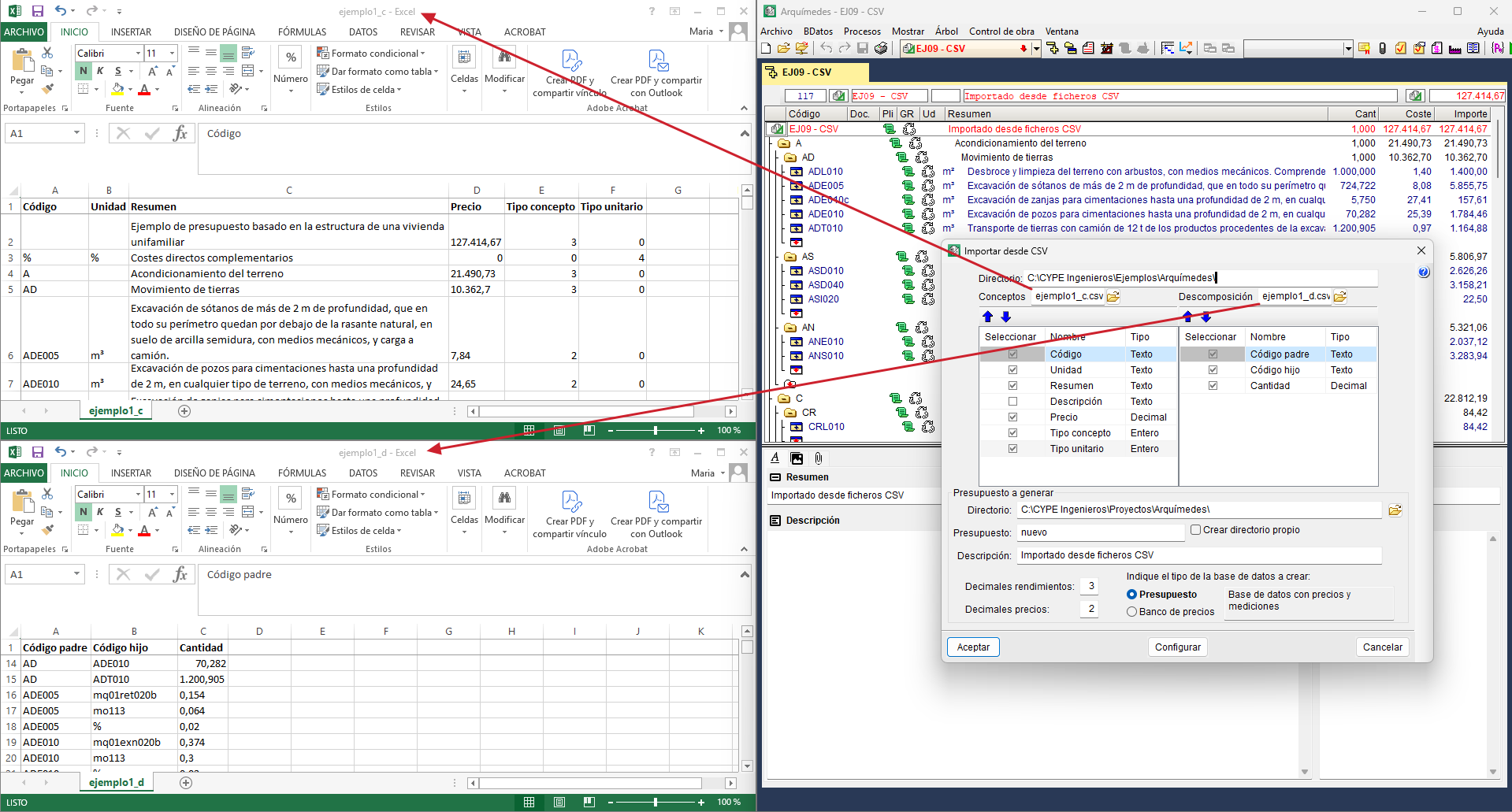
This option is located in the "Import" section of the "File" menu, and allows you to create a database in Arquimedes from two .csv files: one with the items and another with the breakdown of the work sections and the broken-down items. This tool is useful for importing bill of quantities or cost databases created in spreadsheets.
In the dialogue box that opens, select the location of both files and indicate the type of database to be created (bill of quantities or cost database).
The concept file must include, for each line, the following fields: "Code", "Unit", "Summary", "Description" (optional), "Price", "Item type" (0 – Unclassified, 1 – Labour, 2 – Machinery, 3 – Materials, 4 – Auxiliary resources) and "Unit type" (0 – Simple, 1 – Parametric, 2 – Broken down, 3 – Chapter).
For its part, the decomposition file contains the "Parent code", the "Child code" and the "Quantity" with which the child concept intervenes in the parent.
Import from CSV format
There is another way to import information from files in CSV format or from data copied to the clipboard (for example, from a spreadsheet such as Excel®, Open Office®, Google Docs®, etc.).
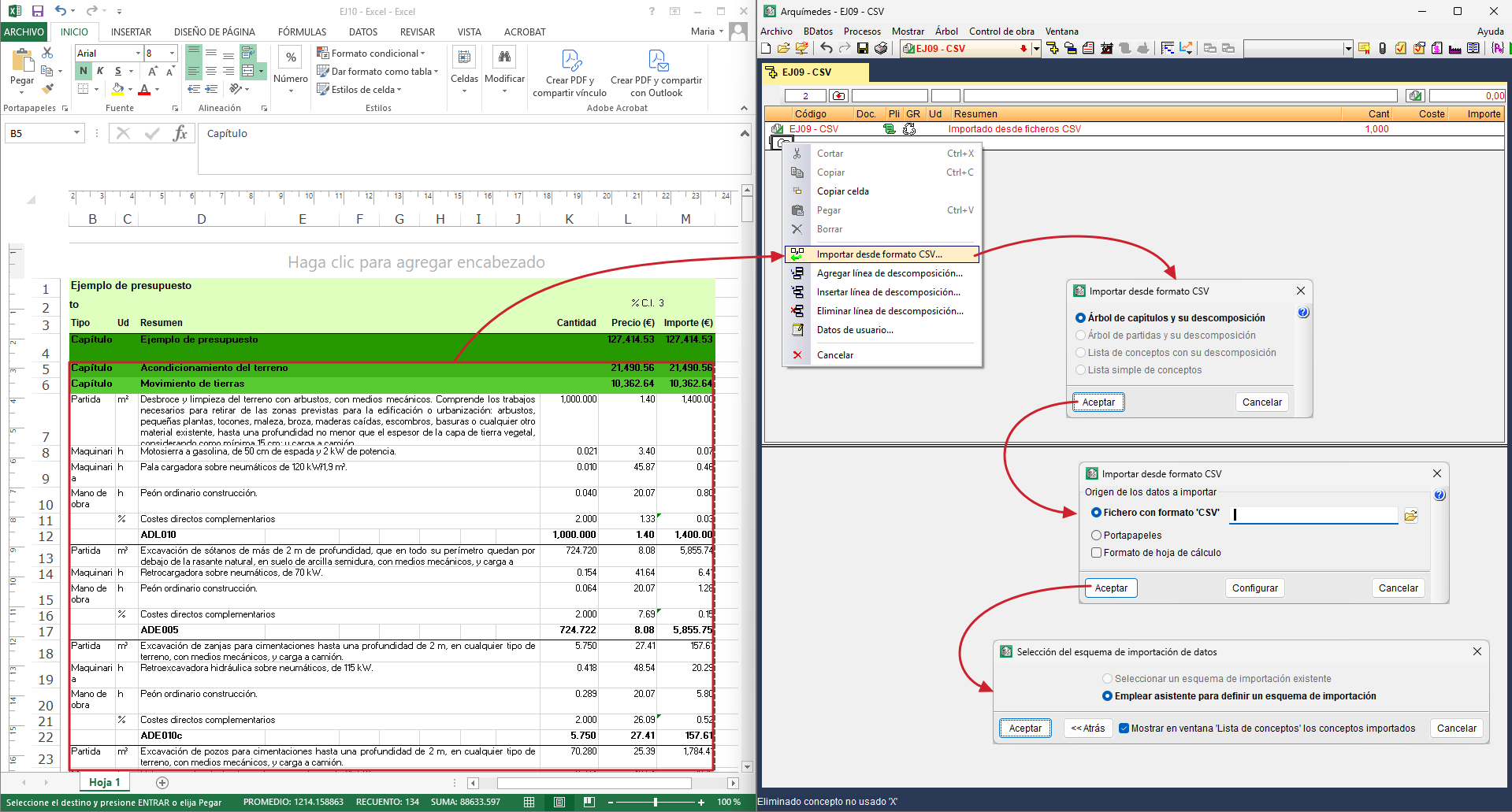
This option can be executed from the "Import" section of the "File" menu or from the context menu that appears when you right-click (in the "Breakdown tree" window) on a concept such as "Work section" or "Item" with or without breakdown.
The dialogue box that appears before importing, when you select the option "Import from CSV format" offers several import options depending on the concept selected in the "Breakdown tree" window:
- Chapter tree and its breakdown
This option should be used when the information to be imported contains one or more chapter levels, including items with their breakdown and, optionally, measurement details. In order for the information to be extracted properly, each broken down element, whether a chapter or an item, must have a line called "breakdown footer" that allows you to know what the last element of its breakdown is and thus be able to correctly interpret nested breakdowns. The files produced when exporting works to Excel belong to this type of format.
This option can be activated in the "Import from CSV format" dialogue box if the previously selected concept is of the "Chapter" type (including the root chapter). - Item tree and its breakdown
This type of import should be used when the information to be imported only has items with their corresponding breakdowns and quantity details. This format is a subset of the previous one, so the same rules apply with regard to the "footer" line.
As with the previous option, it is only active when the selected concept is of the "Work section" type. - List of items with their breakdown
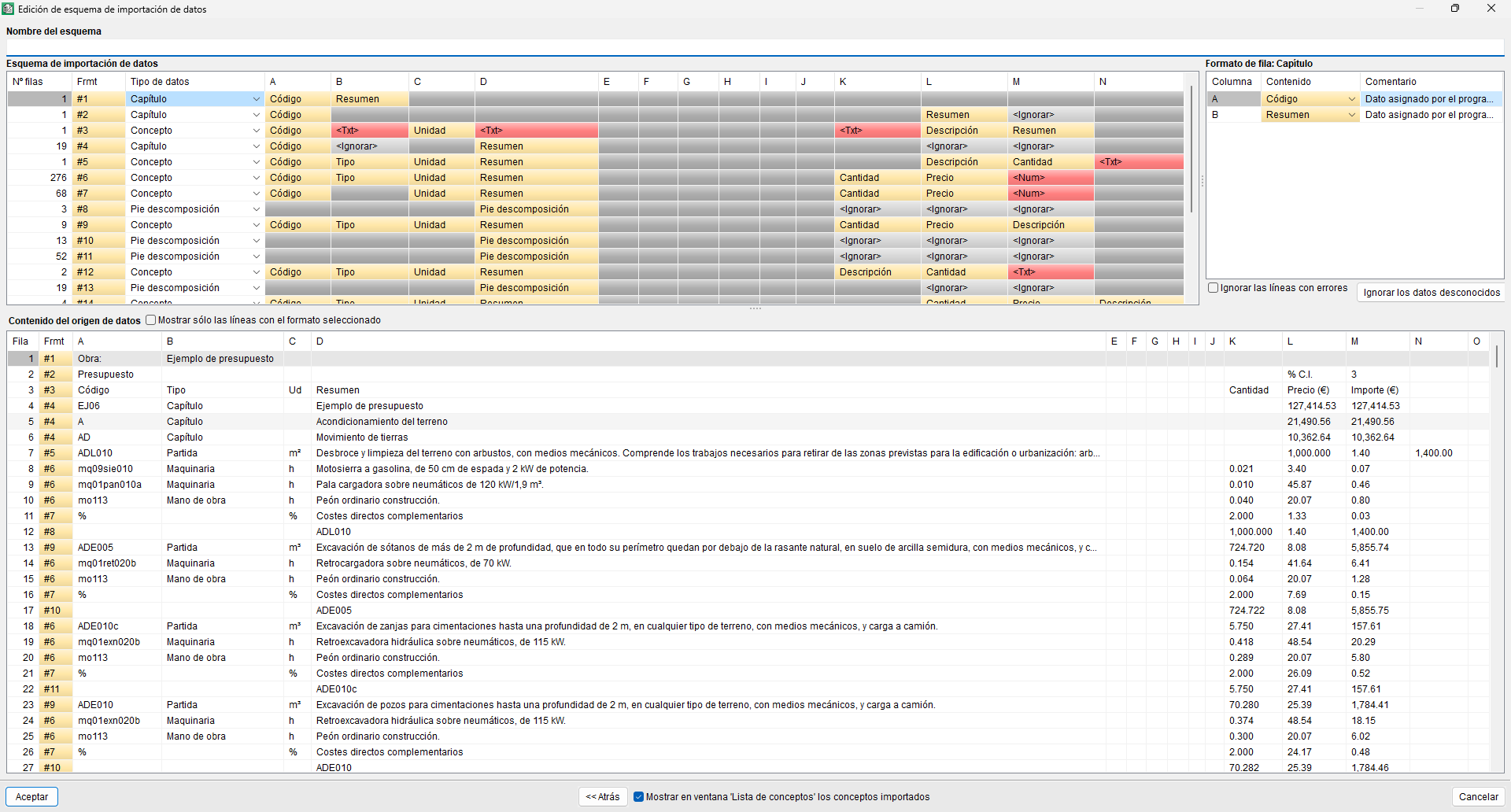
The information imported with this option requires a simpler format. It does not need a "breakdown footer". In this case, different column formations are used to differentiate the broken down items (they have no price or no amount) from the unit items that compose them (they contain quantity and price).
List of items with their breakdown
The information imported with this option requires a simpler format. It does not need a "breakdown footer". In this case, different column formations are used to differentiate the broken down items (they have no price or no amount) from the unit items that compose them (they contain quantity and price).
It is active with the item types "Work section" and "Item". - Simple list of items
Information imported with this option requires the simplest format. It is a list of items, which may or may not contain a quantity or yield, and which will be added to the breakdown of the current item.
It is active with the item types "Work section" and "Item".
After selecting the desired option, the program opens another dialogue box to edit the data import diagram.