

Price adjustment with breakdown
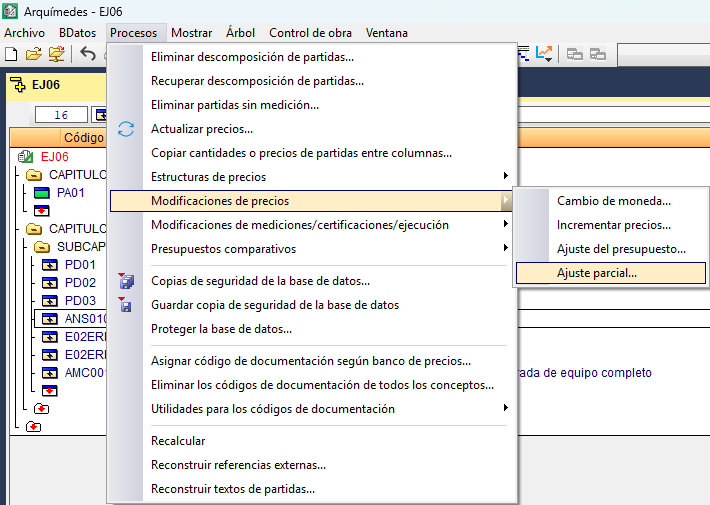
In this case, the price cannot be modified directly, as it is made up of the individual concepts that form part of it, along with their prices and the quantities involved, as well as the percentage of soft costs. Therefore, to modify the total price, you must adjust one of these items using the "Partial adjustment" tool, found in the "Processes" menu under "Price modifications", after selecting the line for the item to be adjusted.
In the dialog box that appears, you must select the price structure to which the adjustment is to be applied: the bill of quantities, the sale or the study.
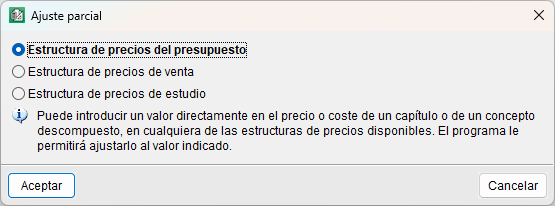
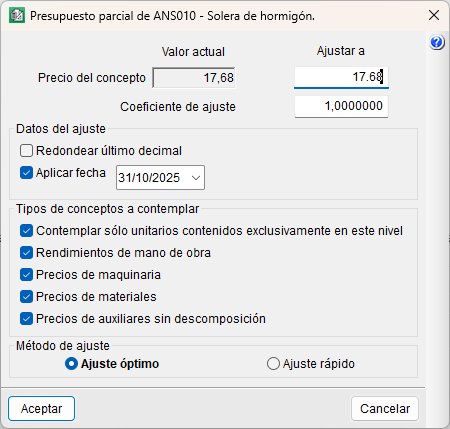
After this, another dialog box opens to adjust only the price of the selected concept. This dialog box displays the current price of the concept, a field for entering the new price, and a field for specifying an adjustment factor if required. It also allows you to select the option to round to the nearest decimal place or to apply the modification date. You can also select the types of concepts in the breakdown that are to be altered to achieve the price adjustment:
- Include only unit prices contained exclusively at this level
Uncheck this box if you do not wish to modify the cost of a concept with a breakdown that is included in the breakdown you wish to modify. If checked, this will only affect the labour rate of the concept with a breakdown. - Labour rates
If ticked, the labour rate of the selected concept’s price is modified, but this does not affect other prices with breakdown. - Machinery prices
The program will not apply changes to machinery if the machinery for this concept is used in other items on the bill of quantities. - Material prices
This is similar to the previous point. - Auxiliary prices without breakdown
This is similar to the previous point.
Finally, you can choose between the adjustment method:
- Optimal adjustment
This method will approximate or even yield the exact value that has been defined, provided this is mathematically possible, based on the selected criteria and the number of concepts within the breakdown. - Quick adjustment
This obtains a coefficient based on the "Current value" and the new price entered in the "Adjust to" box, which is applied to all concepts involved, except for labour, which is applied to outputs.
Change of cost breakdown
To make it easier to adjust the bill of quantities, sales and cost prices for items, the program allows you to change them without having to disable, cancel or manually adjust the quantities or unit yields. When entering a value for a bill of quantities, sales or study price for an item, or for an auxiliary price that includes yields and prices in its breakdown, the program offers the following three options:
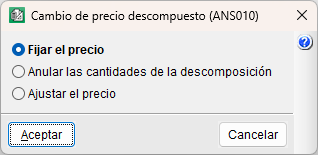
Fix the price
The item price or the modified auxiliary price (whether for a bill of quantities, sales or analysis) will not depend on its breakdown. At the same time, all its breakdown lines are disabled (though not deleted), including those that may be added to the concept at a later date. The concept will be treated in the same way as a concept without a breakdown in soft cost calculations (unjustified items), in reports and when exporting to other formats.
If the "Set price" option is selected, a check mark appears next to the price of the item or the auxiliary price that has been modified, and another next to the unit quantities in its breakdown. If you hover the cursor over the item price or the auxiliary price, a text label appears stating "Fixed price (does not depend on its breakdown)". If you hover over the unit quantities, a text label appears stating "Quantity disabled".
The fixed price can be unlocked using the "Unlock fixed price" option, which is found in the context menu that appears on screen when you right-click on that price. This option enables the breakdown of the item or auxiliary price, meaning that the price value once again depends on this breakdown.
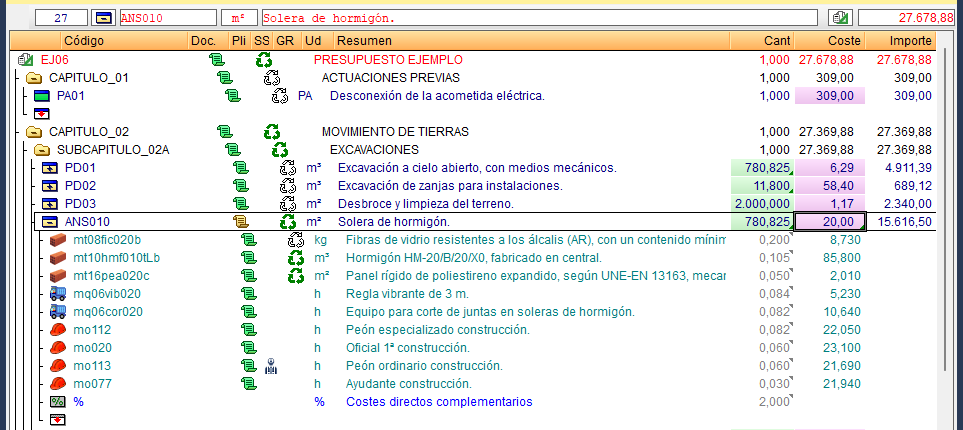
Cancel the breakdown quantities
The quantities and unit prices that make up the price (whether for a bill of quantities, sale or study) of the item being modified are reset to zero. The concept will be treated in the same way as a concept without a breakdown in soft cost calculations (unjustified items), in reports and when exporting to other formats.
Since the unit price remains unchanged, if the user re-enters quantities in the breakdown, the item’s price will once again depend on the breakdown.
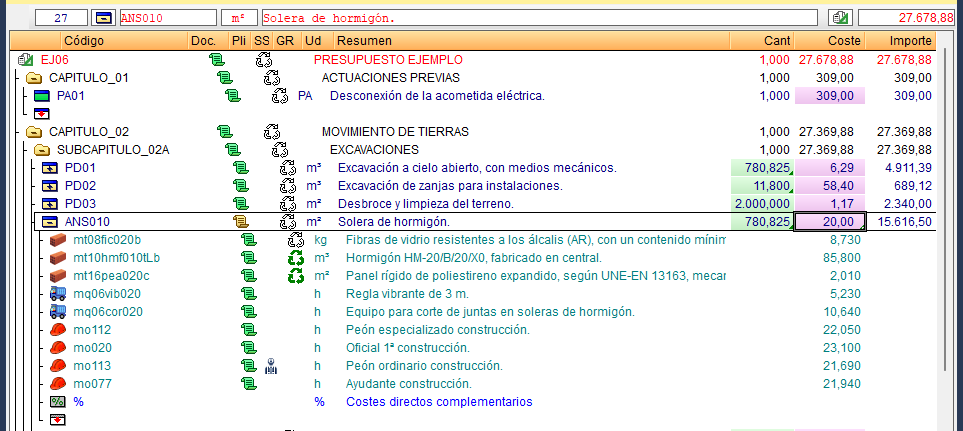
Adjust the price
This option opens the same dialog box as the "Partial adjustment" tool
