Quantities with references between items
Links or connections can be established between tables, sub-tables or quantity lines for different items within the same bill of quantities. This means that when a referenced quantity is modified, the changes are automatically updated across all items that share that reference. Furthermore, it is possible to have multiple references within the same quantity table.
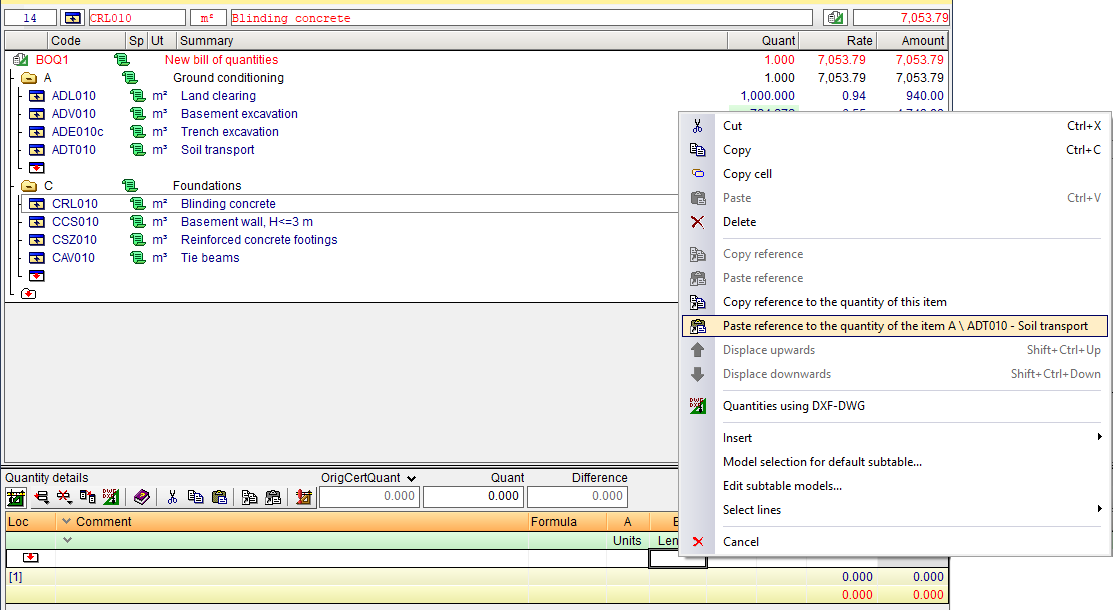
Links are created using the "Copy reference" and "Paste reference" buttons located on the bar in the "Measurement details" section.
To copy a reference, simply place the cursor on any field in the subtable header (green), the subtable footer (light yellow), the table footer (dark yellow) or the measurement line (white) and click "Copy reference". Next, position the cursor where you wish to paste the reference, bearing in mind that the content of what has been copied must match the location where you intend to paste it, and click "Paste reference".
Formulas in quantity tables are also copied to linked tables provided they are in the header of the subtables. If the formula is in the total row, it will not be copied to the other linked table. This is useful, for example, for applying different coefficients.
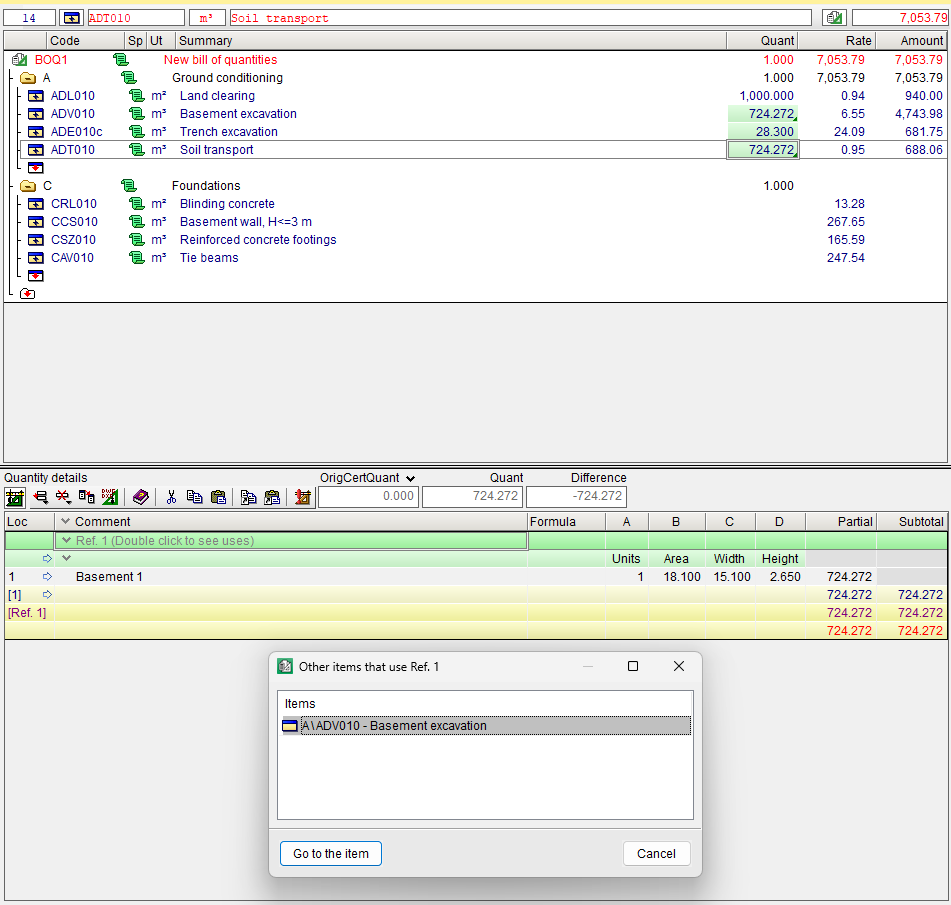
The referenced rows will appear with a grey background and a blue arrow, and the headers will be displayed in a darker shade of green (depending on whether it is a table or sub-table). By double-clicking on this header, you can see in which items a particular reference is being used. You can also do this via the "View other uses" option in the context menu that appears when you right-click on the table or subtable.
Items with referenced measurement quantities are identified in the "Cost breakdown structure" window by coloured triangles (red or green) and an information message.
Unlinking
Links that have been created can be removed using the "Delete reference" option under the "Delete current row, current subtable or entire table" button in the bar of the "Quantity details" section. This option is available whenever a table with active references is displayed.
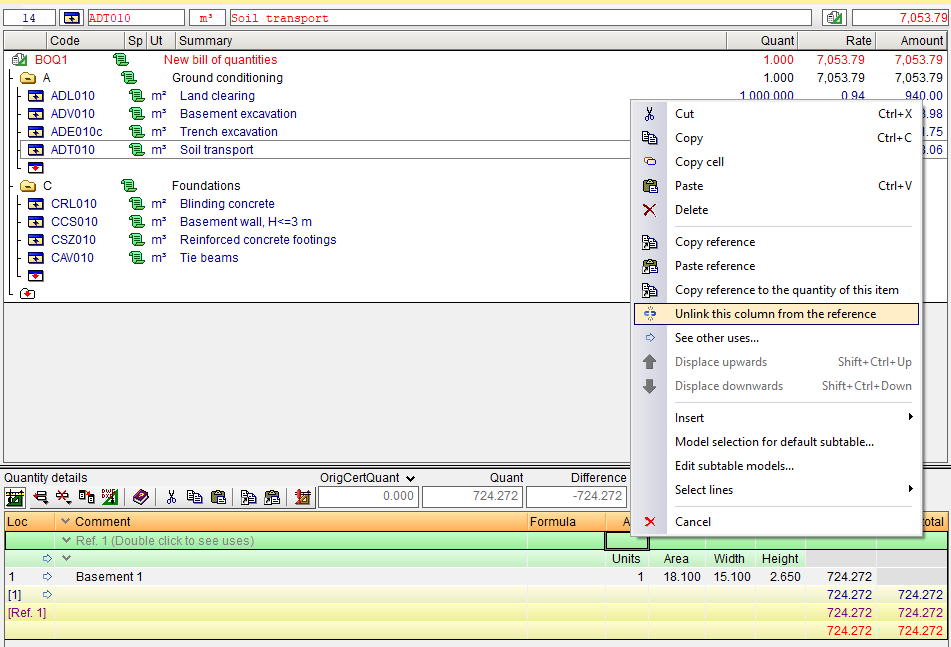
You can also unlink one or more columns from two linked tables or subtables by selecting "Unlink this column from the reference". This option is available in the context menu that appears when you right-click on the cell in the reference header row and the column you wish to unlink. This option allows you to keep two quantity tables linked even if they are identical except for one (or more than one) of their columns.
Reference values directly in numeric cells
You can reference values directly in numeric cells from another item (for example, copying the total quantity from one item to another). To do this, place the cursor on the quantity of the item you wish to copy, with the reference set to the "Quantity" column, and select the option from the context menu "Copy reference to the quantity of this item" that appears when you right-click on the item’s quantity, and paste it into a quantity cell in the quantity details area using the context menu option "Paste reference to the quantity of the item".