View job control details
From the "View" section of the "Job control" menu, you can view:
- Account status
- Suppliers
This option displays the code, name, invoice amount, amount paid and balance for each supplier.
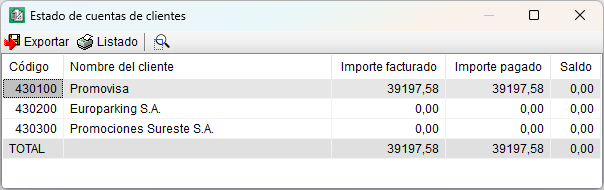
Clicking the "See detail" button displays a breakdown of all invoices relating to that supplier, along with their respective due dates and payment statuses. - Clients
As with suppliers, this option displays the same information.
- Suppliers
- Price comparison
This option displays a list of all supplies, showing their prices, quantities and total amounts, for both the reference bill of quantities (target or preliminary estimate) and the actual supplies. It also shows the variances between the reference bill of quantities and the actual bill of quantities.

- Summary of project charges
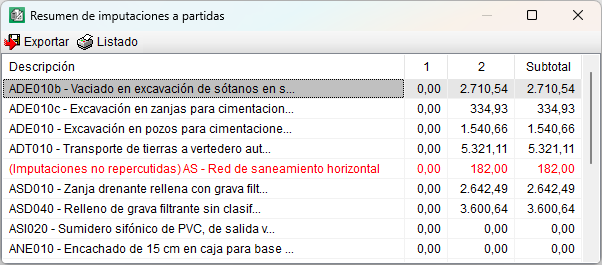
This option displays the total amount spent on the project, calculated based on direct and passed-on charges categorised by phase, according to the date of each charge. - Summary of charges for items
This option displays the amount spent on each item, calculated from both direct and reallocated charges at each stage of the project.
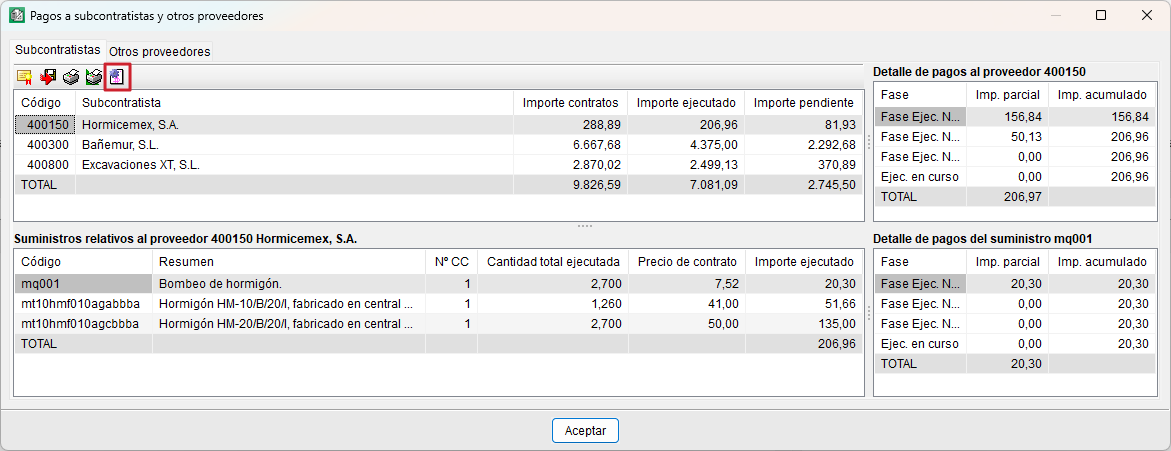
- Payments to subcontractors and other suppliers
This option displays a list of projected payments to subcontractors (based on certificates or the quantities completed for each item) and to suppliers (based on supply contracts and delivery notes received). The payments are calculated using the amount selected in the "Values to use as reference" option under "Settings" in the "Job control" menu.
The dialog box is divided into two tabs: "Subcontractors" and "Other suppliers". These tabs differ only in the "Generate subcontractor invoices" button, which allows you to create an invoice with the quantities completed by each subcontractor in the month of the certificate closure.
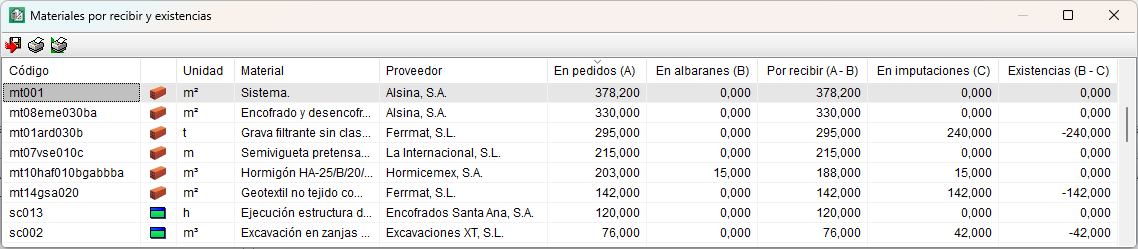
- Pending receipt materials and stock
This option displays a list showing goods to be received and the corresponding stock levels.
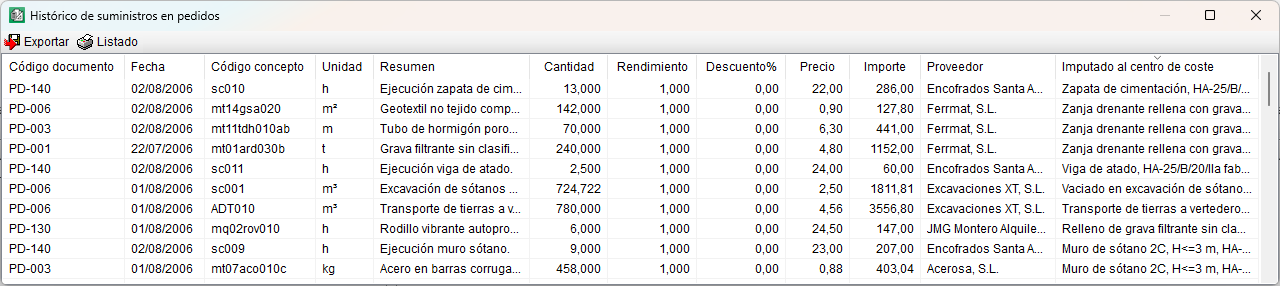
- History of supplies in orders
- Regroup supplies
This option allows you to regroup supplies that have been ungrouped as a result of various operations performed on them, thereby reducing the number of entries in the "Supply history". - Orders
This option displays, in a list sorted by date, the supplies included in orders, along with the information associated with each document. - Delivery notes
This option displays, in a list sorted by date, the supplies included in delivery notes, along with the information associated with each document. - Invoices received
This option displays, in a list sorted by date, the supplies included in invoices received, along with the information associated with each document. - Charges
This option displays, in a list sorted by date, the supplies included in charges, along with the information associated with each document.
- Regroup supplies