BIMserver.center linking options
The options in the "BIMserver.center" group, found in the top toolbar of the "Project" tab, allow you to link the project and export information to a BIMserver.center project.

To use these options, you must first "Log in" to BIMserver.center using the corresponding button on the right side of the program’s title bar.
Link
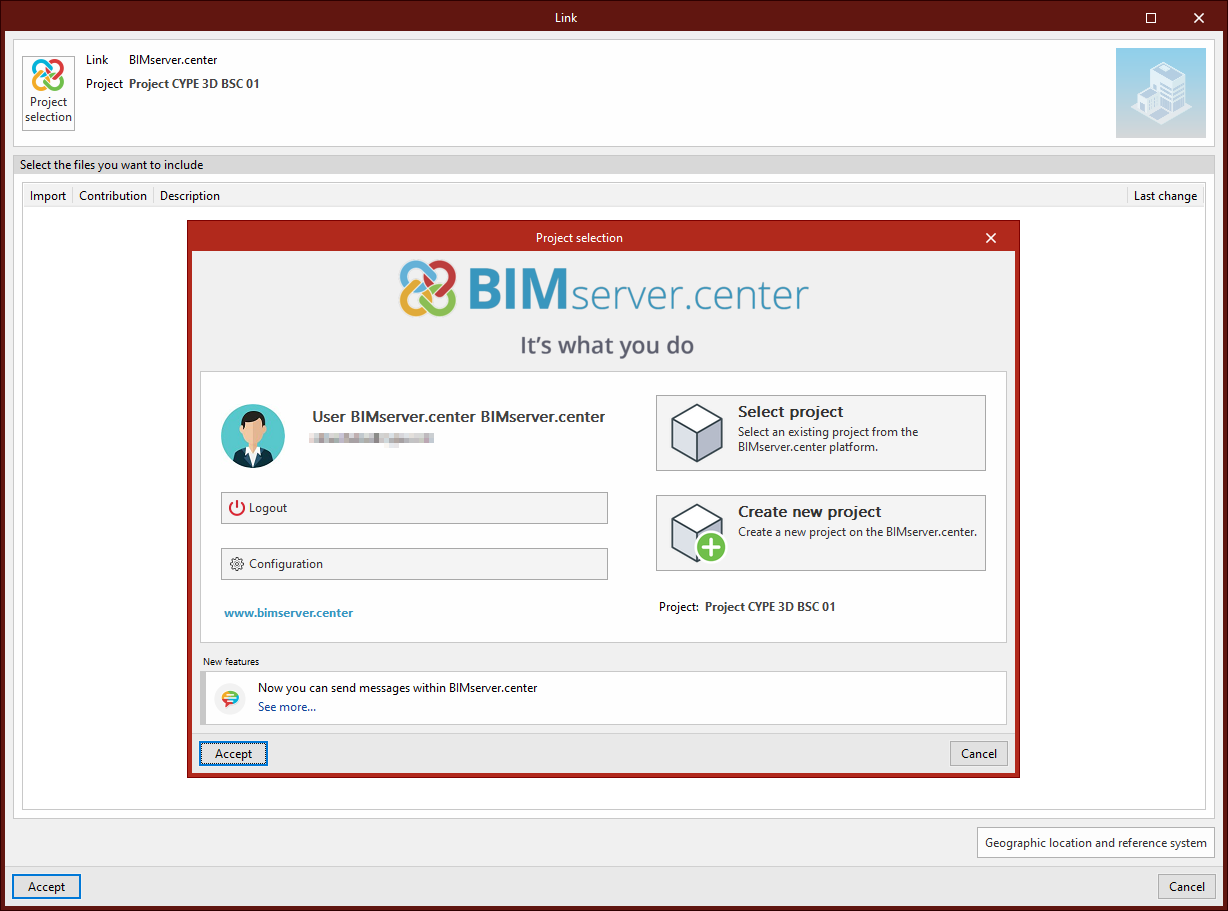
The first option allows you to "Link" the project to a BIMserver.center project.
In the window that appears, click on "Project selection". Here, you can use the "Select project" option to choose a previously created BIMserver.center project, or create one on the spot using "Create new project".
In this case, enter the "Project name", select the "Owner", "Project type", "Visibility options", "Collaboration request management", and add a "Description".
You can also indicate whether you wish to "Review new contributions" or "Review updated contributions" by checking the boxes at the bottom.
Then, click "Accept".
Unlink
In the "BIMserver.center" menu, you can also "Unlink" the project from its associated BIM project.
Consultar
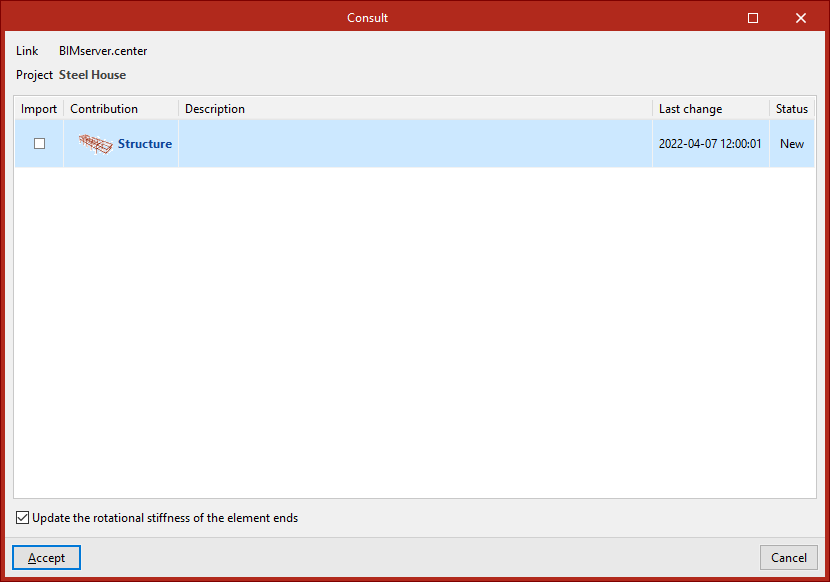
The next option allows you to "Consult" the status of the project to which the current project is linked.
In the lower table of the window, if there are other files in the BIMserver.center project, they can be "Imported" for 3D visualisation. You can also check the "Application" used to generate them, as well as the "Contribution name", its "Description", the "Last modified" date, and its "Status".
A checkbox at the bottom allows you to "Update the rotational stiffnesses at member ends". This option imports the rotational stiffness of connections calculated in CYPE Connect or StruBIM Steel (and exported to BIMserver.center) into the original CYPE 3D structure.
Share
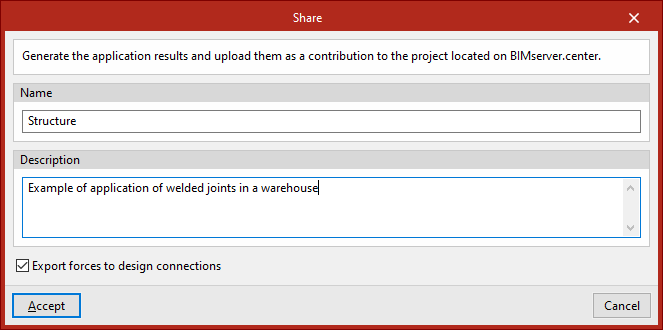
The final option in this group allows you to "Share" the model information to the BIMserver.center project.
You must enter the "File name" that will be generated during the export process, along with a "Description".
If you want to "Export forces for connection design", you can enable the checkbox at the bottom. This way, the force data calculated at the ends of structural elements can be used in the design of connections by other programs like CYPE Connect or StruBIM Steel.
After clicking "Accept", the program starts the export process and uploads the model information to BIMserver.center.
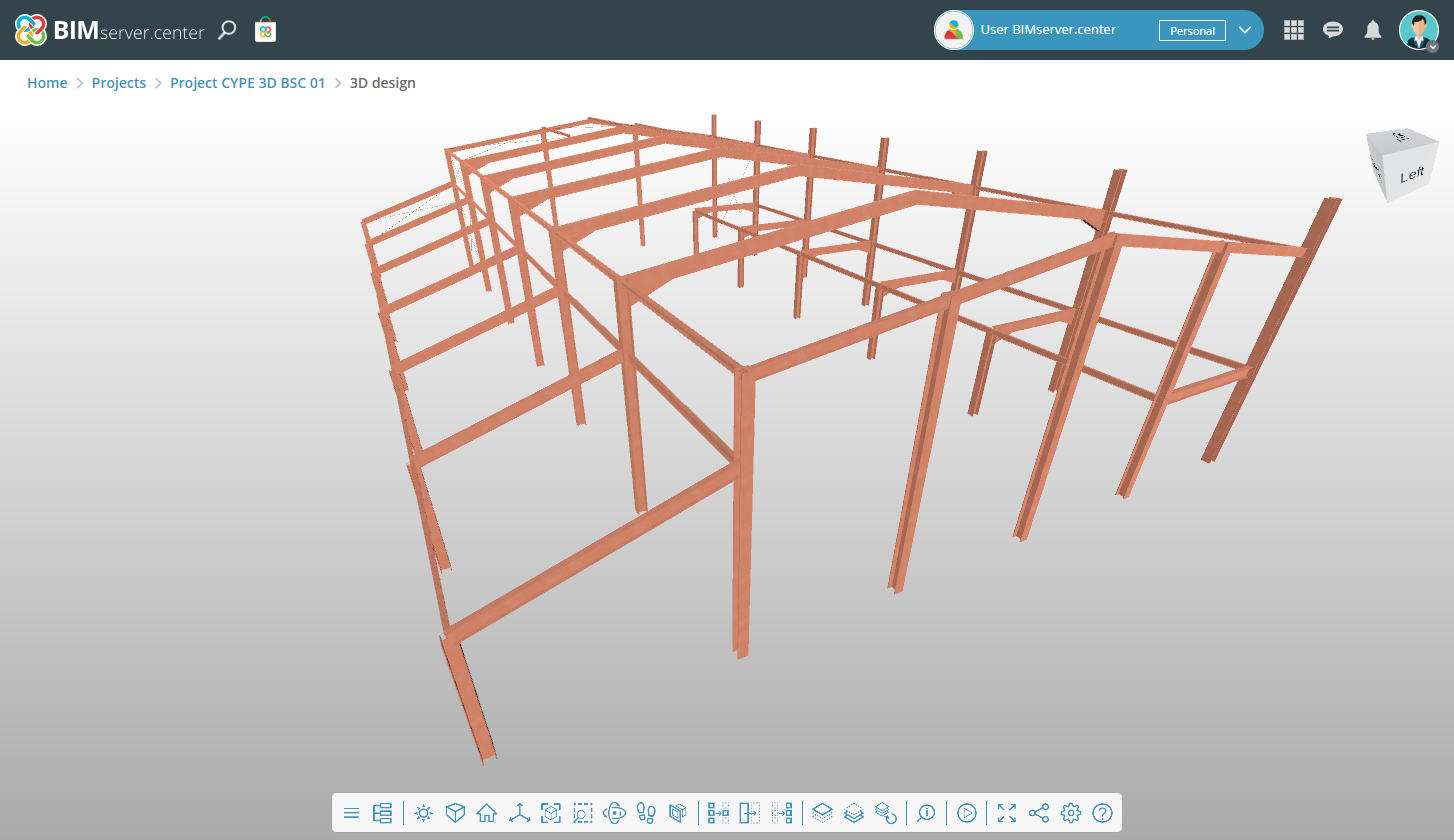
From that moment on, the information becomes available for viewing on the BIMserver.center web platform, under the "Projects" section.
The model generated with CYPE 3D can also be read by other applications linked to BIMserver.center.