Designing and updating joint analysis results
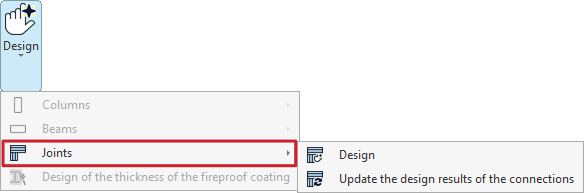
To carry out only the design and update of the structural connection analysis results within the program, once they have been created, use the options in the "Design" menu. This menu is located at the top of the "Analysis" tab interface (within the "Structure" tab).

Alternatively, you can perform a combined analysis of the structure and connections simultaneously via the "Analysis" option, and then tick the "Connection design" box in the pop-up window.
Options in the "Dimension" menu
To calculate joints only, open the "Desing" menu and then select the "Joints" submenu.
This menu is only available if joints have been entered or generated in the model and the structure has been analysed.
Design
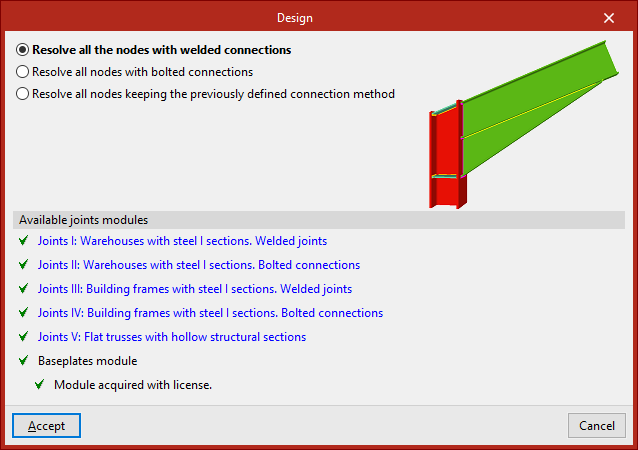
The "Design" option allows the program to design all previously defined joints. This allows the structure and the joints to be analysed separately.
The drop-down menu allows you to choose whether to "Resolve all nodes with welded connections" or "Resolve all nodes with bolted connections" – in the latter case, the checkbox below for "Use prestressed bolts" is selected – or "Resolve all nodes whilst keeping the previously defined connection method".
In the final section, the program displays the "Available joint modules" included in the license. You can click on any of the links to view the range of joints that can be analysed using each module.
Finally, click "Accept".
Update the analysis results for the joints
If any of the joints have been edited, the program will display them in yellow on the model, pending the update of the analysis results.
In this case, the other option in the "Connections" submenu is used, which serves to "Update the design results of the connections" in the structure and their rotational stiffnesses.
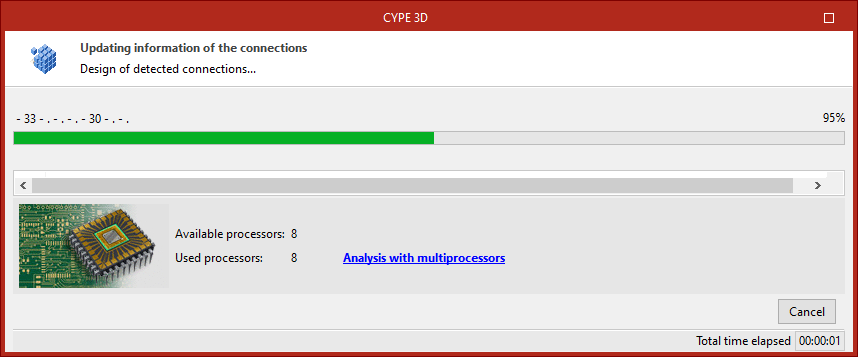
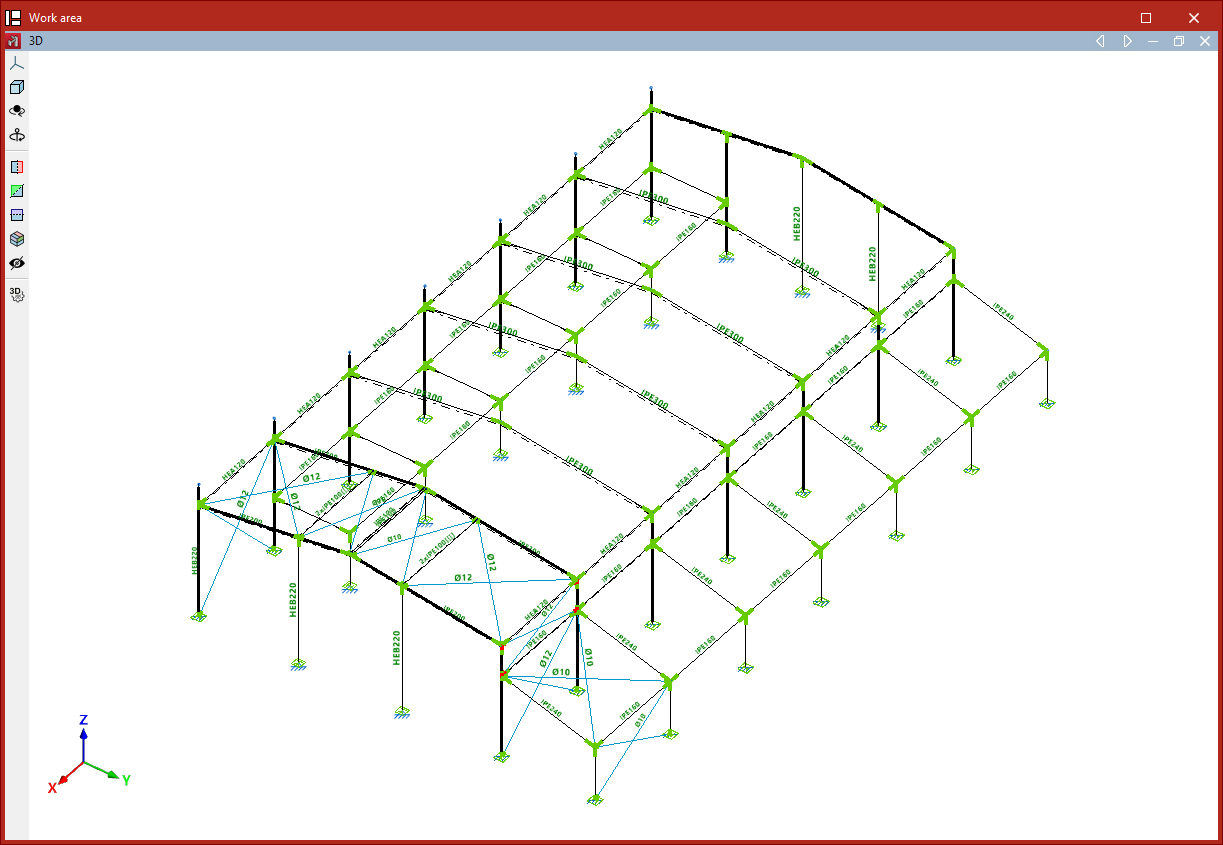
When this is done, the connections turn green if they pass all the checks, and red if they fail any of the checks.
Individual design and verification
The results can also be designed or updated individually for each type of joint.
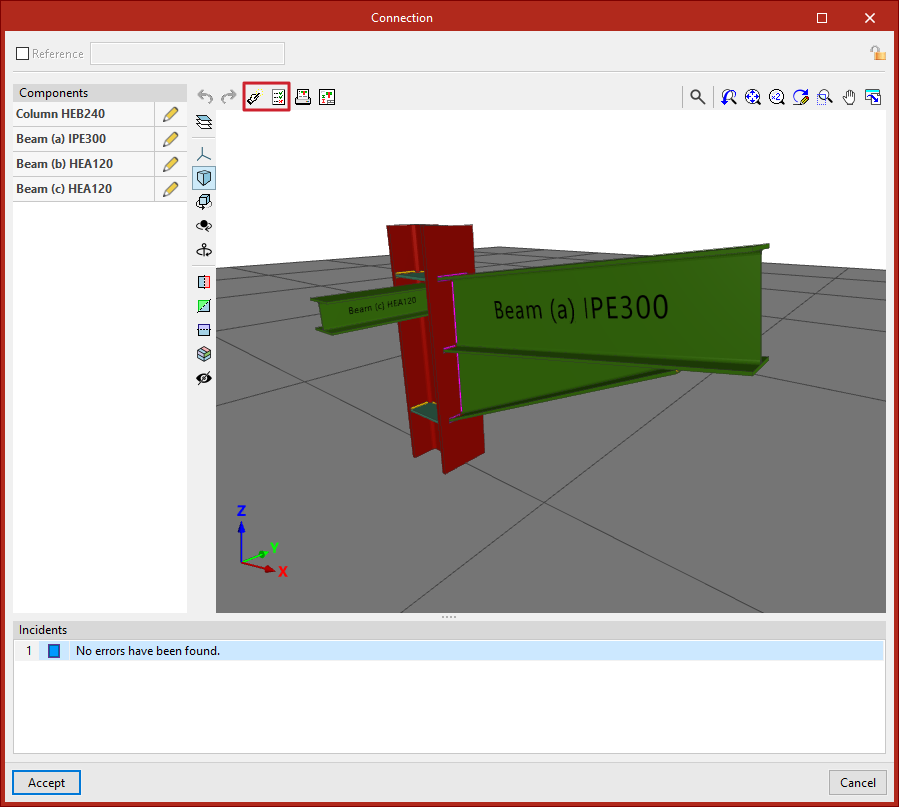
To do this, open the "Joints" tab, select "Edit" and left-click on the joint in the model.
Next, in the editing window, use the "Design" option at the top if you want to design the selected joint individually.
If any changes have been made, select "Check" to update the analysis results and verify that the checks have been passed.