


Entering connections
The following options, available in the upper toolbar of the "Connections" tab (in the "Structure" tab), are used to enter and remove connections in the structure.

If no connections have been entered, only the "New" and "Generate" options will be active.
New
The "New" option can be used to enter a connection manually in the model:
- To create a connection that considers all the bars in a node, select the node with the left mouse button. The connection editing window will open, where you can adjust the components of the connection. Then click on "Accept".
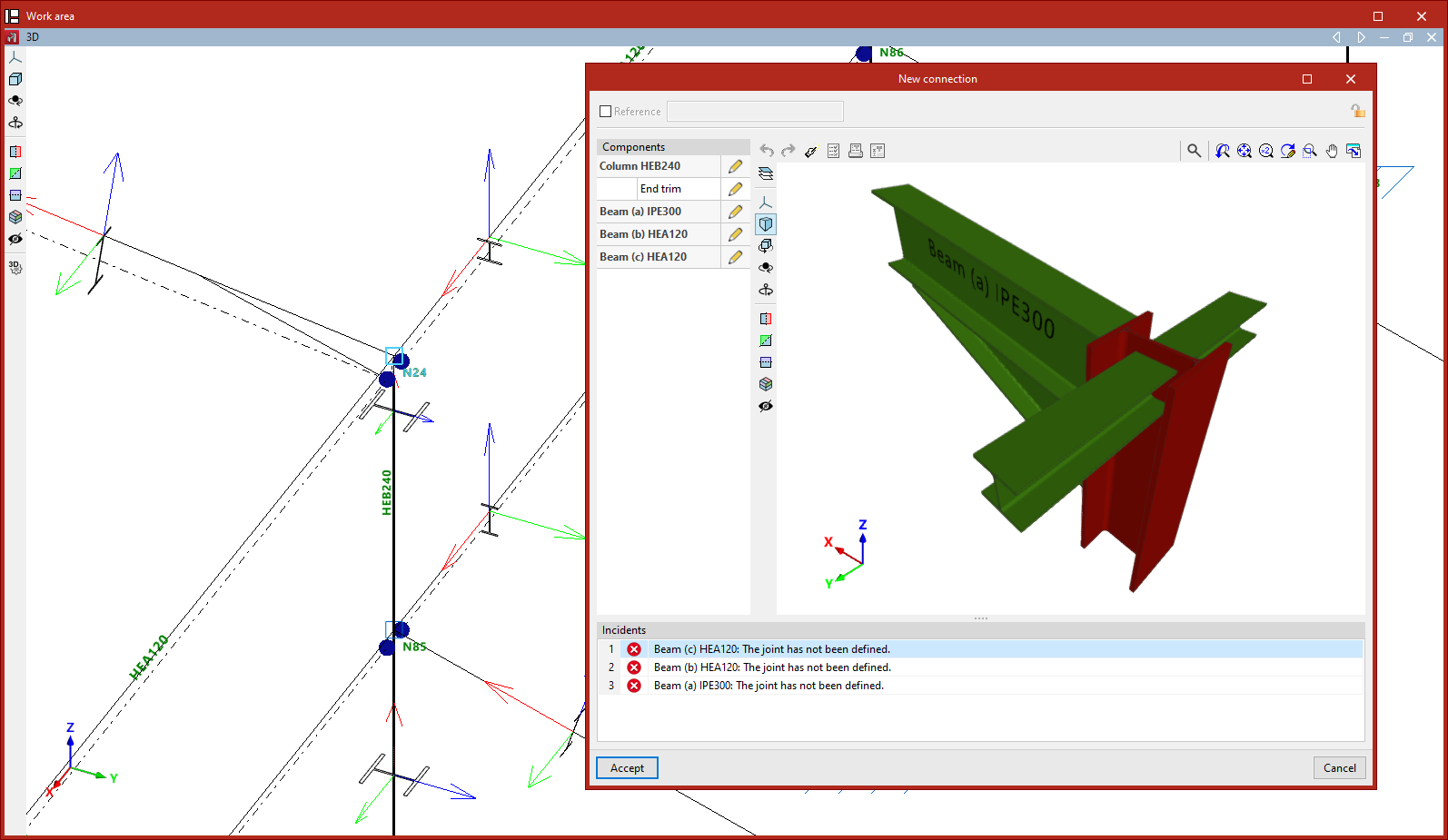
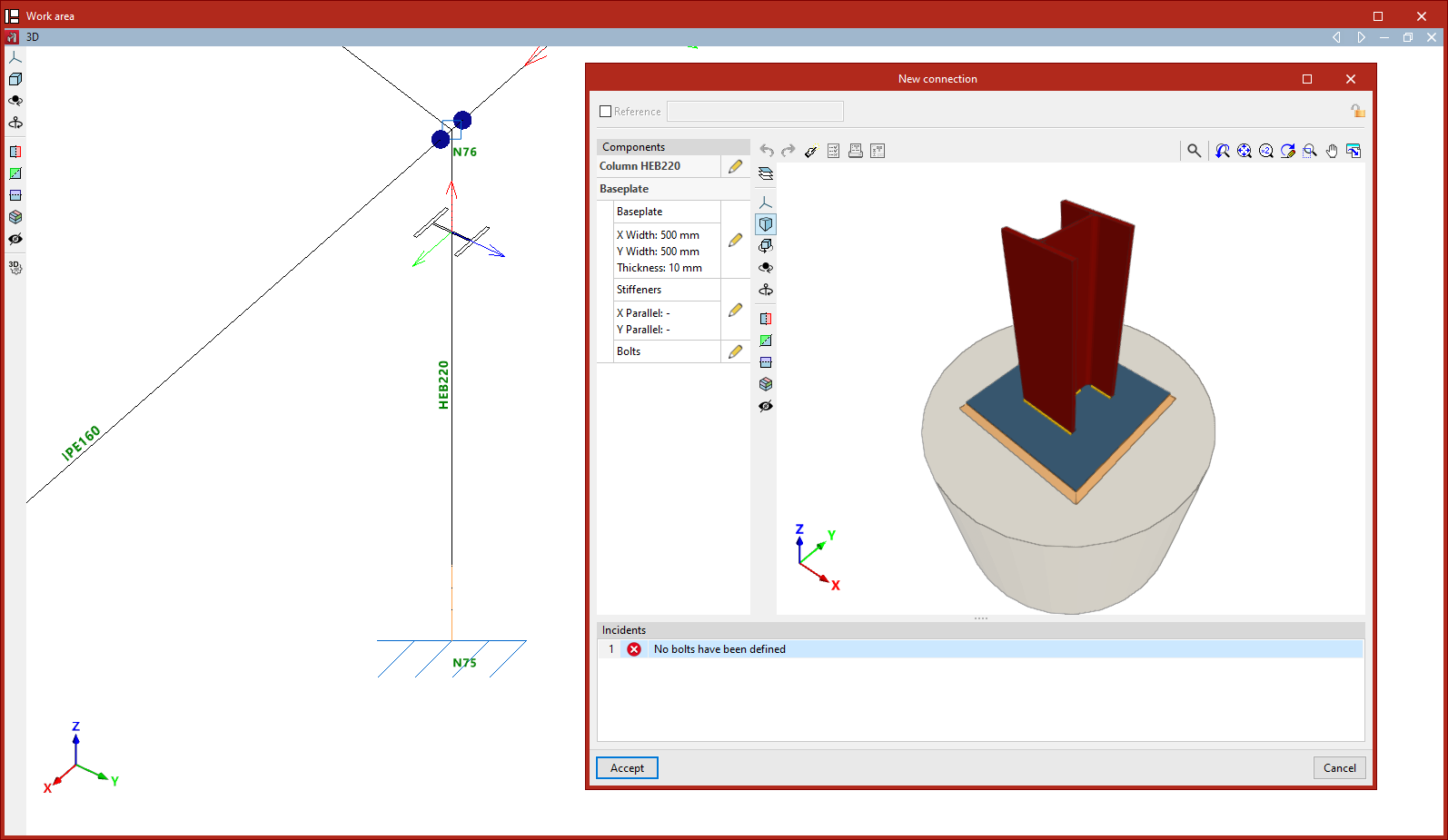
- To create a connection at the end of an element, e.g. a baseplate, select the end of the element with the left mouse button and click the right mouse button. You can also select the end node with the left mouse button if it is the only part that uses it. Similarly, the connection editing window is then accepted.
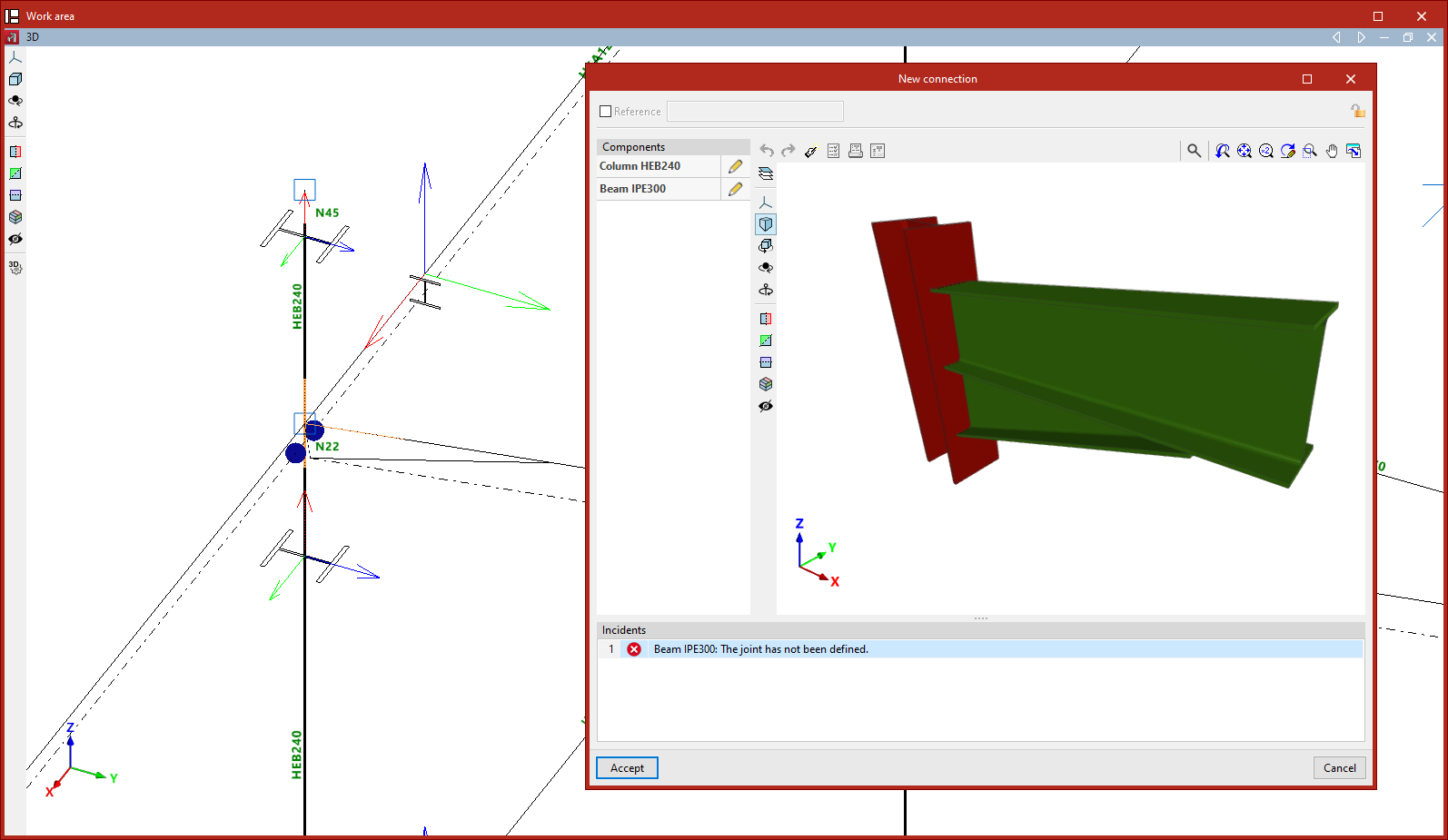
- To create a connection between a group of elements, select the elements with the left mouse button by clicking on an area close to the node where you want to create the connection and then press the right mouse button. The connection editing window is then accepted. More than one connection can be defined in the same node by selecting different groups of elements.
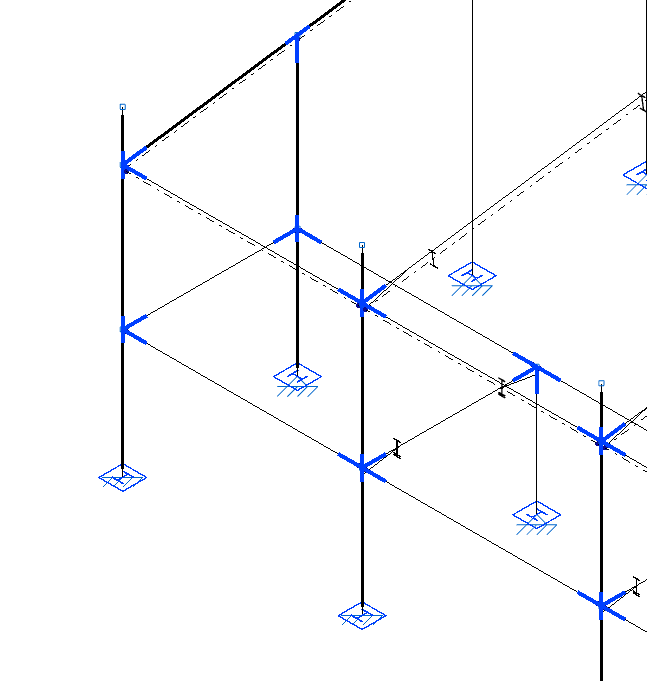
The created connections are shown in blue in the model viewer.
Delete
Once the connections have been entered in the project, the rest of the options are available in the "Connections" tab.
The "Delete" option can be used to delete the created connections by selecting them one by one with the left button or by using the crossing method to select several at the same time. Afterwards, right click to confirm the removal.
