Entering footings
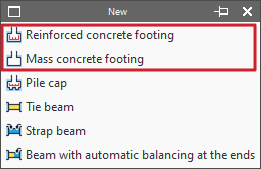
Footings are entered using the first two options in the "New" menu of the "Foundation elements" group, in the "Foundations" tab: "Reinforced concrete footing" and "Mass concrete footing" (without reinforcement by default).
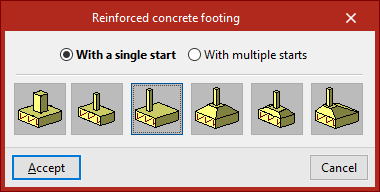
In either of the two cases, in the pop-up window that appears, you must choose "With a single start" if it is an isolated footing or "With multiple starts" in the case of a combined footing or a footing common to several columns.
You must also indicate whether it is a square, rectangular or pyramidal footing, and whether it is centred or eccentric by choosing the corresponding type:
- Square footing
- Centred rectangular footing
- Eccentric rectangular footing
- Tapered square footing
- Tapered centred rectangular footing
- Tapered eccentric rectangular footing
Footings with a single start (pad footings)
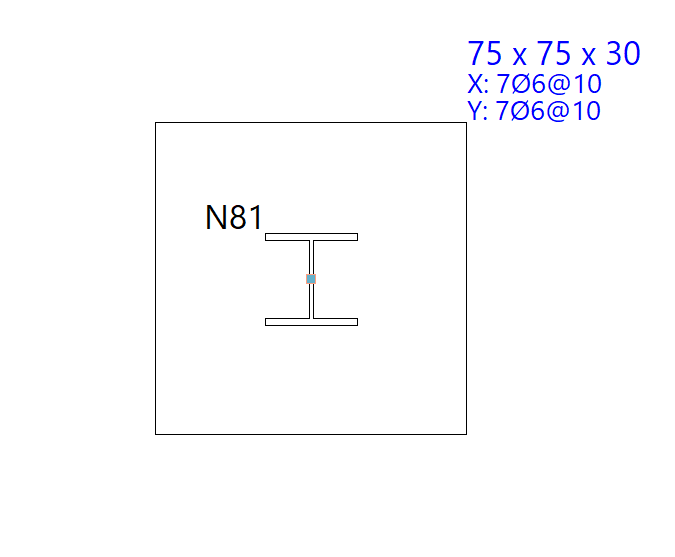
In this case, after clicking "Accept", the footing must be placed on the ground plan. If the mouse pointer is placed over a foundation, it takes the form of two concentric squares. If you click at this point, the foundation element will be positioned centrally under the support.
If you have chosen an eccentric footing, you can insert a corner or party wall footing by moving the mouse pointer away from the support while it is still selected. The shape of the mouse pointer indicates the shape of the footing. You can click on the support again if you want to resituate the foundation element.
Footings with more than one start (combined footings)
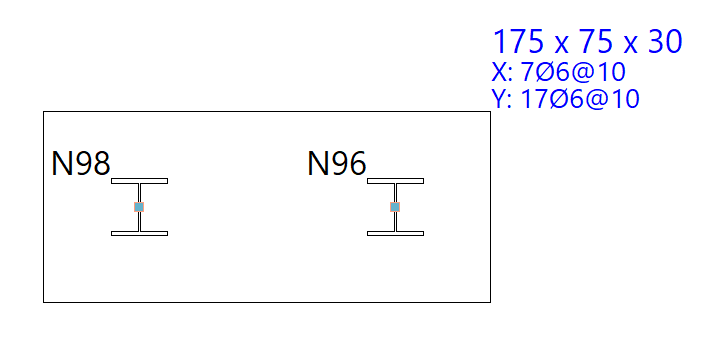
If you choose the "With more than one footing" option, after clicking "Accept", click on several footings to select them one by one or use the crossing method to select several simultaneously.
Then click the right mouse button. At this point, the insertion point of the foundation element appears, represented by a small circle with a cross and located at the geometric centre of the set of selected starts.
The shape of the pointer indicates the shape of the footing, just like when inserting single-start elements: centred, corner or party wall. Clicking on this point will place the foundation element under the start group.