Generating reports
The program can generate and print job reports and reports on a selection of elements using the following options.
Job reports
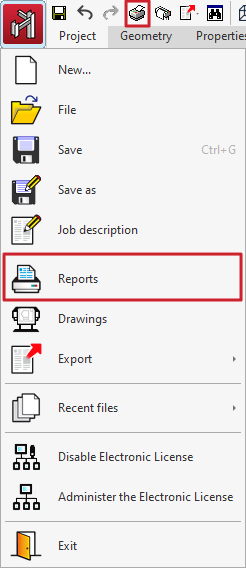
To obtain the job reports, open the "File" menu and select the "Reports" option, or use the "Reports" option at the top left of the program's main interface.
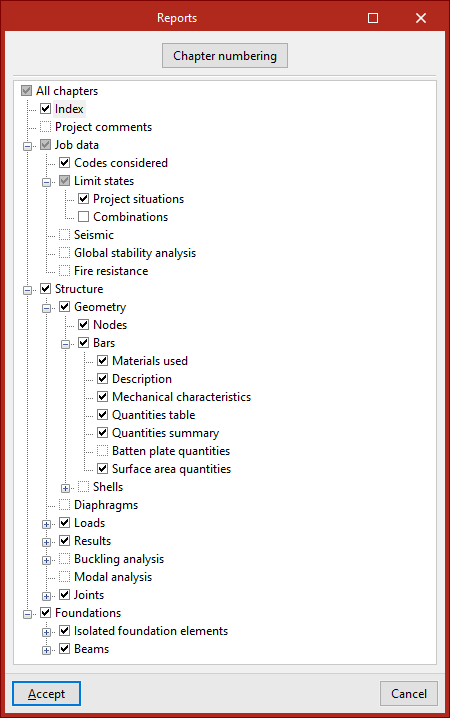
In the "Reports" window, check the corresponding boxes to print "All chapters" or a specific selection of them:
- The "Project data" chapter includes general information such as "Standards considered", "Limit states", "Earthquake", "Global stability analysis", and "Fire resistance".
- The "Structure" chapter includes the "Geometry" of the "Nodes", "Bars" and "Shells", as well as the "Loads", calculation "Results" and information on the "Joints". It also includes information on the defined "Diaphragms" and the "Buckling analysis" and "Modal analysis", if carried out.
- The last chapter includes the data and results of the "Foundation" if it has been entered into the model.
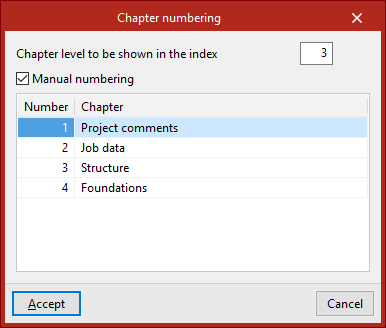
The "Chapter numbering" button at the top allows you to modify the "Chapter Level to Display in the Table of Contents" and carry out "Manual numbering" if desired, by typing the "Number" for each "Chapter".
Preview reports
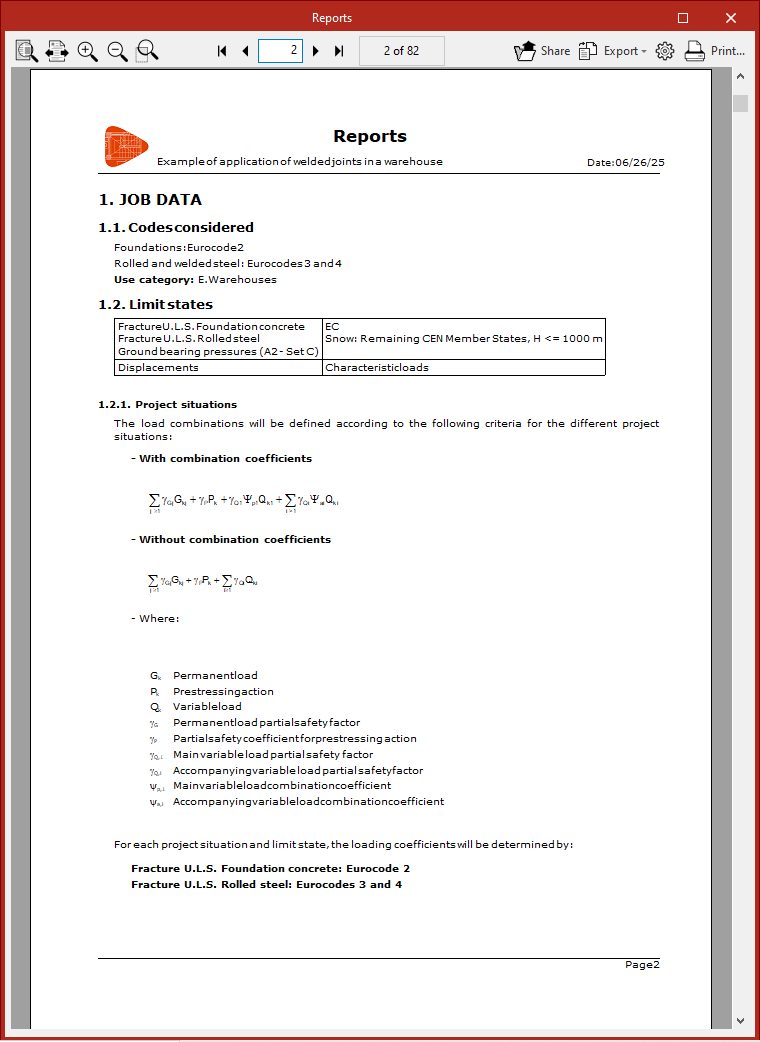
After selecting the desired chapters and clicking "Accept", the program displays a preview of the "Reports"
Here you can adjust the page size on the screen using the options available in the top left corner.
To scroll through the list, use the options in the centre, which allow you to move forward or backwards through the pages.
Further to the right, clicking on the "Share" option generates a private link that can be useful for showing the information to other users.
The report can be "Exported" in different formats, such as PDF, DOCX, TXT, HTML and RTF.
From "Print settings", select the printer and define the "Scale" and "Margins" of the document.
Finally, the "Print" option opens the document print dialogue, where you can define the "Pages to print" and other "Print settings".