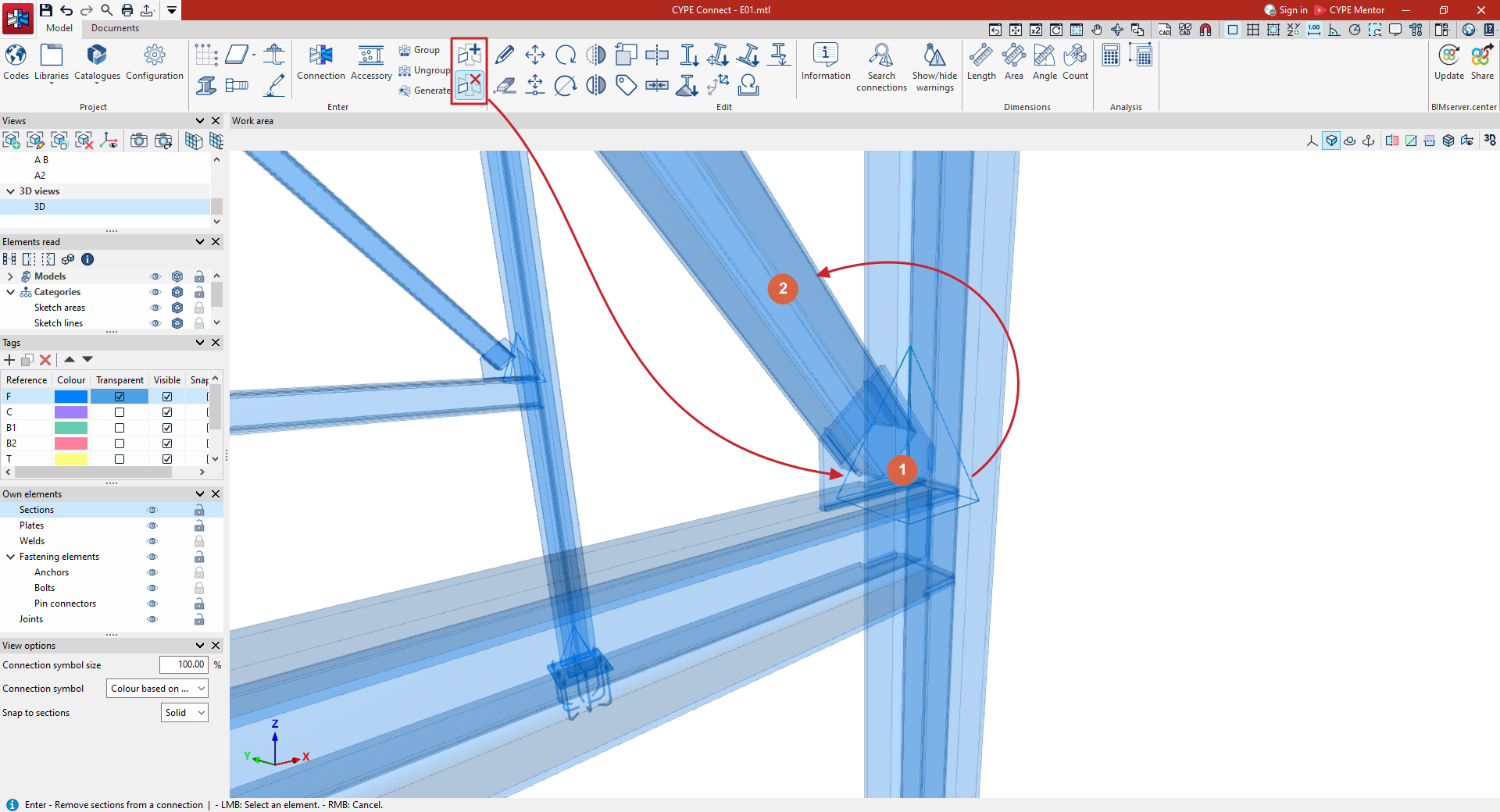
Options for adding and removing sections from a joint
The following tools, available in the "Enter" section of the top toolbar on the "Model" tab of the program's main interface, allow you to add sections to a joint or remove sections from a previously defined joint.

Add sections to a joint
To "Add sections to a joint", click on this option, and then:
- Use the left mouse button to select the joint to which you wish to add sections.
- Use the left mouse button to select the sections you wish to add to the joint one by one.
- Confirm the operation by clicking the right-hand button.
Remove sections from a joint
To "Remove sections from a joint", click on this option, and then:
- Left-click to select the joint where you want to remove sections.
- Use the left mouse button to select, one by one, the sections you want to remove from the joint.
- Confirm the operation by clicking the right-hand button.