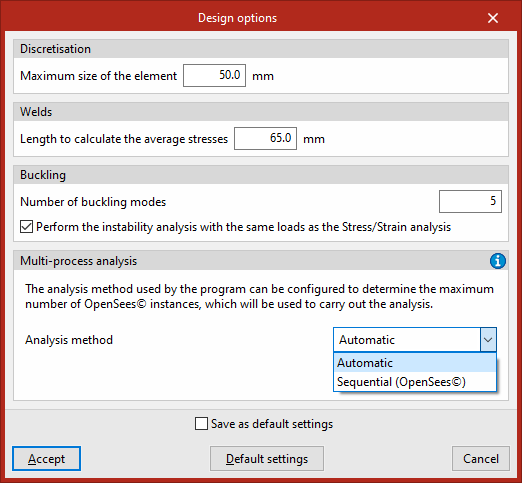
Design options in the connection editor
To configure the design options for each joint in the program, use the following option on the top toolbar of the "Analysis" tab within the connection editor.

Design options
This tool allows you to configure the “Design options”.
Firstly, in the "Discretisation" section, enter the "Maximum element size". This value refers to the side length of the triangular finite elements used by the program to discretise the sections and plates. Using a value between 30 and 50 millimetres yields good results with reasonable calculation times.
Next, in the "Welds" section, you can adjust the "Length for calculating average stresses". Stress concentrations typically occur at the ends of the weld bead, where the values are usually higher than elsewhere. If this is the case, increasing the length reduces the average stress.
In the “Buckling” section, you can select the “Number of buckling modes” to be calculated in this analysis. The buckling analysis can be carried out using the same loads as the "Stress/Strain" analysis or using a different set of loads. This can be controlled by ticking or unticking the "Perform the instability analysis with the same loads as the Stress/Strain analysis". If this option is enabled, the “Buckling” tab will appear in the “Loads” dialogue box, where you can enter the internal forces specifically for this calculation.
In the "Multiprocessing" section, you can configure the "Analysis method" used by the program to determine the maximum number of OpenSees© engine instances to be used to carry out the analysis. The "Automatic" method aims to make the most of the computer’s capacity by launching as many instances as possible, whilst if "Sequential" is selected, you must enter the "Maximum number of OpenSees© instances". Further information on these methods can be found by clicking on the help button on the right-hand side.
To confirm the changes, click on "Accept".