Element and material libraries
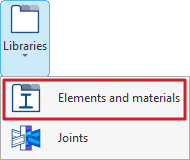
To configure the material and element libraries, from the "Model" tab on the program's main interface, open the "Libraries" menu on the top toolbar, which is available within the "Project" section.

Next, select "Elements and materials".
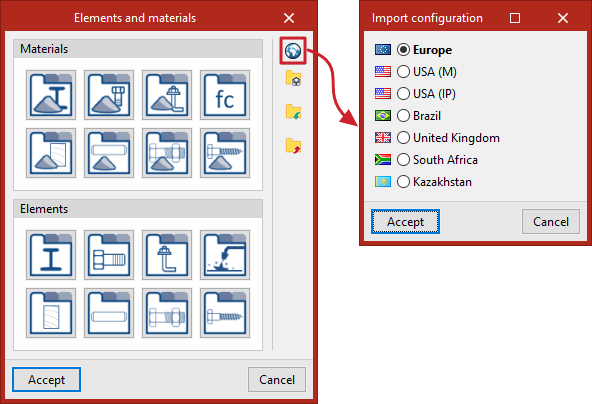
In the window that appears, you can access the various "Materials" and "Elements" libraries for the structure using the various buttons provided.
Importing settings by country or region
In addition, the program offers the "Import settings" option on the right to import predefined libraries of materials and elements from a specific country or region after selecting it from the list:
- Europe
- USA (M)
- USA (IP)
- Brazil
- United Kingdom
- South Africa
- Kazakhstan
When you click "Accept", the libraries for all materials and elements are generated automatically, replacing the data previously entered.
Importing and exporting libraries
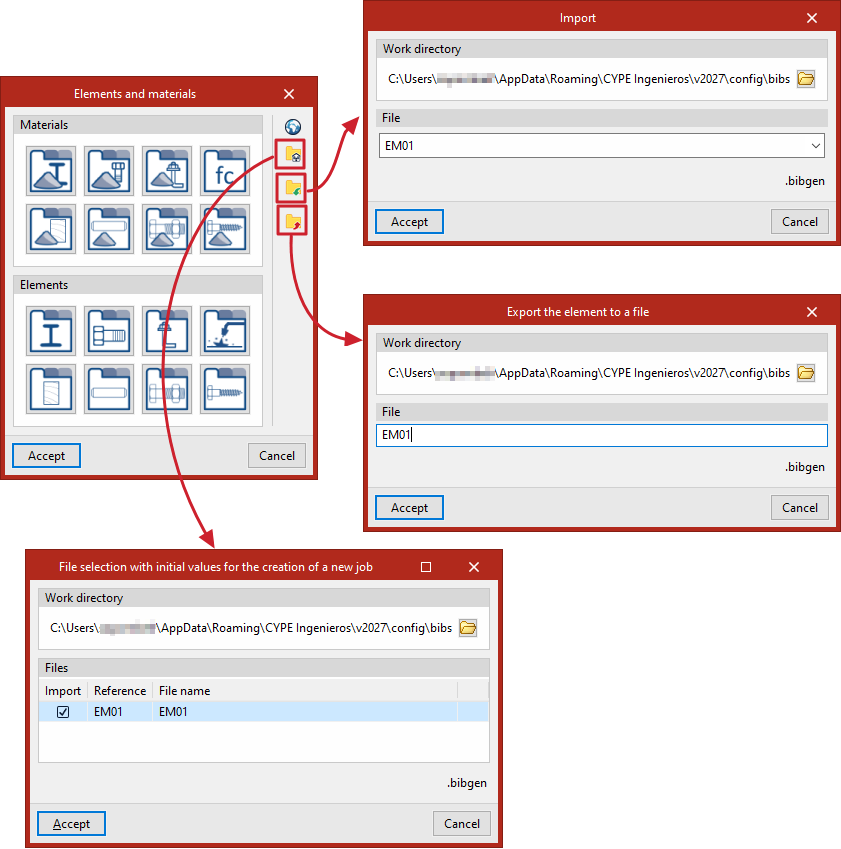
On the right-hand side, there is a set of additional tools for importing and exporting the material and element libraries that have been configured in the project.
The "Export" option is used to save library information to a specific file. The libraries saved to a file can then be "Imported" into any project.
You can also carry out a "File selection with initial values for the creation of a new job". This means that, when creating a new project, the program automatically loads the materials and elements saved in the selected files, so that the libraries do not appear empty.