Inserting and editing text boxes
The following option, within the "Drawing elements" section of the top toolbar in the sheet editor, lets you insert text boxes into the sheets:

Text box
Using the "Text box" option, you can insert a box containing the text of your choice.
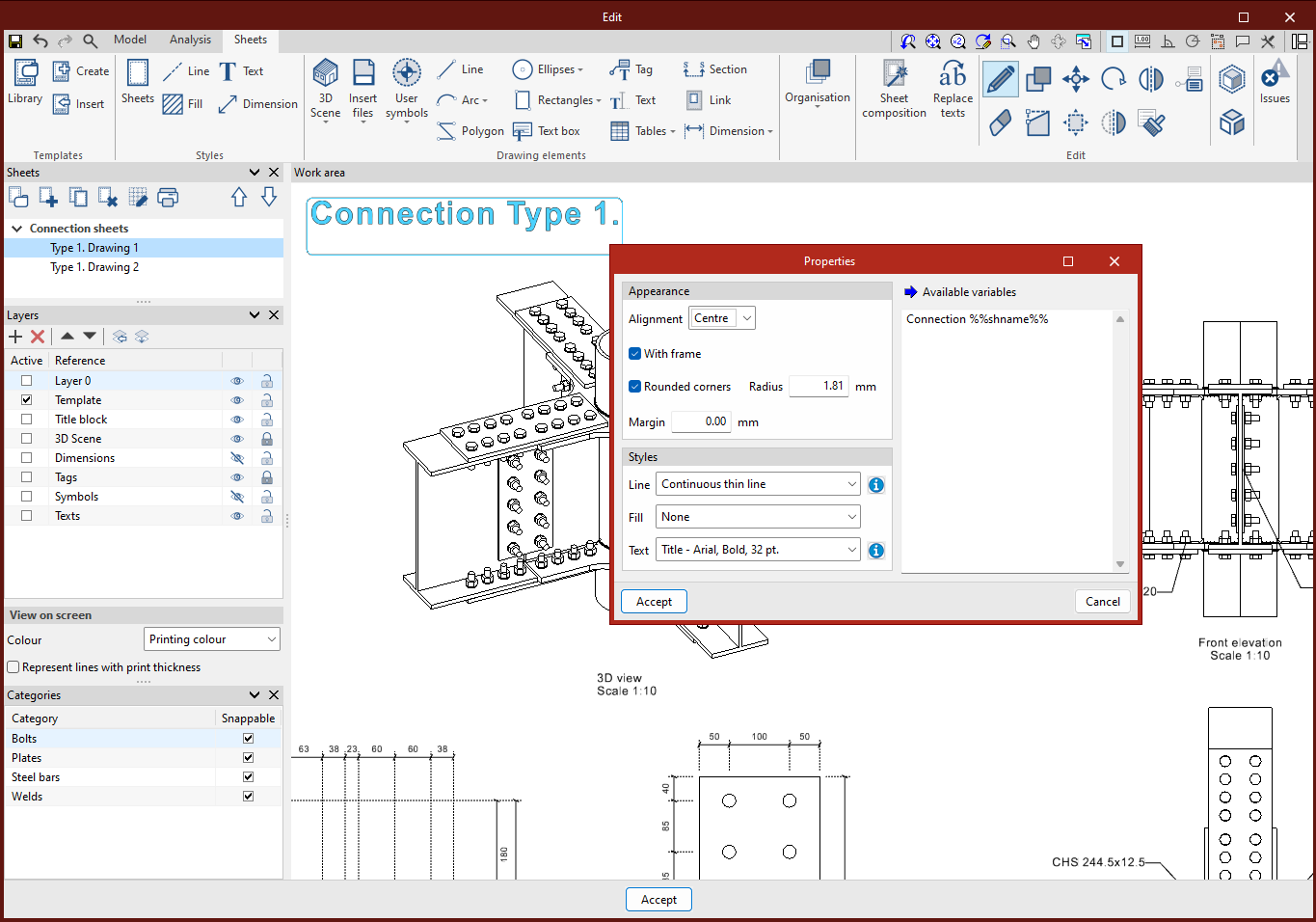
Clicking on this option will open a pop-up window ("Properties") containing the configuration options.
In this window, you can choose:
- In the "Appearance" section
The "Alignment" or positioning of the text ("Left", "Centre" or "Right"), whether you wish to display a border (by ticking the "With frame" box), with or without "Rounded corners", and the "Margin" relative to it. - In the "Styles" section
Select the style for the text you want and, where applicable, those for the line and the fill.
Next, left-click on a point on the work area and click again on a second point to set the dimensions of the box in which the text will be placed.
A new window will then open, in which you can type the text you require. Here, you can enter text linked to any of the "Available variables". Once you have finished entering the text, click the green confirmation button to complete the process.