Quantities reports
Quantities reports can be generated for the structural elements within the program.
To do this, go to the "Documents" tab in the program’s main interface and use the tools in the "Quantities" section of the top toolbar. The elements must be numbered to use these tools.

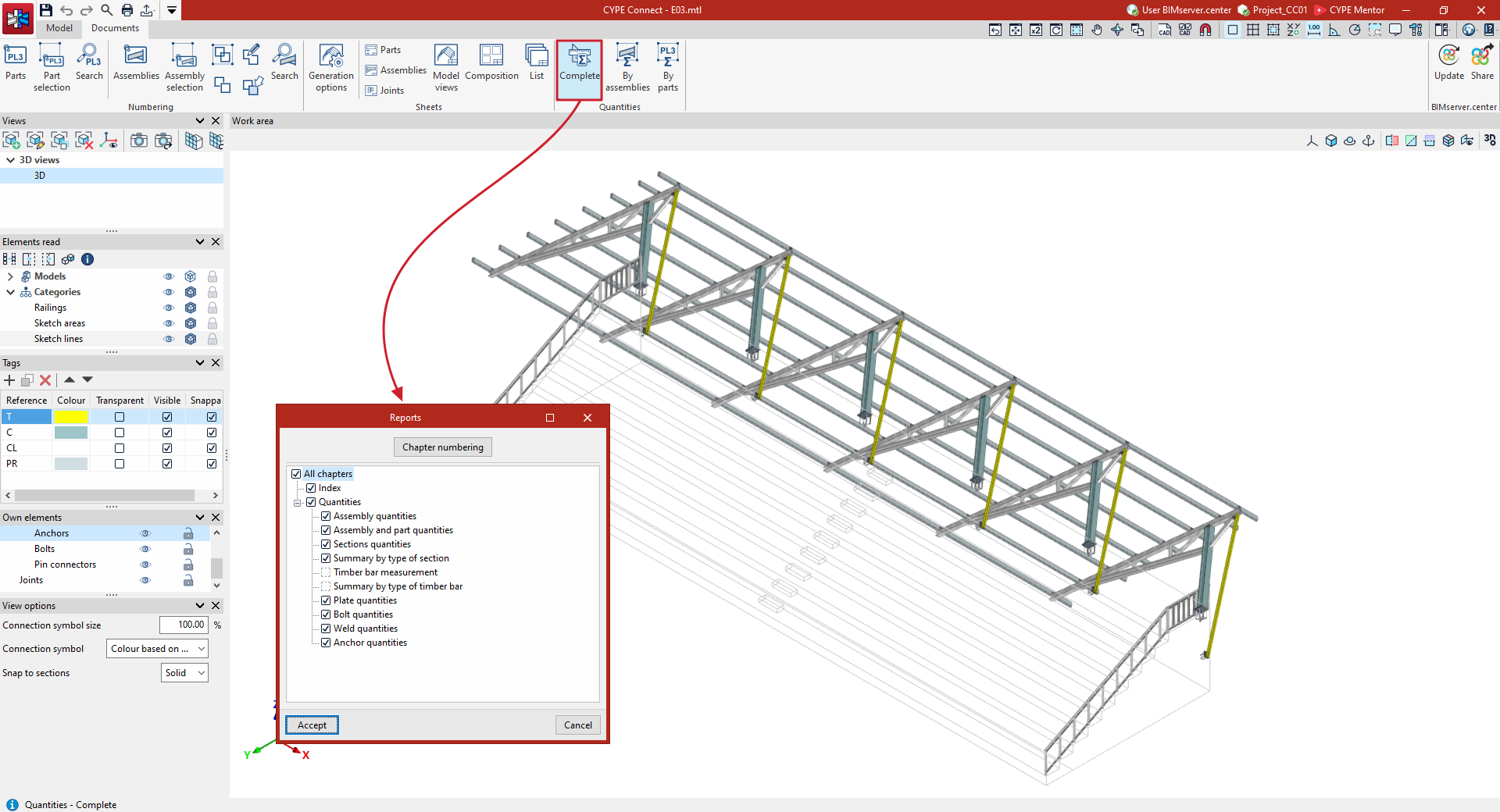
Complete
This option generates a "Complete" quantities report for the entire structure.
In the "Reports" window that appears, tick the relevant boxes to print "All chapters" or only the selected chapters.
After clicking "Accept", the program will display a preview of the quantities report on the screen.
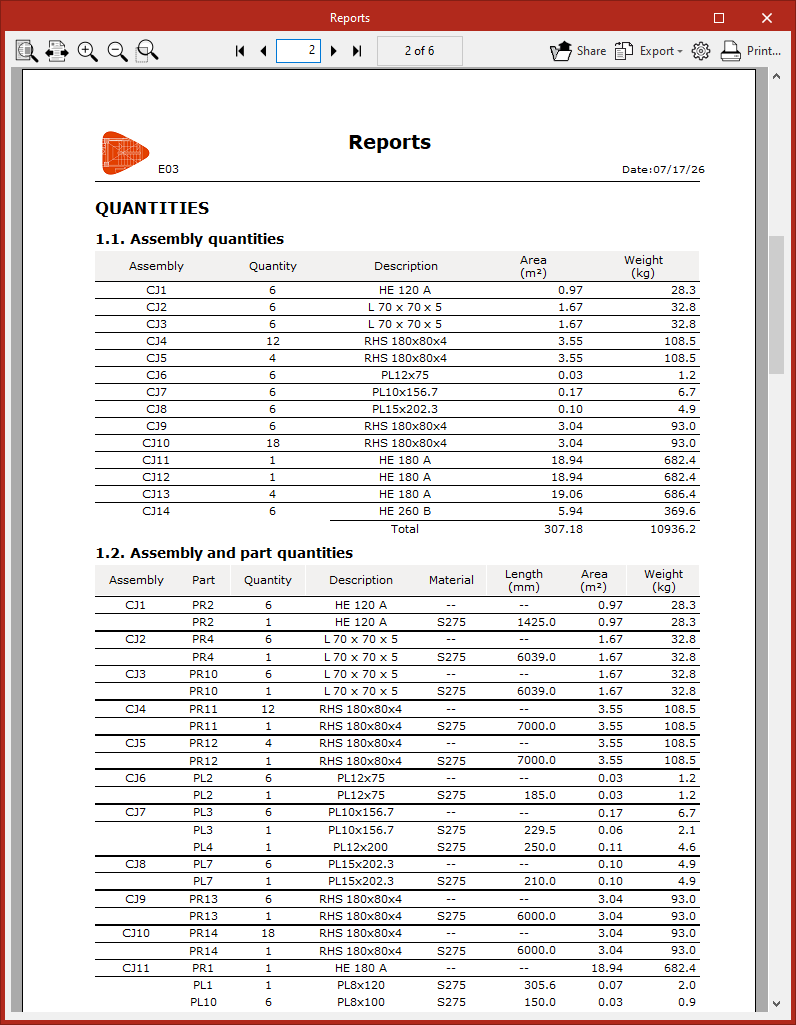
This report may include the tables for "Assembly quantities", "Assemblies and part quantities" and "Sections", a "Summary by type of section", containing data such as "Length", "Area" and "Weight", as well as the dimensions of plates, bolts, welds and anchors.
From here, using the options at the top, you can "Share" and "Export" the information in various formats, and "Print" the document directly.
By assemblies
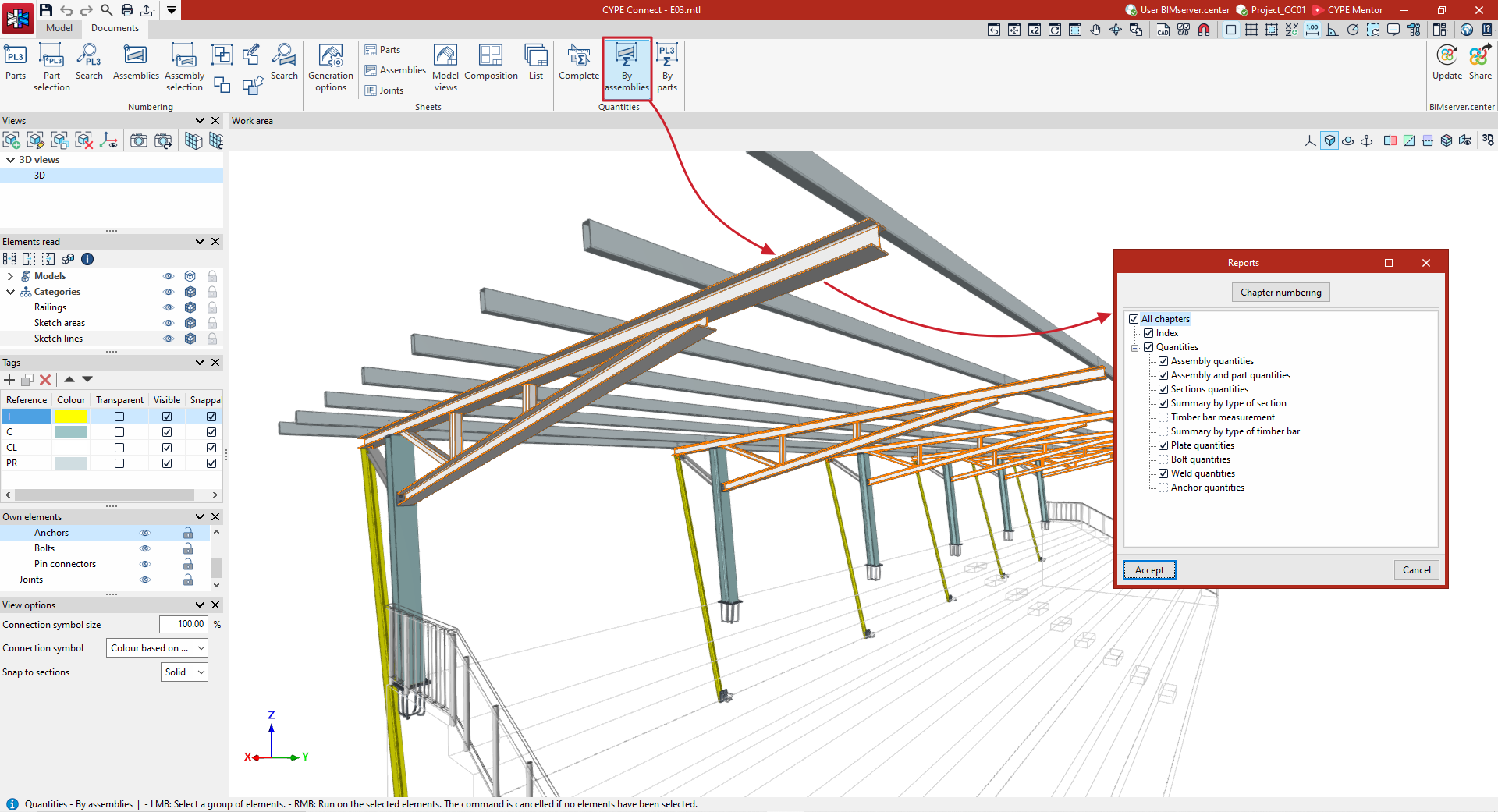
The "By assemblies" option allows you to generate a quantities list for a selection of assemblies within the structure.
In this case, after clicking on the option, you select the assemblies one by one using the left mouse button or use a selection area, and then click the right mouse button.
This brings up the "Reports" window again, which allows you to generate the available quantities for the selected assemblies.
Step by step
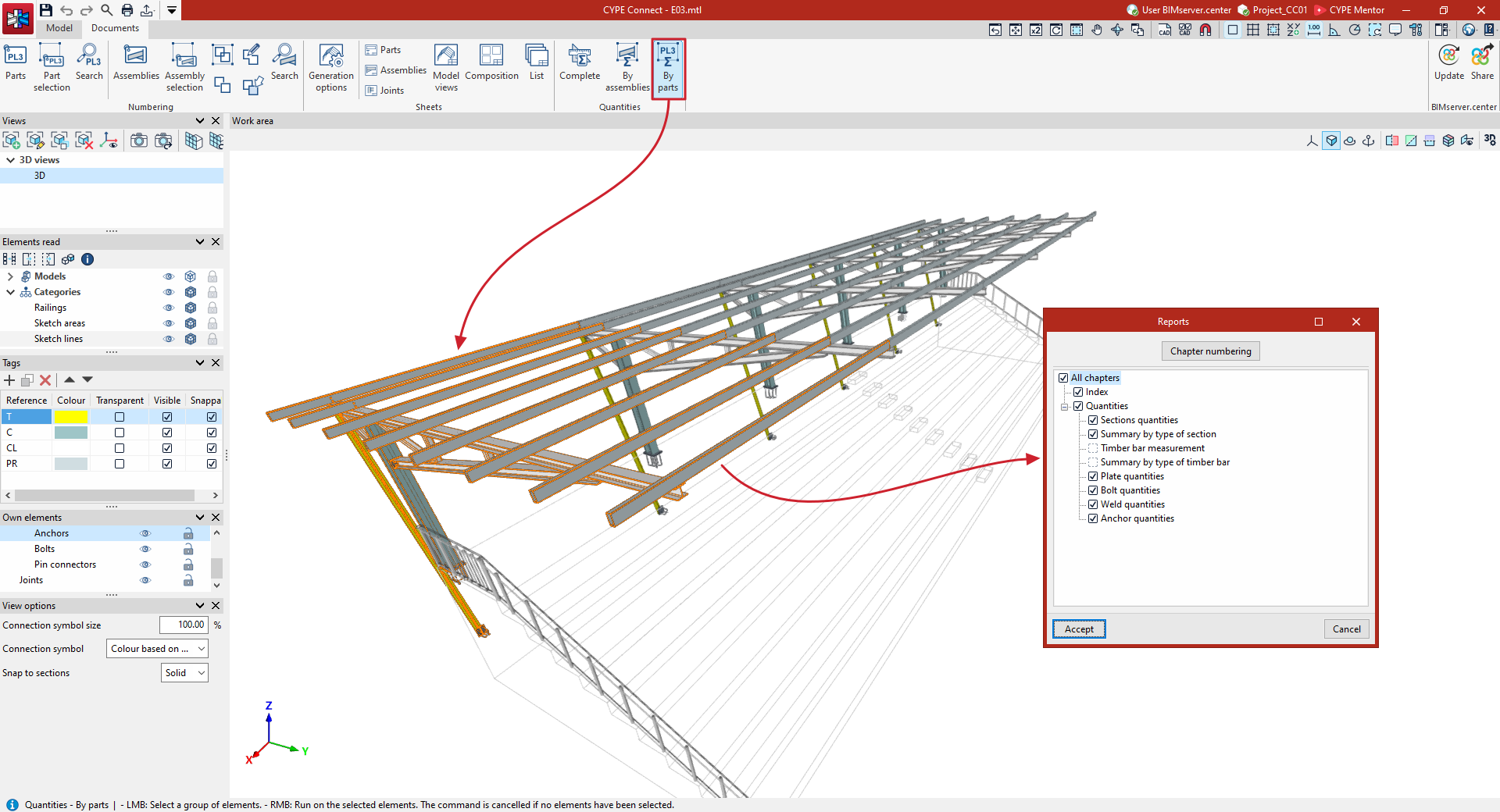
The "By parts" option allows you to generate a quantities list for a selection of parts of the structure.
Similarly, after clicking on the option, select the parts one by one or using a selection area, then right-click.
In the "Reports" window, you can include "Sections quantities", "Summary by type of section" and quantities of other elements such as plates, bolts, welds and anchors, if these have been selected.