

"Timber" function: screws
The "Timber" operation is used to insert fasteners into timber bars.

The fasteners available for timber include dowels, bolts and screws.
| Note: |
|---|
| This feature is only available in CYPE Connect. |
Inserting screws
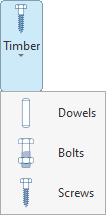
To insert screws, open the “Timber” menu in the top toolbar and click on the “Screws” option.
| Example: |
|---|
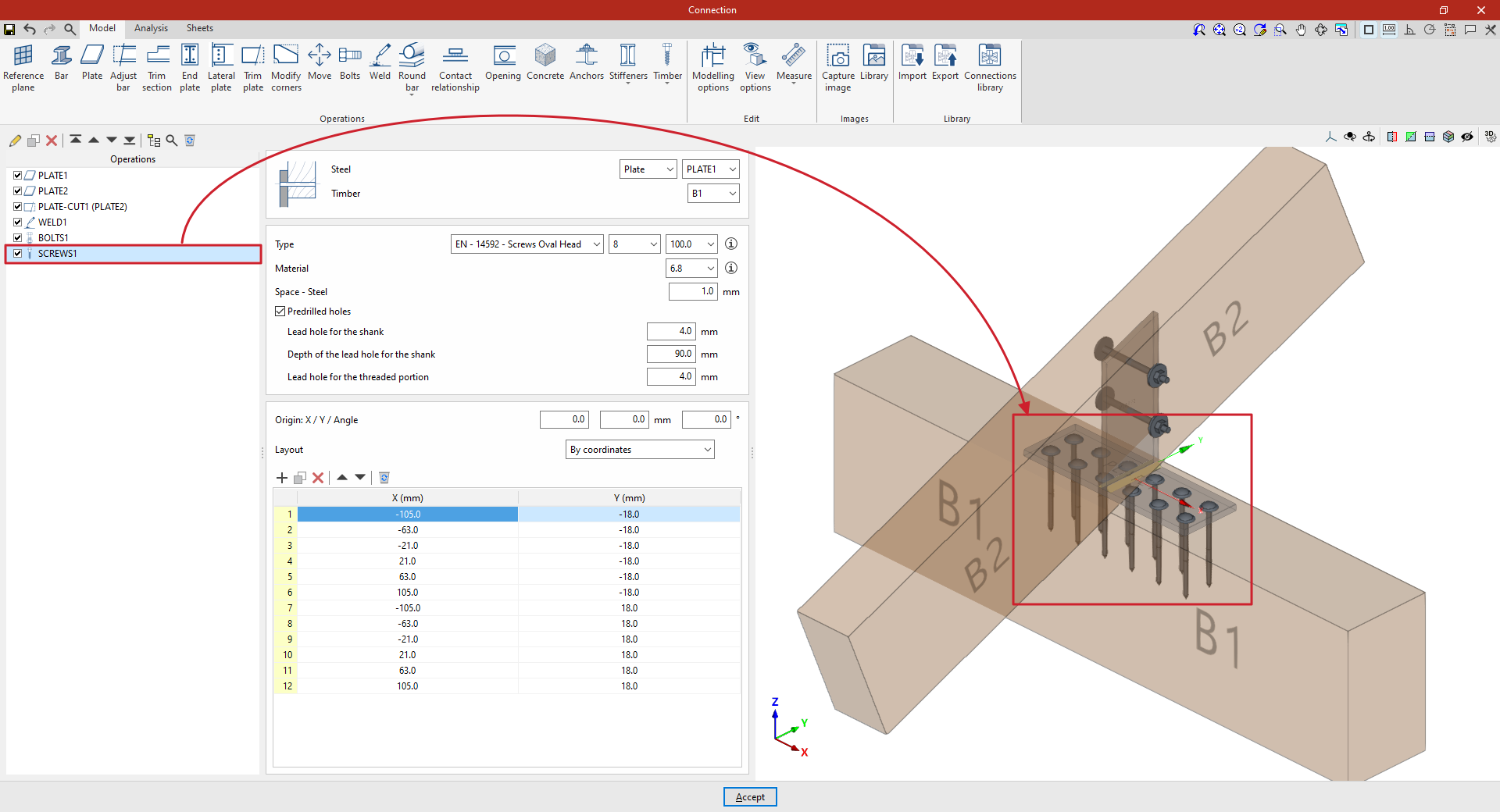
| In this example, we want to solve a connection between two timber elements. A plate has been placed on the main beam B1. A second plate has then been added, positioned perpendicular to and welded to the first, and bolted to beam B2. Next, the screws are added to create the connection between the first plate and the main beam B1. In this case, plate 1 is selected, along with the timber bar corresponding to beam B1. Two "Rows" and six "Columns" of screws are defined. Next, the initial spacing for the rows and columns is entered, as well as the spacing between rows and between columns. |
Selecting the parts
First, select the components that the screw connects. The “Steel” component can be a “Section” or a “Plate”. Next, select the “Timber” component.
Screw configuration
Next, you need to specify the “Type” of screw. Using the drop-down menus on the right, you can select the “Series”, “Diameter” and “Length” from the available options.
The button on the right allows you to view the following information:
- Firstly, the “Smooth shank diameter”, the “Inner diameter” and the “Outer diameter measured on the threaded part” are shown, as well as the “Length” and the “Length of the threaded part”.
- Next, the “Countersunk part of the head” and the “External part of the head” are specified, entering parameters such as the diameter and the thickness of each one.
- It also indicates whether it is “Self-drilling” or not, as well as parameters such as the “Characteristic withdrawal strength value ‘fax,k’”, the “Associated density for ‘fax,k’”, the “Characteristic pull-through strength value ‘fhead,k’” and the “Associated density for ‘fhead,k’”
The following section specifies the “Material” of the screw. Similarly, by clicking the button on the right, you can view the material’s properties, such as its “Reference”, “Description”, “Modulus of elasticity”, “Yield strength” and “Fracture limit”.
The space between the screw and the steel component is defined below ("Space – Steel").
Finally, by ticking the last box, you enter the details for the “Predrilled holes”. In that case, you enter:
- The diameter of the “Lead hole for the shank”,
- The “Depth of the lead hole for the shank”,
- And the diameter of the “Lead hole for the threaded portion”.
Positioning the screws
Below is a table showing the number and position of the screws.
- You must define the local X and Y coordinates and the angle of the positioning origin for the screws on the plate or bar by entering this data in the "Origin: X / Y / Angle" fields.
- Below, it is indicated whether the "Layout" of the screws on the plate or bar is:
- "By coordinates",
- By "Rows and columns",
- By "Rows and columns per flange" (in front plates on rolled I sections),
- "Perimeter" on the sheet metal,
- Or "Radial".
| More information: |
|---|
| More information on these layout options can be found via the following link. |
From here, once the model has been finalised, the user can continue by opening the “Analysis” tab to perform the analysis of the connection.
