Current licence
In the section showing the licence currently in use:
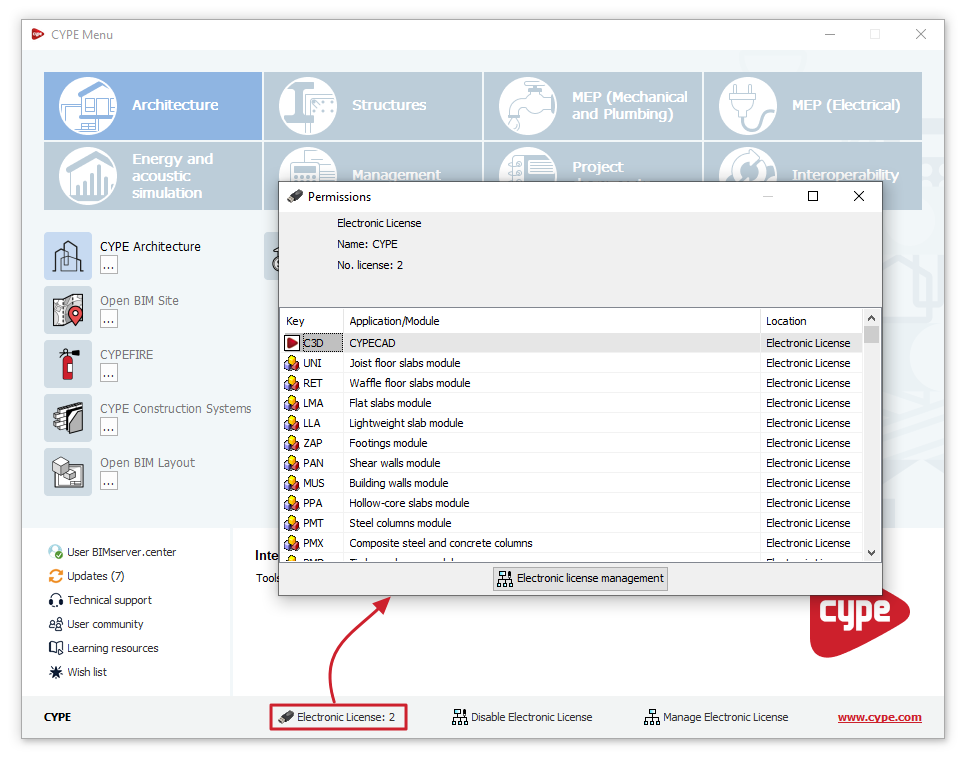
- If "Licence: licence number" appears, the licence with the number shown is currently being read or used (whether it is an electronic licence, a local hardware lock or a network hardware lock).
Clicking on this allows you to view the "Permissions" associated with the licence, as well as adjust the "Reading of the licence's keys file" or the "Configuration of network hardlock", where applicable.
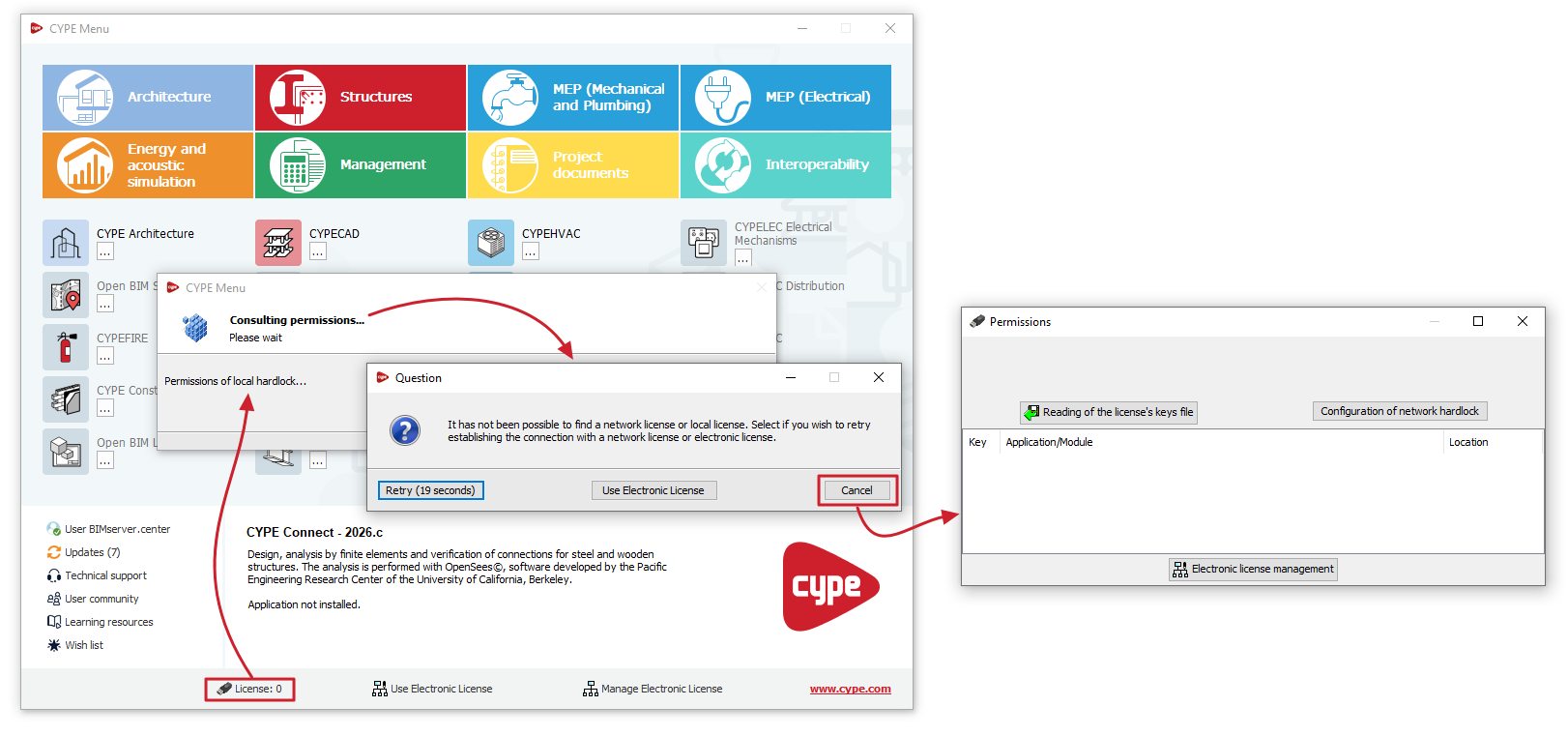
- If "Licence: 0" appears, no licence is being read. If you click on it, the program will attempt to locate licences on the local hardware lock (connected to the computer on which the program is installed) or on the network licence key (with licences distributed via the network licence key server).
If it finds none, a dialogue box will open with a "Question" asking whether you wish to "Retry" the connection to the local hardware lock or network hardware lock, "Use Electronic Licence", or "Cancel". If you select "Cancel", in the "Permissions" window, you can do the following:- Force the "Reading of the licence's keys file" process by clicking the button with this name, then selecting the key file with the .clv extension corresponding to the licence from its location on your hard drive and confirming. This may be necessary if you have a licence with a physical dongle connected to the same workstation, which requires a key file to operate with the updated permissions.
- Open the window where you can configure the "Configuration of network hardlock" by clicking on the button with the same name. This may be necessary if you have a network sensor connected to a server on the network where the Server for network hardlocks program is running.