Current license
In the section showing the license currently in use:
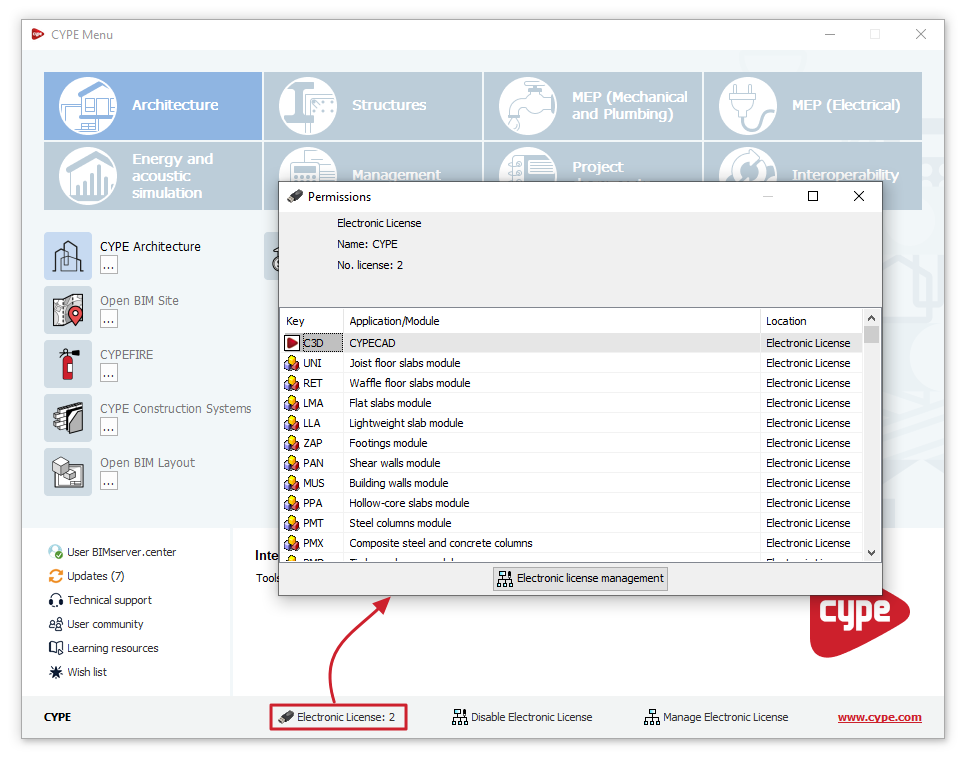
- If "License: license number" appears, the license with the number shown is currently being read or used (whether it is an electronic license, a local hardware lock or a network hardware lock).
Clicking on this allows you to view the "Permissions" associated with the license, as well as adjusting the "Reading of the license's keys file" or the "Configuration of network hardlock", where applicable.
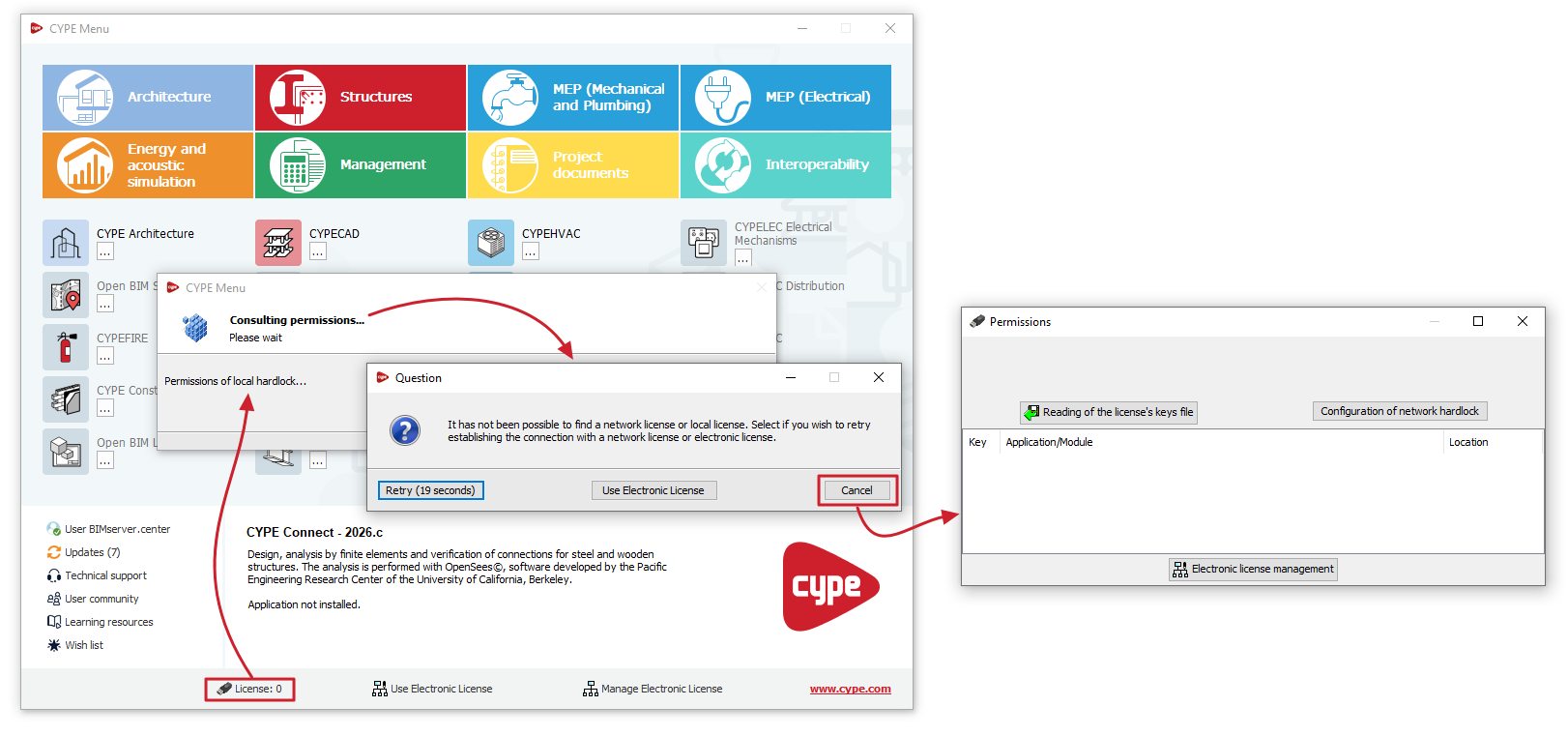
- If "License: 0" appears, no license is being read. If you click on it, the program will attempt to locate licenses on the local hardware lock (connected to the computer on which the program is installed) or on the network license key (with licenses distributed via the network license key server).
If it finds none, a dialogue box will open with a "Question" asking whether you wish to "Retry" the connection to the local hardware lock or network hardware lock, "Use Electronic License", or "Cancel". If you select "Cancel", in the "Permissions" window, you can do the following:- Force the "Reading of the license's keys file" process by clicking the button with this name, then selecting the key file with the .clv extension corresponding to the license from its location on your hard drive and confirming. This may be necessary if you have a license with a physical dongle connected to the same workstation, which requires a key file to operate with the updated permissions.
- Open the window where you can configure the "Configuration of network hardlock" by clicking on the button with the same name. This may be necessary if you have a network sensor connected to a server on the network where the Server for network hardlocks program is running.