

Managing apps in CYPE Menu
Each of the CYPE apps accessible via the CYPE Menu will be displayed as follows, depending on whether it is installed and, where applicable, updated:
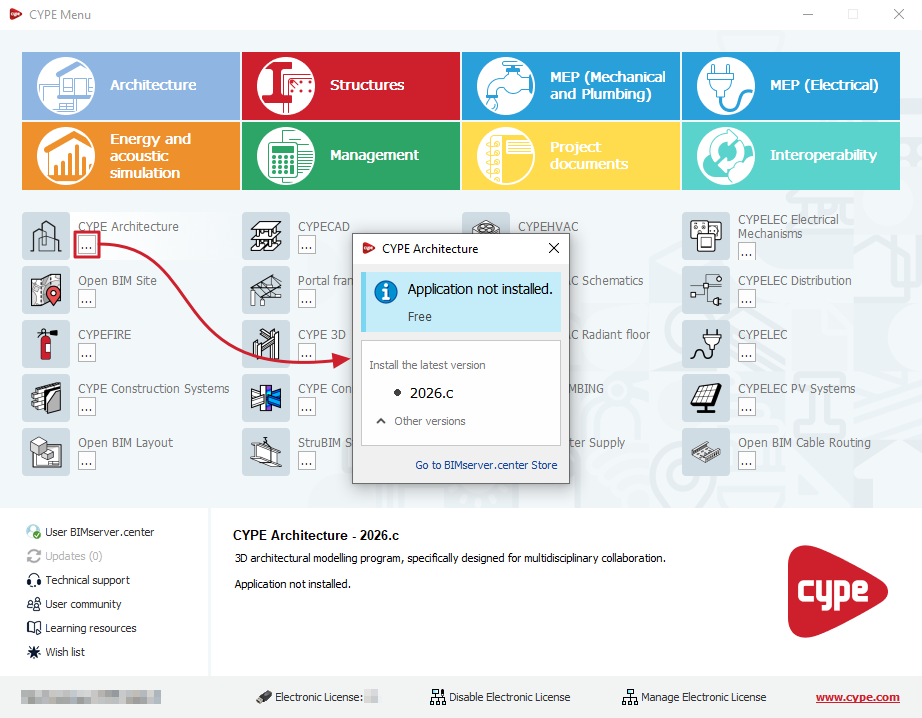
App not installed
Apps that haven't been installed will appear in grey and will display a menu button with three dots ("...").
When you click on the app name or this button, a window opens displaying the following:
- Firstly, a message appears stating that it is an "Uninstalled app" with a blue icon.
- Further down, the program allows you to "Install the latest version" by clicking on the text showing the year and version number.
- You can also access the "Other versions" of the program, as well as a link to "Go to BIMserver.center Store".
App installed and updated
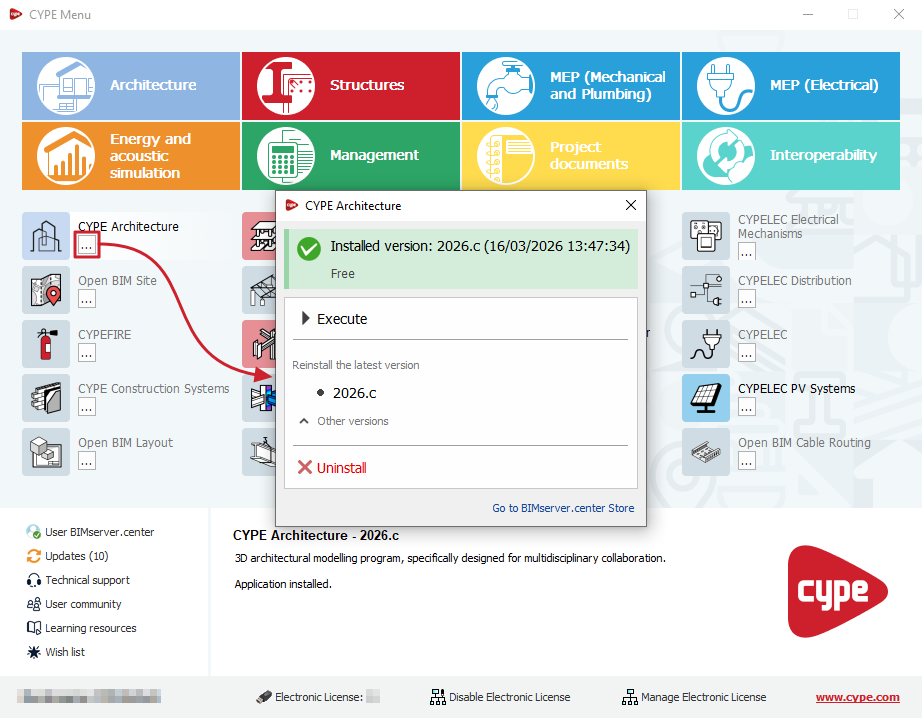
Apps installed in their latest version will be highlighted in CYPE Menu and will display an options button with three dots ("...").
When you click this button, a window opens displaying the following:
- First, the "Installed version" is displayed, along with a green tick, the version number (year and letter), and the date and time of release.
- When you click "Execute", the app will launch in its installed version, just as if you were to click on the app's name in the CYPE Menu.
- Further down, the program allows you to "Reinstall the latest version" by clicking on the text showing the year and version number.
- You can also access the "Other versions" of the program or "Uninstall" the program, as well as a link to "Go to BIMserver.center Store".
App installed but not updated
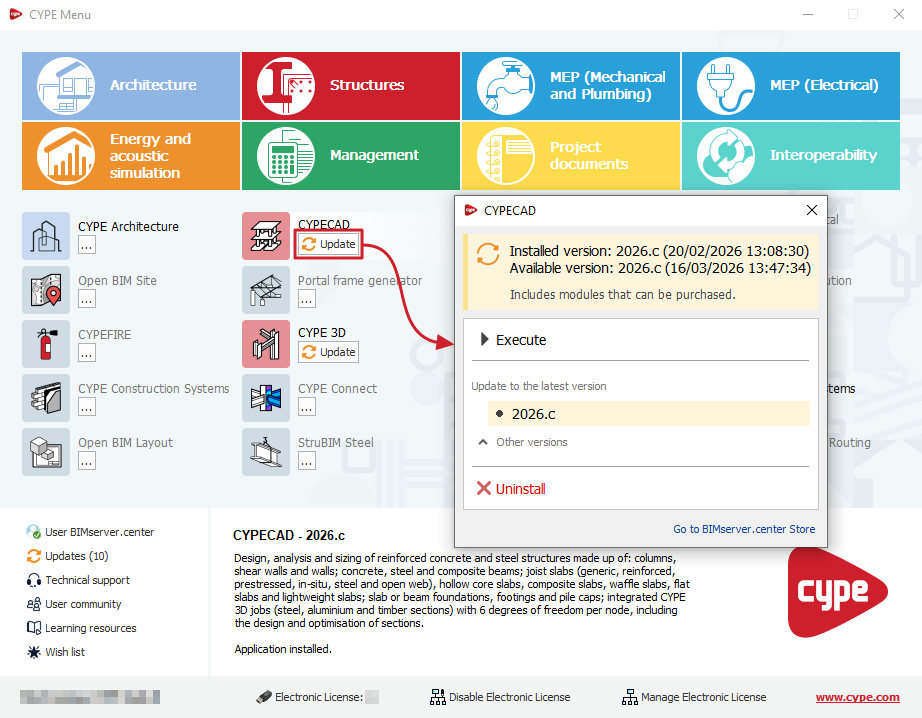
Apps that have been installed but not updated (i.e. where a newer version is available) will be highlighted in CYPE Menu and will display an "Update" button.
When you click this button, a window opens displaying the following:
- First, the "Installed version" and the "Available version" are displayed in a yellow message, each showing the year and version number, along with the date and time of release.
- When you click "Execute", the app will launch in its installed version, just as if you were to click on the app's name in the CYPE Menu.
- Further down, the program allows you to "Update to the latest version" by clicking on the text showing the year and version number.
- You can also access the "Other versions" of the program or "Uninstall" the program, as well as a link to "Go to BIMserver.center Store".
| Note: |
|---|
| Apps already installed via CYPE Menu are stored in the path "C:\CYPE Ingenieros\Version 20XX\CYPE Menu\", where '20XX' is the year of the CYPE Menu version (for example, for CYPE Menu 2026. a, the path is C:\CYPE Ingenieros\Version 2026\CYPE Menu\). Furthermore, during the installation process, information regarding the apps being downloaded from CYPE Menu (and which display the message "Installing program") is temporarily stored in the path "C:\Users\username\AppData\Local\Temp\cypemenu\", where 'username' is the Windows username. Within these paths, each app is stored in its own folder. The app folders are named "app_XX" (where XX is the identification number of each app). If necessary, you can delete each app folder from its respective path to uninstall it manually or to restart its installation process, as appropriate. |
