Updating apps in CYPE Menu
Updating each app individually
In CYPE Menu, you can manage updates individually for the apps it contains.
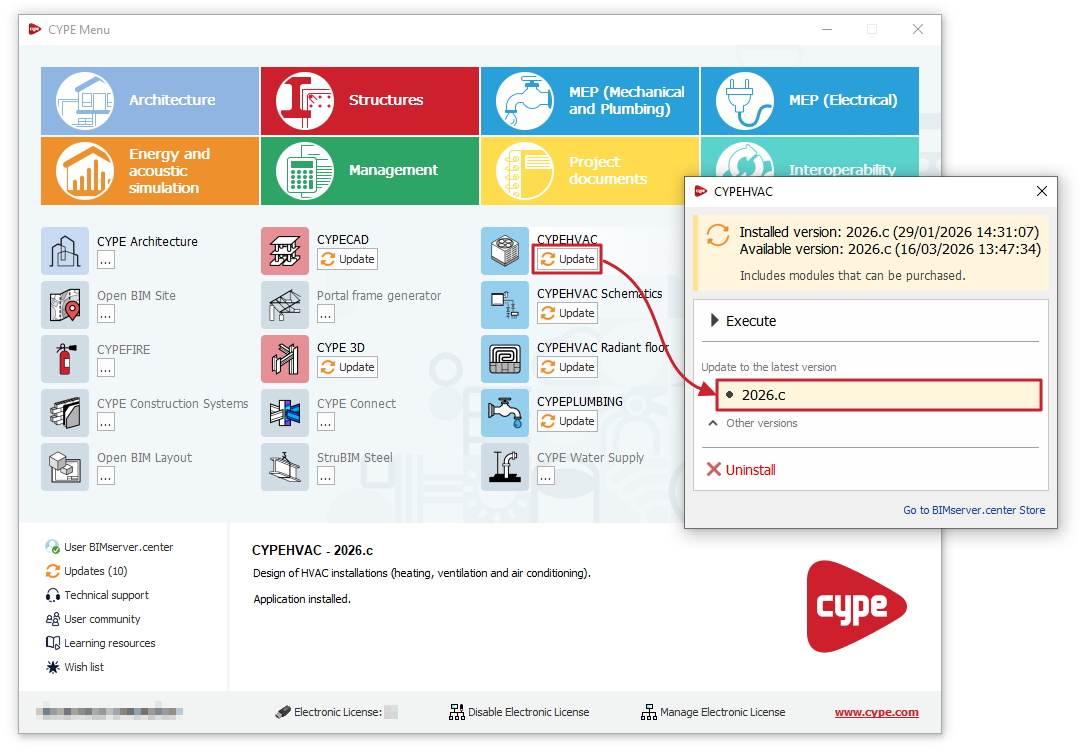
To do this, when you open CYPE Menu, the program checks whether a more recent version of the installed apps is available; if so, an "Update" button appears next to them.
When you click on it and select the relevant version in the "Update to the latest version" section of the pop-up window, the update process will download the app and, once this is complete, begin installing it.
This can be done individually for each app you wish to update.
Multiple update for all apps
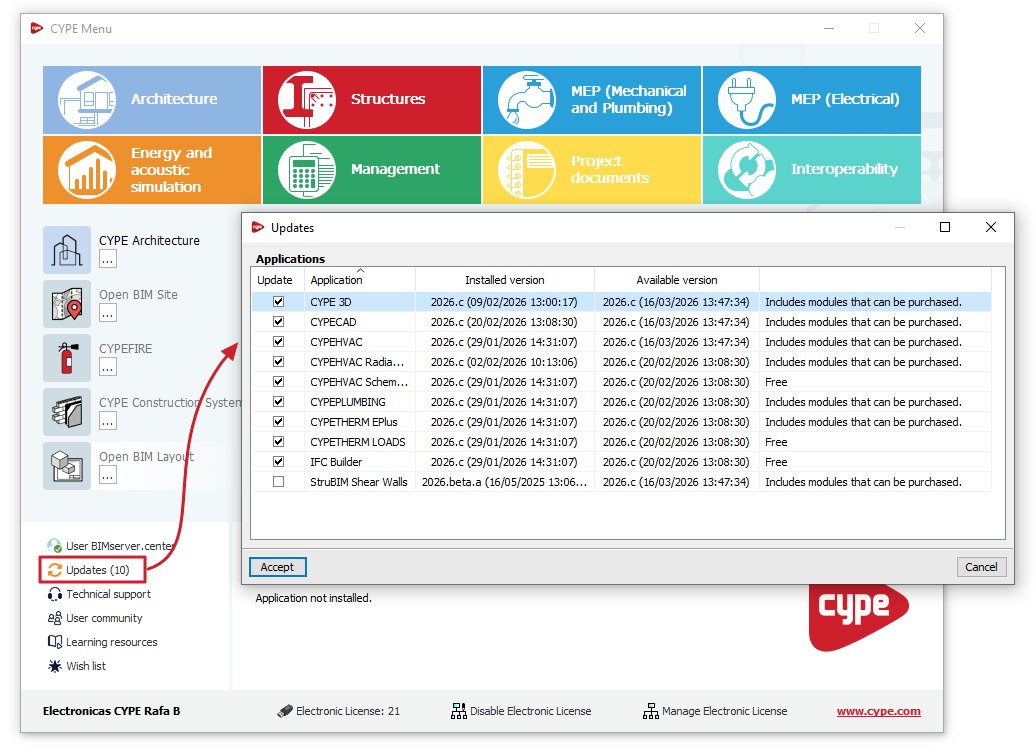
The “Updates” button in the bottom-left corner of the main window allows you to update multiple apps that are already installed via the CYPE Menu.
Clicking the "Updates" button opens a window displaying a list of all installed apps, showing the "Installed version" and the "Available version" for each one. You can select a group of them by ticking the boxes in the "Update" column; once you confirm, the update process begins.
During this process, a progress bar appears in the main CYPE Menu window, showing the current status of the update and the number of programs updated.
This feature streamlines app maintenance, ensuring that the latest updates are always available.
| Note: |
|---|
| If an update is available for CYPE Menu itself, it will be displayed below the list of apps to be updated. However, it is important to note that updating CYPE Menu itself is done separately by downloading and installing the program from BIMserver.center Store. |