Beam alignments
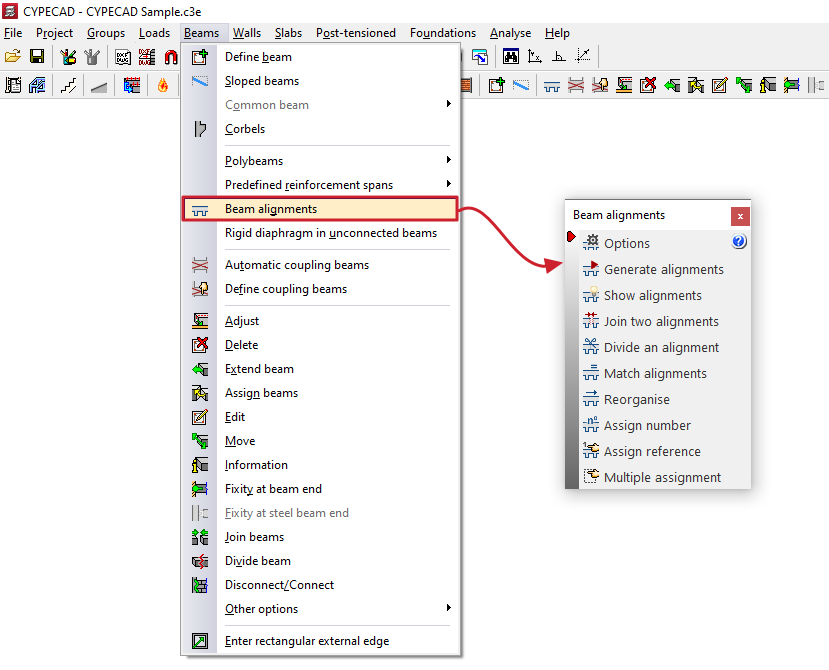
The "Beam alignments" option in the "Beams" menu of the "Beam input" tab opens a dialogue box with a series of options that allow you to generate, view and modify beam alignments.
Beam alignments are sets of consecutive beams that the program references and attempts to assemble as a single continuous frame.
The following tools are available:
- Options
- Generate alignments
- Show alignments
- Join two alignments
- Divide an alignment
- Match alignments
- Reorganise
- Assign number
- Assign reference
- Multiple assignment
Each of these features is detailed below:
Options
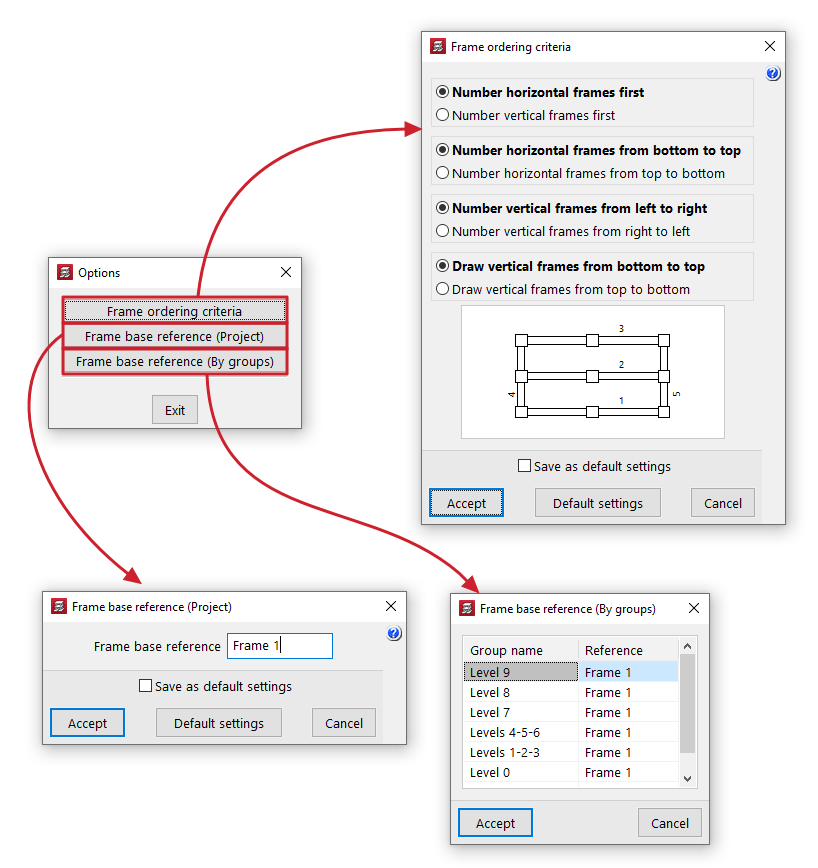
The following tools are grouped under "Options":
- Frame ordering criteria
Allows you to configure the frame ordering criteria when generating alignments by choosing one of the following options:- Number horizontal frames first / Number vertical frames first
- Number horizontal frames from bottom to top / Number horizontal frames from top to bottom
- Number vertical frames from left to right / Number vertical frames from right to left
- Draw vertical frames from bottom to top / Draw vertical frames from top to bottom
- Frame base reference (Project)
Allows you to enter the base reference for frames for the entire project. - Frame base reference (by group)
Allows you to enter the base reference for the frames in each of the groups in the project.
Generate alignments
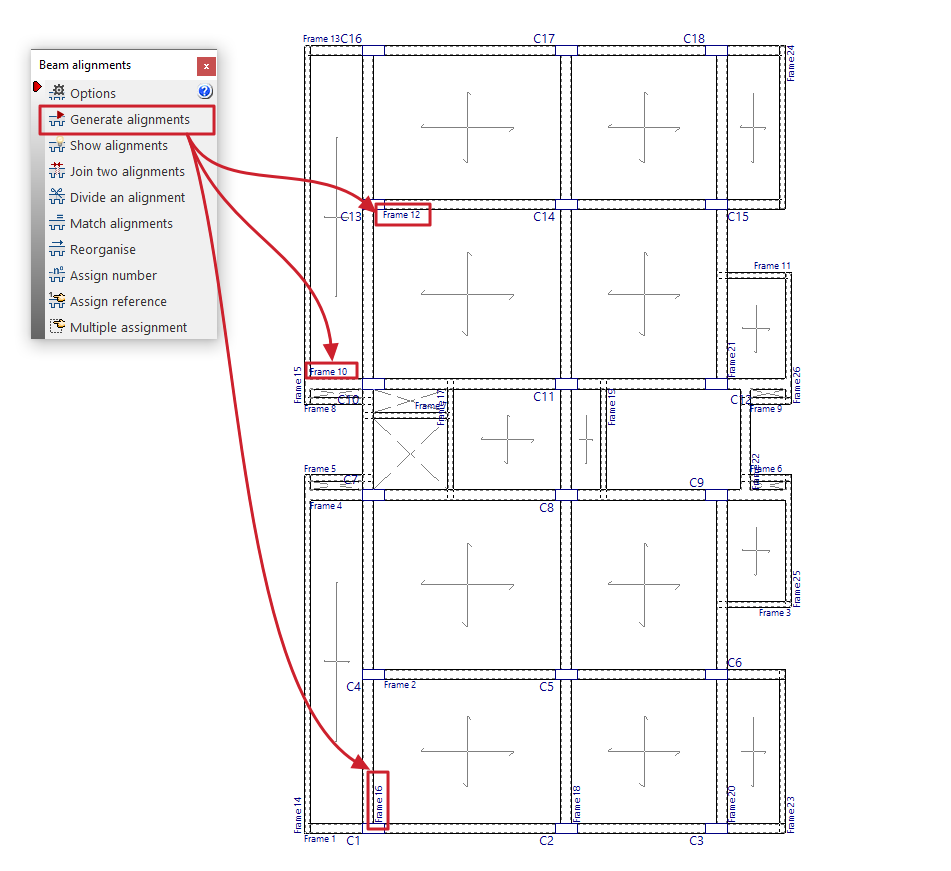
Before the analysis, the program automatically creates the beam alignments.
If the user wishes to reorder the frames, divide, join or match alignments, the "Generate alignments" option must be executed beforehand in order to have a starting point from which to make the desired modifications.
| Note: |
|---|
| If there is an angle difference between two beams greater than the value indicated in "Project > General data > By position > Options for beams > Beam angle for alignment" (default, 35º), the program generates two different alignments and, therefore, the reinforcement is divided. |
Show alignments
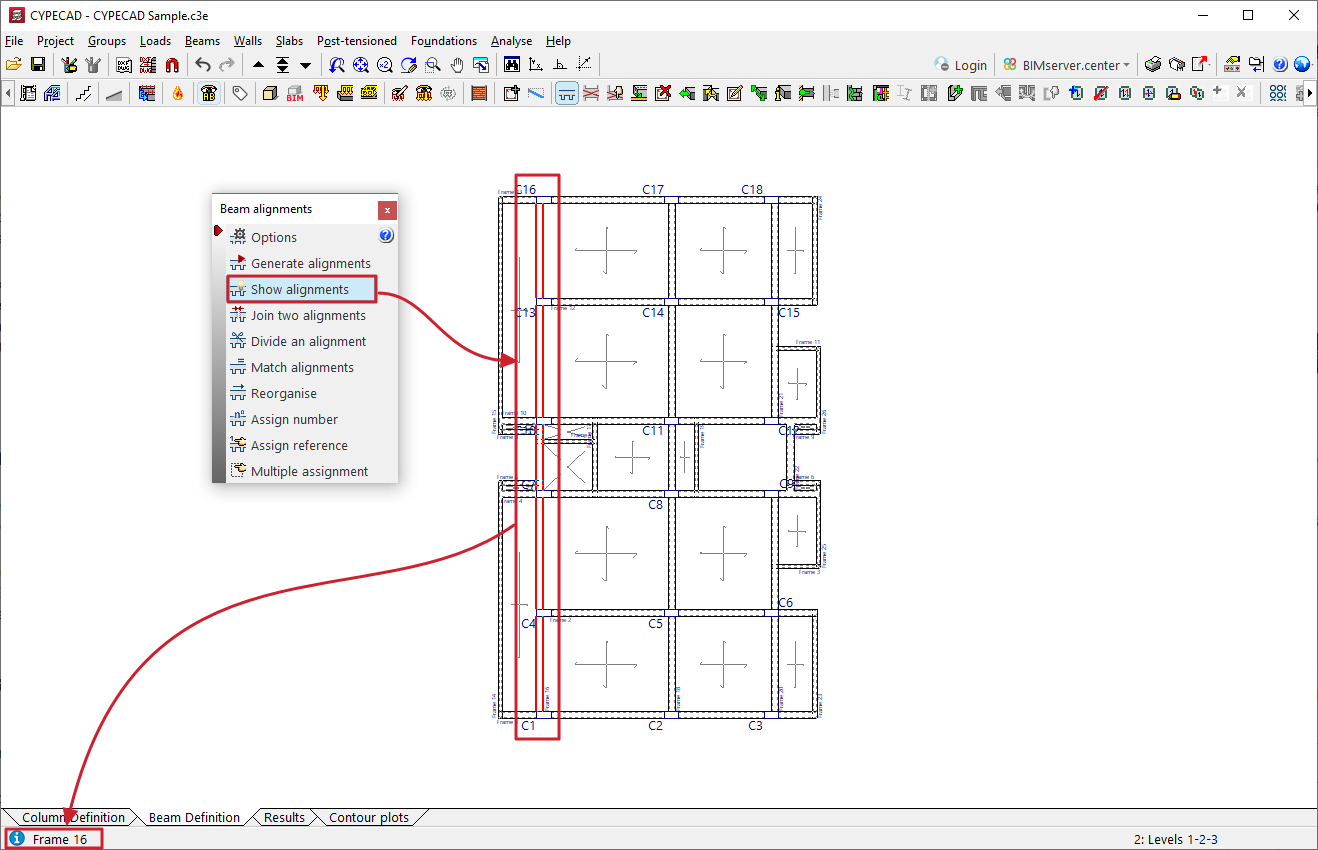
The "Show alignments" option allows you to check the numbering of the alignment or portal to which the selected beam belongs.
To do this, after selecting the option, click on a beam with the left mouse button. The program will display information about the frame to which it belongs in the message line at the bottom of the general program interface.
Join two alignments
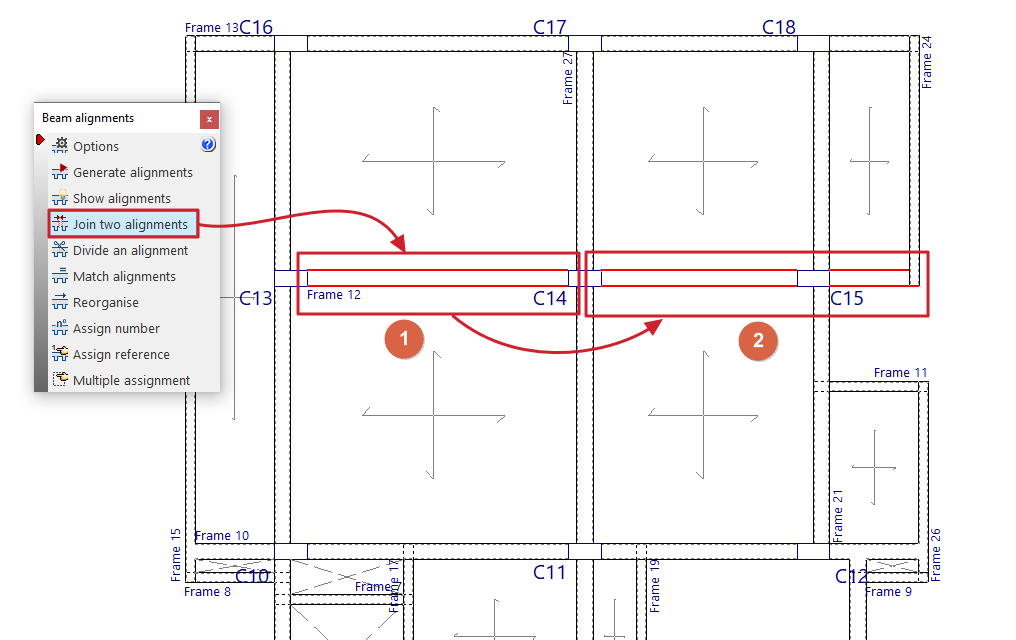
The "Merge two alignments" option allows you to select two consecutive alignments and create a single alignment from them.
In this way, the program will arrange a continuous assembly in the resulting alignment.
Divide an alignment
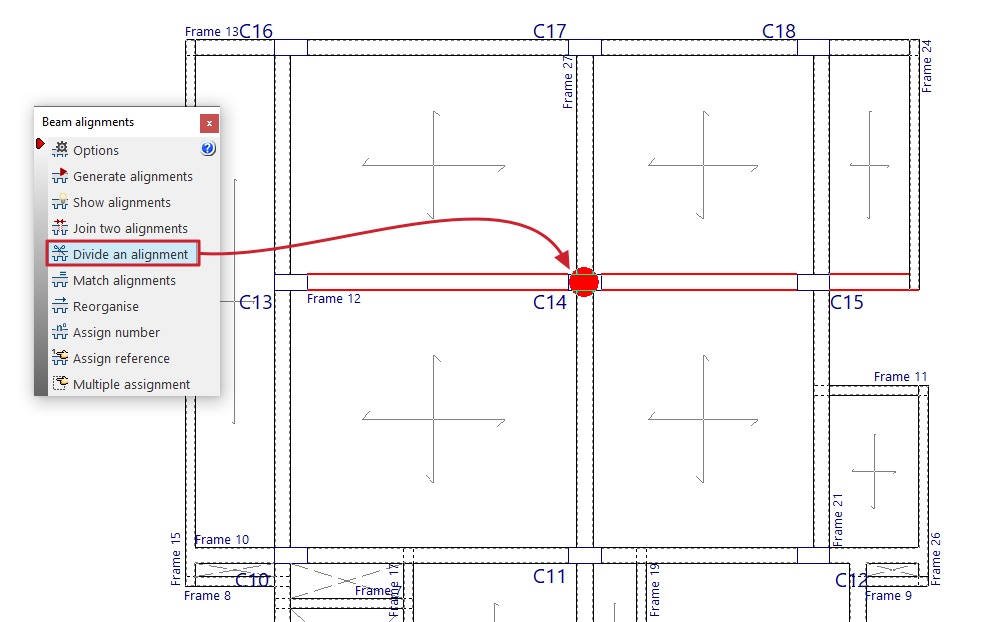
The "Divide an alignment" option allows you to select a column from an alignment and split it into two alignments at that point. The reinforcement at that point is split, which does not imply that the continuity between beams is lost.
| Note: |
|---|
| If any changes are made to the beams (adding new beams, removing beams, etc.) after generating alignments, joining or splitting them, the alignments are automatically regenerated. The way in which the alignments are made does not influence the stress analysis. The only difference is that the reinforcement will be continuous or divided. If, after analysing, you run "Generate alignments", "Join two alignments" or "Divide an alignment", the analysis data for that floor will be lost. It is therefore advisable to perform these operations before analysing. |
Match alignments
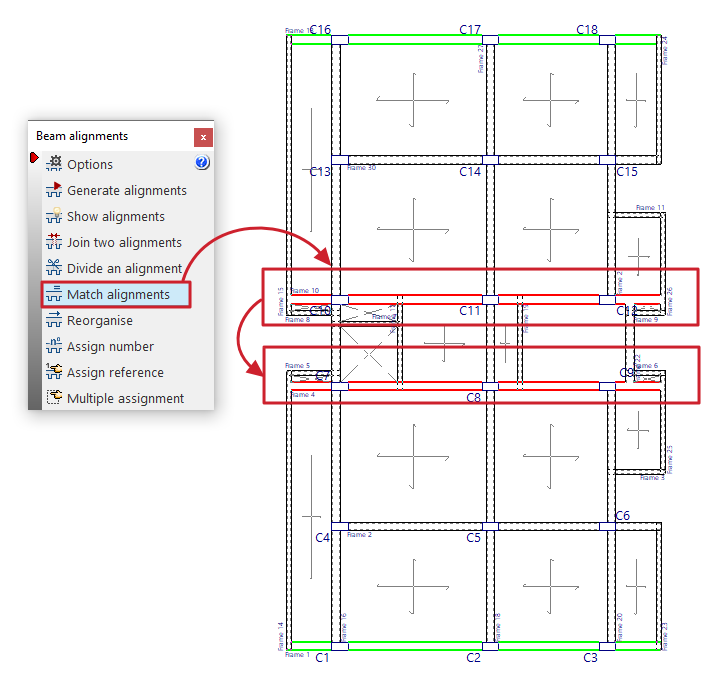
The "Match alignments" option allows you to select two or more alignments before analysis so that the program applies the same reinforcement to them during analysis.
To do this, select the alignments to be matched with the left button and press the right button to finalise the selection.
Alignments that are already matched are highlighted in green when this option is enabled.
| Note: |
|---|
| The alignments to be matched must contain the same number of spans or sections, and their matching spans must contain the same number of bars. |
Reorganise
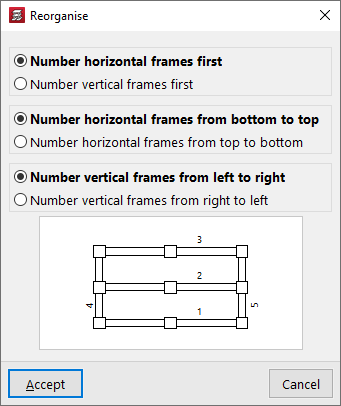
The "Reorder" option allows you to regenerate the references of the alignments or frames according to their position on the plan.
When you click on the option, a window appears where you can configure the following reordering criteria:
- Number horizontal frames first / Number vertical frames first
- Number horizontal frames from bottom to top / Number horizontal frames from top to bottom
- Number vertical frames from left to right / Number vertical frames from right to left
Upon accepting the dialogue box, the program will renumber the frames according to the selected criteria.
| Note: |
|---|
| It is not possible to reorder beam alignments if the reference of any of them has been modified using the "Assign reference" option. In this case, these references can be deleted using the same option and leaving the reference blank. |
Assign number
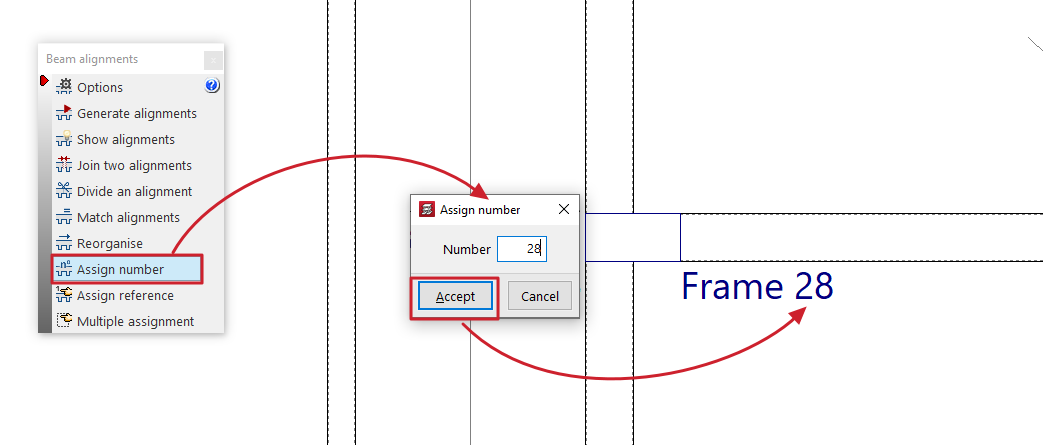
The "Assign number" option allows you to assign a different alignment or portal number than the one automatically generated according to the criteria established in the options in this menu.
Assign reference
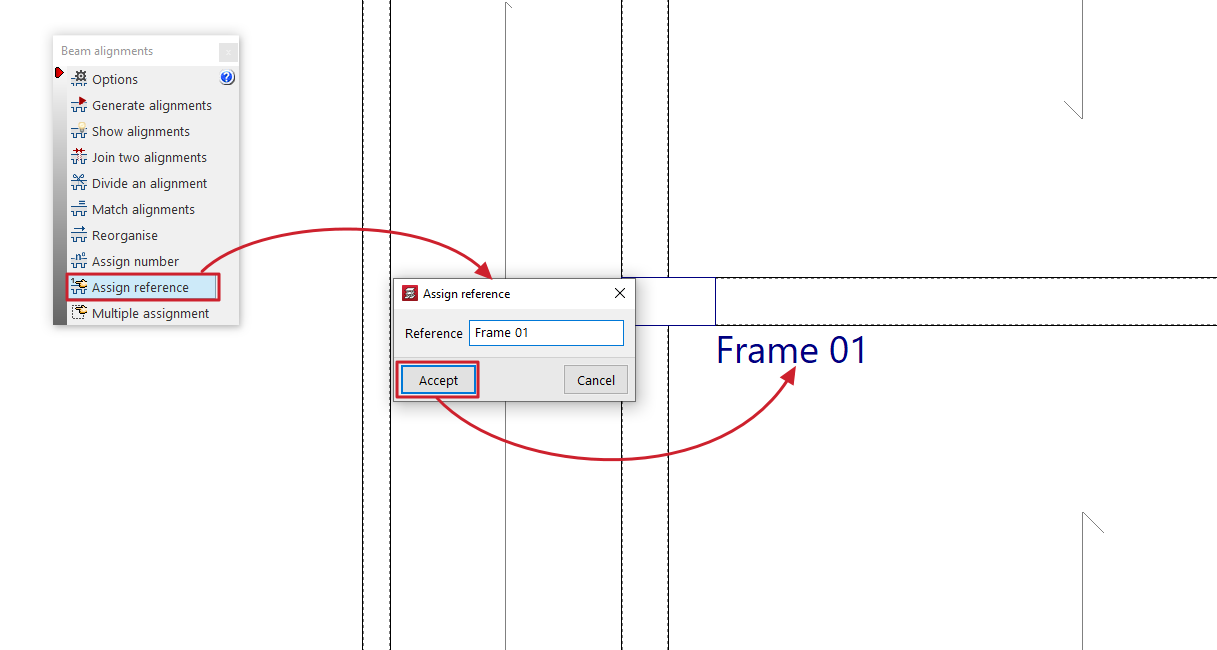
The "Assign reference" option allows you to select an alignment and modify its reference by typing it directly into the dialogue box that appears.
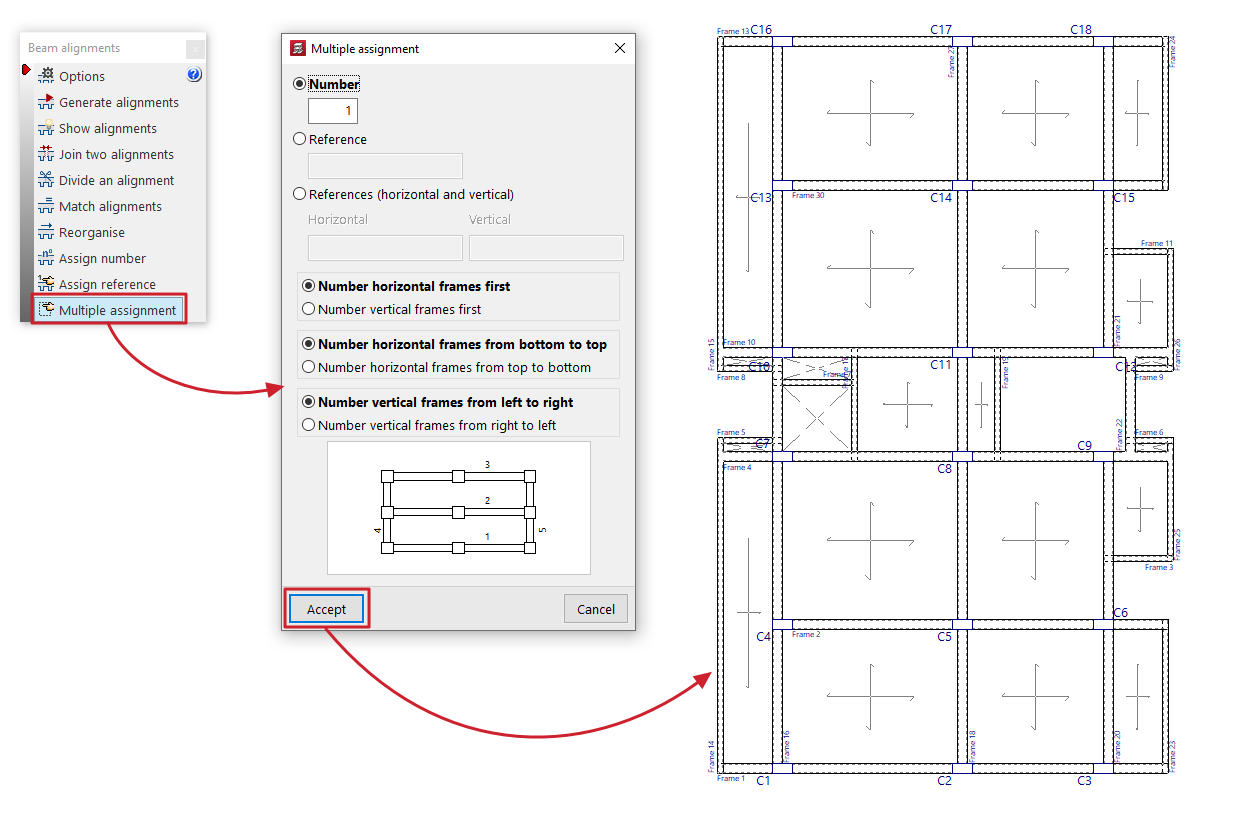
Multiple assignment
The "Multiple assignment" option allows you to simultaneously modify the number or reference of all selected alignments.
You must select one of the following three options:
- Number
If this option is selected, enter the starting number from which the numbering will be generated. - Reference
If this option is selected, the reference of the first frame is entered, from which the rest of the references will be assigned by increasing the last letter or number. - References (horizontal and vertical)
If this option is selected, the references for both the first vertical frame and the first horizontal frame are written, from which the rest of the references will be assigned by increasing the last symbol alphabetically or numerically.
The options at the bottom of the dialogue box allow you to configure the automatic numbering performed by the program:
- Number horizontal frames first / Number vertical frames first (if "Number" or "Reference" is selected)
- Number horizontal frames from bottom to top / Number horizontal frames from top to bottom
- Number vertical frames from left to right / Number vertical frames from right to left
After accepting the dialogue box, select the desired alignments one by one or using a capture area, then right-click to confirm the operation.