


Copy elements of the group
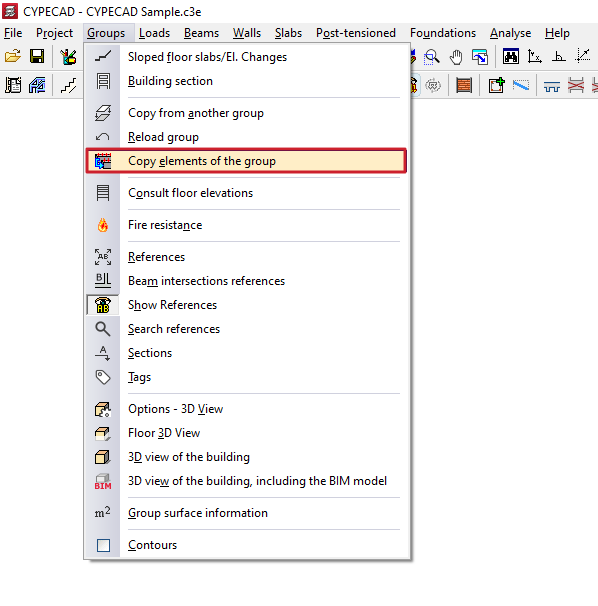
The "Copy elements of the group" option in the "Groups" menu, within the "Beam input" tab, allows you to copy selected elements from a group of floors to the same group or to other groups.
When you click on the option, a menu appears with three different options:
- Copy elements in the same group
- Copy symmetrical elements
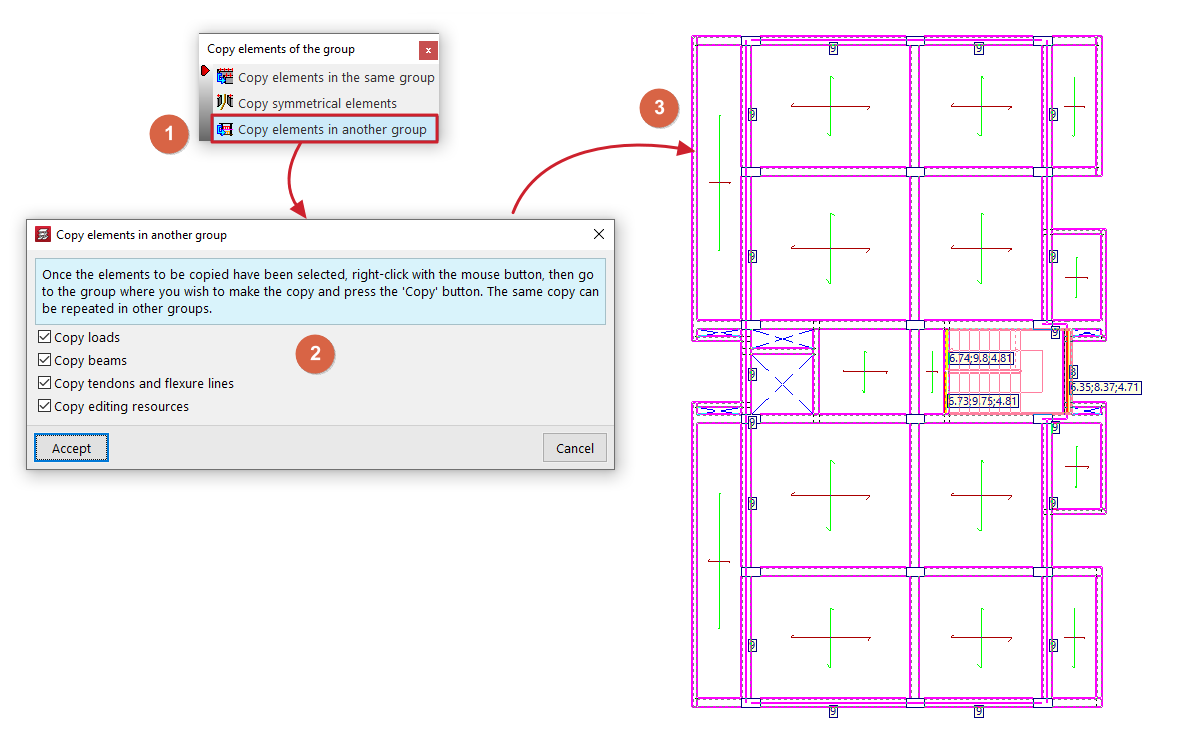
- Copy elements in another group
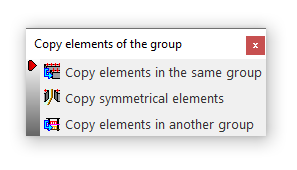
Each of these features is explained below:
Copy elements in the same group
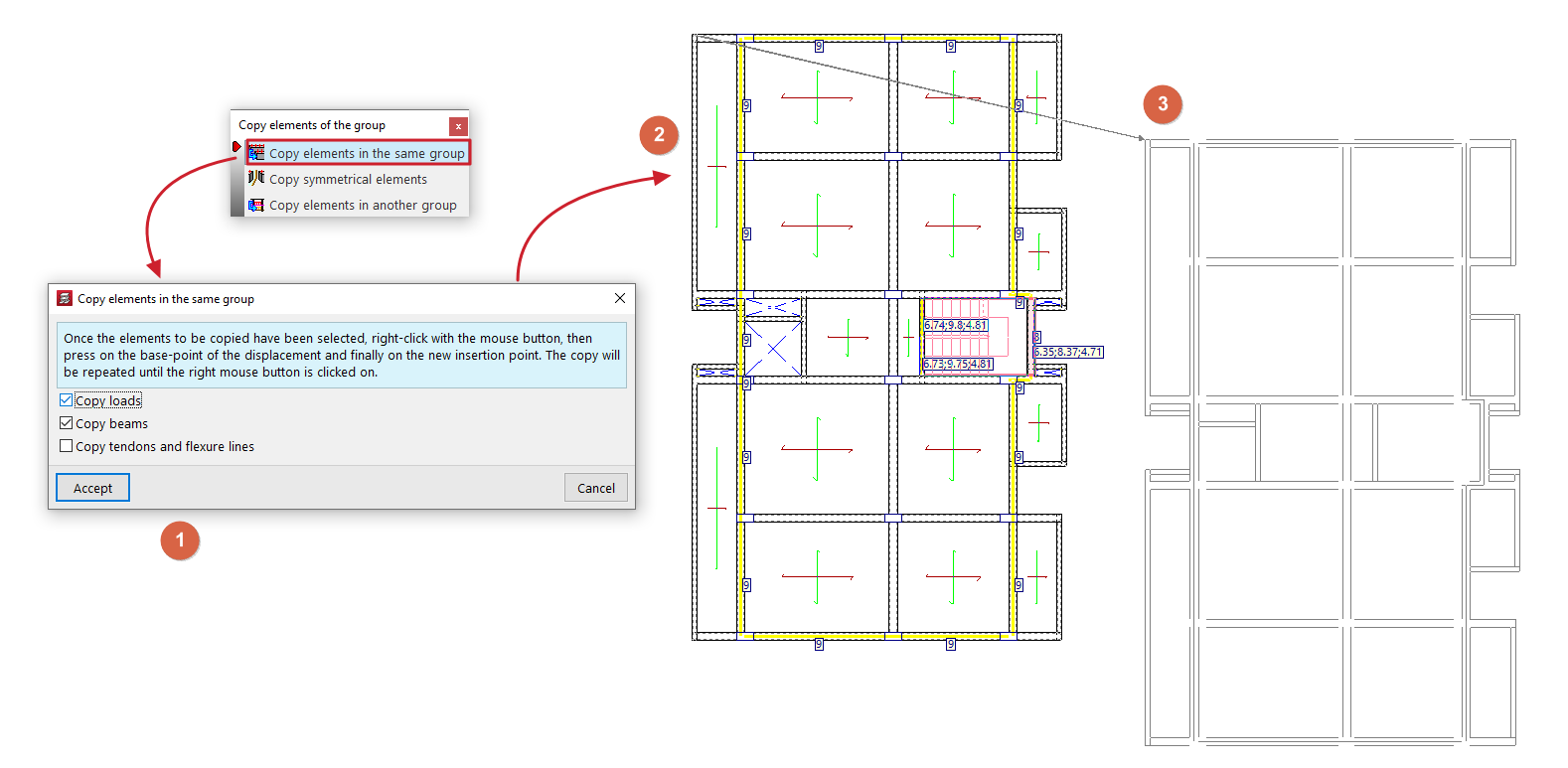
This option allows you to select elements and copy them to the same group of floors by defining an offset.
The procedure is as follows:
- When you click on the option, a window will appear where you must check the boxes for the category of elements you wish to copy. It is possible to "Copy loads", "Copy beams" and/or "Copy tendons and bending lines".
- Next, select the elements you wish to copy in the floor plan using the left mouse button; they will be highlighted in magenta. If you need to deselect an element, simply click on it again with the left mouse button.
- Once you have finished selecting, click the right mouse button.Next, select the elements you wish to copy in the floor plan using the left mouse button; they will be highlighted in magenta. If you need to deselect an element, simply click on it again with the left mouse button.
Once you have finished selecting, click the right mouse button. - Now, you will need to mark two points to indicate the base point of the copy and the destination point where the items will be copied. This way, the items will be copied to a new position defined by the indicated offset.
Copy symmetrical elements
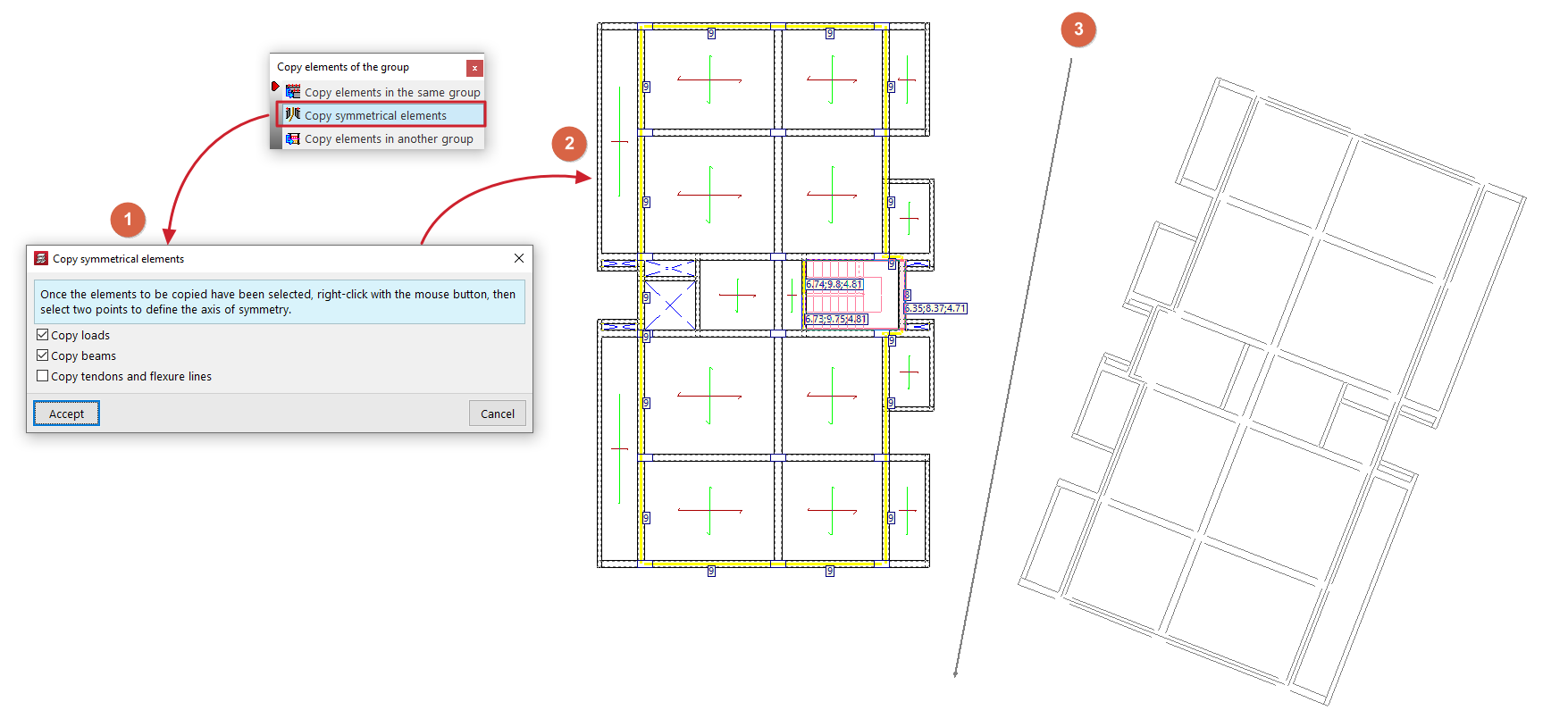
This option allows you to select elements and copy them symmetrically within the same group of plants.
The procedure is as follows:
- When you click on the option, a window will appear where you must check the boxes for the category of elements you wish to copy. It is possible to "Copy loads", "Copy beams" and/or "Copy tendons and bending lines".
- Next, select the elements you wish to copy in the floor plan using the left mouse button; they will be highlighted in magenta. If you need to deselect an element, simply click on it again with the left mouse button. Once you have finished selecting, click the right mouse button.
- Now, you will need to mark two points on the floor plan with the left button to define the axis of symmetry for the copy. This way, the elements will be copied to a new position defined by this symmetry operation.
Copy elements in another group
This option allows you to select elements from one group of floors and copy them to another group of floors.
The procedure is as follows:
- Select the group in which the items you wish to copy to another group have been added (using the "Go to group", "Move group up" or "Move group down" options). Then, click on the "Copy elements in another group" option.
- When you click on the option, a window will appear where you must check the boxes for the category of elements you want to copy. You can "Copy loads", "Copy beams", "Copy tendons and bending lines" and/or "Copy editing resources".
- Next, select the elements you want to copy in the plan view with the left mouse button; they will be highlighted in magenta. If you need to deselect an element, simply click on it again with the left mouse button.
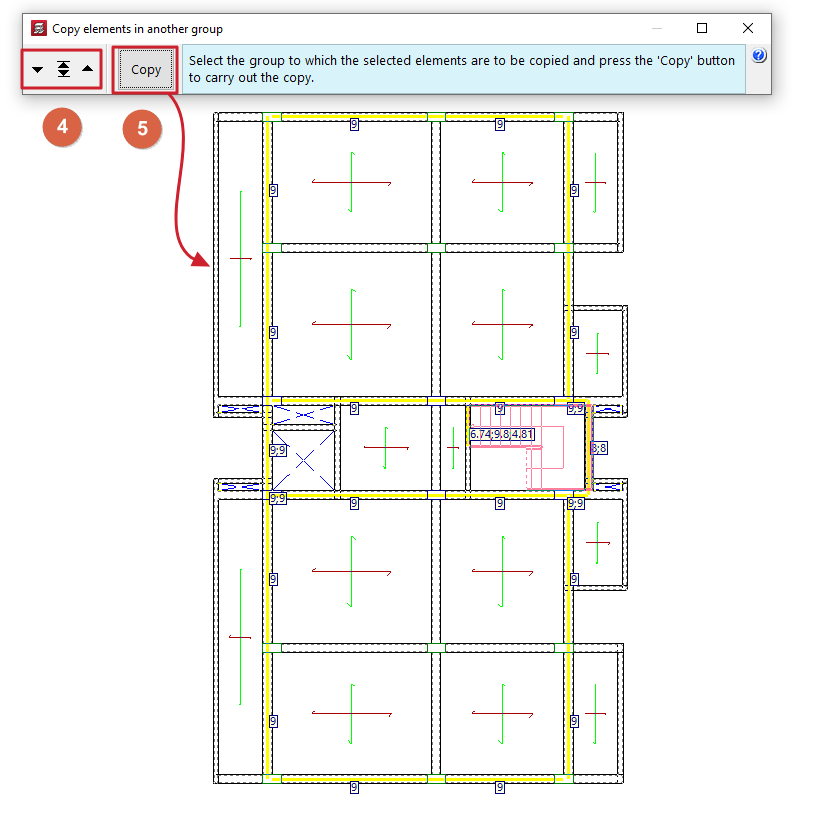
When you have finished selecting, click the right mouse button. - Now, you will need to indicate the destination group. To do this, a pop-up window will appear with the "Go to group", "Move group up" or "Move group down" options.
- After selecting the desired group, click on the "Copy" option in this pop-up window. This will copy the selected elements to the indicated floor group, in the same position they had in the original group.
| Note: |
|---|
| When using these options, ensure there is sufficient space for the copies to be generated, to avoid overlapping elements, which can cause errors and cancel the copying process. |
