Obtaining drawings
CYPECAD drawings detail all the elements entered in the model and make it possible to obtain the information in different formats to complete a project.
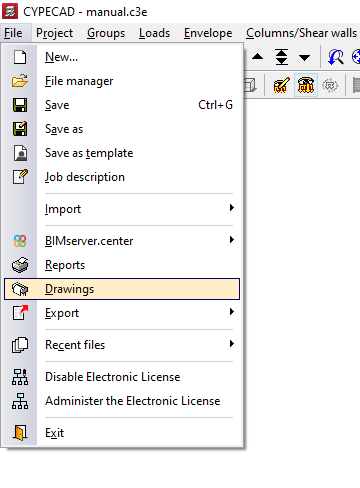
To access drawing printing, open the "File" menu and select the "Drawings" option, or click directly on the "Drawings" button available in the upper right-hand part of the program interface. This provides access to the "Drawing selection" window.
Drawing selection
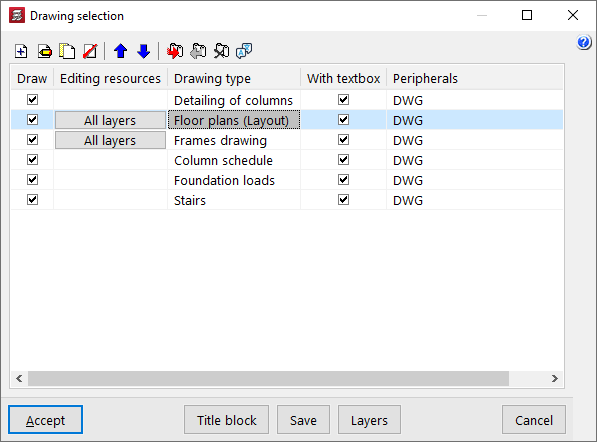
The "Drawing selection" window allows management of the list of drawings for the project.
The first option on the upper toolbar allows a drawing to be "Added". This opens the "Drawing editing" window, where the desired drawing is chosen and configured.
After accepting the "Drawing editing" window, the drawing is added to the list in the "Drawing selection" window. This process must be repeated to add all the desired drawings to the project.
At the top, the program offers the following features:
- tools to "Edit", "Copy", "Delete" and move drawings within the list,
- the options "Export drawing series", "Import drawing series" and "Delete drawing series", which allow the list of drawings entered and their configuration to be saved to disk;
- and, finally, the "Language for reports and drawings" option, which allows a language other than that used in the program installation to be selected when generating reports and drawings.
The list of drawings is organised as a table with different columns, which work as follows:
- The program will print the drawings that have the "Draw" checkbox enabled.
- If desired, the "Editing resources" entered can be included in the drawing.
- The "Drawing type" column indicates the type of drawing selected.
- By enabling the "With textbox" checkbox, a frame will be added to the drawing indicating the drawing type and its scale.
- Further to the right, the "Peripheral" is selected. Drawings can be exported in DWG or DXF format or printed directly using graphic devices and printers configurable in the program, including export to PDF.
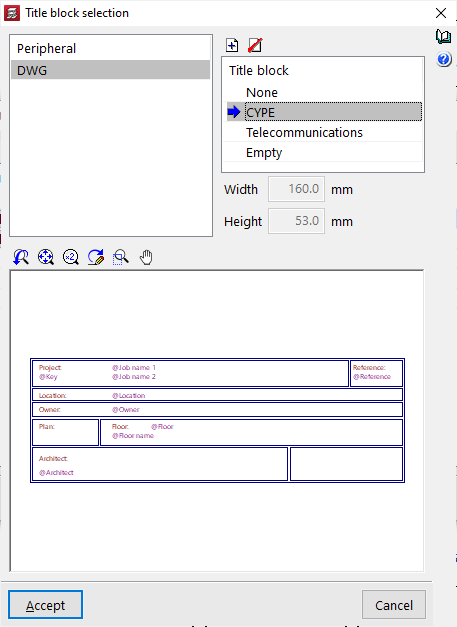
At the bottom of the window, a series of additional options is shown:
- With the "Title block" option, it is possible to import a title block from a .dwg or .dxf file, use a predefined title block, or reserve a "Blank" space in the drawing in order to add the title block manually later in another drawing program.
- The "Save" option allows the selected drawings to be saved and the window to be closed without generating the drawings.
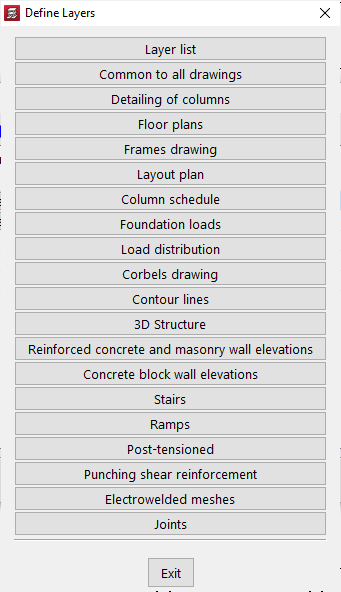
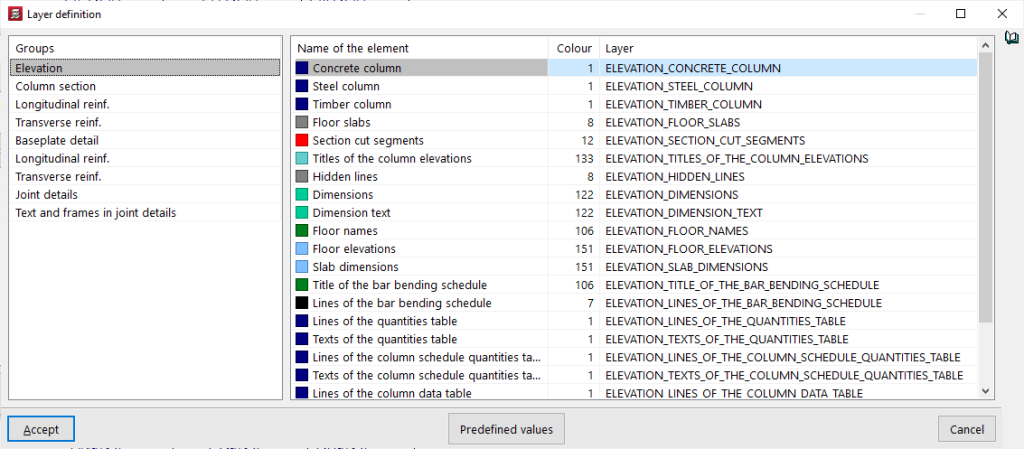
- From "Layers", the name and colour number of the layers generated in all types of drawing can be consulted and modified. The colour number may be associated with a different colour in each drawing program.
Drawing editing
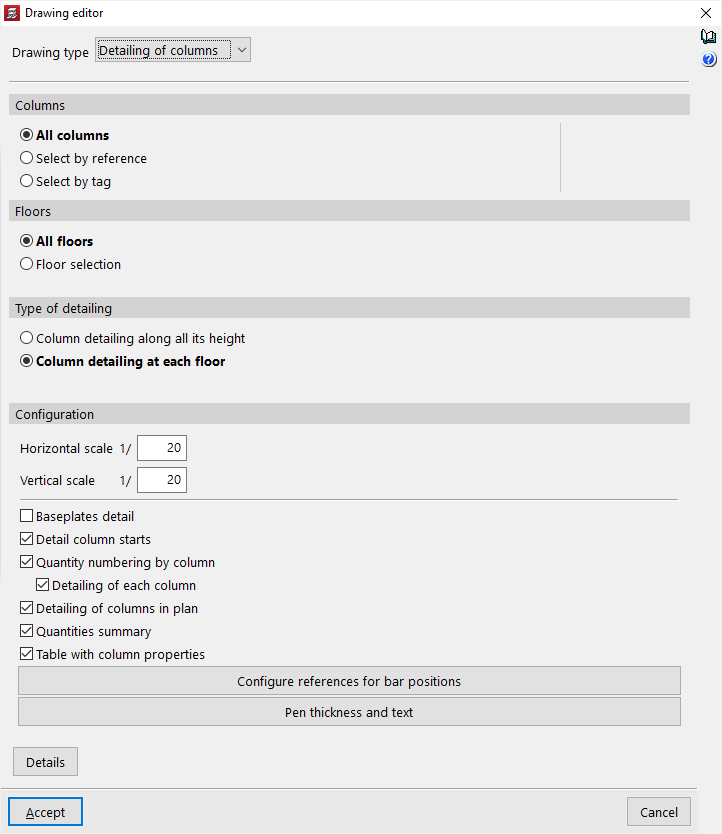
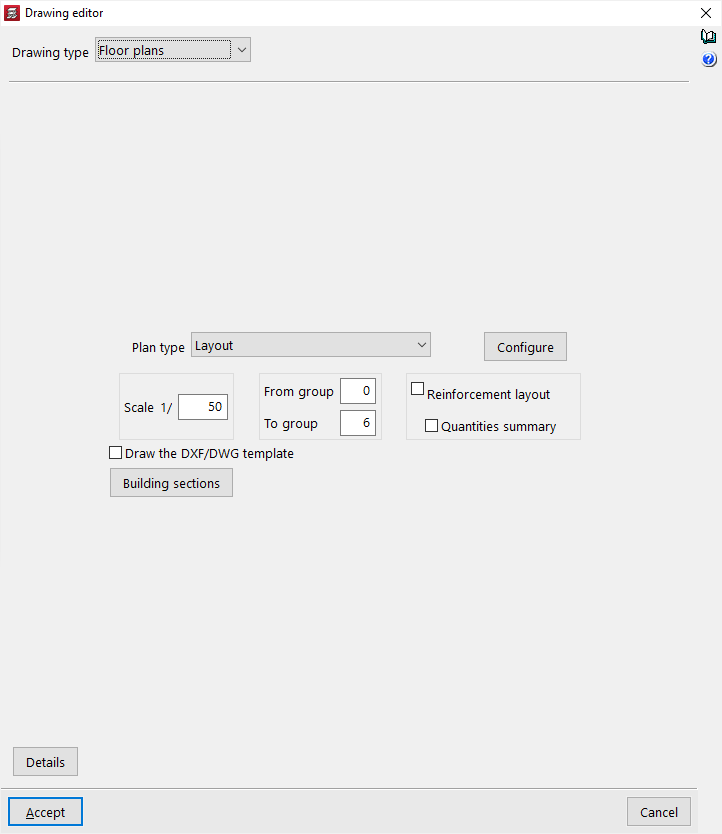
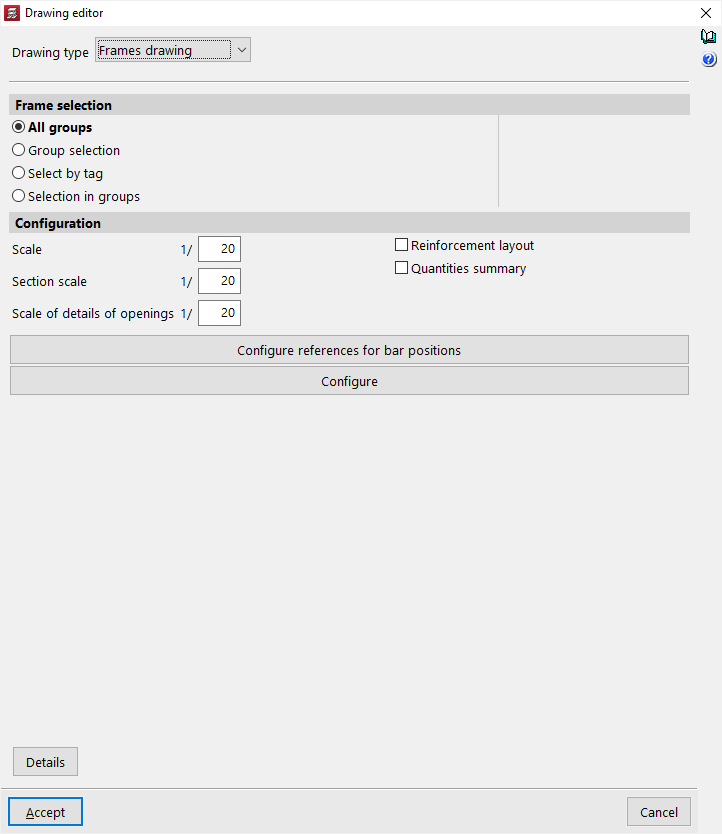
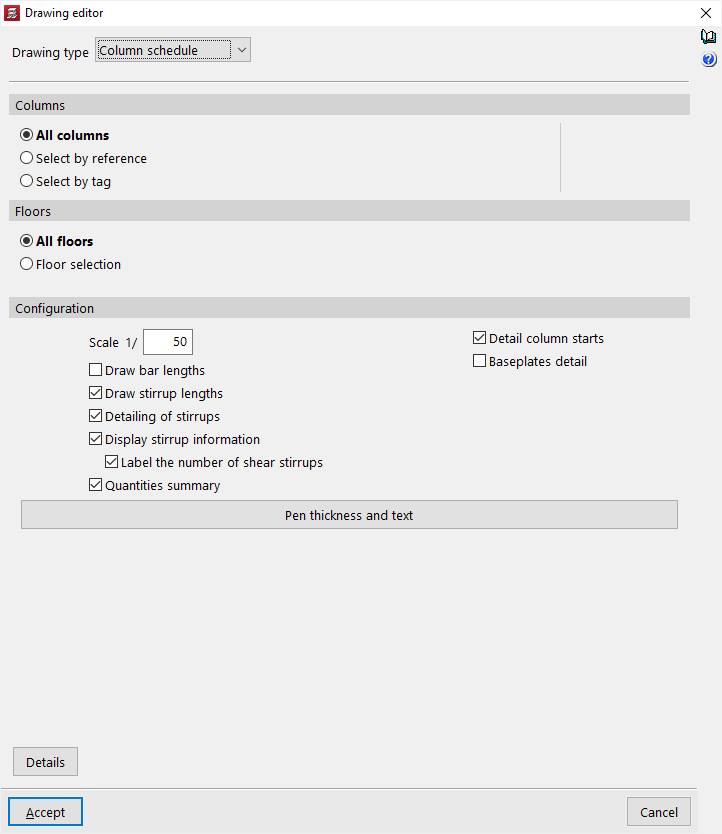
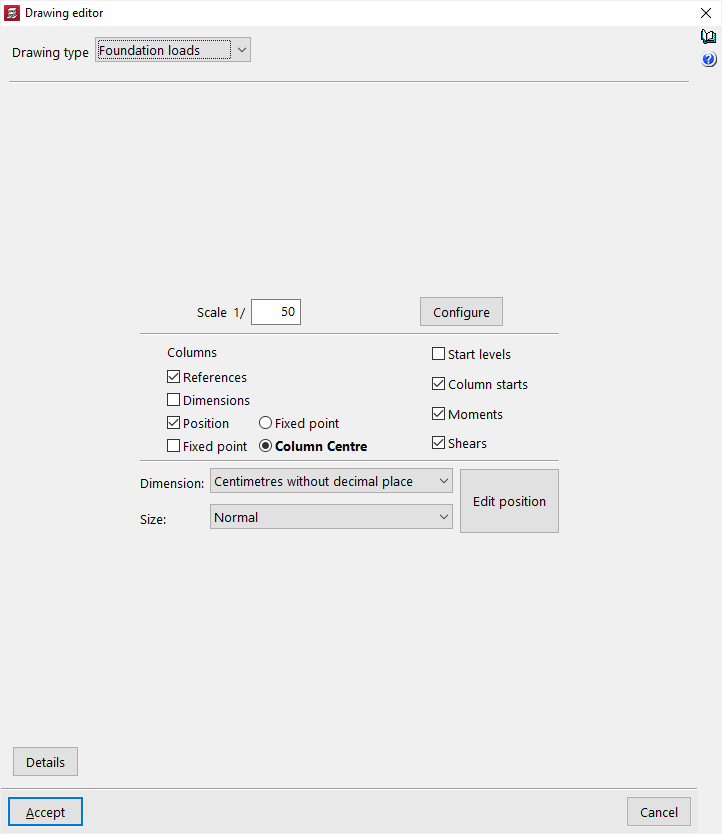
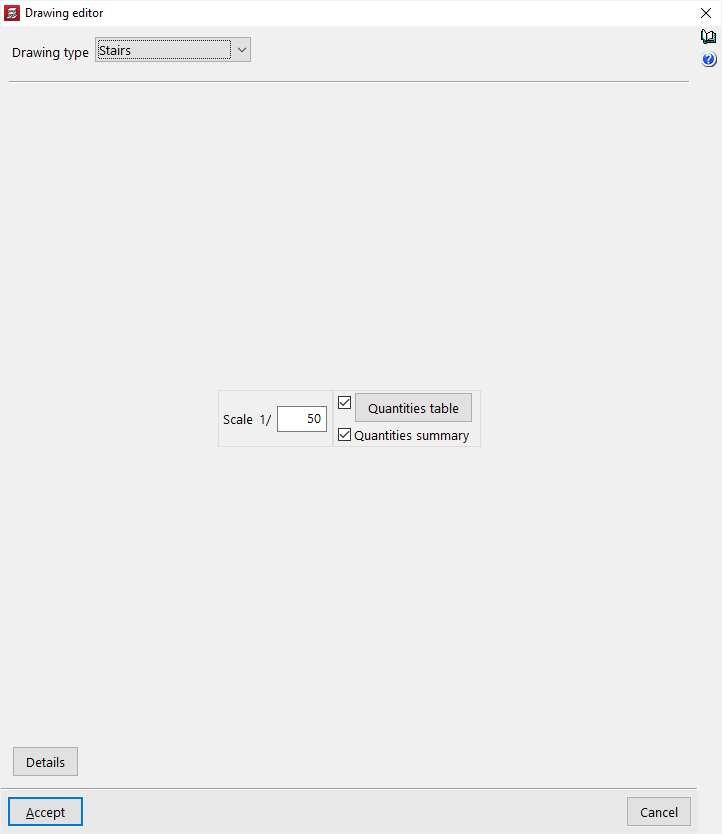
The "Drawing editing" window allows the desired drawing to be selected and its configuration adjusted, and appears when adding a new drawing or editing an existing one from the "Drawing selection" window.
Within this window, in the first drop-down list, the "Drawing type" is selected. Among the available types are the following:
- Column detailing
- Floor plans
- Frame drawings
- Setting-out drawing
- Column schedule
- Loads to foundations
- Load plan
- Short corbel drawing
- Contour plots
- Elevation of reinforced concrete and masonry walls
- Stairs
- 3D structures
| Note: |
|---|
| The project must be analysed for all the drawings that the program is capable of generating with the model information to be available. |
In the central area, different detailed configuration options are shown, where it is possible to adjust the visibility of the various elements, the selection of groups to be printed, the drawing scale, or the size of pens and texts.
Details
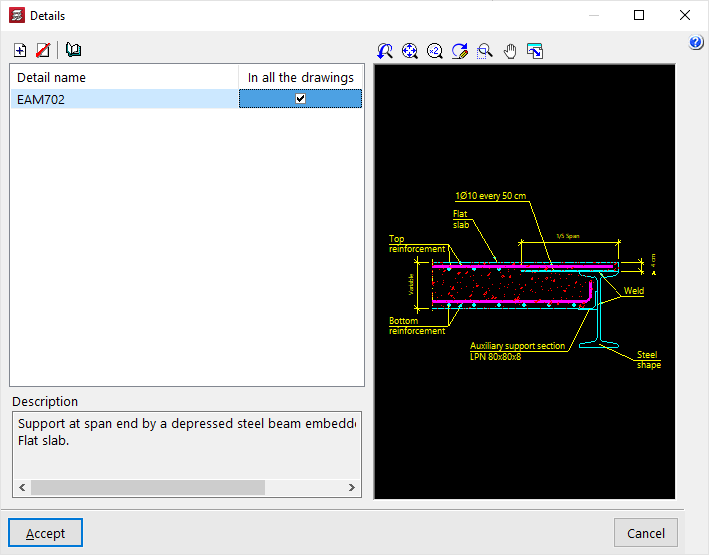
Optionally, construction details can be added to the drawing. To do this, click on "Details" at the bottom.
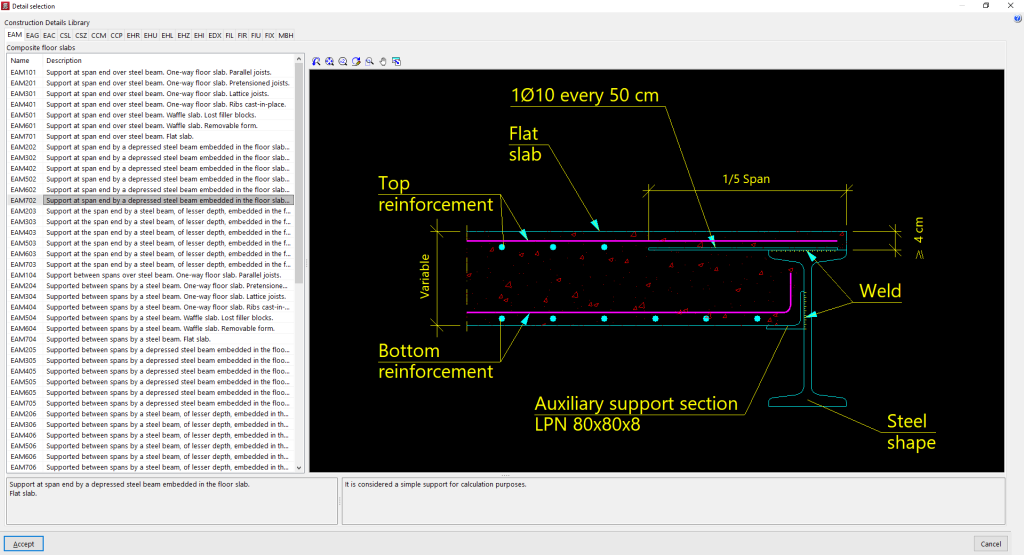
In the window of the same name, by clicking on "Add", it is possible to access the program’s "Construction detail library", where all the available details are shown organised into different tabs. After selecting a detail, click on "Accept" to add it to the drawing. It must be indicated whether the detail is shown "In all drawings" or not.
It is also possible to "Add a user detail" by creating a custom detail library and loading DXF or DWG files saved on disk into it.
After clicking "Accept", the program returns to the "Drawing editing" tab.
Drawing composition and printing
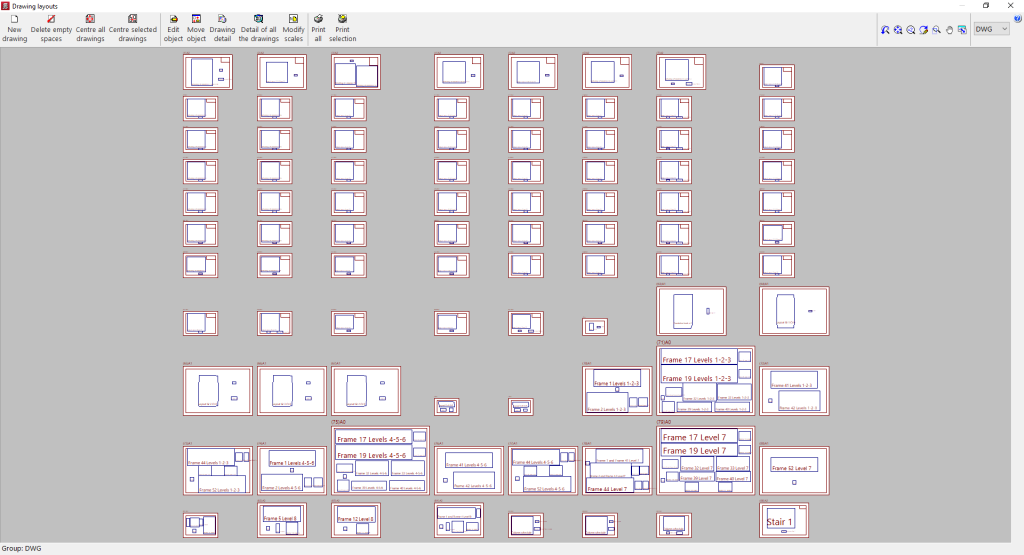
Once all the desired drawings have been loaded into the list, accepting the "Drawing selection" window opens the "Drawing composition" window, where a preview of the drawings to be generated and the drawings they contain is provided.
In this window, some limited operations can be carried out:
- New drawing
Creates a new drawing by choosing its format. - Delete blanks
Deletes empty drawings that contain no drawings. - Centre all drawings
Restores the original position of the drawings on all drawings. - Centre selected drawings
Restores the original position of the drawings on the selected drawings. - Edit drawing
Moves elements (such as texts) within each drawing. - Move drawing
Moves the selected drawings to change their position or place them on different drawings. - Modify scales
Allows the scale of some types of drawing to be modified (for example, floor plans).
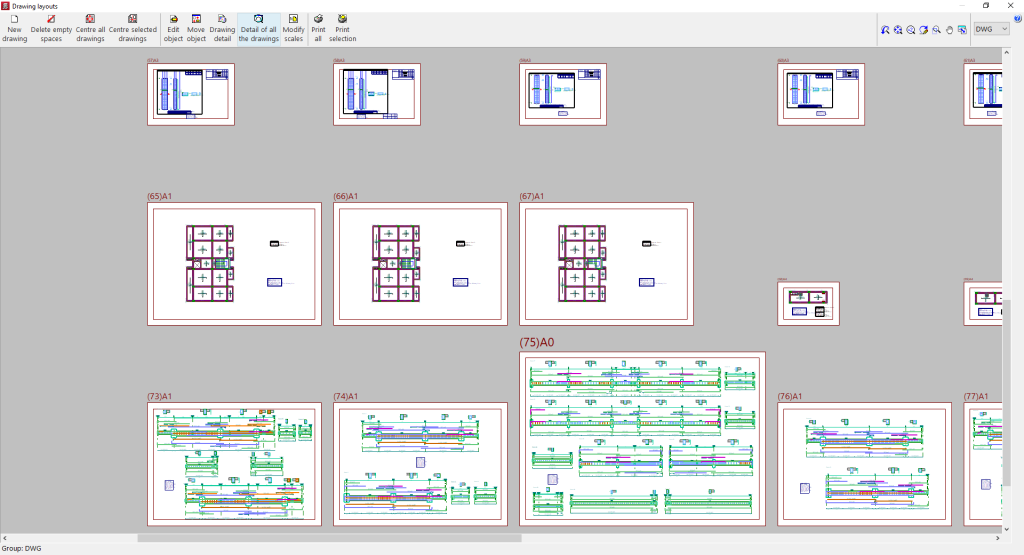
The drawings placed on the sheets are shown without detail so that the computer consumes fewer resources and allows the above operations to be carried out more quickly. If it is desired to see the detailed content of the drawings, the following options are used:
- Drawing detail
Shows the detailed information contained in the selected drawing. - Detail of all drawings
Shows the detailed information contained in all drawings.
Finally, to print the drawings, the following options are available:
- Print all
Prints all drawings. - Print selected
Prints only the selected drawings.
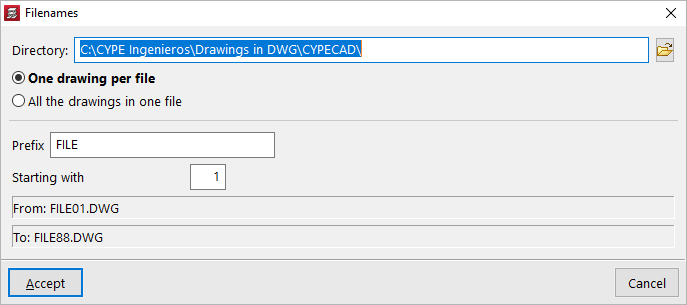
If export to .dxf or .dwg files has previously been selected, the program will ask for the "Directory" and the "File name" to be specified.
If several drawings have been selected, it is also chosen whether each drawing is included in a separate file (which will generate a set of files), or whether all drawings are generated in a single file:
- Each drawing in a file
- All drawings in a single file
Upon accepting, the drawings will be generated in the selected directory. Optionally, if only a single file is being generated, it can be "Shown with the associated program" for reading that file format.