Editing drawings and groups
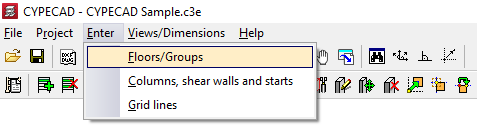
To access the floor and group editing tools in CYPECAD, within the "Column input" tab, open the "Enter" menu and select the "Floors/Groups" option.
This allows you to access a menu that includes the following options:
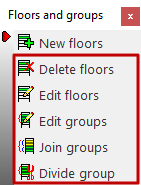
- New floors
- Delete floors
- Edit floors
- Join floors
- Divide floors
Each of these features is detailed below.
Delete floors
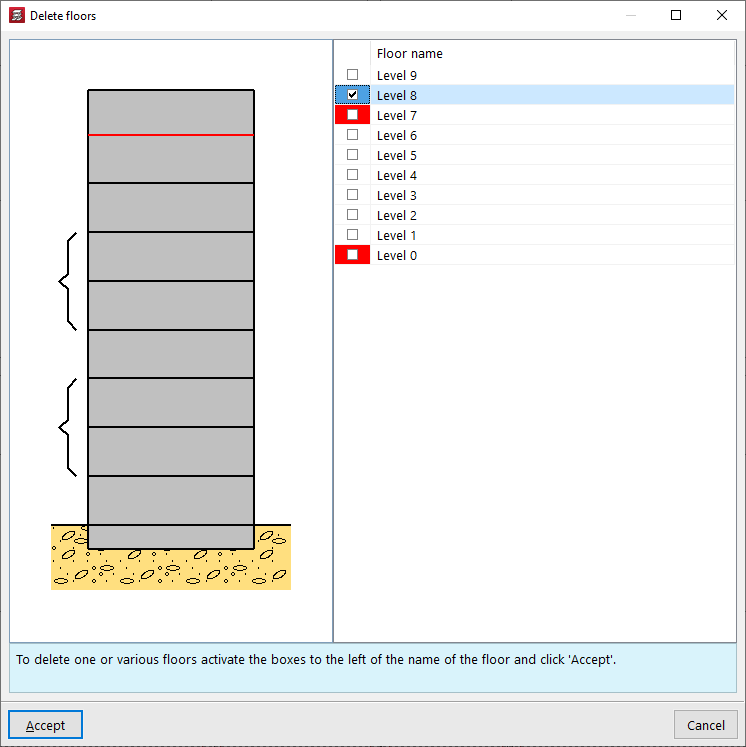
To "Delete floors", select the option, tick the boxes corresponding to the floors you wish to delete, and confirm.
| Note: |
|---|
| It is not possible to directly delete the floors marked in red, as they coincide with the start or end floor of a wall. In this case, you must edit the wall from the "Beam input" tab in order to subsequently delete the floor. |
Edit floors
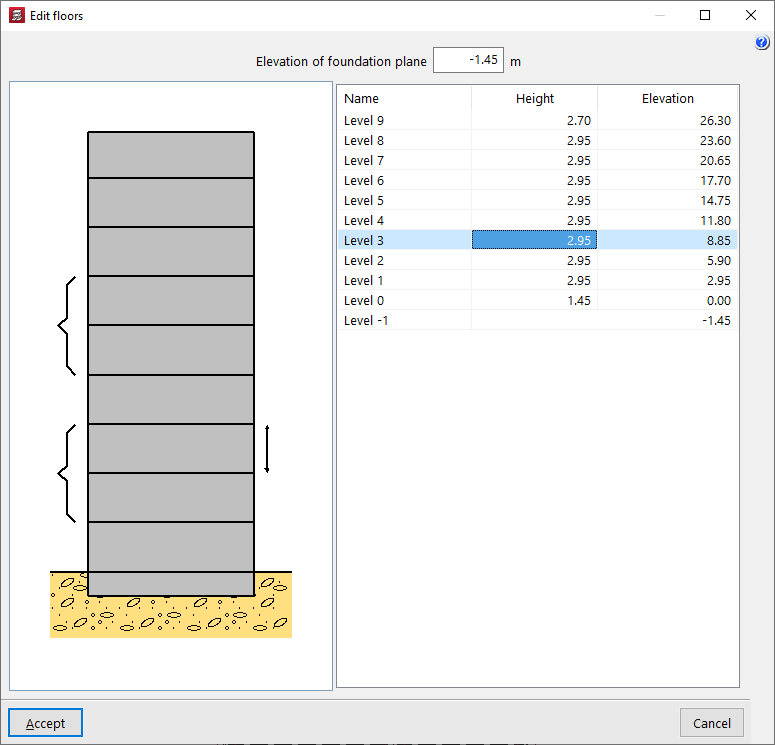
The "Edit floors" option allows you to modify their "Height" and consult the absolute "Elevation" above ground level. The floor height being modified is represented as a linear elevation between floors in the attached diagram.
The "Foundation level" is also modified in this window. The value indicated here will be used to define the level of the first group: if it is negative, the building will have a buried part. This will be shown in the attached diagram through the representation of the terrain.
| Note: |
|---|
| The program will not generate wind action (if this option is activated in "General data") on groups located below ground level. |
Edit group
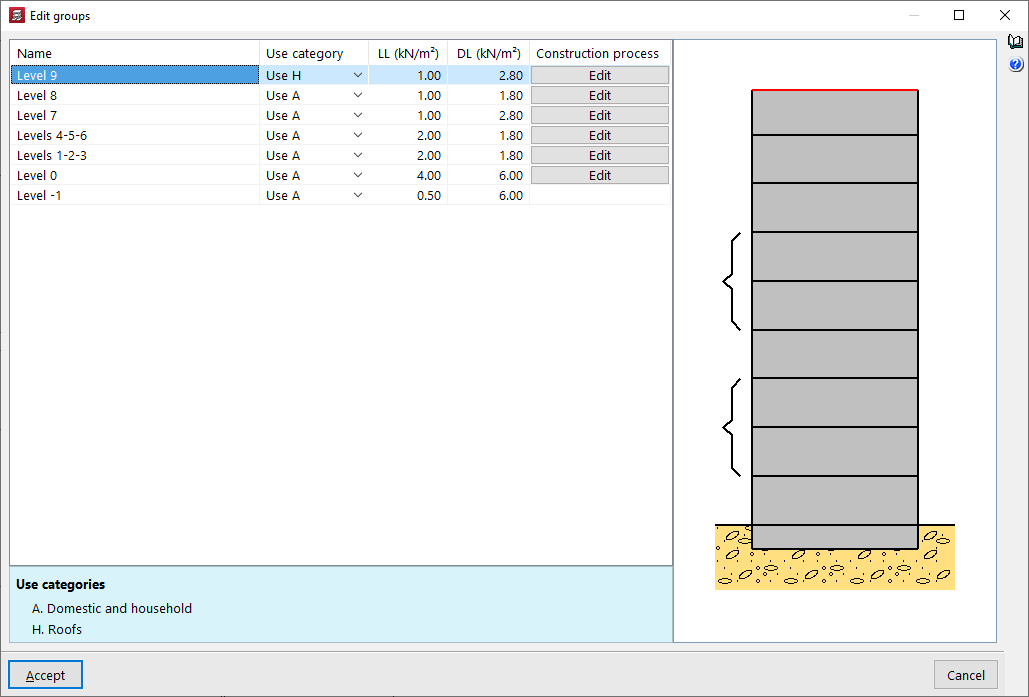
The "Edit groups" option allows you to modify the "Name" of each group, as well as define the "Use category" associated with it, and enter the numerical value of the live loads and dead loads that apply to the floors in the group.
In the attached diagram, the program shows the floors belonging to each group in square brackets. The floors in the selected group will be coloured red.
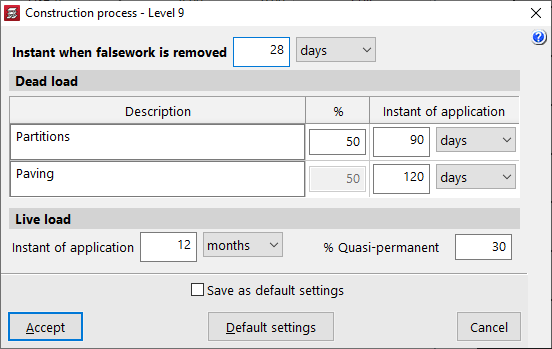
Additionally, the program allows you to "Edit" the "Construction process" for each of the groups.
You can modify the "Instant of falsework is removed" and the "Instant of application" of the "Dead loads" (e.g., partition walls and flooring) and the "Overload" of use, also indicating the percentage of overload considered quasi-permanent (% Quasi-permanent).
These options are used to adjust the analysis of the deflection of the structural elements.
Join groups
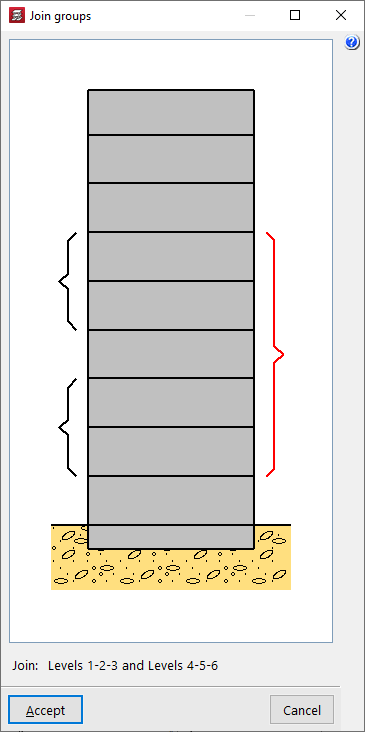
The "Join groups" option allows you to merge adjacent plant groups. When selecting multiple plants, the program will ask which group's beam and load information you wish to retain.
| Note: |
|---|
| In general, it is not recommended to group more than three or four floors to avoid oversimplification. For this reason, the program allows for the grouping of up to five consecutive floors. |
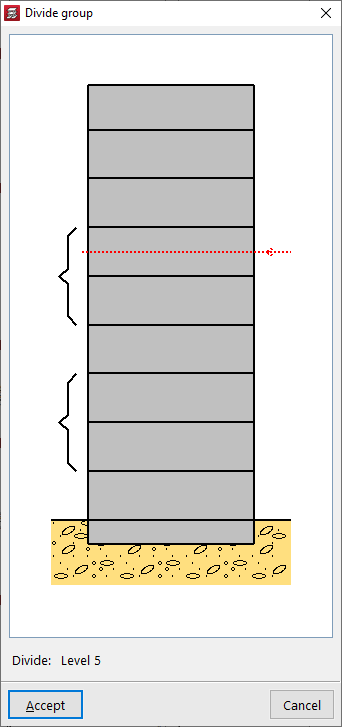
Divide groups
The "Divide groups" option allows you to perform the opposite action to merging: the program will split the selected group and generate several groups separated by the line entered in the graph.