Grouping frames
The following options in the "Beams/Walls" menu on the "Results" tab allow you to manage frame groupings.
| Note: |
|---|
| These options are only available for codes that do not allow the use of the advanced beam editor. For projects using modern codes, you can use the options in the "Beam alignments" menu under the "Beams" menu in the "Beam input" tab, or the options for copying reinforcement between frames in the "Beams/Walls" menu in the "Results" tab. |
Frame groupings allow you to consolidate the results obtained for several similar frames and make them easier to edit. Thus, modifying the standard frame automatically affects the grouped frames, and vice versa. Furthermore, the beam plan will show a single frame per group, listing all the references belonging to the grouped frames (frame numbering, bracing, columns, beams, etc.).
To avoid errors when grouping frames, they must have the same number of bays.
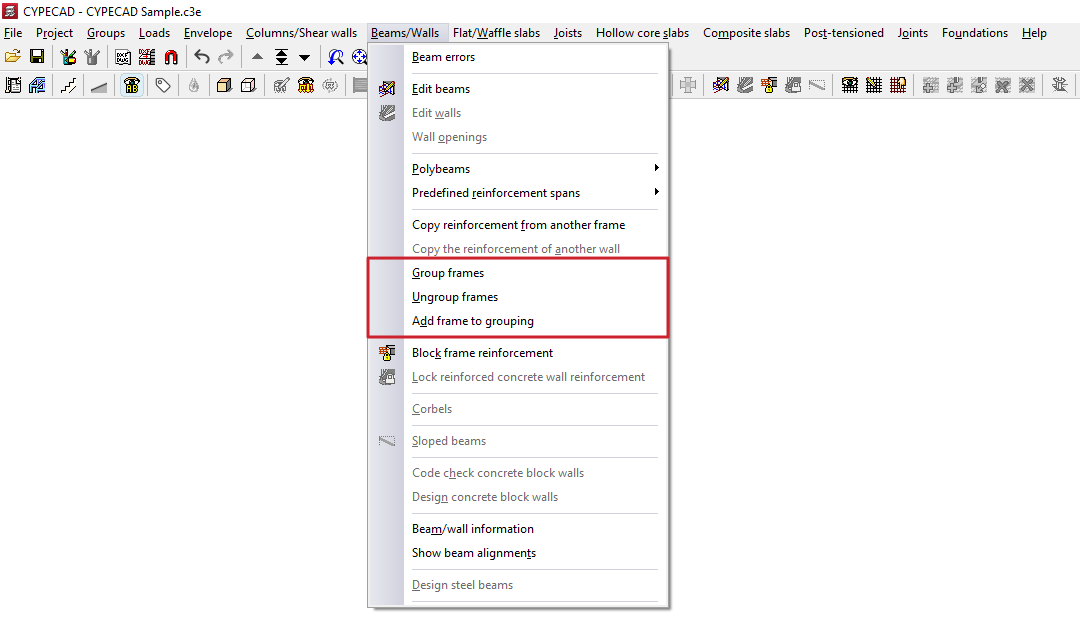
Group frames
This option allows you to group frames together.
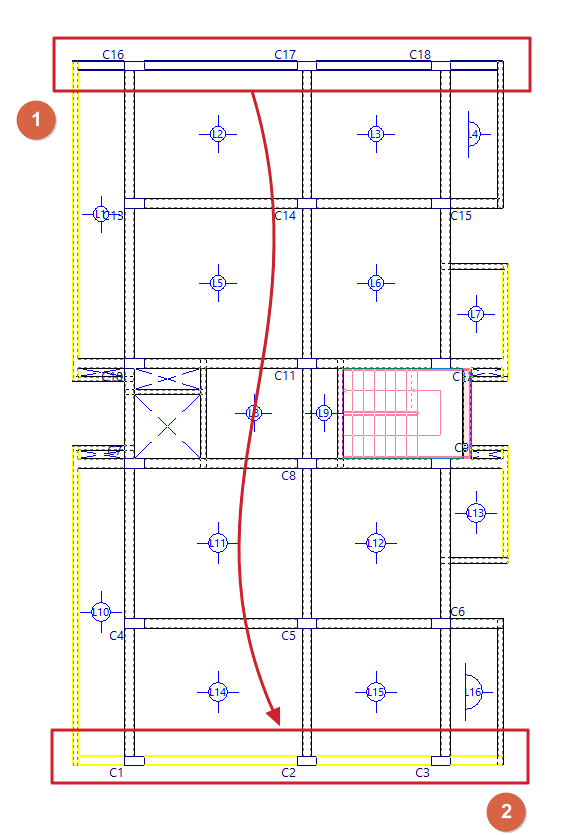
To do this, after clicking on this option, use the left mouse button (1) to select the type of frame (which will be highlighted in blue) and then (2) the frames to be grouped (which will be highlighted in green). When selecting the frame to be grouped, the program will display a warning message if it cannot be grouped and the reason why. Clicking the right mouse button and accepting the dialogue box that appears creates the group.
The frame type will appear in the drawing, in the reports, and in the reinforcement editor. Grouped frames are treated as identical to the type, except for their references.
| Note: |
|---|
| When grouping frames, no checks are carried out to ensure compliance within the grouped frames; therefore, these must be similar in terms of span and reinforcement. |
Ungroup frames
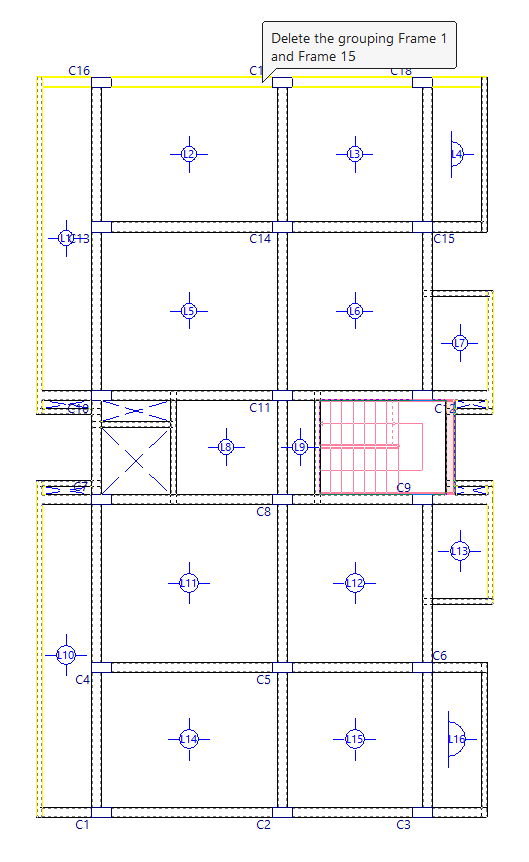
This option allows you to undo a previously created group of frames, restoring them to independent frames.
When you use this option and hover the cursor over a group of frames, the program will display a tooltip showing the references of the frames in the group. Clicking the left mouse button will ungroup them.
Add frames to group
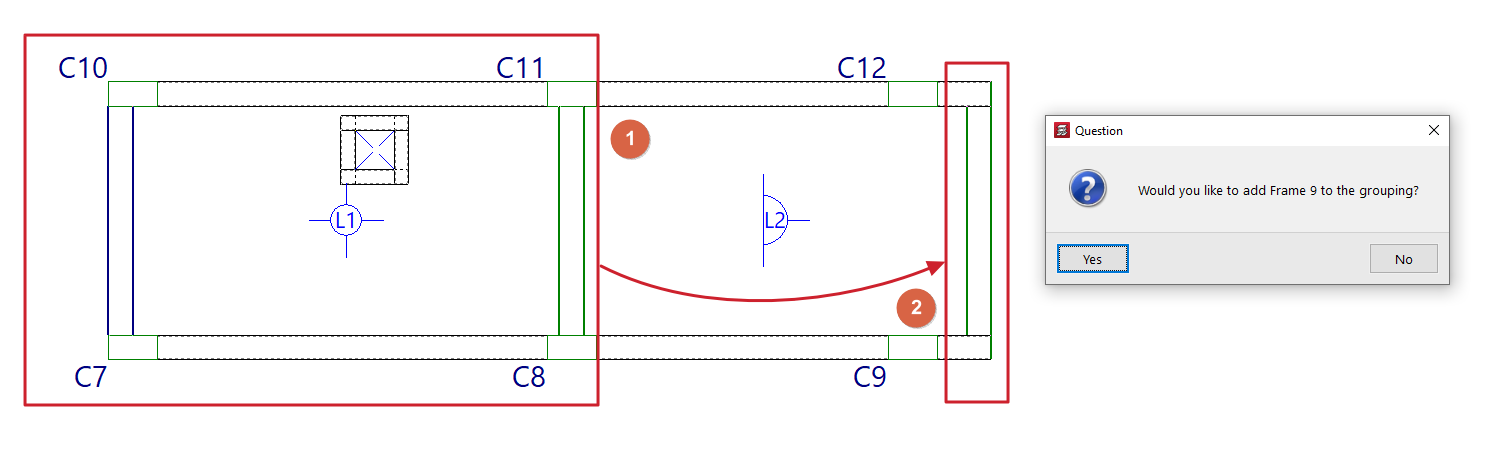
This option allows you to add new frames to an existing group.
To do this, after clicking on the option, select a grouped frame (1) and then one or more ungrouped frames that you wish to add to the group to which the first selected frame belongs (2). Right-click and confirm the dialogue box that appears to add them to the group.