Matching, editing and assigning reinforcement for top reinforcement in joist floor slabs
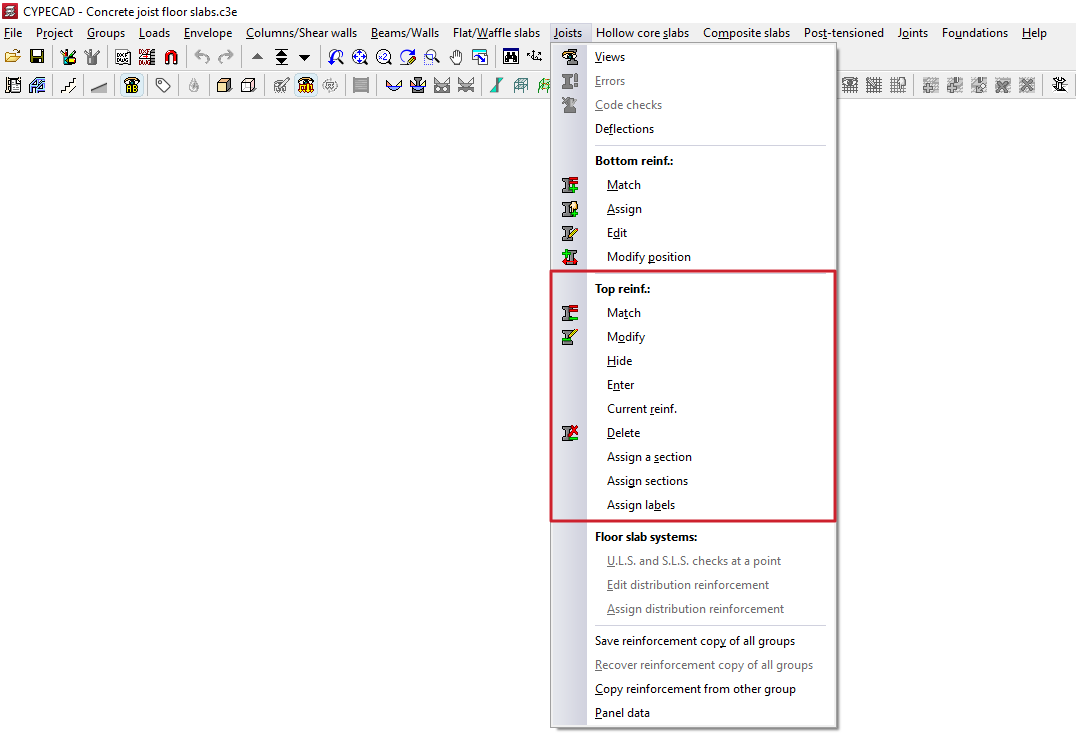
The tools in the "Top reinf." section of the "Joists" menu, within the "Results" tab, allow you to modify the negative reinforcement obtained in the joist floors following the structural analysis.
Changes made using the tools in this section are not retained in subsequent redesigns; therefore, they should only be used during the final adjustment stage prior to printing or exporting the data.
Each of the available tools is described below.
Match
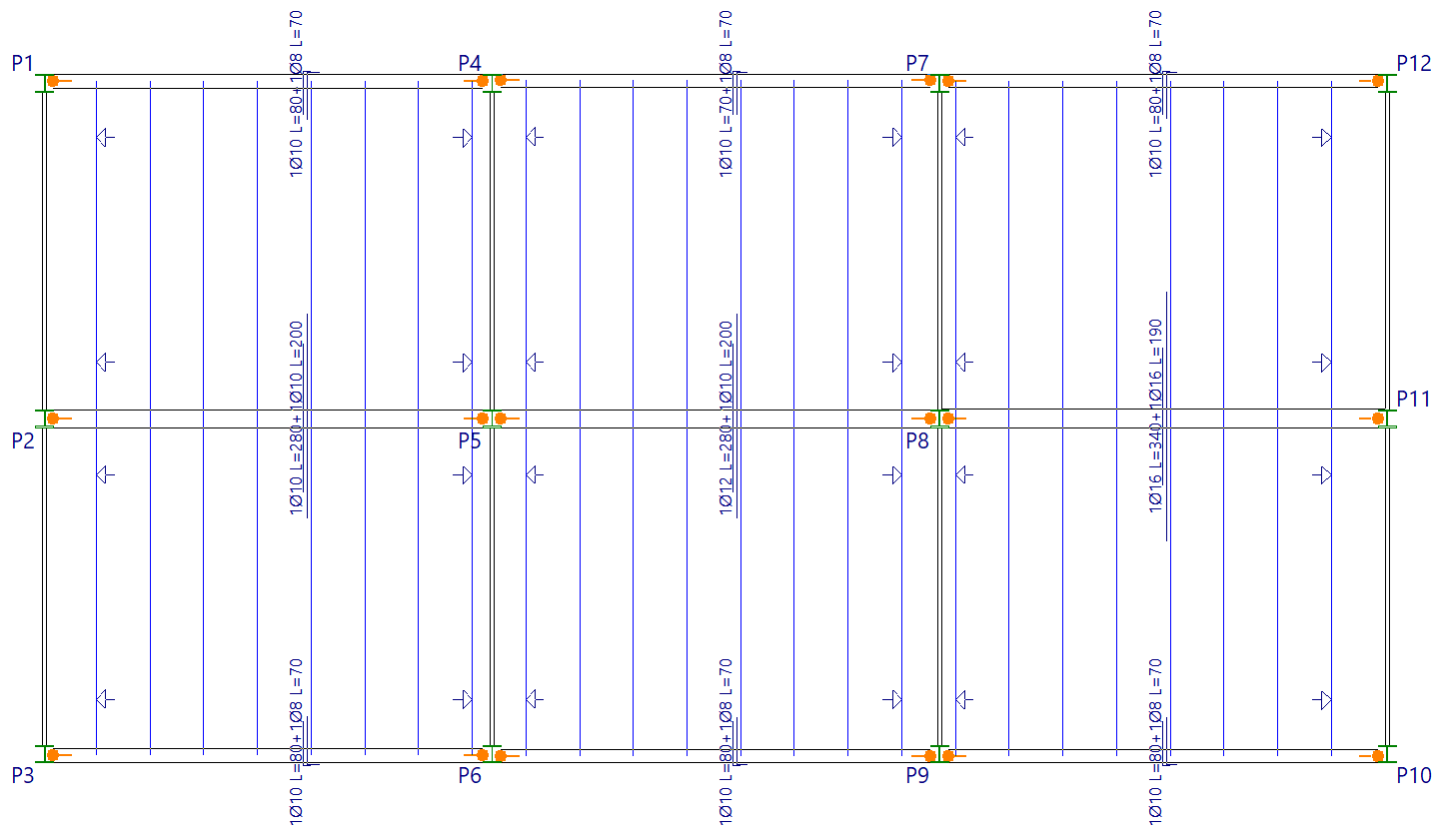
The "Match" option allows you to match the lengths of the reinforcement bars in the top reinforcement.
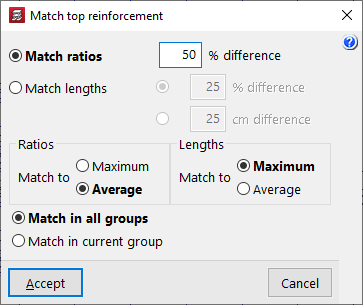
In the pop-up window that appears when you click this option, you can configure the alignment. This can be by amount or by length:
- If "Match ratios" is selected, the reinforcement bars for continuous joists are grouped together where the actual steel quantity does not differ from the percentage specified. Next, depending on the option selected, all the top reinforcement is adjusted to match the highest actual quantity in the group, or the average quantity of the group is analysed, and the nearest higher reinforcement from the corresponding table is taken. Once the diameters of the top reinforcement are the same, the lengths of the reinforcement are adjusted to the longest length or the average length of the group, again depending on the selected option.
- In the "Ratios" section, select one of these two options:
- Match to "Maximum"
All negative values are set to the highest actual value in the group. - Match to "Average"
The average value for the group is analysed, and the nearest higher value from the corresponding table is selected.
- Match to "Maximum"
- In the "Lengths" section, select one of these two options:
- Match to "Maximum"
All the lengths of the negative arrays are set to the longest length in the group. - Match to "Average"
The average length of the group is analysed, and all the lengths of the negative frames are set to this length.
- Match to "Maximum"
- In the "Ratios" section, select one of these two options:
- If "Match lengths" is selected, the top bars for continuous joists with the same reinforcement are grouped together where their partial lengths (on both sides) do not differ by more than the specified percentage or value. The partial lengths of the reinforcement are matched to the longest length or the average length of the group, depending on the option selected.
- In the "Lengths" section, select one of these two options:
- Match to "Maximum"
All the lengths of the top reinforcements are set to the longest length in the group. - Set to "Average"
The average length of the group is analysed, and all the lengths of the top reinforcements are set to this length.
- Match to "Maximum"
- In the "Lengths" section, select one of these two options:
It is also possible to "Match across all groups" of floor plans on the project, without having to switch floor plans, or simply to "Match within the current group".
Modify
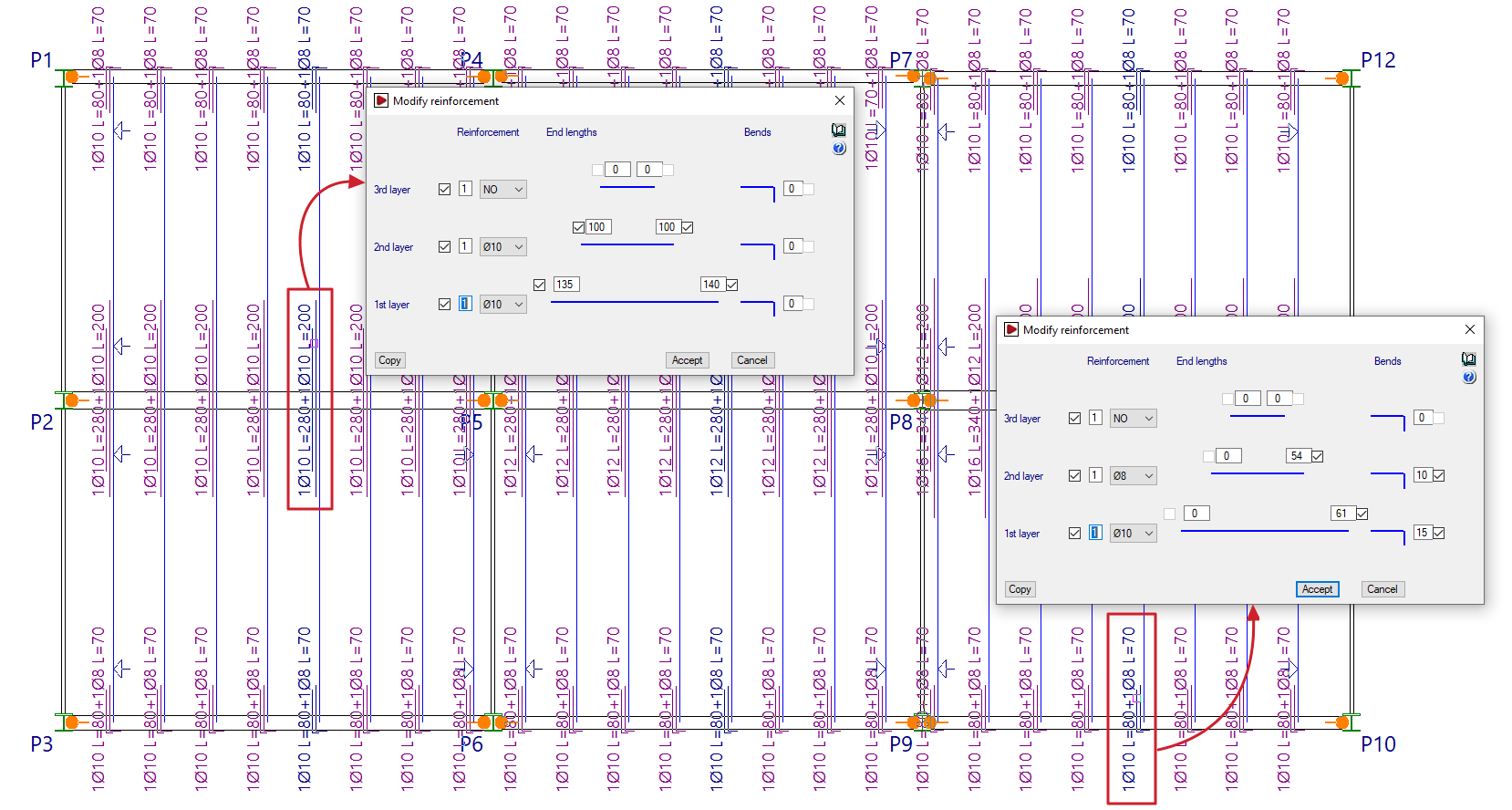
The "Modify" option allows you to change the number, diameter and length of the reinforcement bars in the top reinforcement. It also allows you to add or remove layers or reinforcement groups.
To do this, select the reinforcement to be modified by drawing a box on the plan view.
In the "Modify reinforcement" window that appears, you can modify the "Reinforcement" in the "1st layer", "2nd layer" and "3rd layer" by specifying their number and diameter. You can also enter the "End lengths" (or the lengths of the reinforcement bars on either side of the beam axis), or the length of the "Extensions" (which the program adds in cases where the negative sections meet a slab edge).
The lengths of bars anchored in a straight extension are measured from the nearest beam centreline, whilst the lengths of bars anchored at the end indicate the length from the bend point.
The "Copy" option allows you to extract data from a selected top reinforcement on the floor plan, whilst "OK" applies the data entered in the window to the reinforcements selected when using the option.
Hide
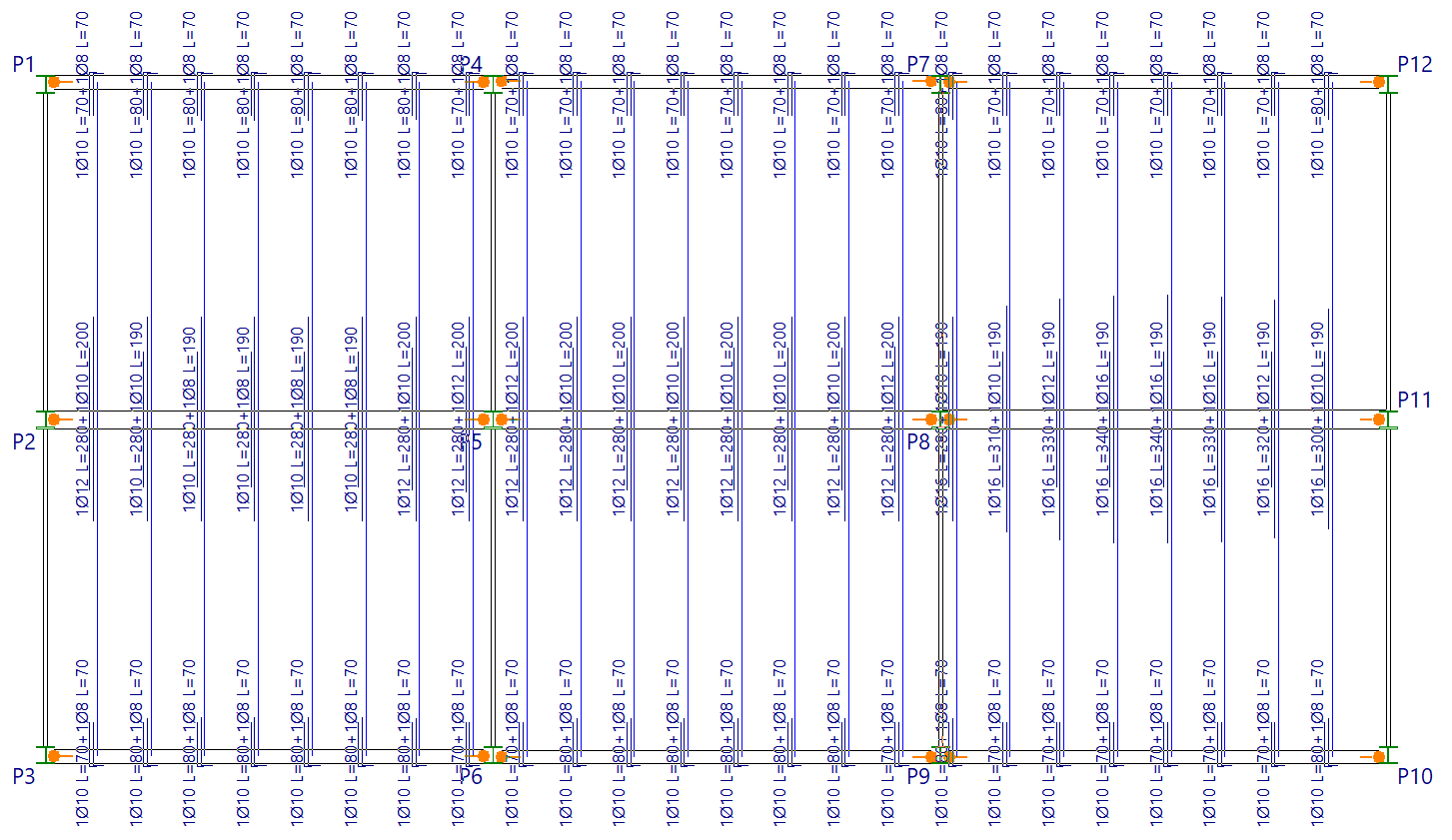
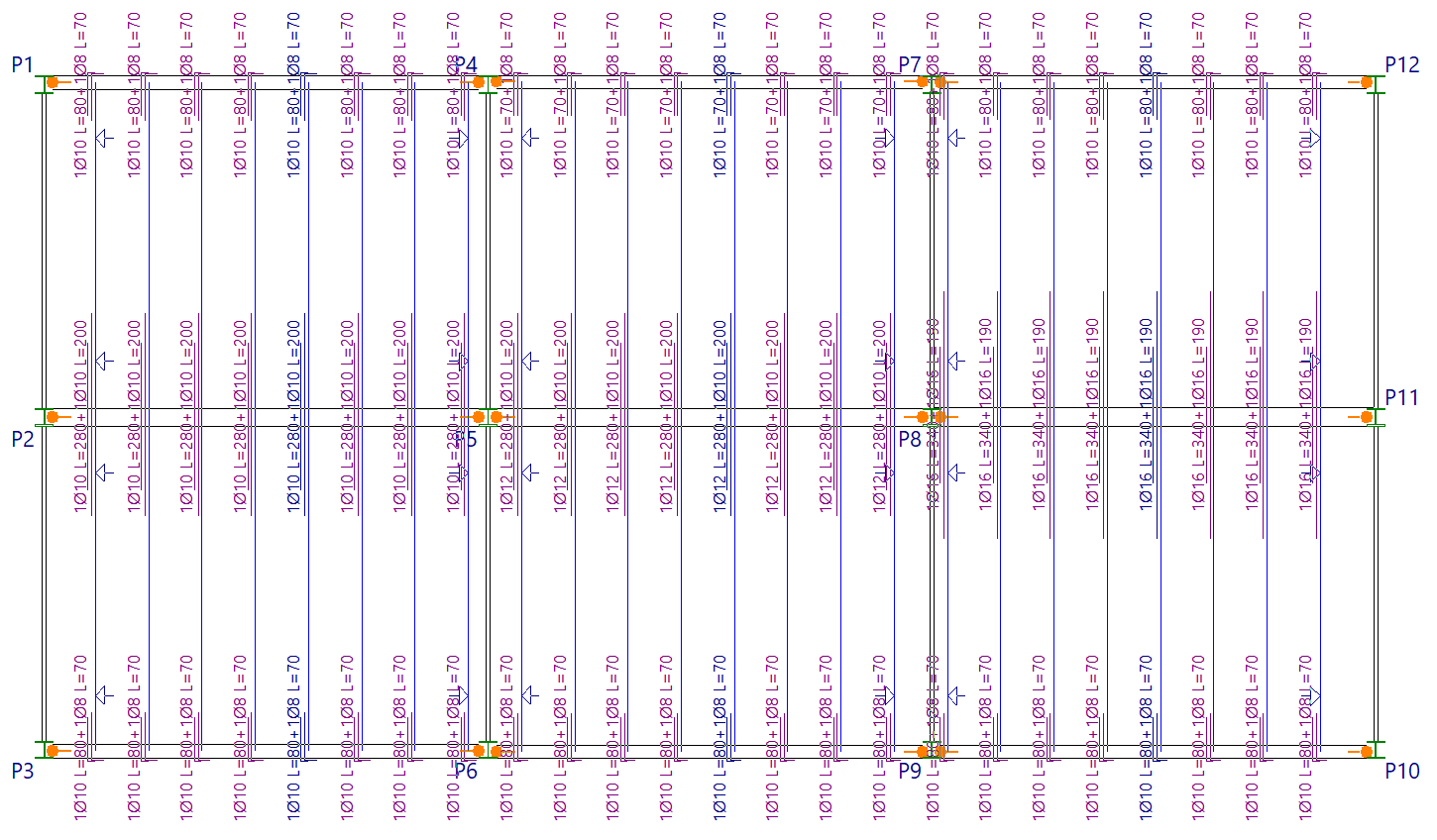
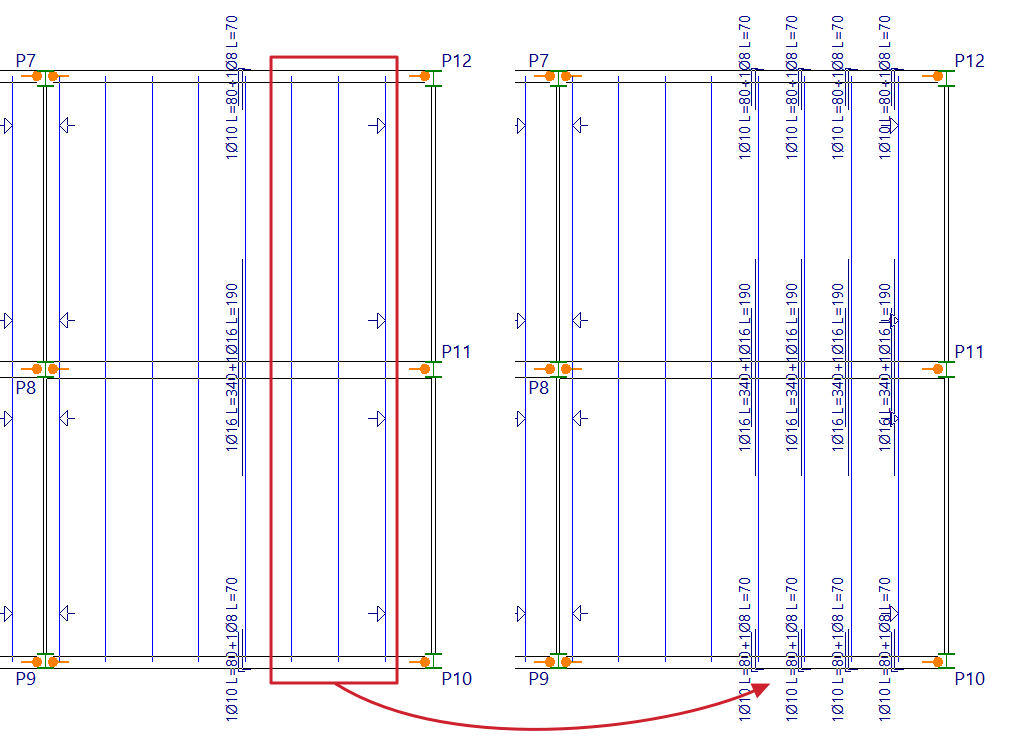
After selecting the "Match" option, the program automatically determines which negatives are to be labelled on the layout: those to be labelled appear in blue, whilst those that will not be labelled are shown in magenta.
If you wish to display components on the drawings other than those automatically selected by the program, you can use the "Hide" option to select which components to show or hide on the drawing.
Enter
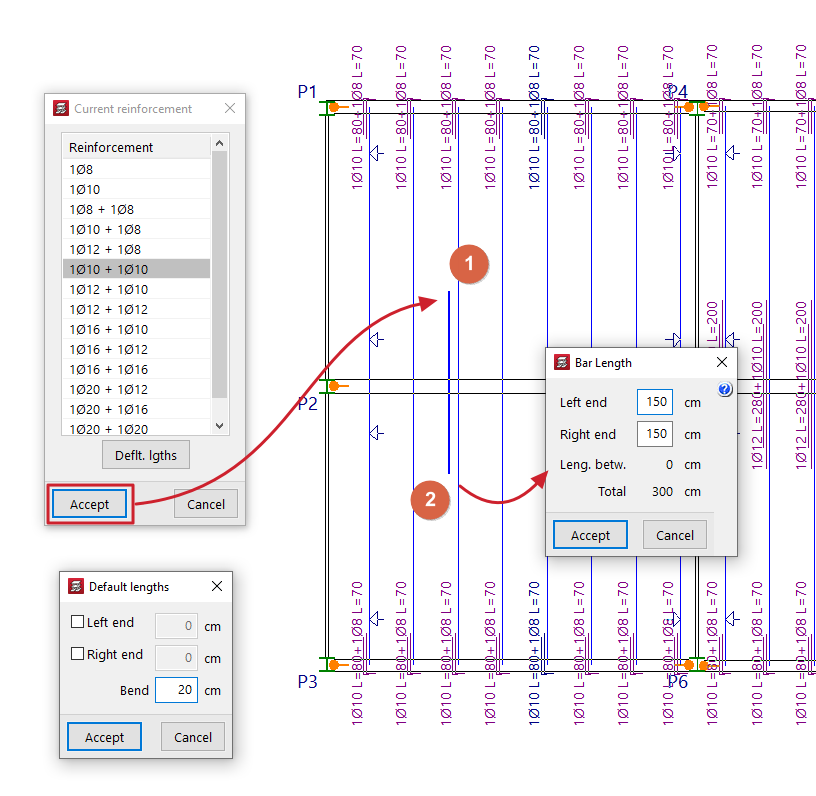
The "Enter" option allows you to insert negative reinforcement bars above the joists.
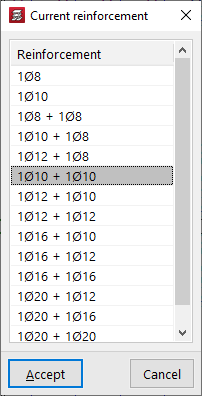
When you click on the option, right-clicking allows you to select the "Current reinforcement" from those available in the negative reinforcement table defined in the project.
Next, left-click on two points on the plan view near a joist to position the assembly, either on both sides of an intermediate support, or near an edge support and at another point beyond the edge of the floor slab. In the box that appears, you will need to confirm the lengths of both ends, or of one of the ends and the length of the brace, as appropriate. When you click "Accept", the specified reinforcement will be drawn.
You cannot insert bars where assembly packages have already been defined: in this case, you must use the "Modify" option if you wish to add new bars or edit their data, or first delete the existing top reinforcement packages in order to use the "Enter" option.
Current reinforcement
Selecting the "Current reinforcement" option opens a window displaying the reinforcement table for the formwork defined in the project. The reinforcement selected here will be the default value that appears when using the "Enter" option.
Delete
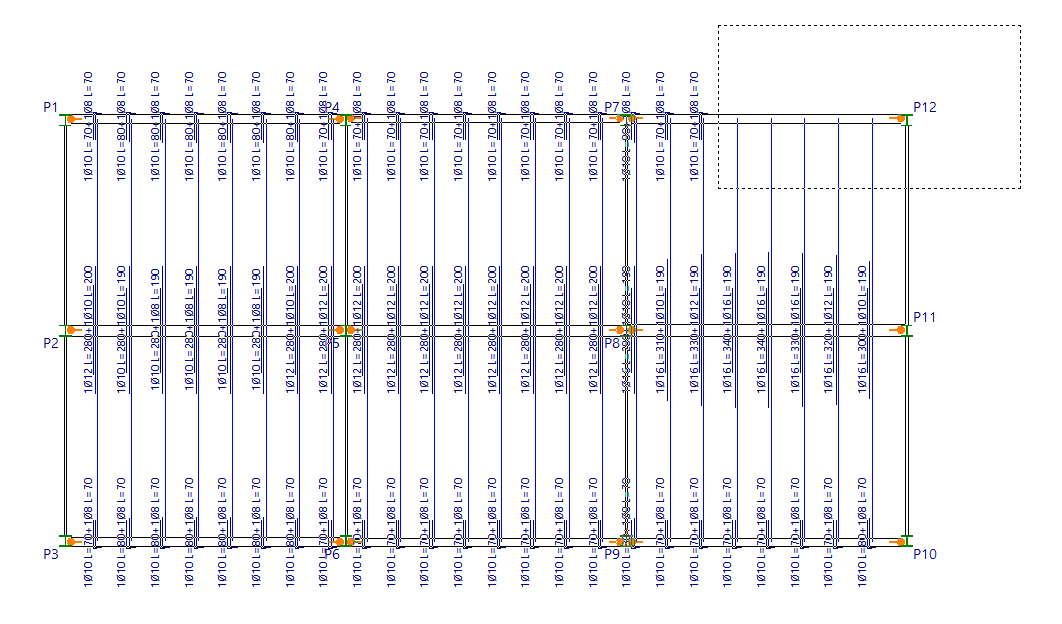
The "Delete" option allows you to remove reinforcement bars from drawings.
To do this, the bars to be removed are selected using a selection box on the plan view.
Assign a section
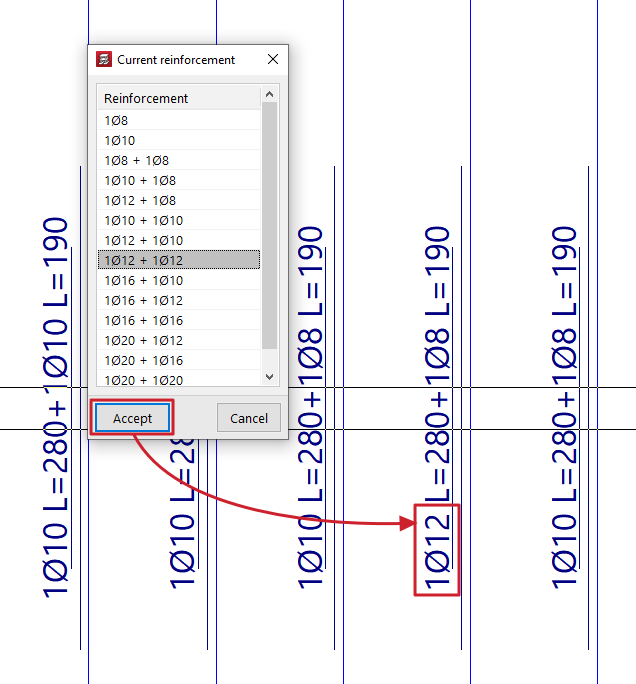
The "Assign a section" option allows you to change the diameter of a single bar in the selected negative reinforcement.
Clicking the right mouse button opens the "Current reinforcement" window, which allows you to select the standard diameter to be assigned from those available in the negative reinforcement table defined for the project.
Assign sections
The "Assign sections" option allows you to change the diameters of the selected group of negative reinforcement bars.
Right-clicking opens the "Current reinforcement" window, which allows you to select the reinforcement package to be assigned from those available in the negative reinforcement table defined in the project.
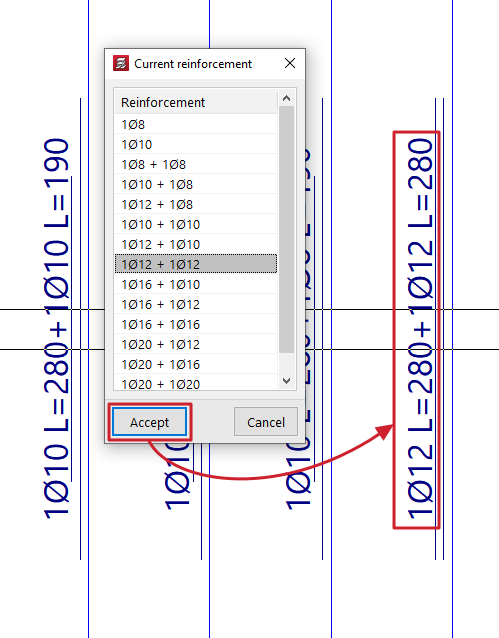
Assign labels
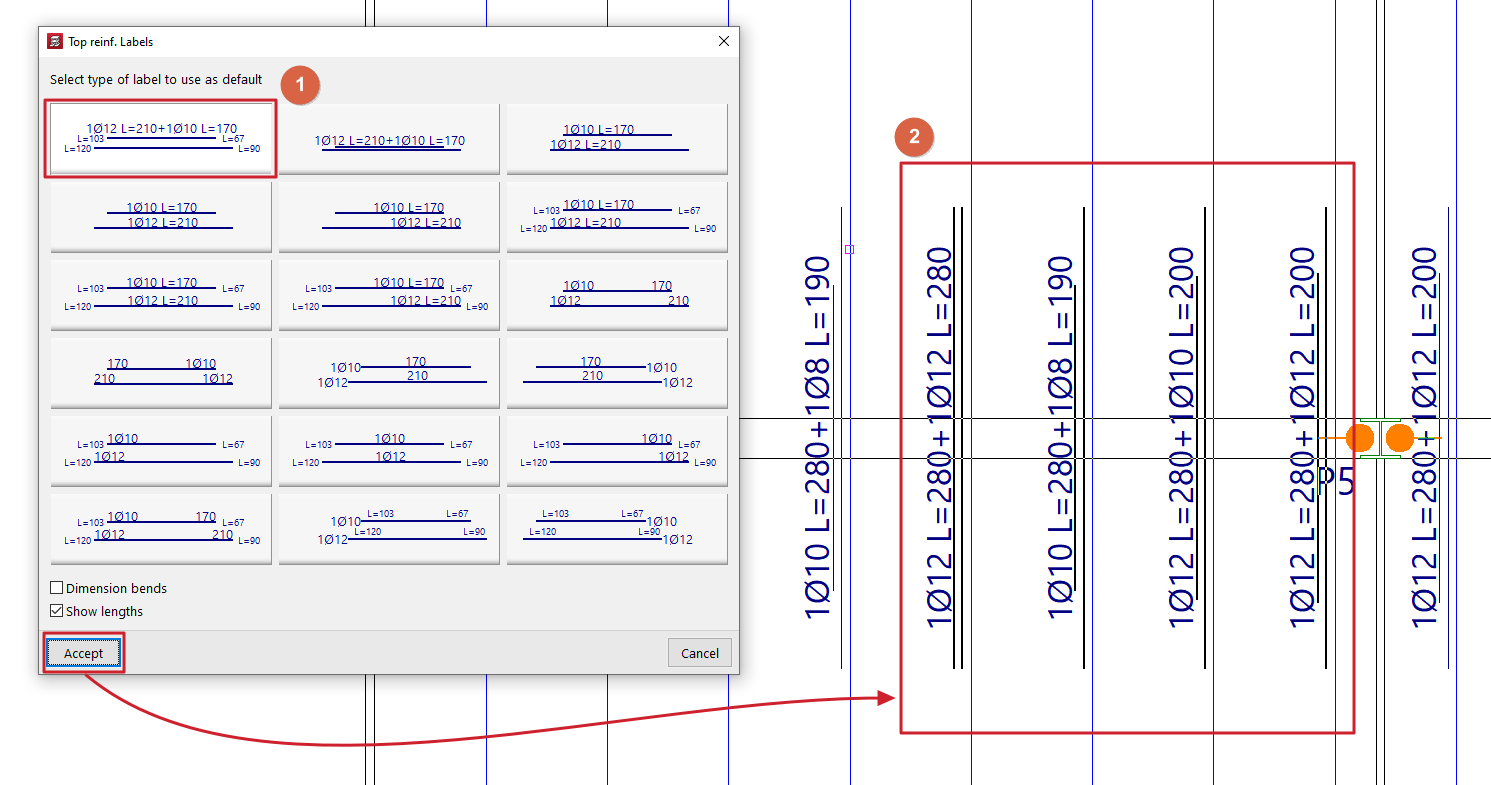
The "Assign labels" option allows you to assign the type of labelling for joist negative assemblies on screen. This change affects the drawings but not the on-screen display. If the project is redesigned, these changes will not take effect. If you want these changes to be permanent and apply to all floors, you must use the "Views" option.