

Creating a new job, linking to a project and importing data
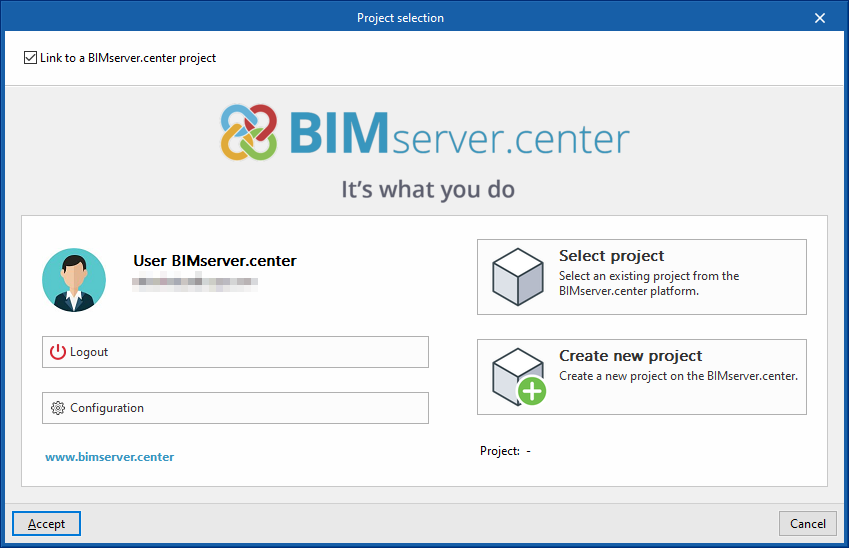
When launching the application and clicking on "New", it is possible to create a "New job". After entering the "File name" and "Description", the job can then be integrated into an existing project in BIMserver.center.
This is done in the "Project selection" window, which has the following options:
- On the left-hand side, users can log in with a BIMserver.center account.
- On the right-hand side there is a "Select project" option to choose an existing project. There is also the possibility to "Create a new project". In this case, the created project will be visible from BIMserver.center from that moment on.
- There is the option to start the project without being linked to the BIMserver.center platform. To do this, simply uncheck the "Link to a BIMserver.center project" box at the top left.
Once the new job has been created, the general interface of the program is accessed, after going through the import wizard, if necessary. At any later time, during the work process, project files can be shared or imported via the "BIMserver.center" group, located at the top right of the general interface.

Importing BIM models
When creating a new job, if a project hosted on the BIMserver.center platform has been selected from "Select project", the "Import BIM models" window appears, which shows the files contained in this project in IFC format.
The application offers users the possibility of including one or more of the existing models in the project. To do so, check the "Import" box and accept it. The “Type” of each file must be set to “Starter” or “Additional”.
Subsequently, the 3D view of the program will display the imported models, both from the initiator and additional files. In addition, the program can import the geometry of floors and spaces from the file marked as the initiator by means of a configuration wizard.

Configuration wizard: selection of floor drawings and space types to be imported
From the "Import BIM models" window, the program opens the "Configuration" wizard, which consists of the following steps:
- In the first step, a report with the floor plans found in the BIM model is displayed. Here, the floor plans to be imported can be selected. The spaces included in a floor plan that has not been selected will not be imported.
| Note: |
|---|
| To modify, enter or delete drawings of the project at a later stage, the options on the left-hand side panel of the general interface can be used. |

- In the next step, a report with the space types found in the BIM model is displayed. Here, the space types to be imported can be selected. Spaces assigned to an unselected space type will not be imported.
| Note: |
|---|
| The imported space types must then be checked from the "Space types" option under the "General options" option in the "Project" group of the main toolbar. To enter the zones manually, use the "New" option in the "Spaces" group of the main toolbar. |

Import results
Finally, in the last step, an "Import results" table is displayed with the information of the processed, created, modified or deleted BIM model elements.

